You scanned the box of family photos. Half of them have a crease running through Grandma's face, a coffee stain on the wedding shot, and colors that faded to orange decades ago.
Now you need to fix them. And the gap between a fast AI patch and a result you can actually print at 8x10 is wider than most tools admit.
The photo editing software market sat at $5.862 billion in 2024 and is projected to reach $14.48 billion by 2035, according to Market Research Future (2025). Restoration is a growing slice of that, pushed by cheap AI upscaling and the fact that everyone's phone is now a scanner.
Here's the honest problem: Some tools remove a scratch and blur out the texture you wanted to keep. Others repair perfectly but demand hours of manual masking. The right pick depends on how much control you want versus how quickly you need something finished.
What's inside
This guide covers the best photo restoration software for 2026, from manual editors to one-click AI restoration tools. It's built for anyone repairing old family photos, and for marketers who occasionally need to restore or upscale imagery without filing a design ticket.
We picked these tools on four criteria that actually matter when you go from damaged scan to printable result:
- Repair quality: How well it handles scratches, tears, and fading without wrecking texture
- Colorization: Whether it can convert black-and-white photos and how natural the output looks
- Ease of use: Manual control versus one-click speed, and the learning curve between them
- Platform and pricing: Web, desktop, or mobile access, plus free tiers, subscriptions, and one-time licenses
TL;DR
- Best overall for manual control: Adobe Photoshop CC, if you want precision over automation and already live in the Adobe stack.
- Best free option: GIMP, a no-subscription desktop editor for people who want control without a bill.
- Best for simple AI restoration: LetsEnhance, browser-based repair and upscaling with no software install.
- Best for colorization: MyHeritage, the fastest path to repaired and colorized family photos.
- Best desktop restoration tool: PhotoGlory, a Windows app built specifically for scratches, tears, and fading.
- Best for beginners: Canva or Fotor, lightweight AI restoration inside editors you may already use.
What is photo restoration software?
Photo restoration software repairs damaged or degraded images by removing scratches, tears, stains, blur, fading, and discoloration, and often colorizes black-and-white photos into believable color. It sits between raw scanning and final print, turning a damaged input into something worth sharing.
The category splits into two camps. Manual editors give you brushes and layers to fix every flaw by hand. AI restoration tools do the heavy lifting automatically, then let you review the result. Most people end up using one of each, depending on the photo.
Core capabilities to expect:
- Scratch and tear repair: Healing and clone tools that rebuild missing image data
- Fading and color correction: Restoring contrast and true color to washed-out prints
- Colorization: Converting black-and-white photos to color, automatically or manually
- Sharpening and cleanup: Reducing blur, grain, and scan artifacts
- Upscaling for print: Raising resolution so a small scan prints at larger sizes
- Batch processing: Running the same fixes across many photos at once
For a growth marketer, the same tools double as production utilities. AI photo restoration tools upscale low-res assets for landing pages, clean up user-generated content, and salvage archival brand imagery without a designer in the loop.
The quality bar varies more than pricing suggests. Cheap tools often over-process, smoothing skin and edges into a plastic look. Better tools preserve grain and texture so the photo still reads as authentic. When you compare a photo restoration program, judge it on natural-looking output, not just speed.
When to use photo restoration software
Restore old family photos for archiving or gifting
This is the classic case. You have prints from before digital cameras, and they're the only copies. Scan them, then repair the damage before it gets worse. Output quality matters most here because the goal is a keepsake or a printed gift, not a thumbnail.
Repair scanned prints before printing or sharing
Scan quality drives everything downstream. A dusty flatbed scan carries specks and soft focus into your editor, so cleanup work compounds. Fix the scan first, then repair old photos with cleaner source material. The better your input, the less the software has to invent.
Colorize black-and-white photos for modern sharing
Automatic colorization works well on clear subjects like faces and skies. It struggles with ambiguous objects where the AI guesses. Use it to restore faded photos and add color for social sharing, then review the output manually. Treat automatic color as a strong first draft, not a finished result.
Comparison table
Seven tools, sorted by relevance to the restoration job. The list runs from manual pro editors to one-click AI apps, so you can match control to effort. Pricing and G2 ratings were checked against each vendor's live pages and G2 listings in August 2026.
| # | Product | Best for | Key differentiator | Pricing | G2 rating |
|---|---|---|---|---|---|
| 1 | Adobe Photoshop CC | Precise manual restoration | Healing, clone, and layer control for pro-grade repair | From $22.99/mo | 4.6 |
| 2 | GIMP | Free manual editing | Open-source healing and clone tools, no subscription | Free | 4.3 |
| 3 | LetsEnhance | Fast AI restore and upscale | Browser-based enhancement plus resolution upscaling | Free / from $9/mo | 4.6 |
| 4 | MyHeritage | Family-history colorization | One-tap repair and colorize built for genealogy | Free / paid annual | Not rated |
| 5 | PhotoGlory | Windows desktop restoration | Dedicated scratch, tear, and fade repair with colorize | From $19.25 one-time | 3.9 |
| 6 | Canva | Restoration inside design | AI restore, enhance, and colorize in a design editor | Free / from $144/yr | 4.7 |
| 7 | Fotor | Casual one-click editing | General AI editor with repair and enhancement | Free / paid | 4.2 |
Best 7 tools for photo restoration
1. Adobe Photoshop CC
Adobe Photoshop CC is the most flexible manual restoration option for experienced editors. Its healing brush, clone stamp, and layer system let you rebuild missing detail with pixel-level control. Generative AI tools now handle object removal and background fills, so you can repair a torn corner without cloning by hand. This is the tool when you want to control every fix rather than trust an algorithm.
Best for: Editors who want precision and are comfortable working across layers and masks.
Key features
- Healing brush and clone stamp for scratch repair
- Layer and mask control for non-destructive edits
- Generative AI object removal and background fill
- Precise color and contrast correction
- Desktop, web, and mobile editing
Why choose Adobe Photoshop CC: Choose it when output quality is non-negotiable and you have the skills or patience to work manually. The trade-off is a real learning curve and a subscription you keep paying.
Adobe Photoshop CC pricing: The standalone Photoshop plan starts at $22.99/month on an annual, billed-monthly commitment. The Photography plan runs $19.99/month, and a 7-day free trial is available, but there's no permanent free tier.
Photoshop holds a 4.6 rating on G2 across a large review base.
2. GIMP
GIMP is the best free manual editor for restoration-minded users who want control without a subscription. It offers healing tools, a clone stamp, and color adjustment layers similar to paid editors. Plugins and scripting extend it further, and its color management is strong for a free tool. The catch is a steep learning curve and an interface that feels dated next to modern apps.
Best for: Budget-conscious users who want hands-on repair power and don't mind a manual workflow.
Key features
- Healing and clone tools for damage repair
- Color management and adjustment layers
- Plugin and script extensibility
- Cross-platform desktop support
- Photo retouching and compositing
Why choose GIMP: Choose GIMP when you refuse to pay a subscription but still want manual control over every edit. The trade-off is time spent learning an interface that rewards patience.
GIMP pricing: GIMP is free and open-source, with no paid tiers or licensing cost. Download it and use every feature at no charge.
GIMP carries a 4.3 rating on G2.
3. LetsEnhance
LetsEnhance is an AI-driven option for people who want fast restoration and upscaling from a browser. Upload a damaged or low-res image, and its models restore, enhance, and raise resolution without any install. Batch processing handles multiple photos at once, which suits marketers cleaning a folder of assets. It leans toward automated output, so you trade fine control for speed.
Best for: Marketers and individuals who want quick AI repair and upscaling with no desktop software.
Key features
- AI image restoration and enhancement
- Resolution upscaling for print and web
- Background removal
- Batch processing for multiple images
- Browser-based, no install
Why choose LetsEnhance: Choose it when you need a clean, upscaled image in minutes and don't want to open a heavy editor. The trade-off is less granular control than a manual tool.
LetsEnhance pricing: The free plan includes 10 credits with no card required. Paid subscriptions start at $9/month billed annually, or $12/month billed monthly, with Pro and Max tiers above that.
LetsEnhance holds a 4.6 rating on G2.
4. MyHeritage
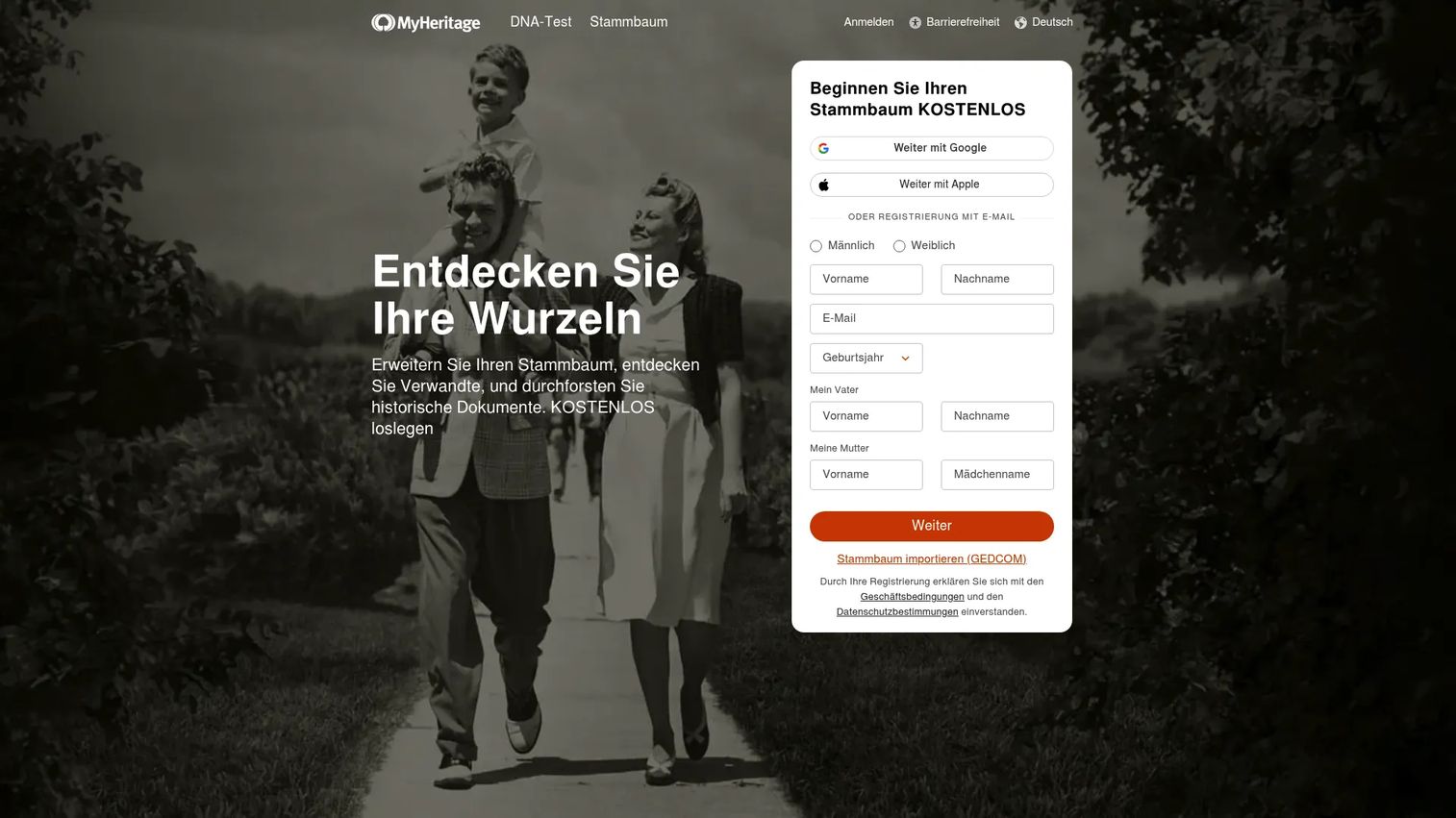
MyHeritage is the simplest option for family-history users who want fast repair and colorization. Its photo tools repair, enhance, and colorize old images in a tap, built around the genealogy workflow rather than pro editing. If your main goal is bringing black-and-white ancestors to color, this is the least technical path. It's a family-history platform first, so it isn't a full editor.
Best for: People researching family history who want quick, automatic photo repair and color.
Key features
- One-tap photo repair and enhancement
- Automatic black-and-white colorization
- Family tree and records integration
- Web and mobile access
- Simple, non-technical interface
Why choose MyHeritage: Choose it when you care about colorized family photos and speed over editing depth. The trade-off is limited manual control compared with a dedicated editor.
MyHeritage pricing: Basic family-tree access is free. Paid subscriptions (Premium, PremiumPlus, Complete, and Omni) are billed annually, and pricing scales with the genealogy features you add rather than the photo tools alone.
No verified G2 rating was available for MyHeritage at the time of writing.
5. PhotoGlory
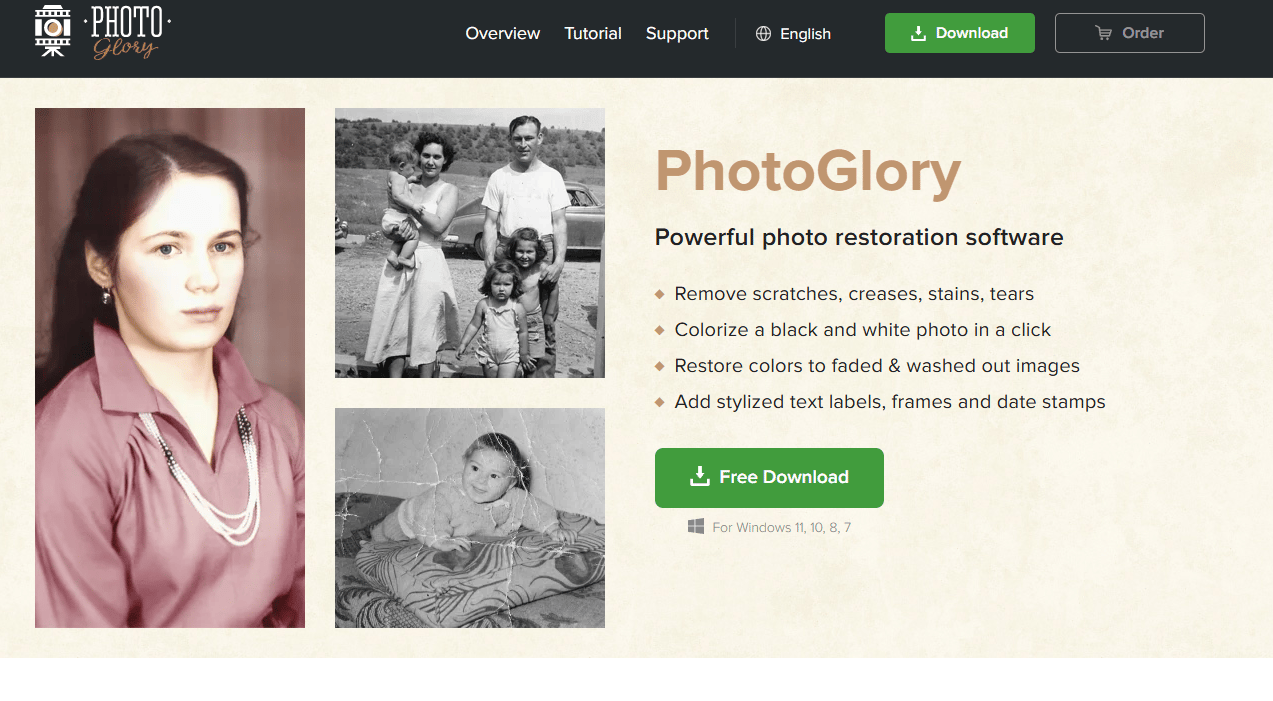
PhotoGlory is a Windows desktop restoration tool built for scratches, tears, stains, and fading. It offers both automatic one-click restoration and manual retouching, plus automatic and manual colorization. Batch mode restores and colorizes multiple photos at once, and it can convert negatives to positives. It's Windows-only, so Mac users are out.
Best for: Windows users restoring and colorizing old family photos without pro editing skills.
Key features
- Scratch, tear, and stain repair
- Automatic and manual colorization
- Batch restore and colorize
- Negatives-to-positives conversion
- 100+ filters, frames, and text tools
Why choose PhotoGlory: Choose it when you want a dedicated restoration app that's friendlier than Photoshop and cheaper long-term. The trade-off is the Windows-only limit and a smaller feature set than a full editor.
PhotoGlory pricing: Licenses are one-time purchases, with the Standard tier at a promotional $19.25, Deluxe at $29.40, and PRO at $39.20. A free trial download is available to test it first.
PhotoGlory holds a 3.9 rating on G2.
6. Canva
Canva is a solid lightweight AI restoration option for people already working in its editor. Its tools restore old photos, enhance quality, and colorize black-and-white images inside the same workflow you use for graphics. For a growth marketer, that means repairing an image and dropping it straight into a social post or ad without switching tools. It's not a specialist restorer, so heavily damaged photos may need more.
Best for: Marketers and creators who want quick restoration inside a design workflow they already use.
Key features
- AI restore old photos
- Photo enhancement and cleanup
- Black-and-white colorization
- Drag-and-drop design editor
- Direct export to social and print
Why choose Canva: Choose it when restoration is occasional and you value keeping repair and design in one place. The trade-off is less repair depth than a dedicated tool for badly damaged scans.
Canva pricing: The Free plan costs $0. Canva Pro runs $144/year for one person, Business is $250/year per person, and Enterprise is quote-based.
Canva holds a 4.7 rating on G2.
7. Fotor
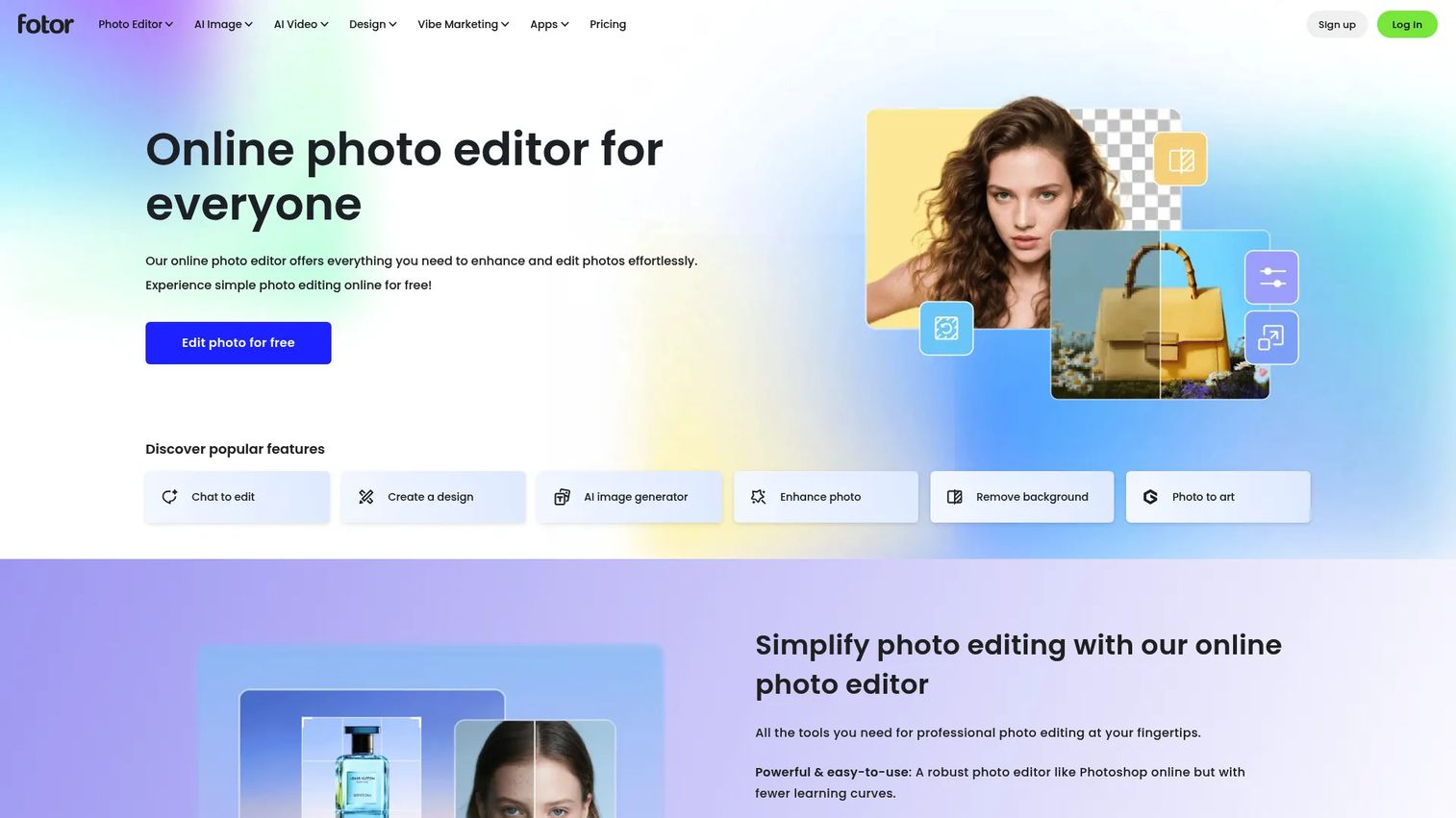
Fotor is a general AI photo editor that handles restoration and enhancement for casual users. Its one-click tools repair and sharpen images, and its broader editor covers design and generative AI on top. That makes it a decent all-rounder if you want photo repair plus lightweight design in one app. As a generalist, it won't match a specialist restorer on the hardest damage.
Best for: Casual users who want quick photo repair alongside general editing and design.
Key features
- One-click AI photo enhancement
- Basic repair and cleanup
- Graphic design templates
- AI image and video generation
- Web and app access
Why choose Fotor: Choose it when you want an easy, do-a-bit-of-everything editor and your restoration needs are light. The trade-off is shallower repair on severely damaged prints.
Fotor pricing: Fotor Basic is free forever. Paid Pro and Pro+ tiers add advanced features on a monthly or yearly toggle, with pricing shown on the vendor's pricing page.
Fotor holds a 4.2 rating on G2.
Considerations
Before you commit, run your pick through this checklist. The right tool is the one that fits your input, your skill level, and your output goal, not the one with the flashiest demo.
Input quality matters
Scan quality caps everything. A soft, dusty scan gives the software less to work with, so cleanup takes longer and results look worse. Rescan at higher resolution before you invest hours editing a bad source. Better input beats better software.
Choose manual control or one-click speed
Decide upfront how much control you need. Precise repair on an irreplaceable photo justifies a manual editor and the time it takes. A quick fix for a social post rewards a one-click AI tool. Matching effort to stakes saves both time and frustration.
Check platform fit
Confirm the tool runs where you work. PhotoGlory is Windows-only, GIMP and Photoshop are desktop-first, and LetsEnhance, MyHeritage, Canva, and Fotor run in a browser. Web tools win on convenience, desktop tools on control.
Review pricing and credits
Read the pricing model, not just the headline number. Subscriptions bill forever, one-time licenses don't, and credit-based AI tools can cap how many photos you process. Watch for watermarks on free tiers before you rely on the output.
Plan for print or sharing
Know your endpoint before you start. Printing at large sizes needs high resolution and upscaling, while social sharing tolerates smaller files. Check export formats and output quality so the finished photo holds up where it lands.
Conclusion
The best photo restoration software depends on one question: How much control do you want versus how fast do you need a result?
For precise, print-ready restoration, Adobe Photoshop CC gives you the deepest manual control, with GIMP as the free alternative if you'll trade a learning curve for zero cost. For fast AI restoration, LetsEnhance handles repair and upscaling in a browser, while MyHeritage is the easiest path to colorized family photos. PhotoGlory is the dedicated Windows pick, and Canva or Fotor cover casual repair inside editors you may already run.
Your next step: Match the tool to the photo. Test a free tier or trial on one damaged image, judge the output on natural-looking detail rather than speed, and scale up only once the result holds at your intended print or share size.
Start your journey with Guideflow today!
FAQs
There's no single winner, because it depends on your needs. Adobe Photoshop CC is best for precise manual control, LetsEnhance is best for fast AI restoration and upscaling, and MyHeritage is best for quick colorization of family photos. Match the tool to how much control you want versus how fast you need a finished result.
AI photo restoration tools use models trained on large sets of images to recognize damage patterns like scratches, tears, and fading, then rebuild the missing detail. They also enhance sharpness and can add color to black-and-white photos. The result is a strong automatic draft, though you should review it for over-processing or mistaken guesses.
Yes. Manual editors like Photoshop and GIMP fix scratches and tears with healing and clone tools that copy clean pixels over damage. AI tools like LetsEnhance and PhotoGlory detect and repair the same flaws automatically. Deep tears through faces often still benefit from manual touch-up for the most natural result.
MyHeritage and Canva are the easiest for beginners. MyHeritage repairs and colorizes in a single tap, and Canva keeps restoration inside a simple design editor. Both skip the layers and masks that make pro editors intimidating, so you get usable results without a learning curve.
Yes, Photoshop is one of the strongest tools for old photo restoration when you want manual control. Its healing brush, clone stamp, and layer system let you rebuild missing detail precisely, and generative AI now speeds up object removal. The trade-off is a learning curve and an ongoing subscription.
AI colorizes black-and-white photos well on clear subjects like faces, skin, and skies, where the color is predictable. It's less accurate on ambiguous objects, where it guesses and sometimes picks the wrong shade. Treat automatic colorization as a strong first draft and review it before printing or sharing.
Yes, free options can be strong. GIMP offers manual healing and clone tools that rival paid editors, and free tiers from LetsEnhance, Canva, and Fotor handle lighter AI restoration. The limits are usually credit caps, watermarks, or a steeper learning curve, so test the free tier on one photo before committing.
Judge a photo restoration program on repair quality, colorization, ease of use, and platform fit. Prioritize natural-looking output over speed, since over-processed results look plastic. Then check the pricing model, whether it's a subscription, one-time license, or credit-based tool, and confirm it exports at the resolution your print or share needs.