You nailed the shot. Perfect moment, sharp focus, ISO 6400 because the light was gone. Then you zoom to 100% and the feathers dissolve into mush, the shadows crawl with color speckle, and the detail you cared about is buried under grain.
That is the real problem noise reduction software solves. Not "make it less noisy" in the abstract, but "keep the texture that made the shot worth taking while stripping out the garbage the sensor added." Those two goals fight each other. Push denoising too hard and feathers turn to plastic. Ease off and the grain stays.
The photo software market keeps growing because that tension never goes away. Business Research Insights valued the noise reduction and echo cancellation software market at USD 0.44B in 2024, projected to reach USD 1.1B by 2033 at 11% CAGR. Demand for cleaner high ISO output is a big part of why. This guide compares six tools against the same core question: Which one removes noise without erasing the detail you shot for?
What's inside
Here is what this guide covers and how the six tools earned their spots:
- Who it's for: Photographers and editors who shoot high ISO, low light, wildlife, or drone work and need cleaner RAW files.
- How tools were chosen: Detail retention, artifact control, processing speed, and workflow fit (standalone, plugin, RAW preprocessor, or editor-native).
- What you get: A ranked comparison table, per-tool breakdowns with verified pricing, and buyer guidance on matching a denoiser to your actual workflow.
- The core decision: Whether you want a preprocessor that cleans RAW files before editing, or an editor that handles denoise and finishing in one place.
TL;DR
- Best overall for RAW workflows: DxO PureRAW cleans and demosaics files before you ever touch the editor.
- Best all-in-one editor with denoise built in: DxO PhotoLab pairs DeepPRIME with full local adjustments.
- Best for Lightroom users: Adobe Lightroom's AI Denoise lives inside the library you already use.
- Best for aggressive AI cleanup: Topaz Photo AI combines denoising, sharpening, and upscaling in one app.
- Best free denoiser: ON1 NoNoise AI runs standalone or as a plugin at no cost.
- Best for tethered studio and multi-brand shooters: Capture One folds noise reduction into a color-accurate RAW environment.
What is noise reduction software
Noise reduction software removes luminance noise, color noise, and sensor grain from photos while trying to preserve fine detail like hair, feathers, and foliage. Modern photo noise reduction software leans on trained AI models that separate real texture from random sensor artifacts, which older slider-based tools could not do cleanly.
There are two broad camps. RAW preprocessors clean and demosaic the file before it reaches your editor. Editor-native denoise runs inside the app you already edit in. Both aim at the same result: A clean image that still looks like a photograph, not a watercolor.
Common capabilities across denoising software:
- AI denoising: Trained models distinguish grain from real detail.
- RAW pre-processing: Denoise and demosaic before editing, often exporting a linear DNG.
- Slider-based cleanup: Manual luminance and color noise controls for fine tuning.
- Batch processing: Run many files through the same settings without babysitting each one.
- Plugin support: Round-trip from Lightroom, Photoshop, or Capture One and back.
- Lens and camera corrections: Some preprocessors fix optical flaws in the same pass.
The distinction that matters most for image noise reduction software is detail preservation versus artifact control. A tool can produce a clean preview and still smear the texture you care about, or it can hold detail but leave chroma blotches in deep shadows. The best tools thread that needle at high ISO, which is exactly where cheap smoothing fails. If you shoot anything above ISO 3200, this category stops being optional and becomes part of your workflow.
When to use noise reduction software
Clean up high ISO wildlife and low-light photos
High ISO captures carry the most grain in the exact places you least want it: Fur, feathers, and eyes. A good denoiser separates that texture from the noise instead of blurring both together. For wildlife shot at ISO 6400 and up, this is the difference between a keeper and a delete.
Rescue older RAW files or noisy drone shots
Legacy files from small-sensor or older cameras and aerial footage from cramped drone sensors both benefit from a heavier denoise pass. Noise reduction software photography workflows often start here, because these files were never clean to begin with. A modern AI model can pull usable detail from files you had written off.
Speed up a repeatable editing workflow
When you process hundreds of similar files, editor-native denoise or a RAW preprocessor with batch export saves real hours. Set your parameters once, queue the folder, and let it run. Consistency across a shoot matters as much as the cleanup on any single frame.
Comparison table
Read this as a workflow table, not just a feature list. Some tools shine as preprocessors that clean RAW files before editing. Others are full editors where denoise is one capability among many. The best denoise software for you depends on where it fits in your existing process, not just on raw output quality. Pricing and ratings below reflect verified vendor pages as of August 2026.
| # | Product | Best for | Key differentiator | Pricing | G2 rating |
|---|---|---|---|---|---|
| 1 | DxO PureRAW | RAW preprocessing before editing | DeepPRIME denoise plus lens corrections in one pass | From $139.99 one-time | 4.2 |
| 2 | DxO PhotoLab | All-in-one RAW editing with denoise | DeepPRIME XD3 inside a full editor | From €149.99 one-time | 4.7 |
| 3 | Adobe Lightroom | Lightroom-native editing | AI Denoise inside cloud-synced library | From $11.99/mo | 4.6 |
| 4 | Topaz Photo AI | Aggressive AI cleanup | Denoise, sharpen, and upscale in one app | From $17/mo or $199/yr | 4.3 |
| 5 | ON1 NoNoise AI | Free standalone or plugin denoise | AI noise reduction plus deblurring, no cost | Free | N/A |
| 6 | Capture One | Tethered studio and multi-brand RAW | Denoise inside a color-accurate editor | Subscription, see below | N/A |
Best noise reduction software for photographers in 2026
1. DxO PureRAW
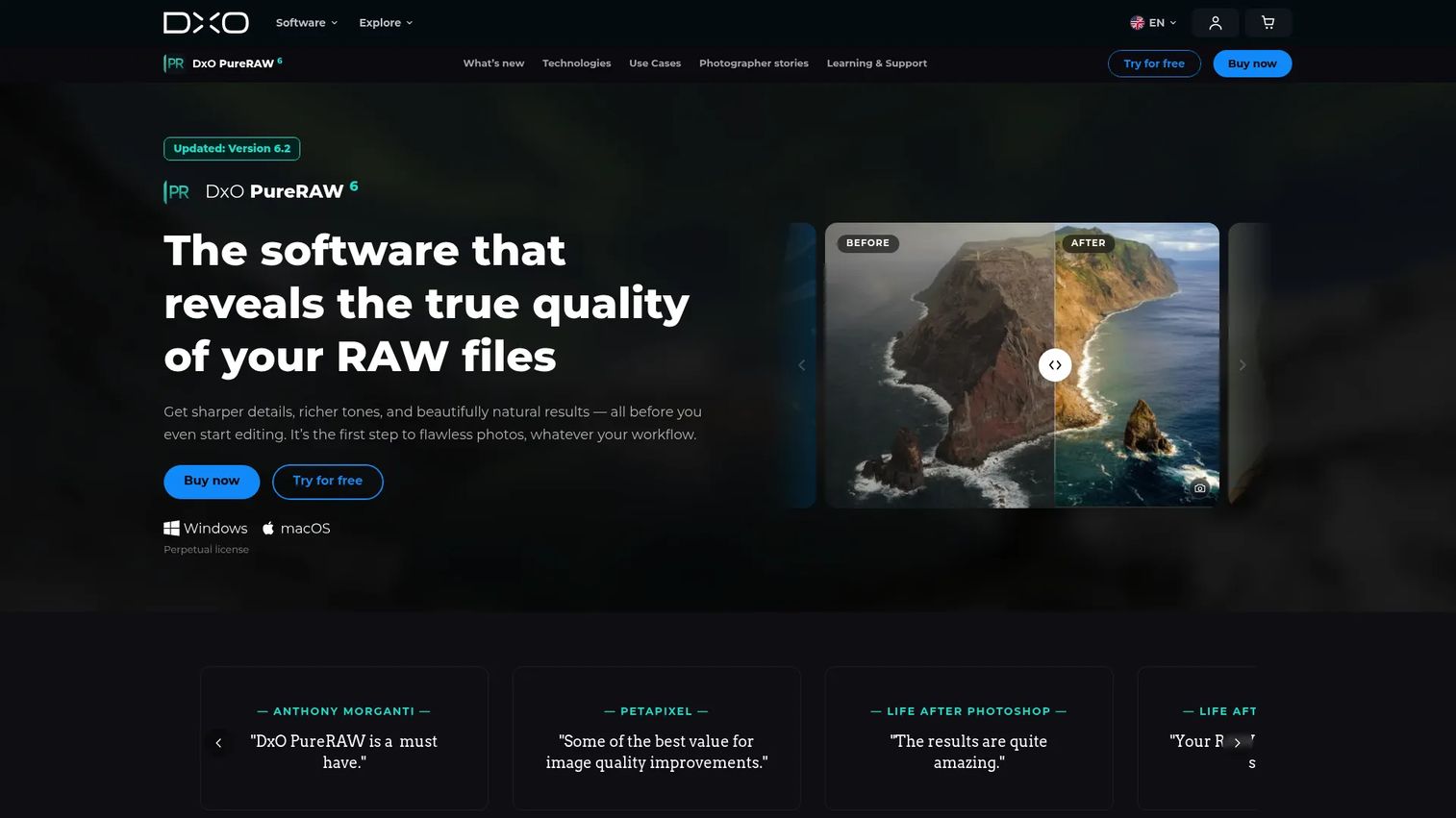
DxO PureRAW is a preprocessor, not an editor. It takes your RAW file, runs DeepPRIME denoising and demosaicing, applies lens and camera corrections, then hands back a clean DNG you edit however you like. That single job is why it tops this list for detail preservation. It fixes the file before your editor ever sees it.
The workflow is simple. Drop RAW files in, let PureRAW process them, then open the resulting DNGs in Lightroom, Photoshop, or Capture One. It plugs into Lightroom directly and works as a Photoshop Smart Filter, so it slots into an Adobe workflow without a separate app switch.
Best for: Photographers who want the cleanest possible RAW file and lens corrections applied before any editing starts.
Key features
- DeepPRIME denoising and demosaicing
- DxO Modules for lens and camera corrections
- Lightroom plugin and Photoshop Smart Filter integration
- Batch processing with DNG output
Why choose DxO PureRAW: Pick it if detail retention at high ISO is your top priority and you want to keep your existing editor. The tradeoff is that it does one thing, so you still need a separate app for finishing.
DxO PureRAW pricing: A new perpetual license starts at $139.99, with a 14-day free trial. Upgrade pricing is offered for eligible existing users.
Reviewers give DxO an overall 4.2 out of 5 on G2, with PureRAW noted for its denoising quality.
2. DxO PhotoLab
DxO PhotoLab takes the same DeepPRIME engine from PureRAW and wraps it in a full RAW editor. You get DeepPRIME and DeepPRIME XD3 noise reduction alongside local adjustments, AI masks, and U Point control points. For photographers who want denoise plus finishing without round-tripping through a second app, this is the pick.
The advantage over the preprocessor route is that you never leave one environment. Denoise, correct lenses, then do your dodging, burning, and color work in place. DxO Modules handle optical corrections automatically for supported camera and lens combinations.
Best for: Photographers who want high-quality RAW editing and strong denoising in a single desktop app.
Key features
- DeepPRIME and DeepPRIME XD3 noise reduction
- DxO Modules for automatic lens and camera corrections
- AI masks and U Point local adjustments
- One-time purchase, no subscription
Why choose DxO PhotoLab: Choose it if you want the DxO denoise quality but prefer editing in one place instead of preprocessing then switching apps. It excels when you want denoise and finishing together.
DxO PhotoLab pricing: The Essential edition starts at €149.99 and the Elite edition is €239.99, both one-time purchases. A free trial is available.
PhotoLab holds a 4.7 out of 5 rating on G2, the highest in this comparison.
3. Adobe Lightroom
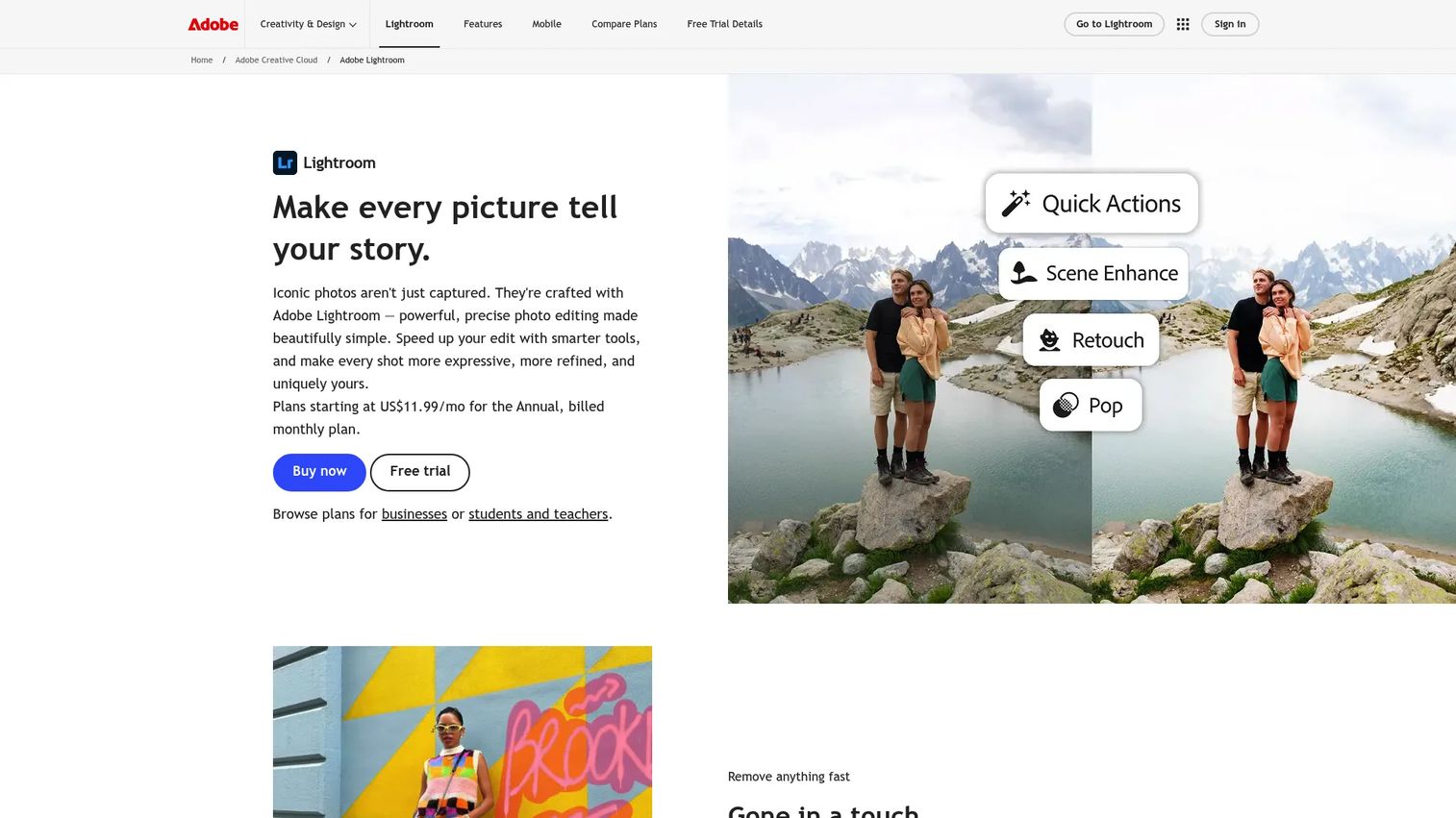
Adobe Lightroom built AI Denoise directly into the editor and library millions of photographers already live in. If Lightroom is your hub, running denoise without leaving it removes a whole app-switch from your process. The result is a new DNG with the noise reduction baked in, which you keep editing normally.
For anyone managing a large catalog, the value is convenience plus consistency. Cull, organize, and denoise in the same place, with cloud sync across desktop, mobile, and web. The output holds detail well for most work, even if a dedicated preprocessor edges it out on the hardest high ISO files.
Best for: Photographers who already run Lightroom and want denoise inside their existing catalog and workflow.
Key features
- AI Denoise built into the editor
- Cloud-synced editing across mobile, desktop, and web
- AI-assisted culling and selection
- Presets, masking, and generative tools
Why choose Adobe Lightroom: Choose it if you edit in Lightroom daily and value keeping everything in one catalog over squeezing out the last bit of detail. It performs best when convenience and organization matter as much as raw output.
Adobe Lightroom pricing: The individual Lightroom plan starts at $11.99/mo (annual, billed monthly). The Photography plan is $19.99/mo and includes Lightroom Classic. A free trial is available.
Lightroom carries a 4.6 out of 5 rating on G2 across a large review base.
4. Topaz Photo AI
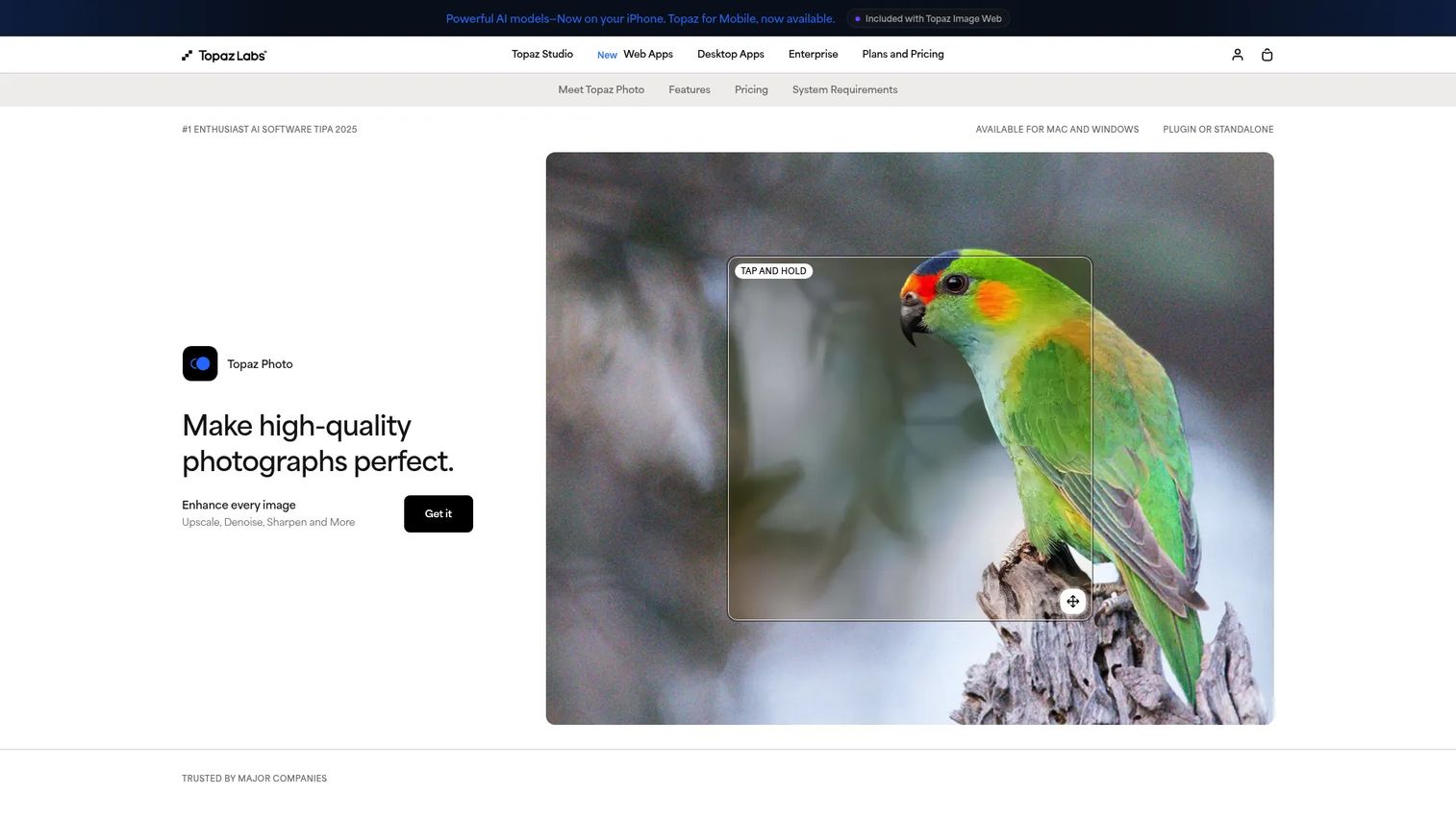
Topaz Photo AI rolls denoising, sharpening, and upscaling into one desktop app. When you need aggressive cleanup, on files that other tools leave grainy, Topaz often pulls out the strongest result. It runs standalone or as a plugin, and its models are tuned to rebuild detail while removing noise.
The catch is that aggressive AI can overreach. Topaz can produce clean, sharp output, but you have to check it at 100%, because heavy processing can invent detail or leave a slightly artificial texture. Used with a careful eye, it rescues files nothing else can.
Best for: Photographers who need maximum AI cleanup and don't mind reviewing output closely.
Key features
- AI denoise, sharpen, and upscale in one app
- Photo models tuned for detail recovery
- Unlimited local rendering
- Standalone and plugin use
Why choose Topaz Photo AI: Choose it when you want the most aggressive cleanup available and are willing to inspect results at full magnification. It excels on the hardest files where other tools fall back.
Topaz Photo AI pricing: The Personal plan is $199 billed annually, or $25/mo billed monthly for 12 months, or $39/mo month to month.
Topaz Photo AI shows a 4.3 out of 5 rating on G2, though from a small review sample.
5. ON1 NoNoise AI
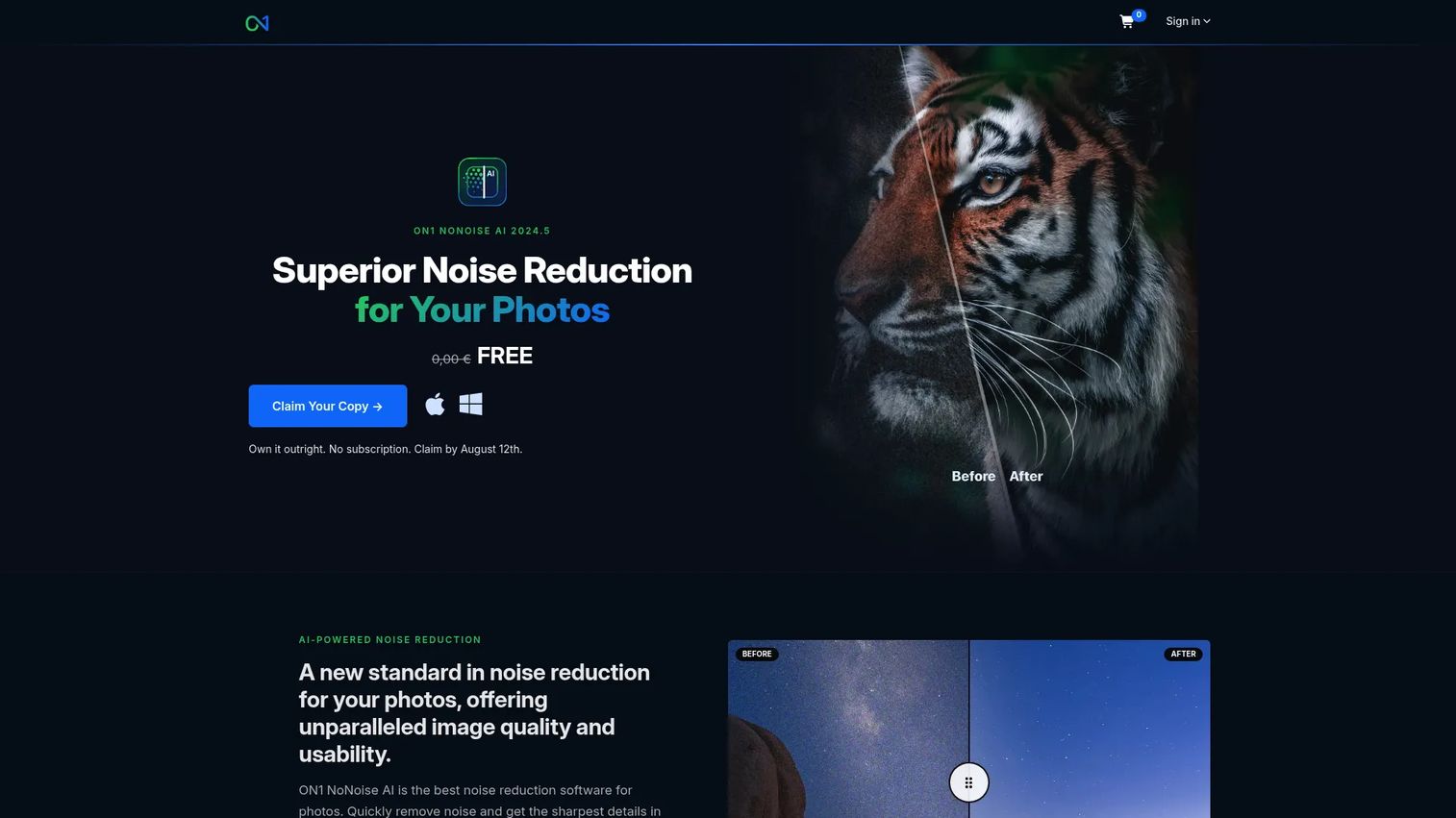
ON1 NoNoise AI gives you AI noise reduction and deblurring as a standalone app or plugin, and the 2024.5 version is currently free. For photographers outside the Adobe and DxO camps who want a capable denoiser without a recurring cost, it is an easy trial. It handles both noise removal and Tack-Sharp AI deblurring in one pass.
The workflow flexibility is the draw. Run it on its own, or route files in and out of your main editor as a plugin. Because it is free to own, there is no downside to testing it against a paid tool on your own files before committing.
Best for: Photographers who want a no-cost denoiser that works standalone or inside their existing editor.
Key features
- AI noise reduction
- Tack-Sharp AI deblurring
- Standalone and plugin support
- Free to own
Why choose ON1 NoNoise AI: Choose it if you want strong denoise without paying, or an alternative to the Adobe and DxO options. It fits best as a low-commitment addition to your edit stack.
ON1 NoNoise AI pricing: NoNoise AI 2024.5 is free with no subscription. ON1 Everything subscribers also get it as part of the bundle.
A current dedicated G2 rating for NoNoise AI was not available at publication, so treat community reviews as your reference point.
6. Capture One
Capture One folds noise reduction into a professional RAW editor known for color accuracy and tethered capture. For studio shooters and photographers on Nikon, Sony, or Fuji who want one app for tethering, color, and cleanup, its built-in denoise often covers the job without a separate tool. The editing environment is the reason people stay.
Where it fits is the practical question. For moderate noise, Capture One's built-in reduction is enough, and staying in one app is worth a lot. For extreme high ISO files, a dedicated denoiser or a PureRAW preprocessing pass will pull more detail. Knowing which situation you're in keeps your workflow lean.
Best for: Photographers and studios who need color-accurate tethered capture with denoise built into the same editor.
Key features
- Advanced desktop editing tools
- Industry-leading tethering
- AI-assisted editing and masking
- Built-in noise reduction
Why choose Capture One: Choose it if tethering and color fidelity anchor your workflow and you want denoise handled in the same place. It excels for studio and multi-brand RAW shooters.
Capture One pricing: Capture One offers Pro, All in One, Studio, and Mobile subscription plans, plus a Pro perpetual license. Check the pricing page for current amounts, and a free trial is available.
Capture One's G2 product rating could not be reliably confirmed at publication, so verify it on G2 before you decide.
Considerations
Before you buy a denoiser, run your own files through your shortlist. The right choice depends on your specific images and process, not on a headline comparison.
Detail preservation matters more than a clean preview
A tool can show a smooth, noise-free thumbnail and still smear feathers, fabric, hair, and foliage when you zoom in. Judge output at 100%, on your hardest high ISO files, not on the preview. That texture is usually the whole reason you took the shot.
Match the tool to your workflow
Decide whether you want a standalone app, a plugin, a RAW preprocessor, or editor-native denoise. A preprocessor like PureRAW cleans files before editing, while PhotoLab and Capture One handle denoise and finishing together. The wrong shape adds friction to every single edit.
Check speed on your own files
Batch throughput and preview responsiveness vary by file type, resolution, and your machine. AI denoise is demanding, so a tool that flies on one setup may crawl on another. Time a real batch during the trial before you commit.
Look for artifact control
Watch for halos, waxy skin, chroma blotches in shadows, and invented detail. These show up more with aggressive AI, so inspect edges and smooth areas carefully. Clean output that looks natural beats maximum noise removal that looks fake.
Verify pricing against your budget
One-time licenses and subscriptions add up differently over time. PureRAW and PhotoLab are perpetual buys, Adobe and Topaz run monthly or annual, and ON1 NoNoise AI is free. Calculate the real cost of ownership over a few years, not just the entry price.
Conclusion
If you want the cleanest RAW files with the most detail preserved, start with DxO PureRAW as a preprocessor before your editor. If you'd rather edit in one place, DxO PhotoLab gives you the same denoise engine plus full finishing tools.
Adobe users have the easiest path: Lightroom puts AI Denoise right where you already work. When you need aggressive cleanup on files nothing else can rescue, Topaz Photo AI is the strongest all-in-one option, as long as you review results at 100%. ON1 NoNoise AI is the no-cost pick worth testing, and Capture One suits studio and multi-brand shooters who want denoise inside a color-accurate editor.
The best move before buying: Take one noisy RAW file and run it through two or three of these tools during their trials. Compare the same crop at full magnification. Detail retention on your own images tells you more than any ranking. Pick the tool that keeps the texture you shot for, then build your workflow around it.
Start your journey with Guideflow today!
FAQs
DxO PureRAW leads for RAW workflows because it denoises and demosaics files before editing, preserving detail exceptionally well. DxO PhotoLab is the best all-in-one editor with the same engine. The real answer depends on whether you want a preprocessor or an editor, so test both on your own high ISO files.
For most high ISO photos, yes. AI models are trained to tell real texture apart from random sensor noise, which slider-based reduction cannot do cleanly. Traditional controls still help for light touch-ups and fine tuning, but AI denoise pulls far more usable detail from noisy files.
Denoise first, sharpen second. Sharpening amplifies whatever is in the image, so sharpening before you denoise makes the grain more prominent and harder to remove. Clean the file, then apply sharpening to the detail that remains for the best result.
RAW preprocessing with a tool like PureRAW denoises and corrects the file before it reaches your editor, then hands back a clean DNG. Editing in Lightroom applies AI Denoise inside your catalog without a separate app. Preprocessing often preserves slightly more detail, while Lightroom keeps everything in one place.
Aggressive noise reduction can smear feathers, hair, and foliage into a plastic-looking texture. Modern AI tools are much better at holding detail, but any denoiser pushed too far will erase texture. Judge output at 100% magnification and dial back the strength until the noise is gone but the detail stays.
Speed depends heavily on your hardware, file type, and resolution, since AI denoise is computationally demanding. PureRAW and PhotoLab handle batch DNG exports well, and editor-native denoise in Lightroom queues large sets efficiently. Time a real batch on your own machine during a trial rather than relying on benchmarks.
ON1 NoNoise AI is free and delivers strong AI noise reduction plus deblurring, so it covers many everyday needs. For extreme high ISO files or the most demanding detail work, paid tools like PureRAW or Topaz Photo AI often pull ahead. Test the free option first, then upgrade only if your hardest files demand it.
Prioritize detail preservation, artifact control, processing speed, and workflow fit. Check output at 100% on your worst files, confirm the tool runs standalone, as a plugin, or inside your editor as you need, and time a real batch. Then weigh one-time license versus subscription cost against how often you'll use it.