You bought the laser. It shipped with a disc, or maybe a link to some vendor software you have never heard of. You import your first design, and something breaks: the SVG comes in at the wrong scale, the engraving fills where you wanted a cut, or the controller refuses the G-code your software just spat out. Now you are three hours in, and the machine has not moved.
This is the real problem with choosing laser cutting software. It is not about which tool has the most features. It is about how cleanly your artwork travels from a design canvas to physical output on your specific machine. Pick the wrong stack and you inherit conversion errors, file format mismatches, and a controller that speaks a dialect your software does not.
The market signals this matters more every year. The global laser cutting software market hit USD 1.84 billion in 2025 and is projected to reach USD 4.06 billion by 2034 at a 9.2% CAGR, according to DataIntelo (2025). The same report notes 52% of new laser equipment orders in 2025 and 2026 shipped with advanced software packages featuring machine vision and adaptive control. Software is now more than half the value in this category, and cloud-based licenses jumped from 12% of sales in 2019 to 31% in 2025.
So the question is not whether you need good laser cutting software. It is which one fits your machine, your files, and how you actually work.
What's inside
This guide helps you choose laser cutting software by four things that decide whether a tool fits: machine compatibility (does it talk to your controller), file support (vector and raster handling, import and export), pricing model (paid vs free, one-time license vs subscription), and workflow style (design, control, or both). We selected tools that cover the full range of real setups, from a hobbyist diode laser to a production CO2 shop to a design team already living in vector apps. Each entry explains what the tool does, where it sits in your workflow, and who it fits best.
TL;DR
- Best overall: LightBurn for an all-in-one layout, edit, and machine control workflow in a single desktop app.
- Best free option: LaserGRBL for GRBL-based control and open-source image engraving.
- Best vector design app: Adobe Illustrator for teams already working in Adobe workflows.
- Best free vector alternative: Inkscape for open-source, SVG-first design on any budget.
- Best CAD/CAM option: Autodesk Fusion for technical users and production workflows.
- Best technical suite: CorelDRAW Technical Suite for precision illustration and documentation-heavy work.
- Best vendor control software: LaserMaker for supported controller ecosystems and beginner setups.
What laser cutting software actually does
Laser cutting software is the layer that turns a design into machine instructions your laser can execute. It handles two distinct jobs, and understanding the split is the single most useful thing you can learn before buying.
The first job is design. This is where you create or import artwork, arrange it on a canvas, set dimensions, and decide what gets cut versus engraved. Vector paths become cut and score lines. Raster images become engraved fills. Design software owns this stage.
The second job is control. This is where the software converts your layout into G-code or a controller-specific job, then sends it to the machine, manages jogging and homing, and controls speed and power per layer. Control software owns this stage.
Some tools do both. Others specialize. Here is what to expect across the category:
- Vector file support: Import and edit SVG, DXF, AI, and PDF for cut and score paths.
- Raster file support: Import JPG, PNG, and BMP for engraving, with grayscale, dithering, and threshold controls.
- Machine compatibility: Talk to your controller type, whether that is GRBL, DSP, or Galvo.
- G-code handling: Generate, preview, and send instructions the machine understands.
- Layer and job settings: Assign speed, power, and pass count per operation.
- Job preview and simulation: See the toolpath before you burn material.
- Camera and alignment tools: Position work precisely on the bed (in higher-end tools).
A tool that generates clean G-code for your controller but cannot edit vectors will need a design app upstream. A tool that draws beautifully but exports nothing your controller reads will need a control layer downstream. The all-in-one tools collapse both jobs into one workflow, which is why they dominate the category.
When to use each type
Choose all-in-one when you want one app for the whole job
If you own a laser and want to design, arrange, and cut without juggling multiple programs, an all-in-one tool is the shortest path from artwork to output. This fits most hobbyists, makers, and small shops running a single machine. You import or draw, set your layers, hit start, and the same app handles control.
Choose a design app when your workflow starts in vector creation
If your work begins with logos, illustrations, or precise vector artwork, and cutting is the final step, a dedicated design app matters more than control features. Designers and agencies often live in vector software already. They export a clean file and hand it to a control layer or an all-in-one tool for the machine step.
Choose control-first software when the machine is the priority
If you have a GRBL-based diode laser and mostly engrave images or run pre-made files, control-first software gives you exactly what you need: reliable job sending, image conversion, and machine controls. This fits budget setups and anyone who wants to get a machine running fast without a design suite.
Comparison table
The table below maps each laser cutting software tool to its primary intent, what sets it apart, current pricing, and G2 rating where available. Use it to shortlist by machine type and budget before reading the full sections.
| # | Product | Intent | Key differentiation | Pricing | G2 rating |
|---|---|---|---|---|---|
| 1 | LightBurn | All-in-one laser workflow | Design, layout, and control in one desktop app for GCode, DSP, and Galvo controllers | From $99 one-time (Core) | Not listed |
| 2 | LaserGRBL | Free GRBL control | Free, open-source sender with image engraving and dithering | Free / open source | Not listed |
| 3 | Adobe Illustrator | Vector design | Industry-standard precise vector artwork with AI tools | From US$22.99/mo | 4.6/5 |
| 4 | Inkscape | Open-source vector design | Free SVG-first editing with broad format import/export | Free / open source | 4.4/5 |
| 5 | Autodesk Fusion | CAD/CAM design and manufacturing | Integrated CAD, CAM, and CAE for design-to-manufacturing | From $57/mo (free personal tier) | 4.5/5 |
| 6 | CorelDRAW Technical Suite | Technical illustration and design | Precision technical illustration with 3D-to-2D and publishing tools | Subscription and one-time options | 4.3/5 |
| 7 | LaserMaker | OEM/vendor control software | Integrated design and device control for supported machines | From ¥199 one-time | Not listed |
1. LightBurn
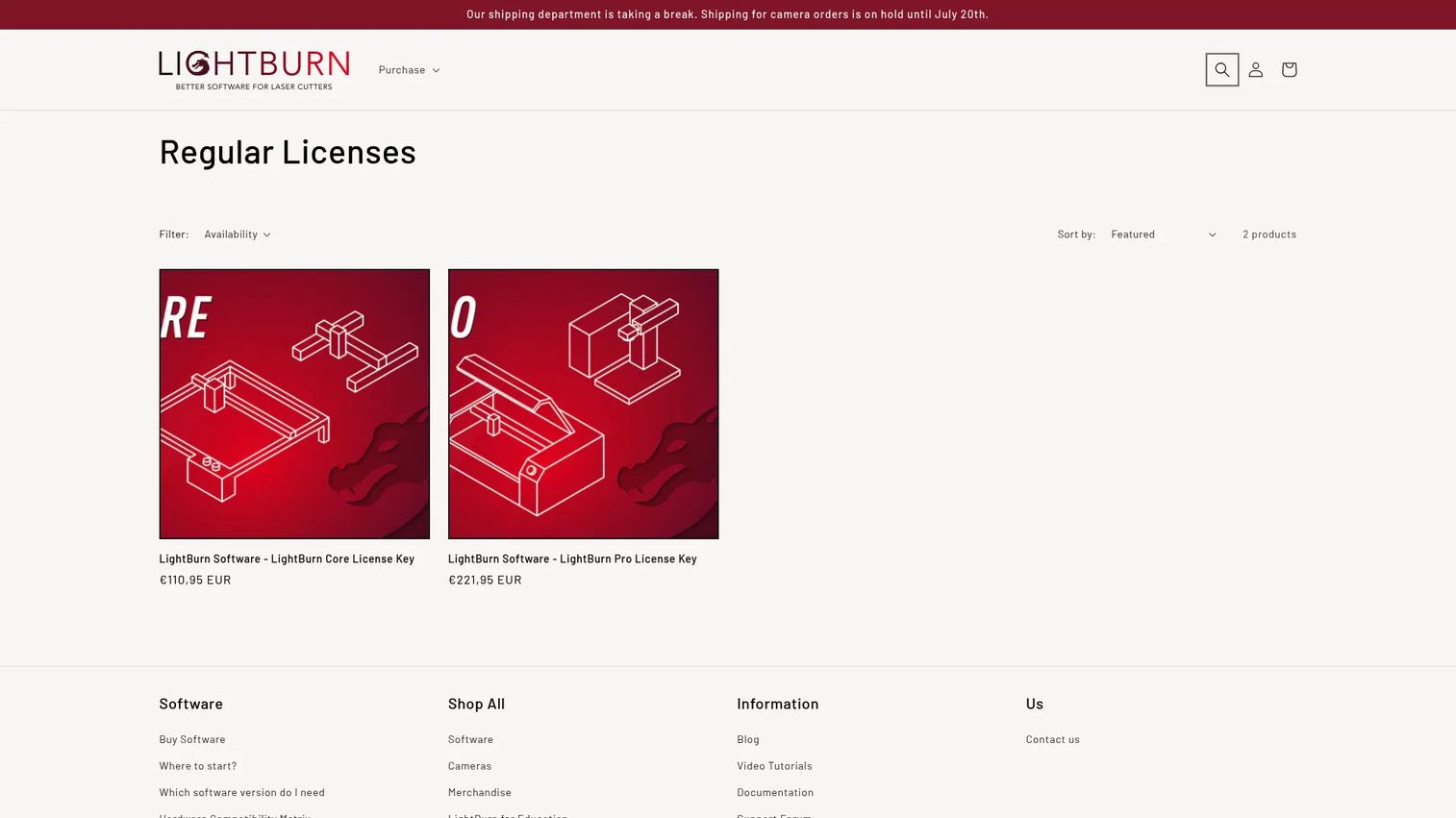
LightBurn is the tool most laser owners land on, and for good reason. It combines vector layout, editing, and direct machine control in one desktop app for Windows, macOS, and Linux. You import or draw your artwork, assign cut and engrave layers, set speed and power, then send the job straight to your laser without a second program in the chain. It is the closest thing this category has to a default answer.
Best for: People and shops using laser cutters who need design, layout, and machine control in one desktop app.
Key strengths
- Broad controller support: Talks to GCode, DSP, and Galvo laser controllers, so it fits diode, CO2, and fiber setups.
- Built-in vector tools: Create and edit vector artwork directly, no separate design app required for most jobs.
- Direct control and job planning: Jog, frame, set layer order, and run the job from the same window you designed in.
Why choose LightBurn comes down to workflow consolidation. Instead of maintaining a design app plus a separate sender and reconciling file formats between them, you do the whole job in one place. That matters when you run many jobs a week and every handoff is a chance for a scale error or a mislabeled layer. LightBurn also handles both vector cutting and raster engraving natively, so a single file with both cut paths and engraved images just works. For a shop optimizing throughput, fewer tools means fewer failure points.
LightBurn pricing is a one-time purchase, not a subscription, which appeals to anyone tired of recurring software costs. The Core license is $99 USD and the Pro license is $199 USD, each including a year of updates. After that year, updates renew at $40 for another year, though your existing version keeps working. Upgrading Core to Pro costs $100, and additional seats run $25 (Core) or $50 (Pro). A 30-day trial lets you confirm it talks to your machine before you pay.
2. LaserGRBL
LaserGRBL is the go-to free option for GRBL-based machines. It is open-source Windows software built specifically to control GRBL-compatible lasers, load and preview G-code, and turn images into engravable output. If your diode laser runs a GRBL controller and you want to start cutting without spending anything, this is where most people begin. It proves that free plus GRBL is a genuine sweet spot, not a compromise.
Best for: Hobbyists using Windows and GRBL-based laser engravers who want a free sender and image engraving tool.
Key strengths
- Image engraving built in: Grayscale conversion, dithering, and vectorization turn photos and logos into laser-ready jobs.
- Full machine control: Jog, home, feed hold, resume, reset, plus live speed and power overrides during a job.
- G-code preview: Load a file and see the toolpath before you commit material to the burn.
Why choose LaserGRBL is straightforward: it costs nothing, it is open source, and it does exactly one thing well, which is driving a GRBL laser. For a beginner setting up a first diode engraver, that focus is a feature. You are not paying for design tools you do not need yet, and the image engraving workflow covers the most common hobby project, engraving a photo or graphic onto wood, leather, or acrylic. Pair it with a free vector editor upstream when you need precise cut paths, and you have a capable zero-cost stack.
LaserGRBL is free and open source. There are no paid tiers or license fees on the official site. That makes it the natural starting point for anyone testing a new GRBL machine, and many users never feel the need to move off it for engraving work.
3. Adobe Illustrator
Adobe Illustrator is not laser control software, and that is exactly the point. It is the industry-standard vector design app, and for laser work it sits at the front of the workflow where artwork gets created. You design logos, icons, and precise scalable vector drawings, then export a clean file that a control layer or an all-in-one tool sends to the machine. For anyone whose laser projects begin as design projects, this is the tool.
Best for: Professional designers who need precise, scalable vector artwork before the cut and engrave step.
Key strengths
- Precision vector creation: Draw and edit exact vector paths that become clean cut and score lines.
- Cross-device access: Work on desktop, iPad, and web, then hand off to your machine software.
- Generative AI and vector tools: Speed up artwork with AI-assisted text and vector features.
Why choose Illustrator is about design quality upstream, not machine control. If your output depends on typographically precise, perfectly curved vector artwork, Illustrator gives you control no all-in-one laser tool matches. The tradeoff is a required export handoff: Illustrator does not talk to your laser, so you save to SVG, DXF, or PDF and open that in LightBurn, a vendor tool, or a GRBL sender. Teams already running Adobe workflows lose nothing by adding a laser to the end of a familiar pipeline.
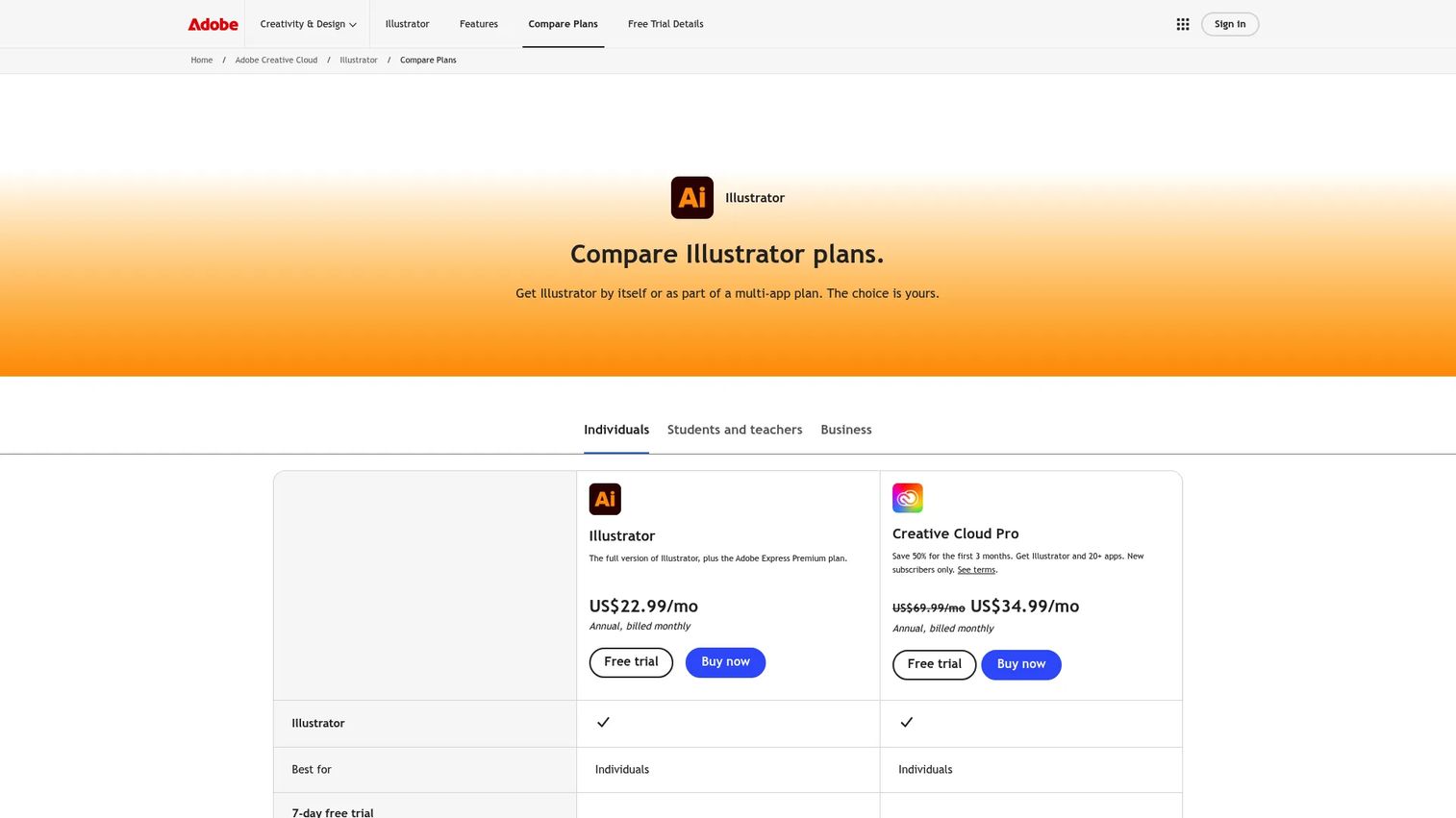
Adobe Illustrator is subscription-only. The standalone Illustrator plan starts at US$22.99/mo on an annual commitment billed monthly. A Creative Cloud Pro plan runs regularly at US$69.99/mo, with promotional pricing at US$34.99/mo for the first three months. Team licenses start at US$37.99/mo per seat. A free 7-day trial is available. It holds a 4.6/5 rating on G2.
4. Inkscape
Inkscape is the free, open-source answer to vector design for laser work. It is a full SVG-based vector editor for Linux, Windows, and macOS, and it imports and exports the formats laser workflows depend on. For makers who want professional-grade vector creation without a subscription, Inkscape covers the design stage completely, then hands off a clean file to your control layer.
Best for: Individuals and teams needing a free vector illustration and SVG editing tool for laser-ready artwork.
Key strengths
- SVG-native editing: Built around SVG, the format most laser tools import cleanly for cut paths.
- Broad format support: Import and export SVG, AI, EPS, PDF, PS, and PNG for flexible handoff.
- Extensible with add-ons: Extend functionality with community extensions, including some laser-specific ones.
Why choose Inkscape is the budget-friendly design path. It delivers real vector precision at zero cost, which makes it the natural pairing for a free control tool like LaserGRBL. Draw your cut lines in Inkscape, export SVG, engrave and cut through your sender, and you have a complete workflow that costs nothing. For beginners, it removes the price barrier from learning vector design, and its SVG-first approach means fewer import surprises than proprietary formats sometimes cause.
Inkscape is free and open source, with no paid tiers on the official site. That makes it a strong choice for anyone unwilling to commit to a subscription for the design stage. It holds a 4.4/5 rating on G2.
5. Autodesk Fusion
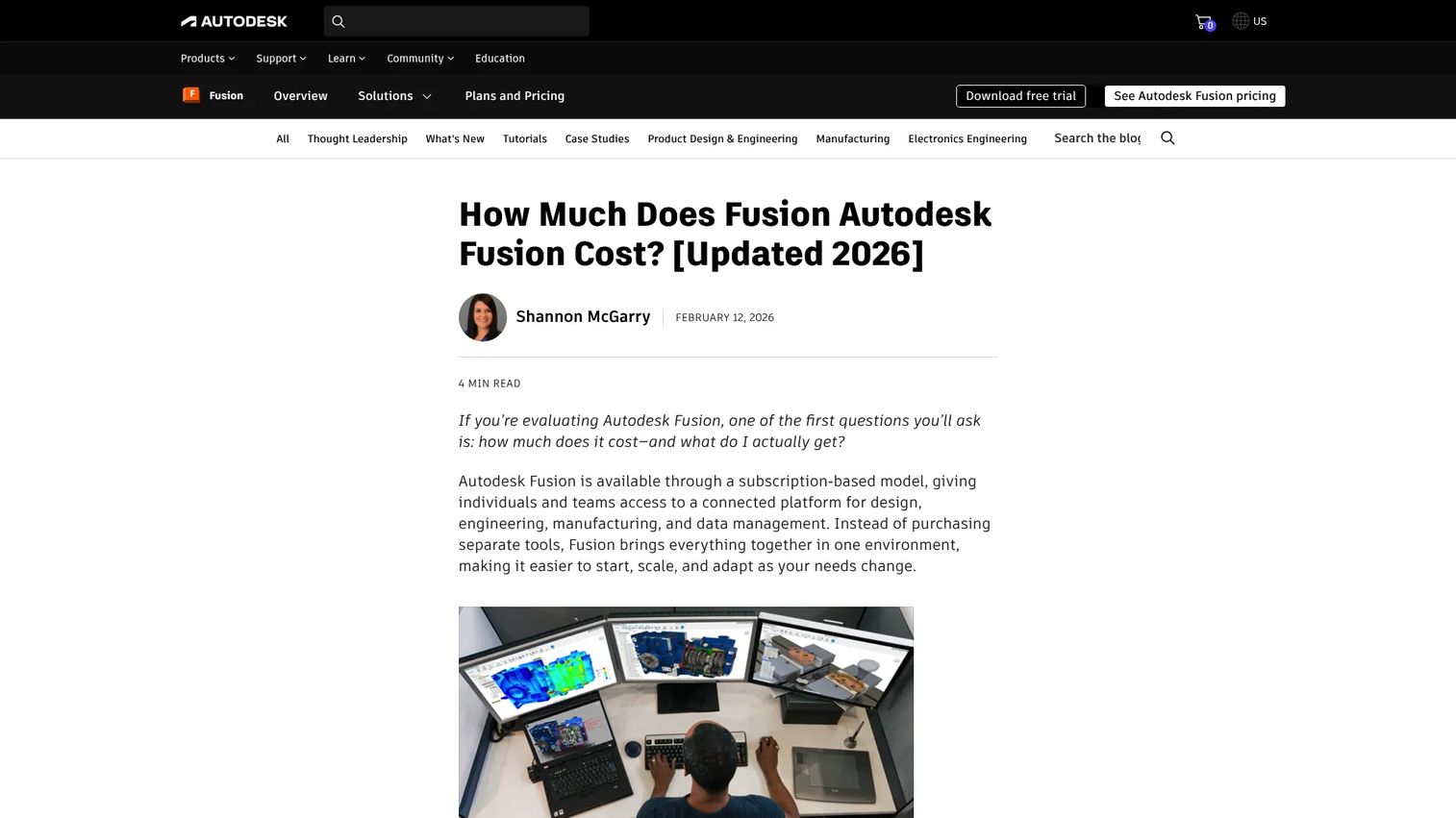
Autodesk Fusion is the CAD/CAM option for technical and production-oriented laser work. It is a cloud-based product development platform combining CAD, CAM, CAE, and PCB tools with collaboration and data management. For laser cutting, its value is the design-to-manufacturing chain: model a part, generate toolpaths, and export cut-ready geometry with the parametric precision that furniture, enclosures, and mechanical parts demand.
Best for: Teams and makers needing an all-in-one design-to-manufacturing platform for technical or production laser work.
Key strengths
- Integrated CAD/CAM/CAE: Design, simulate, and generate manufacturing toolpaths in one environment.
- Cloud collaboration: Share models and data across a team with built-in version management.
- Free tiers available: A free personal-use option and a 30-day trial lower the barrier to test it.
Why choose Fusion is about parametric, dimensionally driven design. If your laser projects are engineered parts where a 0.1mm change ripples through the whole model, Fusion's constraint-based approach beats a flat vector canvas. It is genuine overkill for engraving photos or cutting simple shapes, and for those jobs a dedicated vector or all-in-one tool is faster. But for production runs of precise components, the design-to-manufacturing workflow earns its place.
Autodesk Fusion pricing starts at $57/month billed annually, with monthly and multi-year terms also available. A free personal-use tier renews yearly for qualifying hobbyists, and free access exists for students and educators. A 30-day trial covers evaluation. It holds a 4.5/5 rating on G2.
6. CorelDRAW Technical Suite
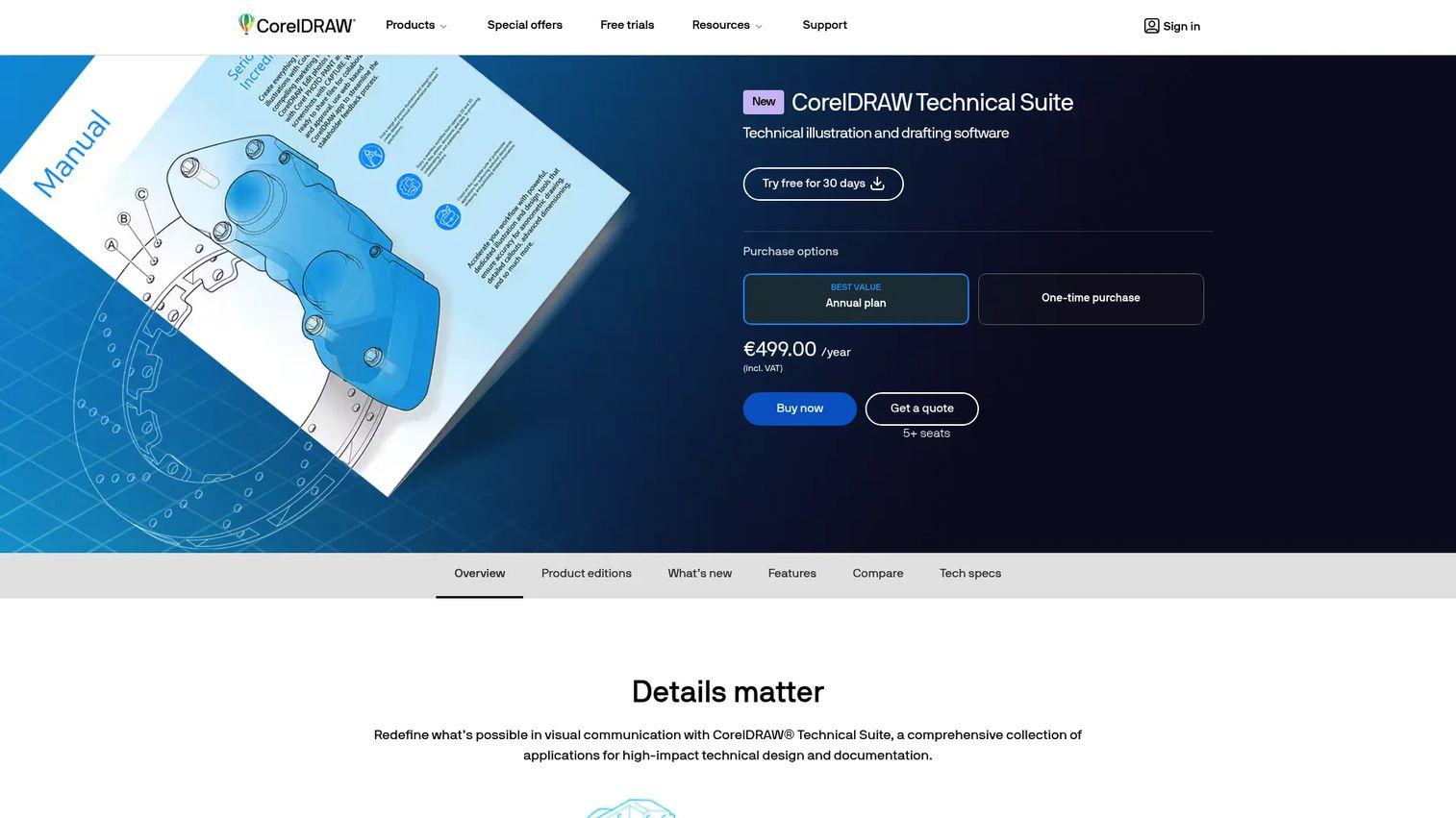
CorelDRAW Technical Suite targets precision-driven and documentation-heavy laser workflows. It is a technical illustration and drafting suite built for creating and publishing technical communications, with precise illustration tools, 3D-to-2D repurposing, and CAD file support. For teams whose laser work sits inside a larger technical documentation pipeline, it consolidates illustration and prep in one professional suite.
Best for: Teams needing technical illustration, 3D-to-2D repurposing, and technical documentation publishing alongside laser prep.
Key strengths
- Precise technical illustration: Purpose-built tools for exact, dimensioned technical drawings.
- 3D and CAD file support: Repurpose 3D data and import CAD files for downstream vector prep.
- Publishing and review tools: Produce and review technical communications, not just artwork.
Why choose CorelDRAW Technical Suite depends on how technical your output is. If you produce manuals, schematics, or precision illustrations that also need to be cut or engraved, having illustration, CAD handling, and publishing in one suite reduces the tool count. For a plain engraving hobbyist it is more than the job requires, but for a documentation or manufacturing team, the integrated technical workflow is the draw.
CorelDRAW Technical Suite offers annual subscription, monthly, and one-time purchase options on its official site. It holds a 4.3/5 rating on G2. Confirm current tier pricing on Corel's page, since figures shift with promotions and region.
7. LaserMaker
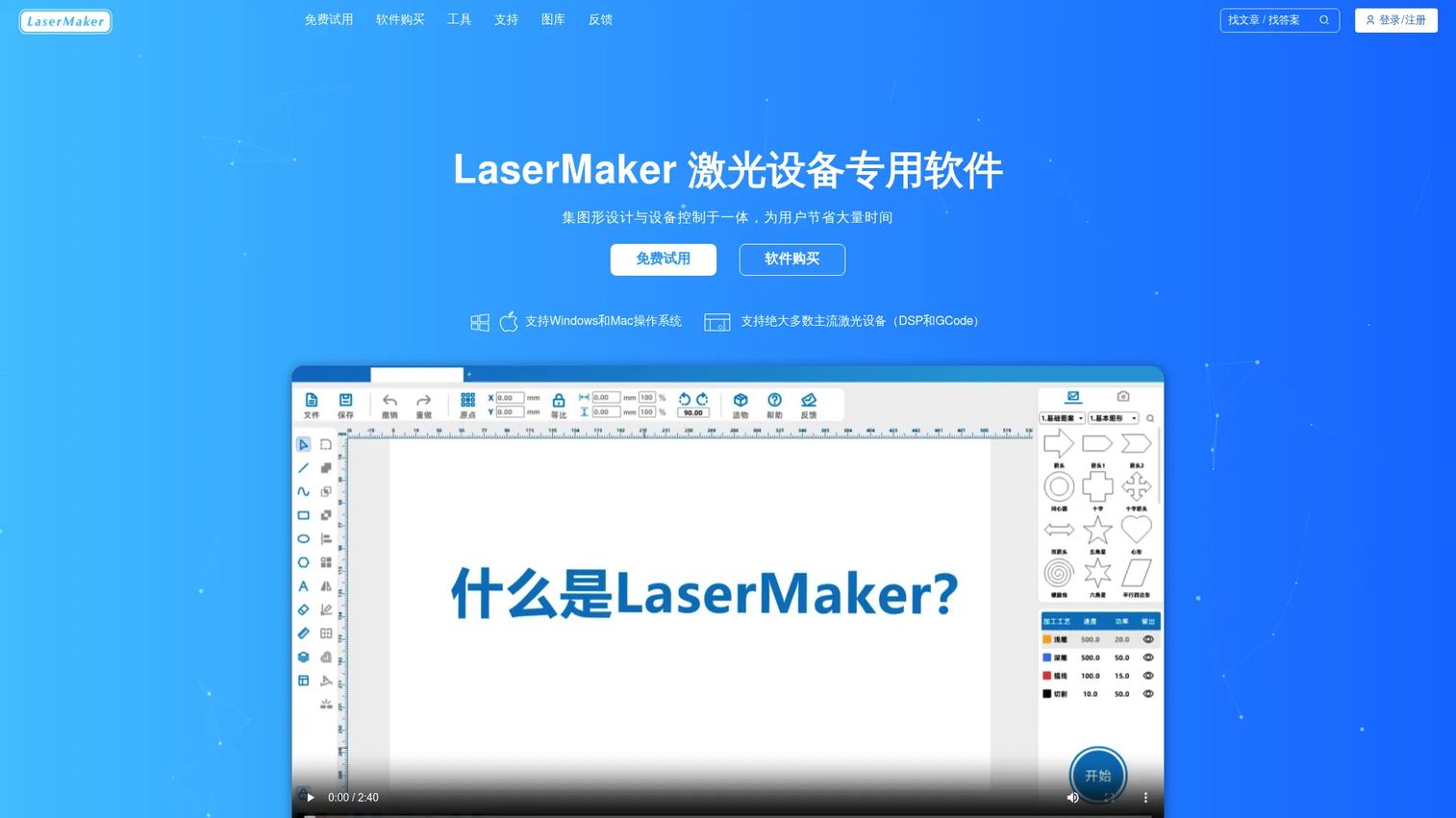
LaserMaker is vendor software that pairs graphic design with device control in one tool, aimed at supported laser equipment. It matters most for specific controller ecosystems and beginner setups where the machine shipped with or recommends it. Rather than sourcing a separate design app and sender, you get an integrated tool tuned to the hardware, which is often the fastest way to get a new machine cutting on day one.
Best for: Teams or hobbyists using supported laser engraving and cutting devices who need design and machine control in one tool.
Key strengths
- Integrated design and control: Combine artwork creation and device control without a second program.
- Layout and testing helpers: Automatic nesting, material test matrix, and simulated processing before you cut.
- Offline and tracing tools: An offline library, contour tracing, and processing simulation support practical shop work.
Why choose LaserMaker is about matching software to your controller. When a machine is designed around vendor software, that software often handles the hardware's quirks better than a general tool would out of the box. For a beginner, starting with the vendor tool removes compatibility guesswork: it is built for the device. Once comfortable, some users graduate to a broader all-in-one tool, but many stay with vendor software because it simply works with their machine.
LaserMaker offers two paid license versions with free trials: a Gcode version at ¥199 and a DSP version at ¥399, each a one-time license. Updates are free during the valid period, and the last updated version stays usable permanently. The site is in Chinese and prices are shown in CNY, so budget accordingly if you are buying from outside that region.
What to check before you buy
Machine and controller compatibility
Confirm the software talks to your controller before anything else. GRBL, DSP, and Galvo controllers speak different languages, and a tool that supports one may not support another. LightBurn covers all three; LaserGRBL is GRBL-only; vendor tools like LaserMaker target specific hardware. Match this first or nothing else matters.
File format support, vector and raster
Check that the tool imports the formats you actually use. Vector files (SVG, DXF, AI, PDF) drive cut and score paths. Raster files (JPG, PNG, BMP) drive engraved fills. If you design in one app and cut in another, verify the export and import formats line up cleanly to avoid scale and path errors.
Design, control, or both
Decide whether you need a design tool, a control tool, or one that does both. Design-first apps like Illustrator and Inkscape need a downstream control layer. Control-first tools like LaserGRBL need upstream design when you want precise vectors. All-in-one tools like LightBurn collapse both into one workflow.
Pricing model and total cost
Weigh one-time licenses against subscriptions. LightBurn and LaserMaker are one-time purchases; Illustrator and Fusion are subscriptions; LaserGRBL and Inkscape are free. A one-time license costs more upfront but nothing recurring. A subscription spreads cost but never stops. Factor in how long you will use the tool.
Skill level and learning curve
Be honest about where you are. A beginner on a diode laser gets running fastest with LaserGRBL or a vendor tool. A design professional will feel at home in Illustrator or Inkscape. A production team benefits from Fusion or an all-in-one workflow. The best tool is the one you will actually be productive in this month.
Conclusion
The choice comes down to how your work moves from artwork to output. If you want one app to do most of the job, pick LightBurn: it designs, lays out, and controls your machine across GCode, DSP, and Galvo controllers in a single desktop workflow. If you need free GRBL control for a diode laser, LaserGRBL gets you cutting at zero cost with solid image engraving built in.
If your laser workflow starts in vector creation, choose a design app: Adobe Illustrator for teams already in the Adobe ecosystem, or Inkscape for a free, SVG-first alternative that pairs perfectly with a free control tool. If your work is technical and production-oriented, Autodesk Fusion brings full CAD/CAM design-to-manufacturing, while CorelDRAW Technical Suite fits documentation-heavy illustration workflows. For a new machine in a supported ecosystem, LaserMaker is the fastest path to a first successful cut.
The practical next step is simple: identify your controller type and your file workflow before you buy anything. Match the software to your machine and how your artwork actually travels to output, and you avoid the conversion errors and compatibility surprises that stall most first cuts.
FAQs
For a first machine, start with the tool that matches your controller and budget. On a GRBL-based diode laser, LaserGRBL is free and gets you engraving fast. If your machine shipped with vendor software like LaserMaker, start there for guaranteed compatibility. When you are ready to consolidate design and control, LightBurn is the most common upgrade.
Design software creates and arranges your artwork: vector paths for cuts and score lines, raster images for engraving. Control software converts that layout into G-code or a controller job and sends it to the machine, managing jogging, homing, speed, and power. Some tools like LightBurn do both; others specialize in one stage.
For most laser owners running regular jobs, yes. It replaces a separate design app and sender with one workflow, supports GCode, DSP, and Galvo controllers, and handles both vector cutting and raster engraving natively. The Core license is a $99 one-time purchase with a 30-day trial, so you can confirm it works with your machine before paying.
Yes. LaserGRBL is built specifically for GRBL-compatible lasers and does that job well. It loads and previews G-code, converts images with grayscale, dithering, and vectorization, and gives you full jogging, homing, and live speed and power overrides. For a free GRBL sender and image engraving tool, it is the standard starting point.
Yes, for the design stage. Illustrator creates precise vector artwork, then you export to SVG, DXF, or PDF and open that file in a control tool or all-in-one app to actually run the machine. Illustrator does not send jobs to a laser itself, so it works best paired with LightBurn or a GRBL sender downstream.
Yes, especially on a budget. Inkscape is a free, open-source vector editor built around SVG, the format most laser tools import cleanly. It handles the design stage completely, then you export to your control layer. Paired with LaserGRBL, it gives you a full design-and-cut workflow at zero cost.
Vector formats (SVG, DXF, AI, PDF) work best for cut and score lines because they define exact paths. Raster formats (JPG, PNG, BMP) work for engraved fills and photos. SVG tends to import most reliably across tools. Always confirm your design app's export format matches what your control software imports to avoid scale and path errors.
For a diode laser on a GRBL controller, LaserGRBL is a free, purpose-built choice, or LightBurn if you want design and control together. For a CO2 laser, which often uses DSP or Galvo controllers, LightBurn's broad controller support makes it a strong all-in-one option. Vendor tools like LaserMaker also fit when the machine is built around them.