Your support team answers the same questions every week. Users skim your PDF documentation, miss the steps they need, and open a ticket anyway.
Interactive user manuals solve this by turning static instructions into clickable, guided experiences users actually follow. This guide covers what makes interactive manuals work, compares seven tools for creating them, and walks through how to build and measure your own.
Key takeaways
- Interactive user manuals are clickable, step-by-step guides that let users navigate instructions at their own pace instead of reading static PDFs.
- The best tools combine no-code creation, multimedia elements, real-time updates, and built-in analytics so you can see where users get stuck.
- Static documentation goes stale after every product update, users ignore long text walls, and you have no visibility into whether anyone reads it.
- For B2B SaaS teams, interactive manuals reduce support tickets, speed up onboarding, and give you data to improve documentation over time.
- Evaluate tools based on ease of creation, personalization options, analytics depth, and integration with your existing CRM and support stack.
What is an interactive user manual
An interactive user manual is a digital, clickable guide that walks users through tasks step by step. Instead of presenting flat text or static PDFs, users navigate tooltips, embedded videos, and guided walkthroughs at their own pace.
The key difference from traditional documentation? Real-time updates. When your product changes, you update the manual once and every link reflects the new version.
No more distributing revised PDFs or hoping users find the latest documentation.
Here's what makes up an interactive manual:
- Step-by-step walkthroughs: Clickable paths that guide users through specific tasks or workflows
- Multimedia integration: Embedded videos, GIFs, tooltips, and callouts that explain complex steps visually
- Real-time updates: Content stays current without version confusion or broken links
- Built-in search and navigation: Users find answers faster through search functions and tables of contents
Think of it this way: a traditional manual tells users what to do. An interactive manual shows them how to do it, right inside the product or in a guided experience they can follow along with.
Why static documentation fails
You've probably experienced this yourself. You publish a PDF manual, and within weeks it's outdated. The product team ships a new feature, the UI changes slightly, and suddenly your documentation shows screenshots that don't match what users see.
| Static documentation | Interactive user manuals |
|---|---|
| Gets outdated with each product release | Updates in real time across all links |
| Users skim or ignore long text walls | Guided walkthroughs keep users engaged |
| No visibility into what users read | Analytics show where users drop off |
| Requires re-distribution after edits | Single source updates everywhere |
| Broken links after product changes | Links stay valid even after content updates |
The bigger issue? You have no idea whether your documentation actually helps.
Did users find the answer? Did they give up halfway through? Did they even open the document?
Without that visibility, you're guessing at what to improve. Meanwhile, your support team keeps answering the same questions because users either can't find the documentation or can't follow it.
Benefits of interactive user manuals for your team
Moving beyond the problems with static docs, interactive user manuals deliver measurable outcomes across support, onboarding, and product adoption.
Lower support ticket volume
When users find answers themselves through interactive guides, they submit fewer tickets. Self-service documentation that actually works means your support team spends 70 percent less time answering questions and more time on complex issues.
The key is making the documentation easy to find and easy to follow. Interactive guides embedded in help centers or surfaced contextually within the product put answers where users already look.
Faster user onboarding
New users often struggle with initial setup or core features. They sign up, hit a confusing step, and either contact support or abandon the product entirely.
Interactive manuals guide users through setup flows step by step. Instead of reading a list of instructions and trying to remember them, users click through each action in sequence. Time to value drops because users complete onboarding without waiting for a support response or scheduled training session.
Higher documentation engagement
Clickable, visual content holds attention better than text walls. Progress indicators show users how far they've come and how much remains. Checklists give users a sense of accomplishment as they complete each step.
Engaged users actually finish the guide, which means they learn what they came to learn. Passive documentation gets skimmed at best.
Simpler maintenance and updates
The "update once, distribute everywhere" model saves 93% of documentation time.
Compare that to static PDFs: you update the document, re-upload it, and hope users download the new version. Then you deal with confusion when some users reference outdated instructions.
Actionable usage analytics
You can track which steps users complete, where they drop off, and what they search for. This data tells you exactly where your documentation fails and what content to add or improve.
If 80% of users drop off at step 4, something about that step is confusing. If users frequently search for a term you haven't documented, you know what to write next. Analytics turn documentation from a guessing game into a data-driven process.
When to use interactive manuals and digital instructions
Interactive user manuals fit specific scenarios better than others. Here's where they deliver the most value.
Customer onboarding and training
New customers benefit from guided, step-by-step flows that walk them through initial setup or core features. Instead of sending a welcome email with a link to documentation they may never read, you embed an interactive guide. It shows them exactly what to do first.
This works especially well for products with multi-step setup processes or features that require configuration before users see value.
Product feature education
When you launch a new feature, users often don't know it exists or don't understand how to use it. Interactive guides help users discover and learn new capabilities without scheduling live training sessions.
You can embed guides in release notes, trigger them contextually when users access a new feature, or include them in email announcements.
Internal SOPs and workflow documentation
Internal teams (support, ops, HR) can use interactive manuals to standardize processes and reduce tribal knowledge. When a process lives only in someone's head, you're one resignation away from losing it.
Interactive SOPs ensure 80% to 98% compliance. New hires learn processes faster because they can follow along rather than shadowing a colleague for days.
Self-service support and help centers
Embedding interactive guides in help centers or support portals lets 63 percent of users solve issues before contacting support. When a user searches "how do I reset my password," they get a clickable walkthrough instead of a text article.
Features to evaluate in interactive guide software
Before comparing specific tools, here's what to look for based on your use case.
No-code creation and plug and play editing
Most teams create and update guides without engineering help. Look for drag-and-drop editors, browser-based screen capture, and simple workflows that let non-technical users build guides independently.
If creating a guide requires developer time, you'll create fewer guides and update them less often. The best tools let anyone on your team capture any workflow and turn it into a guide in minutes.
Multimedia and interactive elements
Support for videos, GIFs, tooltips, callouts, hotspots, and branching paths makes guides more engaging than text alone.
Branching paths let users choose their own journey based on their role or use case. Instead of forcing everyone through the same linear walkthrough, you can offer choices. For example: "Are you an admin or an end user?" Then show relevant content accordingly.
Personalization and dynamic content
Advanced tools let you customize guide content based on user role, account, or segment. Dynamic variables pull data from your CRM to show each user's company name, their specific plan features, or relevant examples.
Personalization makes guides feel tailored rather than generic. A user sees their own context reflected in the documentation, which increases relevance and engagement.
Analytics and engagement tracking
Track completion rates, drop-off points, time spent per step, and search queries. This data helps you identify weak spots in your guides and prioritize improvements.
Without analytics, you're publishing documentation into a void. You don't know if it helps, where it fails, or what to fix.
Integration with CRM and support tools
Connecting to existing tools (CRM, help desk, knowledge base) matters for workflows and data consistency. When a user completes a guide, you might want to update their CRM record or trigger a follow-up email. You can also log the activity for your customer success team.
Security and access controls
For sensitive internal documentation, you'll want access permissions, SSO, password protection, and secure sharing options. Not every guide is public; some contain proprietary processes or confidential information.
Mobile and cross-device support
Guides work on desktop, tablet, and mobile. Responsive design matters for field teams, remote users, and anyone who accesses documentation from multiple devices.
7 best interactive user manual tools compared
Here's how the leading tools stack up. Each serves different use cases and team sizes.
| Tool | Best for | Key strength | Limitation |
|---|---|---|---|
| Guideflow | B2B SaaS product demos and manuals | Capture flows in clicks, personalize at scale, analytics built in | Focused on product demos, less on 3D or manufacturing |
| Spekit | In-app training and enablement | Contextual help surfaced in workflows | Requires integration effort |
| WalkMe | Enterprise digital adoption | Deep analytics and automation | Complex setup, enterprise pricing |
| Whatfix | Large-scale onboarding | Broad integration ecosystem | Can be heavy for smaller teams |
| UserGuiding | Quick no-code onboarding flows | Fast setup, affordable entry | Limited advanced customization |
| Userpilot | Product-led growth teams | Segmentation and experimentation | Less suited for external documentation |
| HelpHero | Small teams needing simple guides | Lightweight, easy to deploy | Fewer features at scale |
1. Guideflow
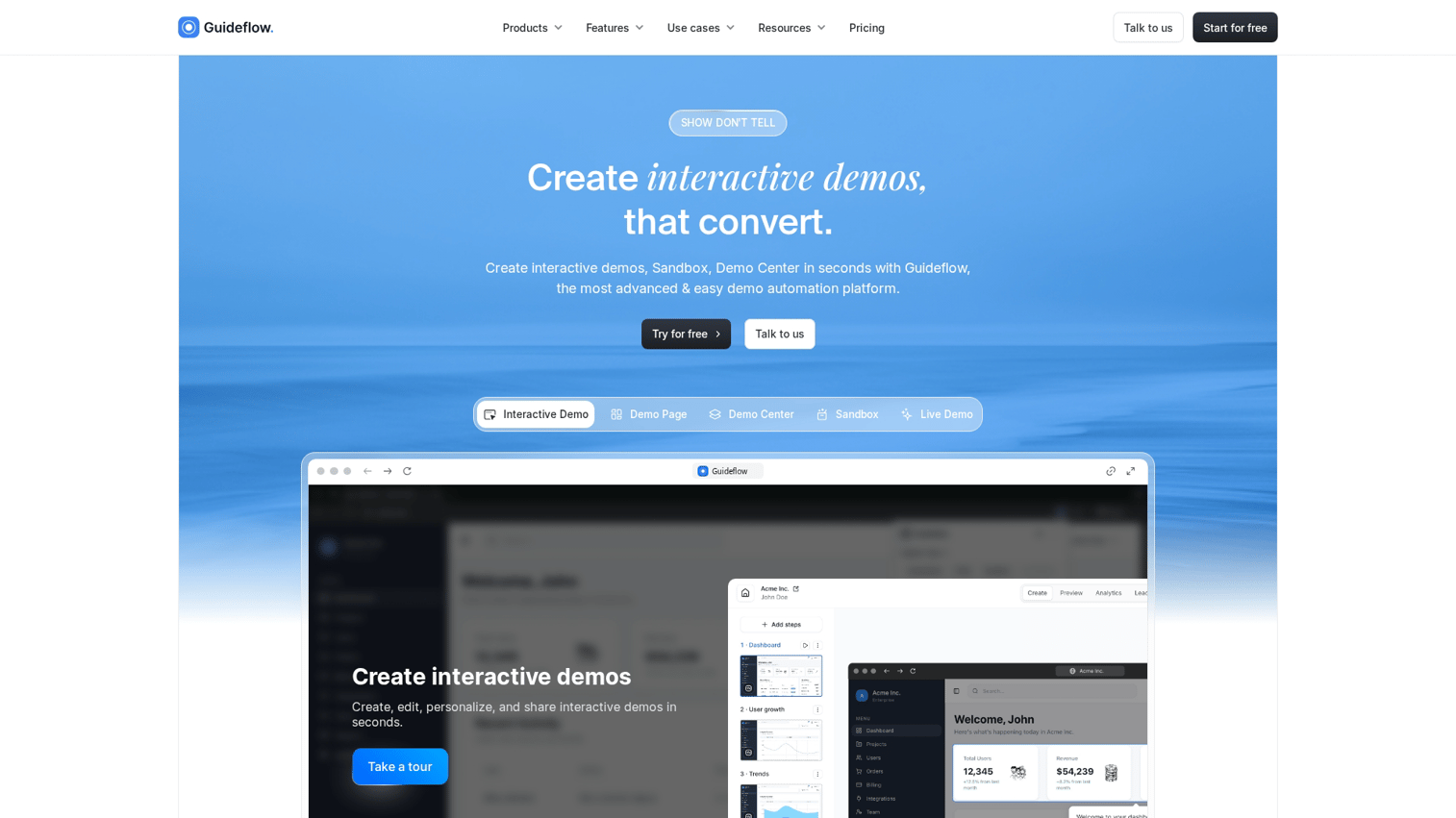
Guideflow is built for B2B teams that create interactive demos, product walkthroughs, and user guides fast. You capture any workflow directly from your browser in a few clicks. Then edit with a plug and play editor to add tooltips, callouts, and branching paths.
The platform supports personalization at scale using dynamic variables from your CRM. Each user sees content tailored to their role, company, or use case without manual rebuilding.
Built-in analytics track engagement, completion rates, and drop-off points. You can integrate with HubSpot, Salesforce, and more to sync data with your existing stack.
Guideflow works well for marketing teams embedding guides on websites, pre-sales teams creating product walkthroughs, and support teams reducing ticket volume with self-service documentation.
Get started now to see how fast you can build your first guide.
2. Spekit
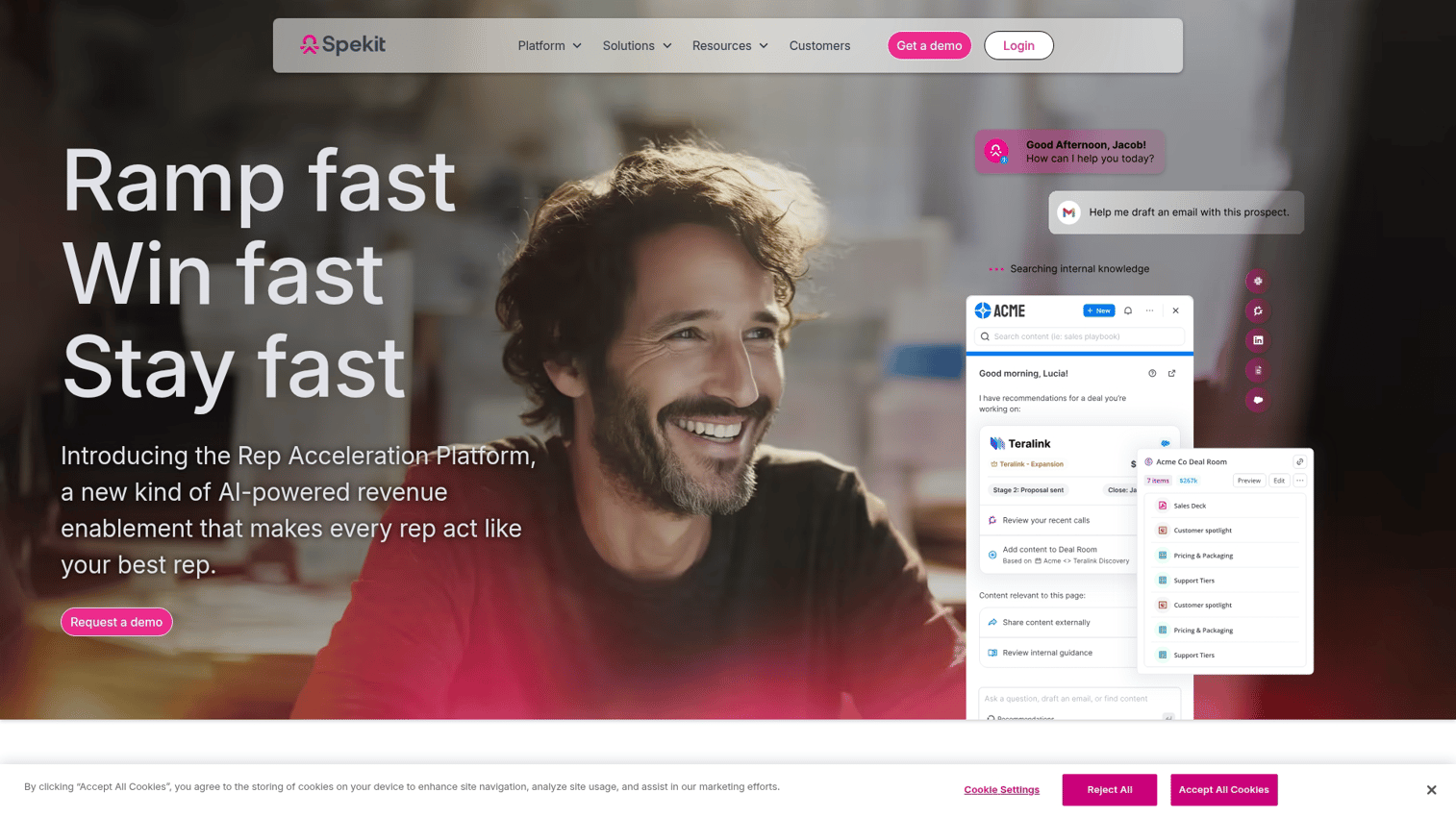
Spekit focuses on in-app training and knowledge surfacing. It's designed for sales enablement and internal documentation, showing contextual help where users work rather than requiring them to search a separate knowledge base.
The tool integrates with Salesforce, Slack, and other workplace apps to surface relevant information at the moment of need. When a sales rep hovers over a field in Salesforce, Spekit can display guidance on what to enter.
Spekit works best for internal teams that want just-in-time training embedded in their daily tools. It requires integration setup, so plan for implementation time.
3. WalkMe
WalkMe is an enterprise digital adoption platform with deep analytics, automation, and cross-platform support. It's built for large organizations with complex software stacks and significant training requirements.
The platform offers workflow automation, user segmentation, and detailed analytics on how users interact with software. You can build guided experiences across multiple applications and track adoption metrics at scale.
WalkMe's implementation can be complex, and pricing reflects its enterprise focus. Smaller teams may find it more than they need.
4. Whatfix
Whatfix is a digital adoption platform for onboarding and training at scale. It offers broad integrations and analytics for organizations rolling out software across many users.
The platform supports in-app guidance, self-help widgets, and analytics dashboards. It integrates with enterprise applications and provides detailed reporting on user behavior.
Whatfix may be more than smaller teams need. It's designed for organizations with significant training requirements and the resources to implement a comprehensive adoption platform.
5. UserGuiding
UserGuiding is a no-code tool for creating onboarding flows and interactive guides quickly. It's accessible for product and growth teams that want to ship guides without engineering involvement.
Setup is fast, and pricing is more accessible than enterprise platforms. You can create product tours, checklists, and tooltips without writing code.
UserGuiding offers limited advanced customization compared to enterprise tools. It works well for straightforward onboarding flows but may not scale for complex documentation.
6. Userpilot
Userpilot is a product-led growth tool with strong segmentation and experimentation features. It's built for SaaS teams optimizing in-app experiences and driving feature adoption.
The platform supports A/B testing, user segmentation, and analytics. You can target specific user segments with tailored onboarding flows and measure the impact on activation and retention.
Userpilot focuses more on in-app flows than external documentation. It's a strong choice for product teams but less suited for customer-facing help centers or support documentation.
7. HelpHero
HelpHero is a lightweight option for small teams that want simple onboarding tours and product walkthroughs. It's easy to deploy and affordable for teams with basic requirements.
The tool offers product tours, tooltips, and checklists without the complexity of enterprise platforms. Setup takes minutes rather than weeks.
HelpHero has fewer features for complex or large-scale documentation. It works well for early-stage companies or teams with straightforward requirements.
How to create an interactive user guide online
Follow these steps to build your first interactive guide. Each step produces a specific output before you move to the next.
Step 1: Define your audience and use case
Identify who will use the guide (new users, existing customers, internal teams) and what outcome you want (onboarding, feature adoption, support deflection).
Write a one-sentence statement: "This guide helps [audience] accomplish [outcome]." For example: "This guide helps new customers complete initial setup in under 10 minutes."
Step 2: Map the user journey or workflow
List the steps the user completes to achieve the outcome. Identify decision points, common questions, and potential drop-off spots.
Create a simple flow or checklist of steps. Note where users typically get confused or contact support. Friction points deserve extra attention in your guide.
Step 3: Capture your product flows
Record the actual clicks and screens using a browser extension or screen capture tool. Walk through the workflow as a user would, clicking each button and filling each field.
Your output is a raw recording or screenshot sequence showing the complete workflow from start to finish.
Step 4: Add tooltips, callouts, and interactive elements
Layer guidance onto the captured flow. Add tooltips explaining what each button does, highlights drawing attention to important fields, and callouts providing context.
Consider branching paths if users might take different routes based on their role or preferences. Your output is an annotated, interactive guide draft.
Step 5: Personalize for different user segments
Tailor content for different roles, accounts, or use cases using dynamic variables or conditional logic. Show enterprise customers different examples than small business users.
Your output is variant versions or personalized paths that feel relevant to each audience segment.
Step 6: Test with real users before publishing
Have real users walk through the guide and note where they get stuck or confused. Watch for steps that take longer than expected or generate questions.
Your output is a list of fixes and improvements based on actual user feedback.
Step 7: Publish and share across channels
Distribute your guide through multiple channels: embed on websites, share via link or embed, add to help centers, include in emails.
Your output is a live, published guide accessible to your audience wherever they look for help.
Best practices for building interactive user guides
Here are tactical practices that address common mistakes and help your interactive user manuals perform better.
1. Keep instructions simple and action-oriented
Write in short sentences. Use imperative verbs: "Click," "Enter," "Select." Avoid jargon unless you define it first.
Each step tells users exactly what to do. "Click the blue Save button in the top right corner" is clearer than "Save your changes."
2. Use progress indicators and checklists
Show users where they are in the process. Progress bars and checkboxes keep users engaged and reduce drop-off.
When users see they're 80% complete, they're more likely to finish. Without progress indicators, users don't know if they're almost done or just getting started.
3. Provide contextual help at the point of need
Surface guidance where users actually work, not buried in a separate help center. Tooltips and in-app hints work better than external links.
If a user struggles with a specific field, show help for that field right there. Don't make them search for documentation.
4. Optimize for search and navigation
Add a table of contents. Use clear, descriptive titles. Enable text search so users can jump to specific steps.
Users often know what they're looking for but not where to find it. Good search and navigation reduce frustration.
5. Update content without breaking links
Use tools that let you overwrite content in place so existing links stay valid. Avoid version-numbered URLs that go stale.
When you update a guide, every link pointing to it reflects the change. Users always see the current version.
6. Track engagement and iterate based on data
Monitor completion rates, drop-offs, and search queries. Use this data to improve weak spots in your guides.
If users consistently drop off at step 4, investigate why. If users search for terms you haven't documented, add that content.
How to measure interactive manual effectiveness
Track these metrics to understand whether your interactive user manuals work and where to improve.
| Metric | What it measures | What to look for |
|---|---|---|
| Completion rate | Users who finish the guide | Higher is better; low rates signal friction |
| Drop-off points | Where users abandon the guide | Identify and fix confusing or unnecessary steps |
| Time to complete | How long users spend | Very short or very long times may indicate issues |
| Support ticket volume | Tickets related to documented topics | Expect reduction after guide deployment |
| Search queries | What users look for but don't find | Add content for common unanswered queries |
Review data regularly. A guide that worked six months ago may need updates as your product evolves or user expectations change.
Completion rate benchmarks vary by guide length and complexity. For short onboarding flows (5-7 steps), aim for 70-80% completion. For longer guides, 50-60% may be realistic.
Which interactive user manuals software fits your workflow
Match your use case to the right tool type:
- B2B SaaS product demos and onboarding: Guideflow captures flows in clicks, personalizes at scale, and tracks engagement with built-in analytics.
- Enterprise digital adoption at scale: WalkMe or Whatfix offer deep analytics and cross-platform support for complex organizations.
- Fast, no-code onboarding flows: UserGuiding or HelpHero provide quick setup and accessible pricing for straightforward requirements.
- In-app training and sales enablement: Spekit surfaces contextual help where users work.
- Product-led growth experimentation: Userpilot offers segmentation and A/B testing for in-app experiences.
The right choice depends on your team size, technical resources, and primary use case. Start with the problem you're solving, then evaluate tools against that specific requirement.
Get started with Guideflow to build your first interactive guide in minutes.
FAQs about interactive user manuals
Pricing varies widely, from free tiers for basic use to enterprise contracts for large deployments. Entry-level tools like HelpHero and UserGuiding start around $50-100/month. Enterprise platforms like WalkMe and Whatfix require custom pricing based on user volume and features.
Yes. Most modern tools offer no-code editors with drag-and-drop interfaces and browser-based capture.
Non-technical users can build guides independently without engineering involvement. The learning curve is typically hours, not weeks.
Simple guides can be created in minutes using screen capture tools. More complex, multi-step guides with personalization may take a few hours to build and refine. The first guide takes longest as you learn the tool; subsequent guides go faster.
Some tools support offline access or downloadable exports. Check whether your chosen tool offers this if your users work without reliable internet. Not all platforms include offline functionality.
Most tools require you to re-capture or rebuild content rather than import PDFs directly. Plan to map your existing content to new, step-by-step flows. This is an opportunity to improve the documentation, not just convert it.
A knowledge base is a searchable library of articles. An interactive manual is a guided, step-by-step experience that walks users through specific tasks or workflows. Knowledge bases answer "what is this?" while interactive manuals answer "how do I do this?"