You shipped a feature. The onboarding screens look great. Then someone opens the page on a mid-tier Android over hotel wifi, and the hero image takes four seconds to paint.
That gap between how a workflow feels in review and how it feels in the wild is where bloated images quietly cost you activation. Heavier assets mean slower first loads, and slower first loads mean users bounce before they reach a first meaningful success.
The fix is boring on purpose: Compress the files, keep the quality your eye actually notices. The global image compression software market was valued at USD 1.2 billion in 2024, growing at a projected 8.5% CAGR through 2033, according to Verified Market Reports (2024). That growth is not hype. It reflects how many teams now treat file weight as a real performance lever, not an afterthought.
So which tool fits your platform, your volume, and your tolerance for maintenance?
What's inside
This guide is for product managers, designers, and anyone who owns assets that ship into a product or web experience. It covers desktop apps, browser-based tools, and batch compressors, so you can match a tool to how you actually work.
We chose tools on four criteria:
- Compression quality: How much file size drops without visible degradation
- Batch handling: Whether it processes folders and large sets, not just single files
- Preview and metadata controls: Side-by-side comparison and EXIF stripping
- Platform support: Desktop, browser, Mac, Windows, and cross-platform fit
Every pricing figure here was checked against the vendor's own page. Where a tool is free, we say so plainly.
TL;DR
- Best overall for desktop and batch: Caesium, free, with real-time preview and a CLI
- Best privacy-first browser tool: Squoosh, runs locally, nothing uploaded
- Best for Mac workflows: ImageOptim, strong metadata stripping and Finder integration
- Best for bulk folder compression: Mass Image Compressor, recursive folders and format conversion
- Best for Windows power users: FileOptimizer, lossless reduction across 600+ file types
- Best lightweight cleanup: RIOT, adjustable compression with visible before-and-after
- Best for multi-format pipelines: XnConvert, batch conversion across 500+ formats
Every option below is a photo compressor software you can test on a sample set before committing.
What is image compression software
Image compression software reduces the file size of an image while keeping enough visual quality for its intended use. It does this by removing redundant data, re-encoding pixels, or stripping information the viewer never sees, so pages load faster and storage stays lean.
There are two broad approaches. Lossless compression shrinks files with no quality change, ideal for logos, screenshots, and UI assets. Lossy compression discards some data for a much smaller file, which suits photos where a slight, invisible reduction is an acceptable trade.
An image optimizer typically bundles several of these capabilities:
- Batch processing: Compress many files or entire folders in one pass
- Format conversion: Move between JPEG, PNG, WebP, AVIF, GIF, and more
- Preview and comparison: See original versus compressed before you commit
- Metadata stripping: Remove EXIF, GPS, and thumbnail data
- Platform fit: Desktop apps, command-line tools, or browser-based processing
- Local or browser processing: Keep files on your machine instead of a server
For a product manager, the useful frame is not "best compression" in the abstract. It is maintenance burden and workflow fit. A tool that a designer runs once and forgets beats a heavier setup that needs a script babysat every release. The right image compressor software also respects your privacy constraints, since some tools upload files to a server and others never leave your device.
Most tools in this category are free or low-cost, which matters when you are weighing opportunity cost against a paid platform. The question is rarely budget. It is whether the tool handles your actual mix of desktop, browser, and bulk work without becoming another thing to babysit.
When to use image compression software
Compress images for faster web performance
Large images are the most common cause of slow page loads, and slow loads drag down activation for anyone landing cold. Compressing hero images, thumbnails, and in-app screenshots cuts payload without a redesign. You get faster first paint and lower bounce on the exact screens where new users decide whether to stay.
Batch optimize folders before publishing
Teams handling product catalogs, marketing galleries, or documentation libraries rarely deal with one image at a time. A bulk image compressor processes a full folder in a single run, so you are not clicking through hundreds of files. This matters most when a release ships dozens of new screens and someone has to prep the assets before deadline.
Strip metadata before sharing files
Photos carry hidden data: Camera model, timestamps, sometimes GPS coordinates. Before assets go to a partner, a marketplace listing, or a public page, stripping that metadata protects privacy and shaves extra bytes. A picture compressor software with metadata controls handles both file hygiene and size in one step.
Comparison table
The seven tools below split along three lines: Which platform they run on, how deep their batch workflow goes, and whether processing happens locally or on a server. Free desktop and browser tools cover most needs, while a couple add commercial licensing for company use. Use this table to shortlist, then read the item sections for the trade-offs.
| # | Product | Best for | Key differentiator | Pricing | G2 rating |
|---|---|---|---|---|---|
| 1 | Caesium | Desktop and batch compression | Real-time preview across desktop, online, and CLI | Free | Not listed |
| 2 | Squoosh | Privacy-first browser use | Local processing, no upload | Free | Not listed |
| 3 | ImageOptim | Mac workflow integration | Metadata stripping plus API for servers | Free app; API from $12/mo | Not listed |
| 4 | Mass Image Compressor | Bulk folder compression | Recursive folders with format conversion | Free, open source | Not listed |
| 5 | FileOptimizer | Windows power users | Lossless reduction across 600+ file types | Free, open source | Not listed |
| 6 | RIOT | Lightweight cleanup | Visible before-and-after compression control | Free | Not listed |
| 7 | XnConvert | Multi-format pipelines | Batch conversion across 500+ formats | Free for personal; from 15.00 € commercial | Not listed |
Best 7 tools for image compression
1. Caesium
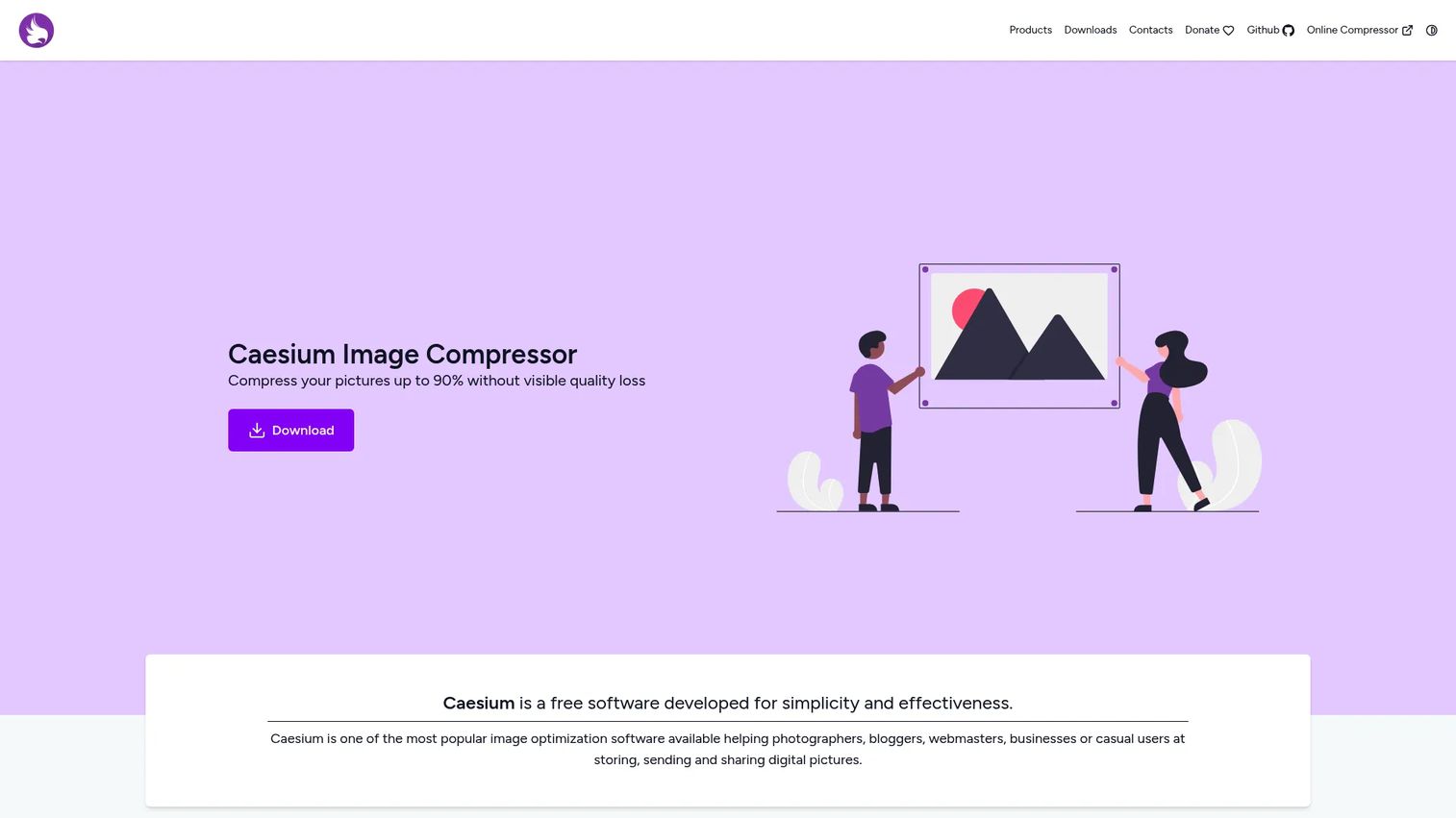
Caesium is free image compression software that runs as a desktop app, an online tool, and a command-line utility. It handles multiple images at once, keeps a real-time preview so you can judge quality before saving, and supports folder structures for organized output. That range makes it a practical default when you want one tool across both desktop and browser work.
Best for: Anyone who wants a free, no-fuss compressor that works on desktop or via CLI.
Key features
- Real-time preview: Compare before and after
- Multiple image processing: Batch entire sets
- Metadata storing options: Keep or drop EXIF
- Folder structure support: Preserve organization
- Command-line tool: Script into pipelines
Why choose Caesium
Caesium fits teams that want desktop control plus the option to automate through the CLI. It suits a product workflow where a designer compresses interactively and an engineer scripts the same job for release builds.
Caesium pricing: Caesium is free. SaeraSoft presents it as free software on its site, with no paid tiers shown.
Caesium does not have a verified G2 listing at the time of writing, so no rating is shown here.
2. Squoosh
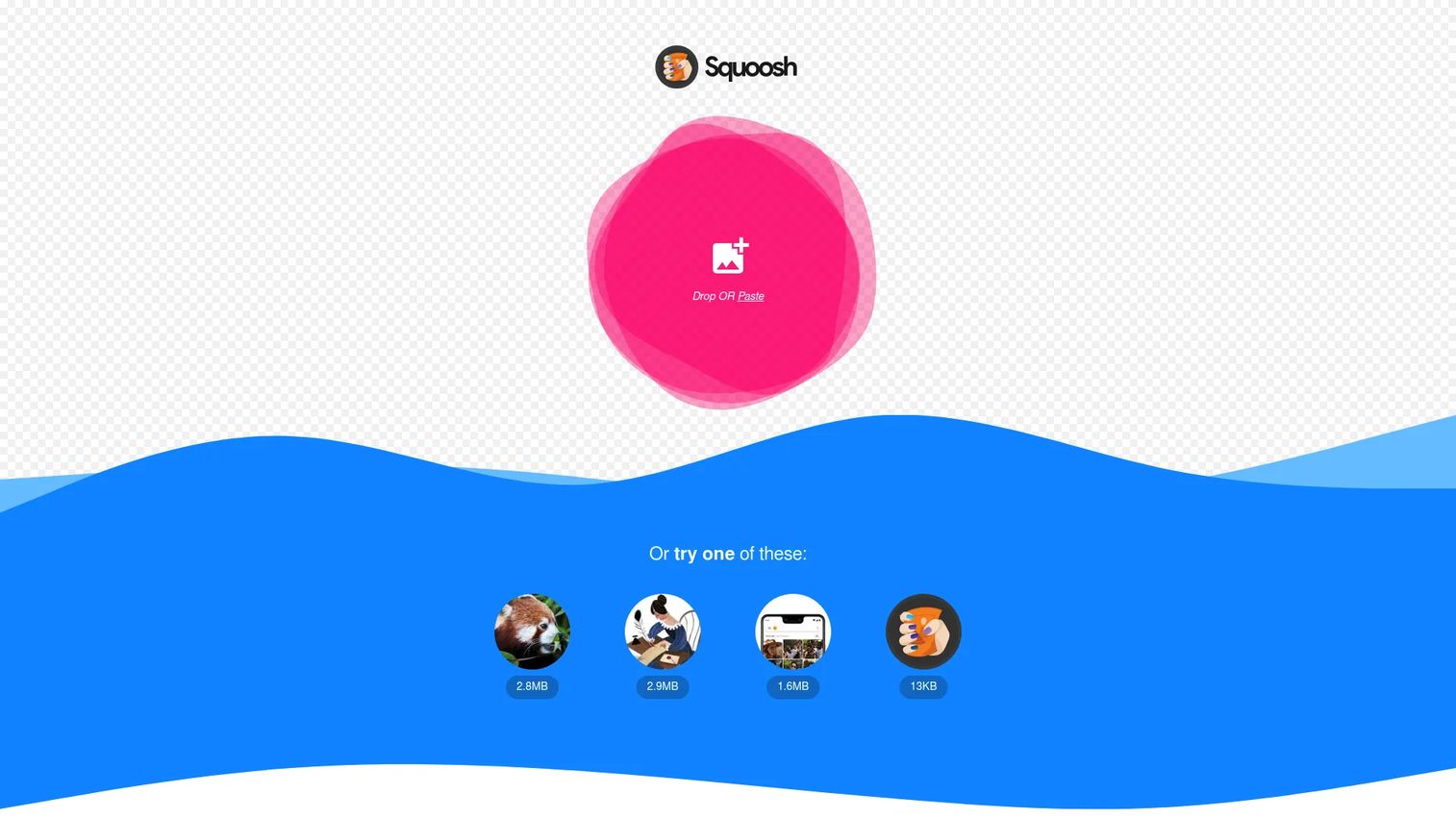
Squoosh is a browser-based image optimizer that processes files locally on your device. Nothing uploads to a server, which answers the privacy question before anyone asks it. You drop an image in, adjust codec and quality settings, and watch the difference update side by side in real time.
Best for: People who want quick, private compression without installing anything.
Key features
- Browser-based workflow: No install needed
- Local processing: Files stay on device
- Side-by-side comparison: Judge quality live
- Codec experimentation: Test WebP, AVIF, more
- Instant save: Download when satisfied
Why choose Squoosh
Squoosh works best when you want fast, one-off optimization and hands-on control over quality. It is the tool to open when a teammate sends a single heavy asset and you need it lighter in under a minute.
Squoosh pricing: Squoosh is free. The official site presents it as a free browser tool with no paid tiers.
Squoosh does not have a confirmed G2 rating, so none is listed here.
3. ImageOptim
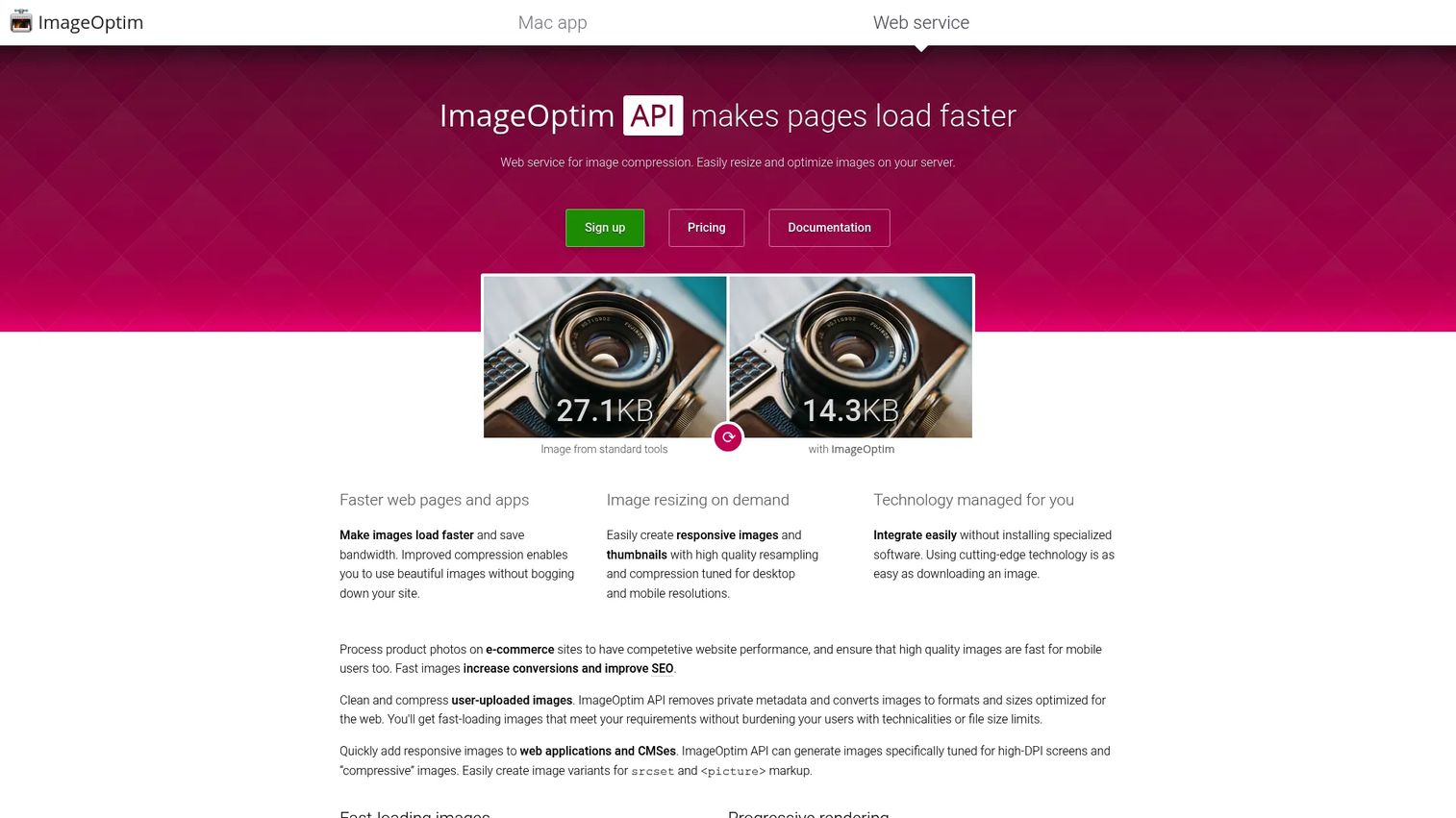
ImageOptim pairs a free Mac app with an API and web service for server-side optimization. The Mac app automatically strips metadata and runs several optimizers behind the scenes, so you get strong defaults with a drag-and-drop. For teams past manual work, the API resizes and optimizes images on servers.
Best for: Mac users and teams that also want server-side compression for web workflows.
Key features
- macOS app: Drag-and-drop batching
- Metadata cleanup: Strip EXIF automatically
- Multiple optimizer pipeline: Combine tools
- Lossy and lossless: Choose per file
- API and web service: Server-side resizing
Why choose ImageOptim
ImageOptim suits Mac-based teams that want minimal friction and solid default output. The trade-off is platform lock-in on the app side, so mixed Mac and Windows teams lean on the API instead.
ImageOptim pricing: The Mac app is free. The ImageOptim API starts at $12 per month, with Pro at $49 per month and Business at $245 per month, plus dedicated and custom plans from $850 per month and a free trial.
ImageOptim does not have a verified G2 rating available, so none appears here.
4. Mass Image Compressor
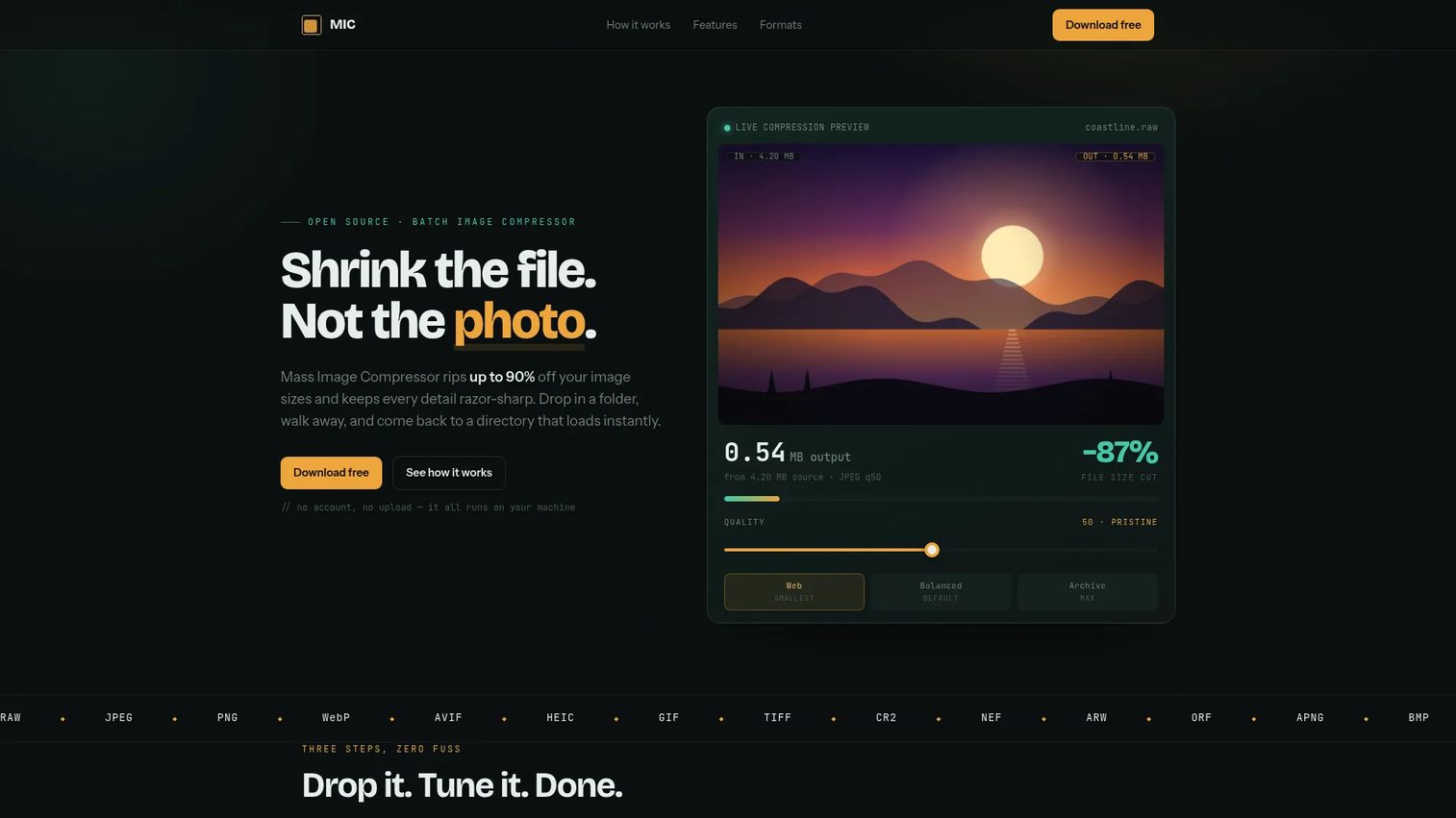
Mass Image Compressor is an open-source batch compressor for Windows that runs entirely on your machine. It compresses whole folders recursively, converts between formats like JPEG, WebP, AVIF, and PNG, and adds resizing, watermarking, and metadata controls. That feature density makes it a strong pick when volume and conversion both matter.
Best for: Teams or individuals doing offline bulk compression on Windows.
Key features
- Recursive folder compression: Whole trees at once
- Format conversion: JPEG, WebP, AVIF, PNG, more
- Resize presets: Fit target dimensions
- Metadata controls: Keep or strip data
- Retina exports: Multiple output scales
Why choose Mass Image Compressor
Mass Image Compressor is strongest when you process many files at once and need conversion in the same pass. It fits catalog and gallery prep where a single run has to handle a big, mixed set.
Mass Image Compressor pricing: Mass Image Compressor is free and open source, with no paid tiers.
This tool does not have a verified G2 listing, so no rating is shown.
5. FileOptimizer
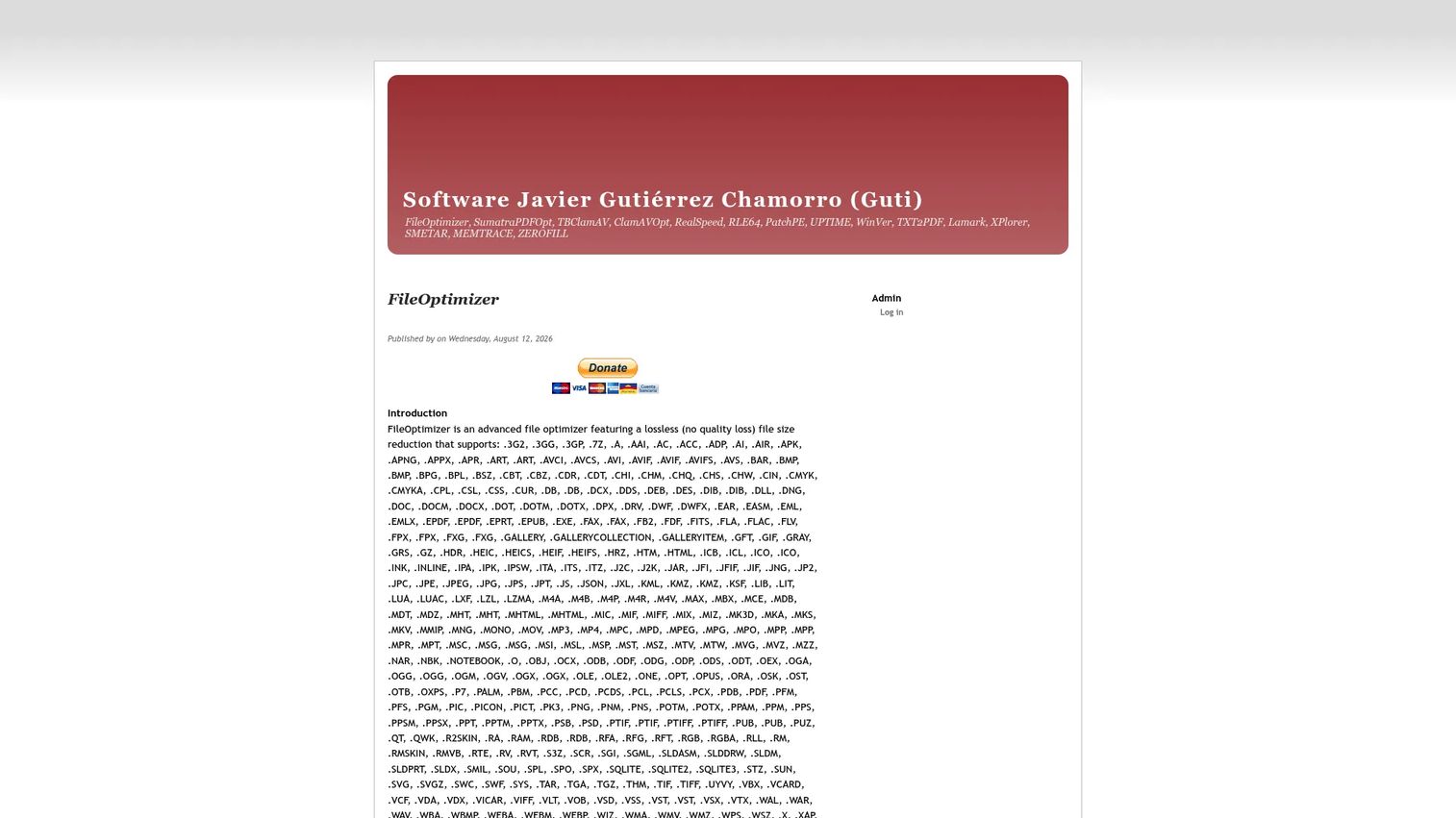
FileOptimizer is a free, open-source optimizer for Windows that shrinks file size losslessly without changing the format. It covers more than 600 file extensions, bundles over 90 integrated third-party tools, and supports command-line automation plus context-menu use. For power users, that breadth is the appeal.
Best for: Windows users who want deep, lossless batch reduction and are fine with a technical workflow.
Key features
- Lossless reduction: No quality change
- 600+ file extensions: Broad coverage
- 90+ integrated tools: One pipeline
- Command-line automation: Script batches
- Context-menu use: Right-click to optimize
Why choose FileOptimizer
FileOptimizer fits Windows users who want maximum control and lossless output across many file types. The trade-off is a denser, more technical interface than a simple drag-and-drop compressor.
FileOptimizer pricing: FileOptimizer is free under the GNU AGPL. Donations are optional and there are no paid tiers.
FileOptimizer does not have a verified G2 rating, so none is listed here.
6. RIOT
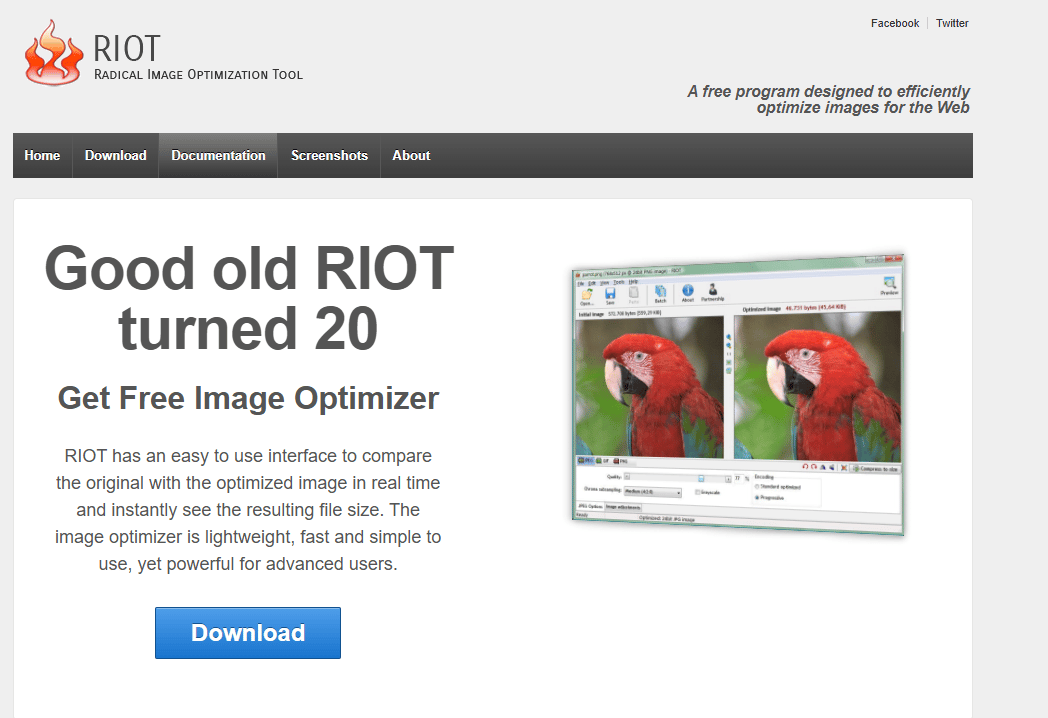
RIOT (Radical Image Optimization Tool) is a lightweight Windows compressor built around visible control. You adjust compression settings and watch a before-and-after comparison update live, so you can push quality down only as far as your eye allows. It handles common formats and exports quickly, which makes it practical for everyday cleanup.
Best for: Users who want a simple compressor with clear before-and-after control.
Key features
- Visual comparison: See changes live
- Adjustable compression: Dial in quality
- Simple Windows UI: Low learning curve
- Format handling: JPEG, PNG, GIF
- Quick export: Save in a click
Why choose RIOT
RIOT fits when you want straightforward compression with a visible quality trade-off in front of you. It is the tool for quick, one-file cleanups where you would rather see the result than trust a preset.
RIOT pricing: RIOT is free.
RIOT does not have a verified image-compression G2 listing, so no rating is shown here.
7. XnConvert
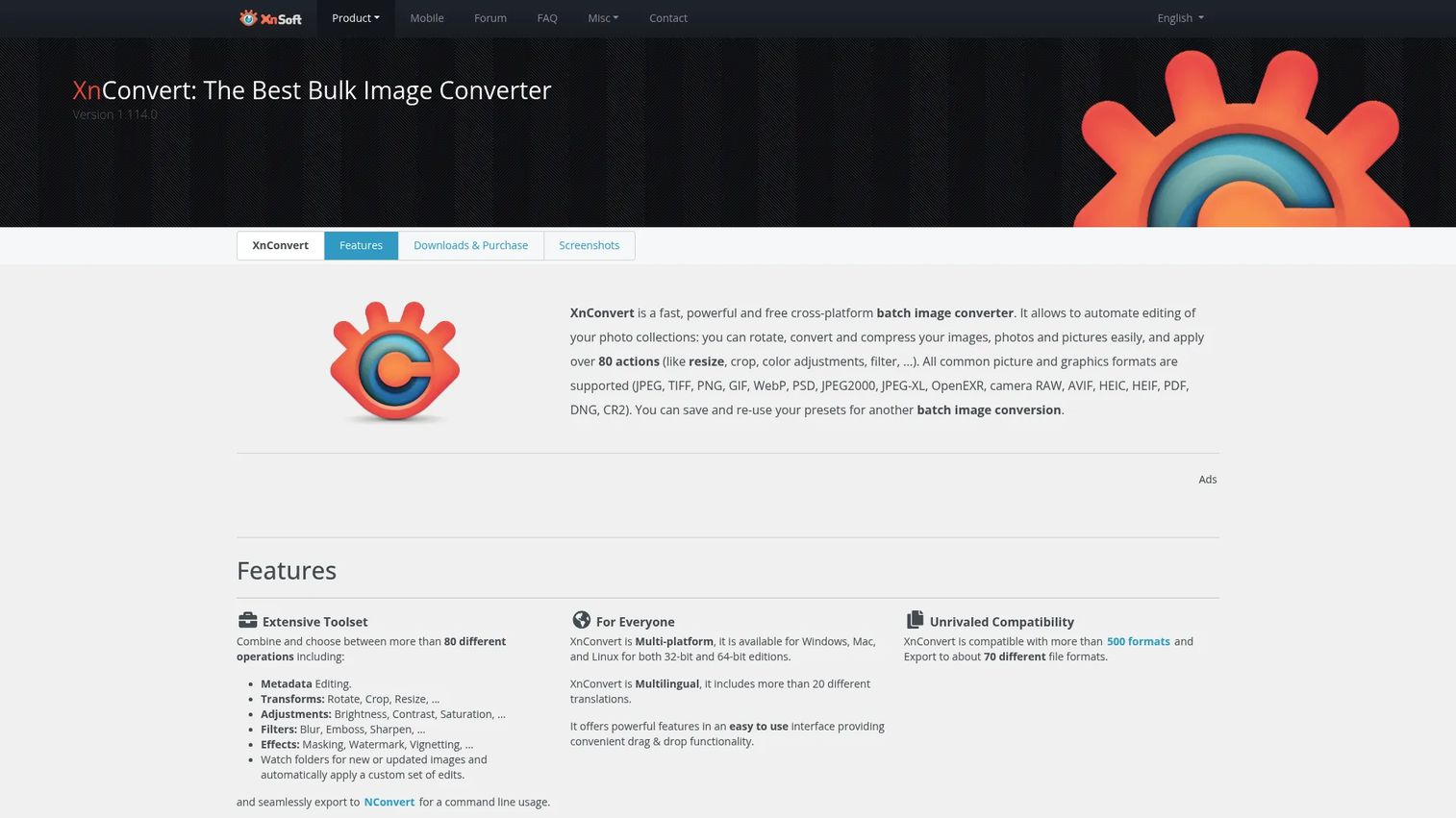
XnConvert is a cross-platform batch converter and editor that also compresses. It handles more than 500 formats, applies over 80 actions like resize, crop, watermark, and metadata edits, and can watch folders to process new images automatically. Compression here lives inside a broader image-processing pipeline.
Best for: Businesses or individuals who need bulk conversion and automation alongside compression.
Key features
- Batch conversion: 500+ formats
- 80+ actions: Resize, crop, watermark
- Cross-platform: Windows, Mac, Linux
- Watch folders: Auto-process new files
- Metadata control: Edit or strip fields
Why choose XnConvert
XnConvert is best when compression is one step in a larger conversion and transformation workflow. If you only need to shrink single files, a focused compressor is simpler, but for mixed pipelines this is the deeper tool.
XnConvert pricing: XnConvert is free for private or educational use. Commercial use requires a license starting at 15.00 € for one seat, dropping to 6.50 € each at 100+ licenses.
XnConvert does not have a verified G2 rating, so none appears here.
Considerations
Compression quality vs file size
Every compressor trades size against fidelity, and the right point depends on the asset. Photos tolerate aggressive lossy compression that logos and UI screenshots do not. Test each tool on a real sample set and check the output at the size users actually see it, not zoomed in.
Batch workflow needs
A single-file tool is fine for the occasional heavy asset. A folder-based workflow matters the moment a release ships dozens of new screens and someone has to prep them all before a deadline. Match the tool to your real volume, not your best-case one.
Metadata and privacy controls
If assets leave your company, stripping EXIF, GPS, and thumbnail data protects both privacy and file size. Confirm the tool removes metadata by default or offers a clear toggle. This is easy to overlook until a partner asks why your screenshots carry location data.
Platform and deployment
Some tools are Mac-only, some Windows-only, and a few run in the browser or across every OS. A mixed team is better served by a cross-platform or browser-based option so nobody is locked out. Check where processing happens too: Local keeps files off servers, which some security reviews require.
Format support
The formats you ship decide which tool fits. Verify support for JPEG, PNG, WebP, GIF, AVIF, and SVG before committing, since modern formats like WebP and AVIF deliver smaller files for the same quality. A tool that skips the format you rely on is a non-starter, however good the rest of it is.
Conclusion
Picking an image optimizer comes down to platform and volume, not marketing claims. Caesium is the strongest free default across desktop, browser, and CLI. Squoosh wins when you want private, in-browser compression with hands-on quality control. ImageOptim fits Mac teams and, through its API, server-side web workflows.
For bulk work, Mass Image Compressor handles recursive folders with conversion, FileOptimizer gives Windows power users lossless reduction across 600+ file types, and XnConvert folds compression into a broader conversion pipeline. RIOT stays the simple pick for quick, visible cleanup.
Start with one tool that matches your platform and your typical batch size. Run it on a sample set, check the output at real display size, and confirm it strips the metadata you care about. If the quality holds and the workflow does not create maintenance overhead, you have your answer. That is the whole test.
If your product also needs to show its own workflows without exposing live data, Guideflow lets you capture and share interactive product demos for onboarding, sales, and support.
Start your journey with Guideflow today!
FAQs
Photo-heavy workflows need strong JPEG handling and quality controls, since photos tolerate lossy compression that graphics do not. Caesium and Squoosh both give you a live preview to push size down without visible loss. For batch photo sets, Mass Image Compressor handles volume with conversion in one pass.
Browser-based comparison tools like Squoosh and quality-first desktop apps like Caesium tend to preserve detail best, because they show the result before you commit. The key is a side-by-side preview so you control the trade-off yourself. Always judge quality at the size the image will actually display, not zoomed in.
It depends on the tool's model. A browser tool like Squoosh processes files locally on your device, so nothing uploads to a server. Other online tools do upload, so check the privacy policy before sending anything sensitive, and prefer local processing when files carry confidential data.
ImageOptim is the Mac-focused option, with a free app that strips metadata and runs several optimizers by default. Its Finder integration keeps compression close to where you already work. Cross-platform tools like XnConvert and browser-based Squoosh also run on Mac if you want one tool across a mixed team.
For high-volume work, folder-based tools are the right call. Mass Image Compressor compresses recursive folders with format conversion, FileOptimizer batches across 600+ file types on Windows, and XnConvert handles bulk conversion and compression together. Pick based on your platform and whether you also need format changes.
Yes, most of these tools remove EXIF, GPS, and thumbnail data. ImageOptim strips metadata by default, and Caesium, Mass Image Compressor, and XnConvert give you controls to keep or drop it. This matters for privacy and shaves extra bytes before assets leave your company.
Check for JPEG, PNG, WebP, GIF, AVIF, and SVG before committing. WebP and AVIF deliver smaller files at the same quality, so they are worth prioritizing for web assets. XnConvert covers 500+ formats and Mass Image Compressor handles the modern set, if broad format support is your main constraint.