You bought the new SSD. You ran the clone. You swapped the drives. And now the machine sits at a black screen with a blinking cursor, refusing to boot.
That is the failure mode that makes drive migration stressful. It is not just copying files. You are moving an operating system, boot partitions, installed apps, licenses, and years of settings, and any one of them can break the boot process if the tool handles it wrong. According to Market Growth Reports (2025), 71% of cloning deployments are tied to SSD migration from legacy HDD systems, so most people reading this are doing exactly one thing: upgrading a working drive and hoping the copy boots.
Three things separate a clone that boots from one that does not. Bootability, meaning the tool correctly preserves EFI and boot partitions. Speed, because used-sector cloning beats copying empty space bit for bit. And support depth, because when a clone stalls at 2 a.m. before a deadline, a good knowledge base matters more than a marketing page. The same Market Growth Reports (2025) data shows over 78% of enterprises rely on disk cloning tools during hardware refresh projects, and 64% of IT departments use them for OS replication and endpoint provisioning. This is boot-critical work at scale.
Whole-disk cloning beats a manual reinstall for most people because it preserves the exact working state. No reinstalling 40 apps, no re-entering license keys, no rebuilding a config you forgot you customized. The catch is choosing a tool you can trust with a boot-critical copy.
What's inside
This guide covers software built for whole-disk and system cloning, not file-level backup utilities. Every tool here can copy an entire disk, including the OS, and produce a target drive that boots.
We selected and ranked these seven tools on the criteria that actually matter for a live migration: bootability and first-boot readiness, cloning speed and sector handling, flexibility across larger or smaller target drives, and the depth of support, tutorials, and recovery resources behind the product. The list spans free and paid options, and it covers both beginners doing a one-time SSD upgrade and IT admins standardizing machines across a fleet.
TL;DR
- Best overall for most Windows migrations: Macrium Reflect, for reliable bootable clones and mature recovery tooling.
- Best free, open-source disk clone software for technical users: Clonezilla, for offline cloning and broad filesystem support.
- Best guided, consumer-friendly cloning: Acronis Cyber Protect Home Office, for cloning plus built-in device protection.
- Best for simple disk copy tasks: EaseUS Disk Copy, for a direct source-to-target migration path.
- Best all-around backup and cloning: AOMEI Backupper, with a genuinely useful free cloning software tier.
- Best for IT-focused drive management: Paragon Hard Disk Manager, for cloning plus partitioning and disk maintenance.
- Best lightweight imaging and cloning: MiniTool ShadowMaker, for straightforward system backup and recovery.
What hard drive cloning software is
Hard drive cloning software is software that copies an entire disk, including the operating system, installed applications, partitions, and user data, onto a second drive so the target boots and runs as an exact replica of the source. That is the core distinction from a file backup. A backup stores your data for later restoration. A clone produces a working, bootable drive you can swap in immediately.
The difference between cloning and disk imaging matters here. Imaging compresses a disk into a single archive file you restore later. Whole disk cloning writes a live, ready-to-boot copy directly to the target drive. Many tools on this list do both, but for a straight HDD to SSD migration, a direct clone is usually the faster path to a running system.
Bootability is the whole point. A clone that copies every byte but scrambles the EFI system partition or boot configuration leaves you at that blinking cursor. Good drive cloning software preserves boot structures, handles GPT and MBR layouts, and offers first-boot repair when the target hardware differs from the source. That is why system cloning is a different discipline from simply copying folders.
Typical use cases fall into a few buckets:
- Upgrading an aging HDD to a faster SSD without reinstalling anything.
- Replacing an SSD that is running low on space or nearing its write limit.
- Rescuing data and the full system state off a failing but still-readable drive.
- Standardizing and deploying identical machine images across an IT fleet.
Core capabilities buyers expect from serious disk cloning software:
- Whole-disk copying that captures the OS, apps, and every partition.
- Bootable media support so you can clone offline, outside the running OS.
- Used-sector cloning that copies only occupied blocks instead of empty space.
- Target-drive flexibility for cloning to larger or smaller disks with partition resizing.
- Restore and recovery workflows for when a migration needs a rollback.
- Support depth, including tutorials, knowledge base articles, and active community help.
When to use hard drive cloning software
Upgrade an old HDD to an SSD
This is the most common reason people reach for bootable cloning software. You want the speed of an SSD without losing your apps, settings, browser profiles, and the workflow you have tuned over years. A clean reinstall throws all of that away. HDD to SSD migration through cloning preserves it and gets you to first-boot readiness on the new drive in one pass. The thing to verify is partition resizing, because SSDs often differ in capacity from the HDD you are leaving behind.
Replace a failing drive before it dies
When SMART warnings start firing or the drive is making noises it should not, time is the constraint. Cloning from a drive that is still readable captures the full system state before it becomes unrecoverable. Prioritize tools with fast used-sector cloning and reliable recovery media, because a full sector-by-sector clone of a dying disk can take longer than the drive has left. Get the clone off the bad drive first, then diagnose.
Standardize machines across IT or presales demo labs
For IT teams and presales engineers running demo labs, cloning is a deployment tool. Build one machine correctly, then replicate that image across a fleet. Here you want offline cloning through bootable media, unattended or scripted workflows, and multi-machine deployment support. This is repeatable imaging and cloning as an operational process, not a one-off task, so automation and consistency outweigh hand-holding.
Comparison table
Pricing and ratings shift often. Verify current figures on each vendor's pricing page and review listing before you buy. The table below sorts by relevance to a boot-critical Windows migration, not alphabetically.
| # | Product | Intent | Key use case | Pricing | G2 rating |
|---|---|---|---|---|---|
| 1 | Macrium Reflect | Reliable Windows cloning and imaging | Bootable HDD to SSD migration with bare-metal recovery | Region-selectable, see vendor | Not listed |
| 2 | Clonezilla | Free, open-source technical cloning | Offline cloning and mass deployment | Free / open source | Not listed |
| 3 | Acronis Cyber Protect Home Office | Guided consumer cloning plus protection | Cloning bundled with backup and anti-malware | From $49.99/year | 4.7/5 |
| 4 | EaseUS Disk Copy | Simple direct disk cloning | One-click OS migration to a new drive | From $19.90/month | Not listed |
| 5 | AOMEI Backupper | Backup and cloning in one suite | System and disk cloning with a free tier | Free; Pro from $39.95/year | 4.3/5 |
| 6 | Paragon Hard Disk Manager | IT-adjacent disk management | Cloning plus partitioning and disk maintenance | From $19.95 | Not listed |
| 7 | MiniTool ShadowMaker | Lightweight imaging and cloning | Straightforward system backup and clone | Free tier available | 3.3/5 |
1. Macrium Reflect
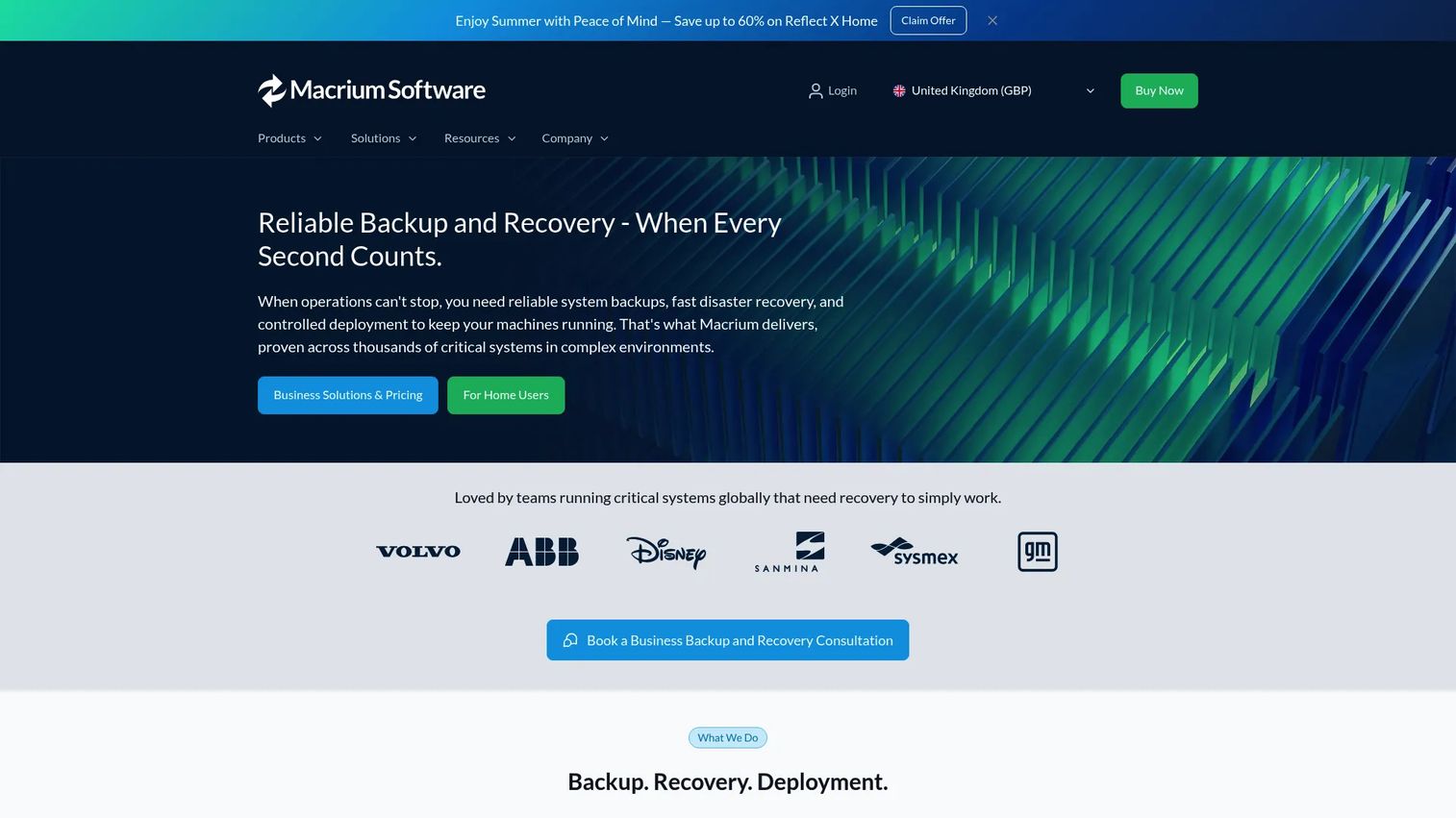
Macrium Reflect is the tool most people land on when a clone absolutely has to boot. It handles disk imaging, file and folder backup, disk cloning, and rapid restore, with rescue media that lets you clone and recover outside the running OS. For Windows migrations where downtime is not an option, it has earned its reputation for producing clones that come up on the first try.
Best for: Windows users and IT teams who need dependable bootable clones and mature bare-metal recovery.
Key strengths
- Disk imaging and cloning: Full-disk and partition copies plus file and folder backup in one product.
- Rescue and recovery media: Boot into a recovery environment to clone or restore when Windows will not start.
- Rapid restore: Roll a system back quickly when a migration needs a do-over.
Why choose Macrium Reflect: If your priority is first-boot confidence over everything else, Macrium is the safe default. Its ReDeploy capability helps a cloned system boot on different hardware, which matters when the target machine is not identical to the source. That combination of imaging, cloning, and recovery in one mature package is why so many IT teams standardize on it.
Macrium Reflect pricing: Macrium sells through its buy-now page with region and currency-selectable pricing rather than a single fixed public figure. Check the vendor's purchase page for the plan and currency that apply to you, and confirm whether a trial is currently offered before committing to a paid license.
2. Clonezilla
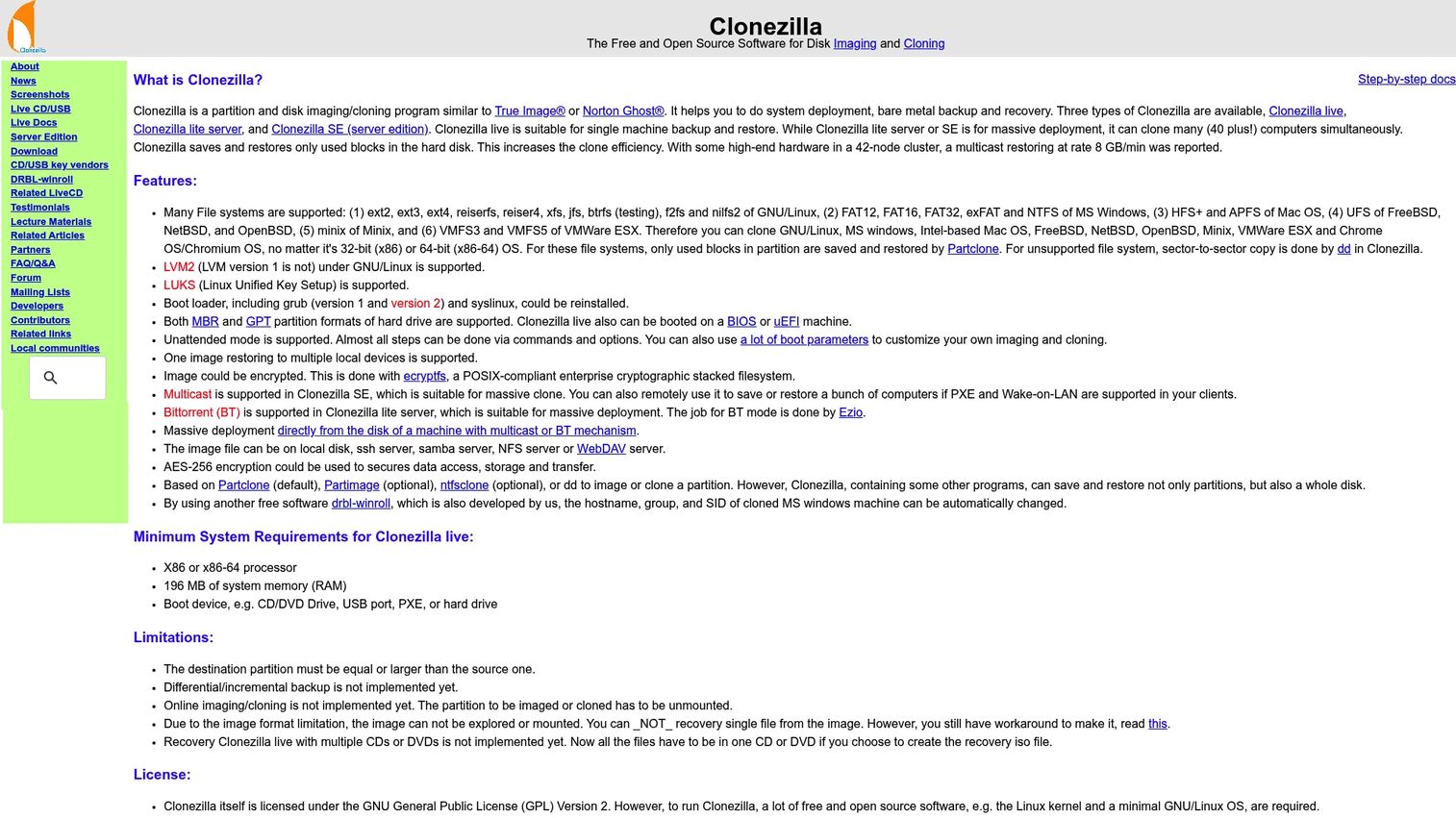
Clonezilla is the free, open-source workhorse for technical users and IT teams. It runs from live media, clones disks and partitions offline, and supports a wide range of filesystems along with MBR and GPT layouts. Its real power shows up in deployment: single-machine restore through Clonezilla Live, and mass rollout through Lite Server or the SE edition with multicast, PXE boot, and Wake-on-LAN.
Best for: IT admins and technical users who want free, scriptable cloning and large-scale deployment.
Key strengths
- Broad filesystem support: Handles many filesystems plus MBR and GPT, so it copes with mixed environments.
- Mass deployment: Multicast, PXE, and unattended mode push one image to many machines.
- Offline cloning: Boots from its own live media, independent of the source OS.
Why choose Clonezilla: Clonezilla excels when you value control and cost over hand-holding. It is a text-driven tool with deep documentation and an active community, and it rewards users who are comfortable working outside a polished GUI. For a technically confident admin cloning or deploying at scale, nothing else on this list matches the price or the flexibility.
Clonezilla pricing: Clonezilla is free and open source. The official site does not publish any paid tier, so there is no license cost to plan around. Budget instead for the time to learn its workflow if you are new to command-line cloning.
3. Acronis Cyber Protect Home Office
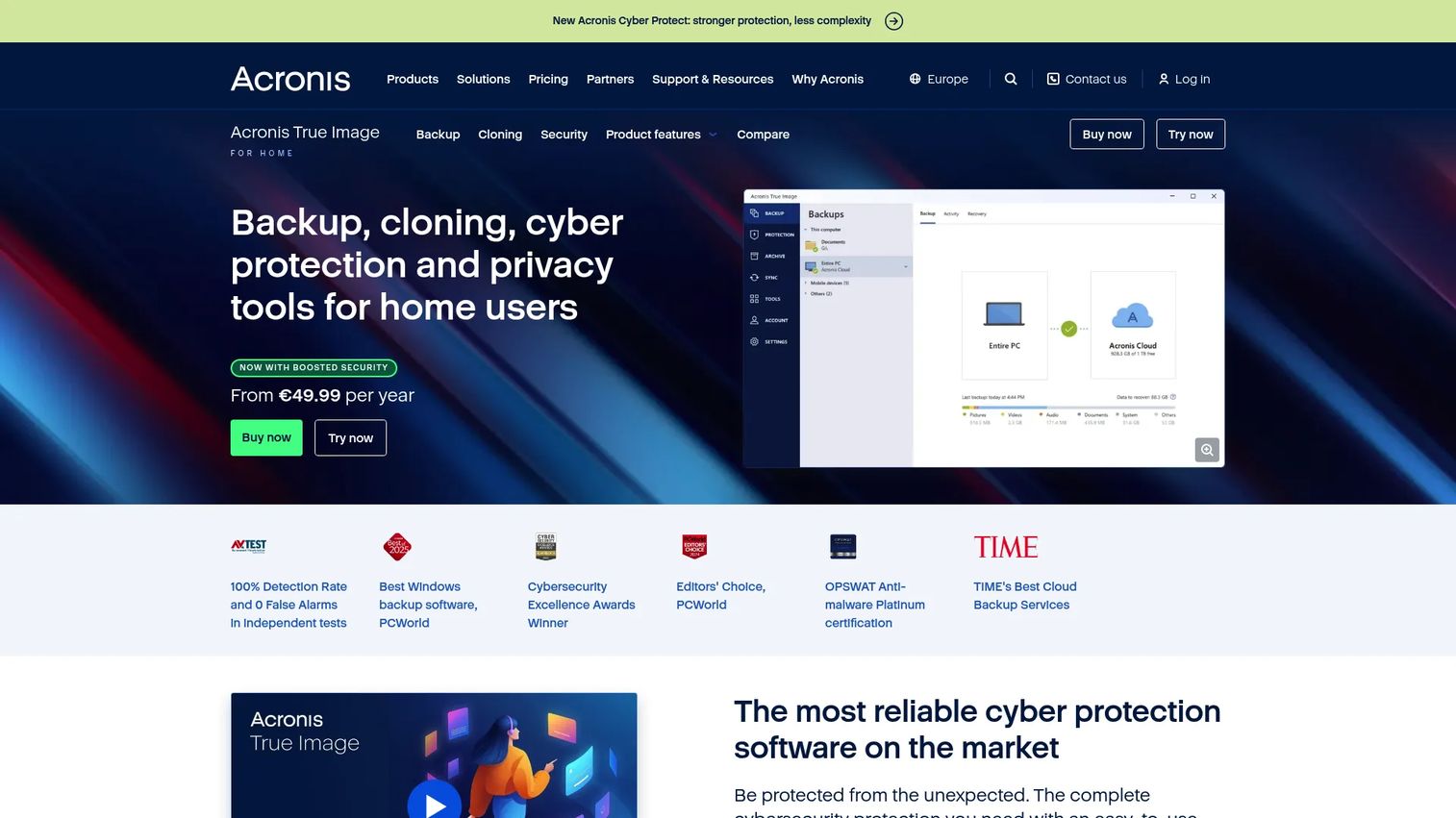
Acronis Cyber Protect Home Office, now aligned with the Acronis True Image line, pairs consumer-friendly disk cloning with broader device protection. You get full image backups and disk cloning alongside anti-malware and anti-ransomware, plus identity protection and cloud backup on higher tiers. It is built for people who want more than a one-time clone.
Best for: Home users who want cloning, backup, and security handled in a single guided product.
Key strengths
- Image backup and cloning: Full disk images plus direct cloning for migrations.
- Cyber protection: Built-in anti-malware and ransomware defense alongside backup.
- Cloud and identity extras: Higher tiers add cloud backup and identity protection.
Why choose Acronis Cyber Protect Home Office: The appeal here is the guided experience for less technical users, wrapped around a clone that boots. If you would rather run an ongoing protection product that also handles your SSD upgrade than juggle separate cloning and antivirus tools, Acronis consolidates that into one interface with bootable rescue media for the migration itself.
Acronis Cyber Protect Home Office pricing: Acronis offers three one-year subscription plans: Essentials at $49.99, Advanced at $72.99, and Premium at $124.99, per the official comparison page. There is no permanent free tier, though higher plans add cloud storage. The product holds a 4.7/5 rating on Acronis's published comparison. Confirm current plan pricing before purchase, since subscription rates change.
4. EaseUS Disk Copy
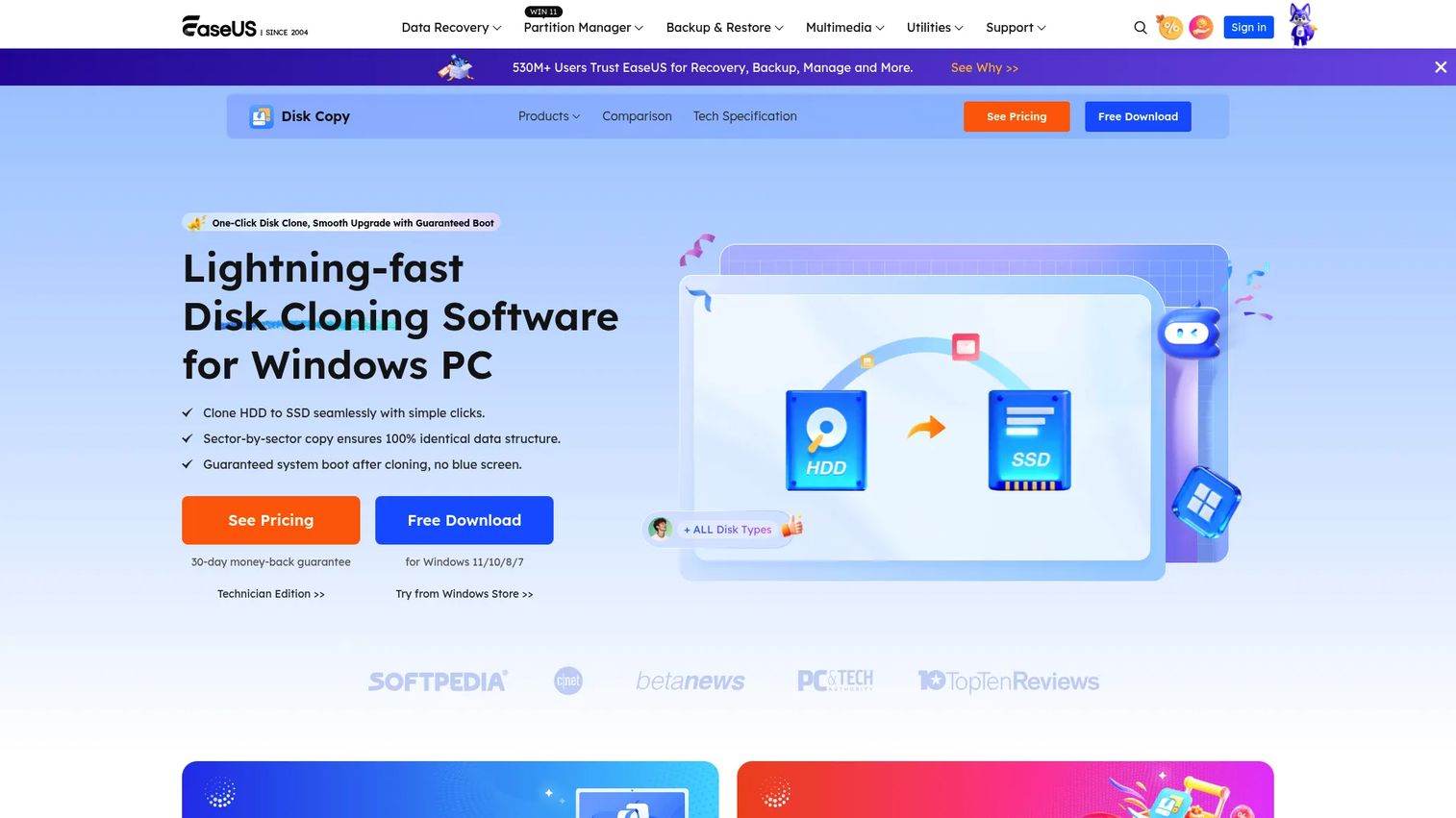
EaseUS Disk Copy keeps the job simple: get from a source disk to a target drive with minimum fuss. It does sector-level disk and partition cloning, one-click OS migration, and WinPE bootable disk creation, which covers the core of a straightforward drive upgrade without a steep learning curve.
Best for: Users who want a direct, beginner-friendly path from an old drive to a new one.
Key strengths
- Sector-level cloning: Copies disks and partitions accurately for a faithful migration.
- One-click OS migration: Moves Windows to a new disk without a manual rebuild.
- WinPE bootable media: Clone outside Windows when the source OS cannot run the job live.
Why choose EaseUS Disk Copy: This is the pick when you want a focused disk clone software tool rather than a broad suite. The workflow is deliberately linear, which suits a one-time SSD upgrade or a single migration where you do not need imaging, scheduling, or fleet deployment. Fewer options means fewer chances to misconfigure the clone.
EaseUS Disk Copy pricing: EaseUS publishes several options: a Monthly plan at $19.90, an Annual plan at $39.90, a Lifetime Upgrades license at $59.90, a Technician license at $79.00, and a Server license at $199.00. A free trial is available so you can test the workflow before paying. Verify current prices on the EaseUS buy page, as promotional rates shift.
5. AOMEI Backupper
AOMEI Backupper is a broader Windows backup, sync, and clone suite rather than a cloning-only utility. It covers system, disk, partition, and file backup, plus sync and restore, and it handles disk and system cloning with bootable media. The free Standard edition makes it one of the more capable free cloning software options for everyday migrations.
Best for: Users who want disk cloning plus ongoing backup and sync in a single tool.
Key strengths
- Full backup coverage: System, disk, partition, and file backup in one place.
- Cloning and bootable media: Disk and system cloning with recovery media support.
- Free Standard edition: A genuinely usable free tier for basic cloning tasks.
Why choose AOMEI Backupper: AOMEI fits better than a pure cloning tool when your real need is a combined backup and migration workflow you will keep using. If you want to clone your drive now and run scheduled backups afterward, one suite covers both. Its free tier handles many home migrations outright, with paid editions unlocking more advanced features.
AOMEI Backupper pricing: A free Standard edition is available. Paid options include Professional Yearly at $39.95 and Professional Lifetime at $69.95, with Workstation at $49.95, Server at $149.00, and Technician at $499.00 for business use, per AOMEI's pricing page. It carries a 4.3/5 rating on G2 across its reviews. Confirm current figures, since bundle and family pricing changes.
6. Paragon Hard Disk Manager
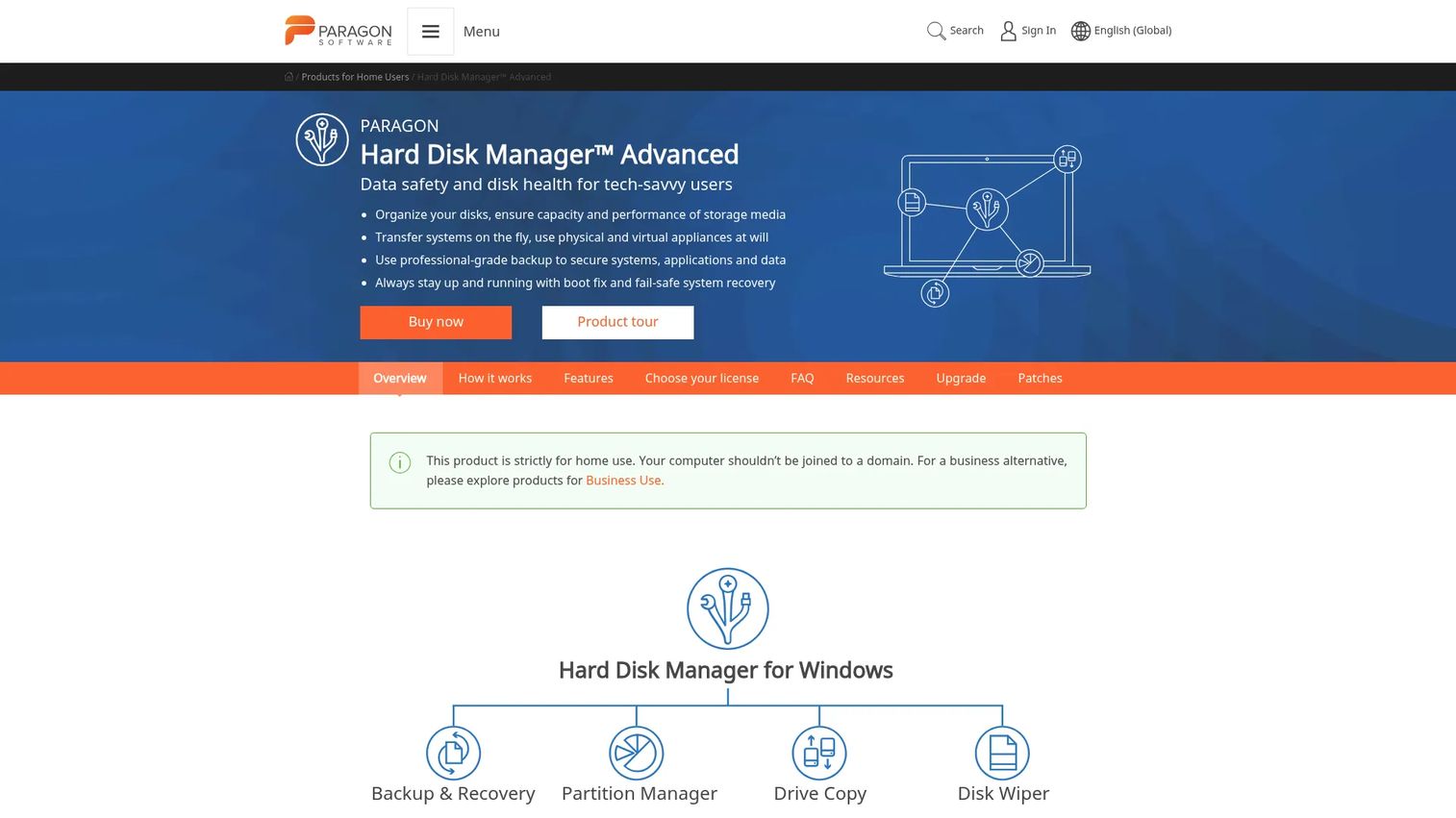
Paragon Hard Disk Manager bundles cloning, partitioning, backup, and disk wiping into one Windows disk-management package. Alongside disk migration and system cloning, it includes utilities like backup excludes, email notifications, and a file transfer wizard, which push it past a single-purpose clone tool toward broader drive maintenance.
Best for: Home users who want cloning alongside partitioning, backup, and disk cleanup in one product.
Key strengths
- All-in-one disk management: Cloning, partitioning, backup, and secure wiping together.
- System cloning and bootable media: Migrate a full system with recovery media support.
- Maintenance utilities: Backup excludes, notifications, and file transfer tools built in.
Why choose Paragon Hard Disk Manager: Paragon suits the user whose job is not just one clone but ongoing drive management. If you regularly resize partitions, wipe old disks, and run backups on top of the occasional migration, having those tools in one place beats stitching together separate utilities. It rewards users who want more than a single-click clone and no more.
Paragon Hard Disk Manager pricing: Paragon shows Advanced license options for home use, including a perpetual 3-PC license at $79.95 and a one-year Advanced license listed around $19.95 as a discounted rate. Business licensing is handled separately. Because the site displays a struck discount format, confirm the exact current price and license term on Paragon's product page before buying.
7. MiniTool ShadowMaker
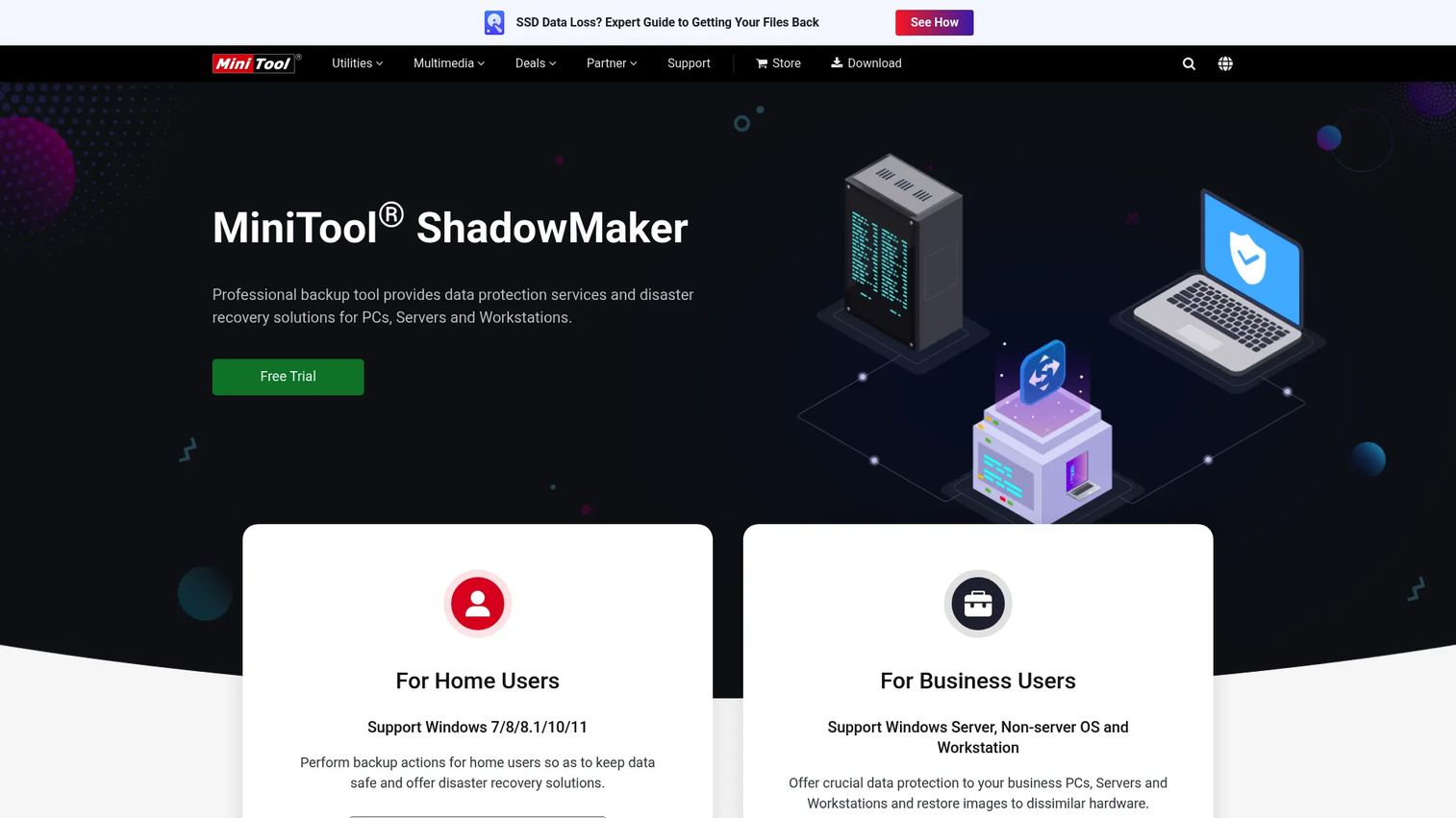
MiniTool ShadowMaker is a lightweight Windows backup and disaster-recovery tool that also handles disk cloning. It does system backup and restore, file and folder sync, backup of open files, and bootable media creation, including restore to dissimilar hardware. For a straightforward migration, it keeps the workflow simple.
Best for: Users who want basic system, disk, and file backup with bootable recovery and clean cloning.
Key strengths
- System backup and restore: Reliable full-system protection alongside cloning.
- Bootable media and dissimilar-hardware restore: Recover onto different hardware when needed.
- Open-file and sync support: Back up files in use and keep folders synced.
Why choose MiniTool ShadowMaker: ShadowMaker is enough when your migration is uncomplicated and you value simplicity over a deep feature set. It offers Free, Pro, and Business editions, so you can start small and upgrade if your needs grow. It is honest about its scope: a clean, approachable tool for standard backup and cloning rather than an enterprise deployment platform.
MiniTool ShadowMaker pricing: MiniTool lists Free, Pro, and Business editions plus a free trial, though it does not publish fixed public prices on the pages reviewed. It holds a 3.3/5 rating on G2 based on a small review count. Check the vendor's pricing page for the current cost of the Pro and Business tiers before you decide.
Considerations before you choose
Bootability and first-boot readiness
This is the single most important criterion, for everyday users and IT teams alike. Verify that the tool preserves boot partitions, handles EFI and UEFI systems correctly, and offers first-boot repair when the target hardware differs from the source. A clone that copies every file but does not boot has done nothing useful. Look for explicit support for the boot mode your machine uses.
Drive-size flexibility
Check whether the tool can clone to both larger and smaller target drives and how it handles partition resizing. This matters most in SSD upgrades and mixed-drive migrations, where the new disk rarely matches the old one exactly. Cloning to a smaller SSD only works if your used data fits, so confirm the tool can shrink partitions intelligently rather than requiring an identical or larger target.
Speed and sector handling
Assess whether the tool uses used-sector or intelligent cloning by default rather than a full sector-by-sector copy of empty space. Used-sector cloning is dramatically faster on drives that are far from full. A full sector-by-sector clone has its place for forensic accuracy or failing drives, but for a routine migration, copying only occupied blocks saves real time.
Support and recovery workflows
When a clone stalls, support depth matters more than any marketing claim. Look for bootable recovery media, clear step-by-step tutorials, a searchable knowledge base, and an active community. Free tools like Clonezilla lean on documentation and forums; paid tools often add direct support. Decide how much of a safety net you want before, not during, a boot-critical migration.
Ease of use versus control
Beginners should prioritize guided workflows, plain-language warnings, and defaults that are hard to misconfigure. IT admins and technical users often prefer scripting, automation, and deployment control instead. Neither is better in the abstract. Match the tool to who is running the clone and how often, because a fleet deployment and a one-time home upgrade are different jobs.
Conclusion
The right hard drive cloning software depends on what you are optimizing for, not on a single ranking.
For most Windows users who need a clone that boots the first time, Macrium Reflect is the dependable default, backed by mature recovery tooling. Technical users and IT teams who want free, scriptable cloning and mass deployment should reach for Clonezilla. If you would rather have a guided, consumer-friendly product that also handles security and backup, Acronis Cyber Protect Home Office fits. For a simple direct migration, EaseUS Disk Copy keeps it linear, while AOMEI Backupper and Paragon Hard Disk Manager suit people who want cloning bundled with broader backup or disk management. MiniTool ShadowMaker covers straightforward jobs cleanly.
Whichever you choose, test it on a noncritical drive or spare disk first. Verify the clone boots before you rely on it for the real migration, and keep the original drive intact until the new one has proven itself over a few reboots. A ten-minute test beats an afternoon at a blinking cursor.
FAQs
For most Windows 11 migrations, Macrium Reflect is the reliable choice because it consistently produces bootable clones and includes strong recovery media. AOMEI Backupper and Acronis Cyber Protect Home Office are solid alternatives, especially if you want backup bundled in. The deciding factor is always bootability: pick the tool you trust to preserve EFI and boot partitions correctly.
Yes, as long as your used data fits on the smaller SSD and the tool supports partition resizing. Cloning to a smaller target is not about total disk size but about how much space your data actually occupies. Check that your chosen SSD cloning software can shrink partitions during the clone rather than requiring a target drive equal to or larger than the source.
Yes. Whole disk cloning is designed to copy the entire drive, including the operating system, installed applications, drivers, settings, and all user files. That is the point of a clone versus a file backup: the target drive becomes a working, bootable replica you can swap in and use immediately, without reinstalling anything.
For most people, cloning saves hours and preserves your exact setup, apps, and configuration. A clean reinstall is only the better call when the source system is badly corrupted, malware-ridden, or cluttered with problems you would rather not carry forward. If your current system is healthy and you just want a faster or bigger drive, cloning is the efficient path.
You can, provided the drive is still readable. Clone it as soon as you notice SMART warnings or unusual behavior, because a failing disk can degrade further at any time. Use a tool with fast used-sector cloning to capture the data quickly, and prioritize getting the clone off the bad drive before you spend time diagnosing the underlying failure.
Verify the boot order in your BIOS or UEFI so the machine targets the new SSD, confirm the EFI system partition copied intact, and check that cables and connections are secure. If the target hardware differs from the source, run any first-boot or dissimilar-hardware fixes your tool provides. Keep the original drive disconnected on the first boot to avoid boot conflicts.
Free tools like Clonezilla and AOMEI Backupper's Standard edition can handle many migrations well, especially for HDD to SSD migration on a single machine. The tradeoff is usually support depth and ease of use rather than cloning quality. If you are confident with the workflow, free is often enough. If you want guided steps and direct help when something stalls, a paid tool earns its cost.