Static screenshots don't convert. Neither do explainer videos that prospects skip after ten seconds. The gap between "this looks interesting" and "I understand what this does" is where most websites lose visitors.
Interactive guides close that gap by letting users click through your product instead of reading about it. This guide covers what interactive guides are, where to embed them, and how to choose the right tool. It also includes step-by-step instructions for getting your first guide live on your website.
What this guide covers
This guide covers what interactive guides are, why they outperform static content, where to place them, and how to choose the right tool. You'll also get step-by-step embedding instructions.
TL;DR
- Interactive guides vs static content: Users click through and engage rather than passively watching or reading
- Embedding options: Iframe, JavaScript snippet, or hosted link depending on your platform and customization needs
- Best placement: Marketing websites, help centers, internal wikis, email campaigns, and social media
- Key selection criteria: No-code creation, flexible embed options, personalization, and analytics
- Recommended action: Guideflow offers the fastest path from capture to embed with full analytics
What is an interactive guide
To embed interactive guides, generate an embed code from a platform like Guideflow. The code is typically an <iframe> or JavaScript snippet. Paste it into your website's HTML editor to get a clickable walkthrough that displays directly within a page.
An interactive guide is a step-by-step walkthrough that responds to user input. Users click, tap, or navigate through the experience at their own pace. Static content like PDFs, videos, or screenshots works differently: the user consumes information without participating.
- Interactive guide: Clickable walkthrough that advances based on user actions
- Static content: One-way content the user watches or reads passively
The distinction matters because 93% of marketers say interactive content is more effective at educating buyers. When someone clicks through an interactive demo, they're actively learning. When they watch a video, they're often multitasking.
Why interactive guides outperform static content
Users engage longer with clickable content
Click-to-advance formats drive 52.6% more engagement than static content. Users control their pace, which increases completion rates. When someone actively participates in learning, retention improves.
You've probably experienced this yourself: a three-minute video feels long, but clicking through a ten-step guide feels quick. The difference is agency.
Analytics reveal what users actually care about
Embedded interactive guides track which steps users complete, where they drop off, and what they click. A PDF download or video view count can't provide that level of detail.
If someone completes steps one through four but abandons at step five, you know exactly where confusion or friction exists. That signal is invisible with static content.
One update refreshes every embed
Embedded guides pull from a single source. Update once, and every website, help center, and email embed reflects the change immediately. No re-uploading files, no version control headaches, no outdated content floating around.
Product teams shipping frequent updates benefit most here. Documentation stays current without manual intervention.
Mobile works without extra effort
Modern interactive guide tools render responsively across all devices. The same embed code automatically adapts to desktop monitors, tablets, and smartphones without requiring separate mobile versions. Touch targets resize for finger taps, text scales for readability, and navigation controls reposition based on screen orientation. This means you embed once and the guide works everywhere - no device-specific code, no manual adjustments, no maintenance overhead.
Where to embed interactive guides
Marketing websites and landing pages
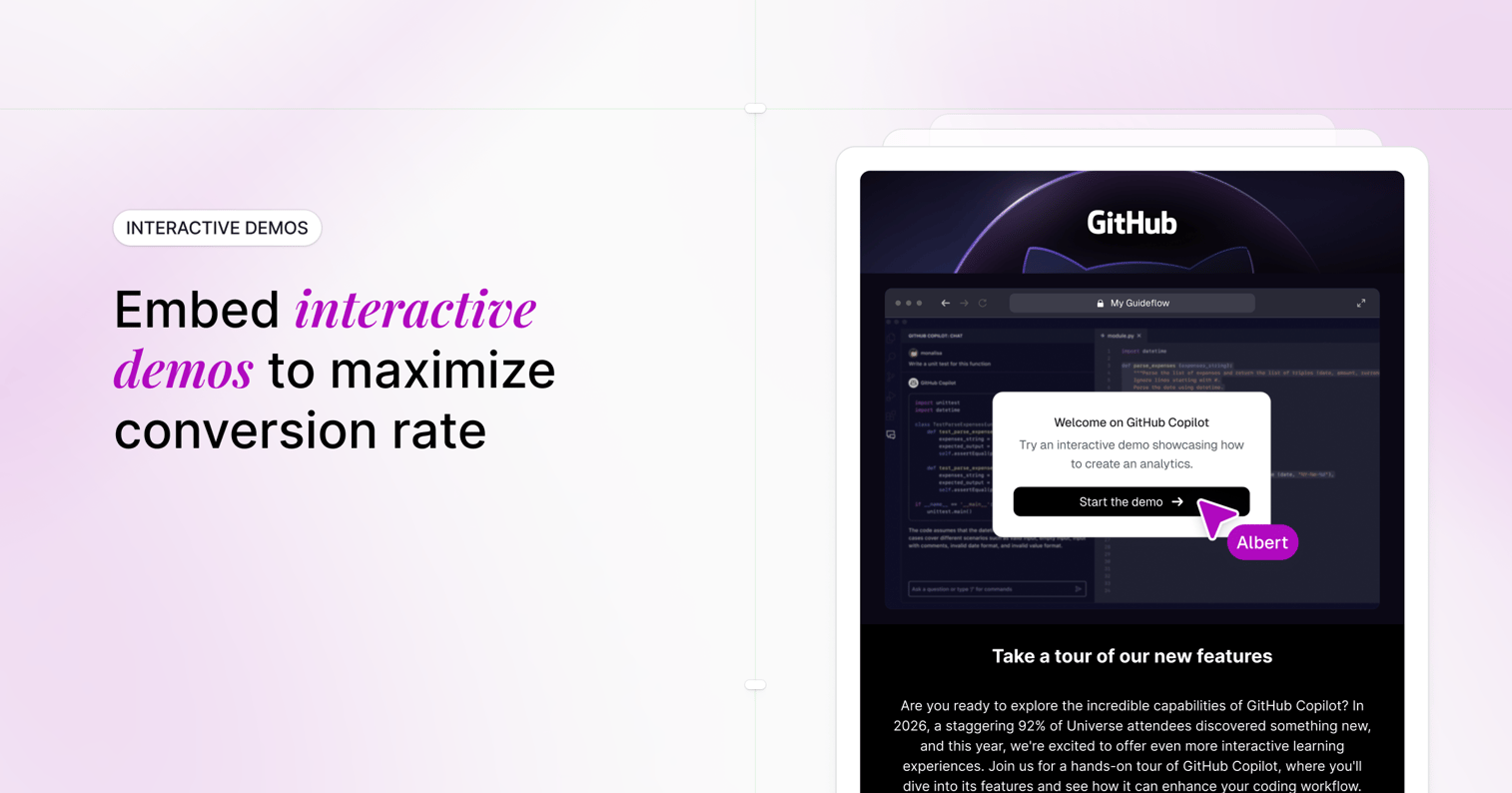
This is the highest-impact placement for product-led conversion through interactive marketing. Embed above the fold on your homepage or within feature sections to replace explainer videos. Prospects can experience your product before booking a call.
The most effective placements include hero sections, product tour pages, and pricing pages where buying intent is highest. When visitors land on your site, an interactive guide gives them immediate hands-on access rather than forcing them to watch a three-minute video or read feature lists.
Marketing teams often see 2 to 3 times higher conversion rates when visitors interact with the product directly. This outperforms passive demo videos because prospects control their own exploration and focus on features relevant to their use case.
Help centers and documentation
Interactive guides reduce support tickets by showing users how to complete tasks step-by-step inside the help article itself. Instead of describing a process with text and static screenshots, you demonstrate it with a clickable walkthrough.
Complex workflows where screenshots alone create confusion benefit most from this approach. Multi-step processes like account setup, integration configuration, or feature activation become clearer when users can click through the actual flow. Support teams report fewer follow-up questions when guides replace traditional documentation.
Embed guides directly within relevant help articles so users find solutions without leaving the page. This reduces friction and keeps resolution time low.
Internal wikis and intranets
Teams embed interactive guides for onboarding, process documentation, and training. HR, IT, and enablement teams use them to standardize how employees learn new tools and procedures.
Common use cases include software onboarding for new hires, IT troubleshooting procedures, compliance training, and cross-functional process documentation. When everyone follows the same interactive guide, execution becomes consistent across teams and locations.
Internal guides also reduce the burden on subject matter experts who would otherwise field repetitive questions. Employees get self-service access to the information they need exactly when they need it.
Email campaigns and outbound sequences
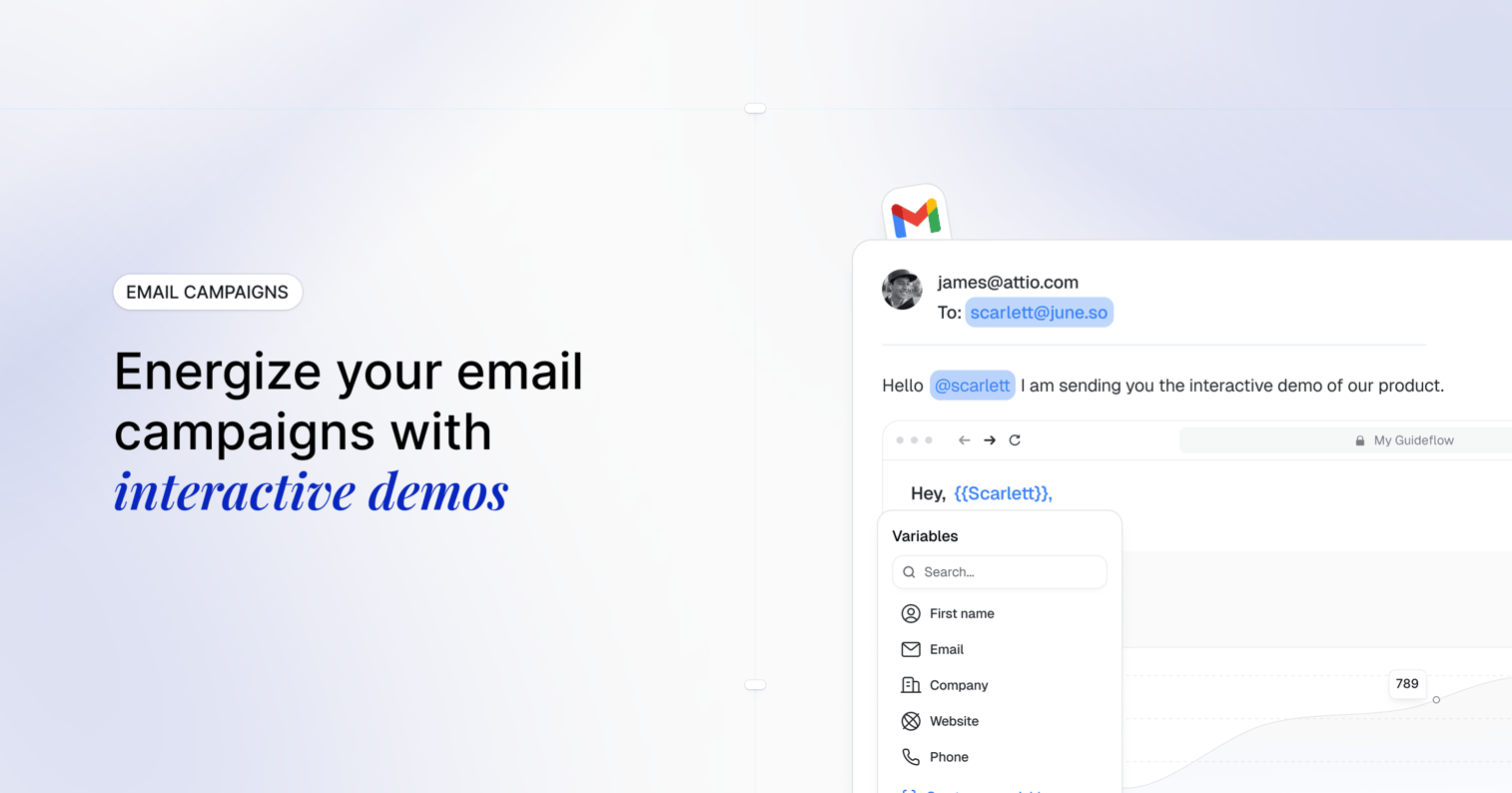
Most email clients strip embedded interactive content for security reasons. However, you can use thumbnail images or GIF previews that link to the hosted guide. Recipients get a visual preview that drives clicks to the full experience.
Sales teams use this approach in outbound sequences to give prospects a low-friction way to explore the product. Instead of asking for a 30-minute call immediately, you offer a five-minute self-guided tour. Prospects who engage with the guide become warmer leads with demonstrated intent.
Track which prospects clicked through and which steps they completed. This data tells sales reps exactly what features interested each prospect before the first conversation.
Social media and paid ads
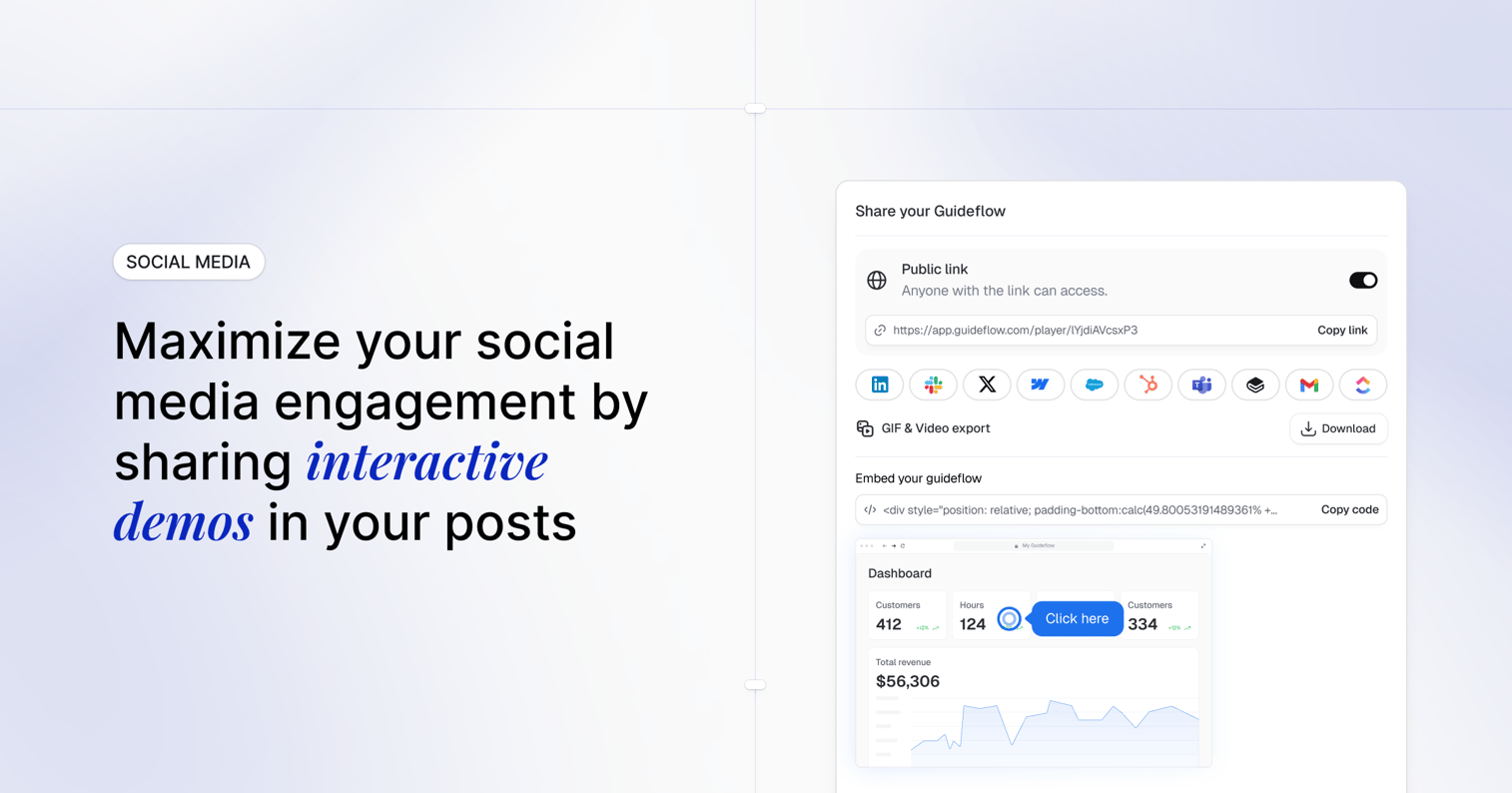
LinkedIn, Twitter, and paid campaigns can link to interactive guides. Prospects get a low-friction way to experience your product before committing to a call or form fill.
This works particularly well for LinkedIn posts targeting specific personas or use cases. Share a guide that demonstrates how your product solves a particular problem, then track engagement to identify high-intent prospects.
Paid ad campaigns benefit from interactive guides as landing page experiences. Instead of a traditional landing page with a form, prospects land on an interactive guide that qualifies them through engagement. Users who complete the guide are more likely to convert than those who simply read a landing page.
What to look for in interactive guide software
No-code creation and editing
The best tools let you capture any workflow via browser extension that records as you click. Install the extension, navigate to your product, and click through the process once. The tool automatically captures screenshots, click targets, and transitions without manual setup. After capture, use a drag-and-drop editor to add annotations, blur sensitive data, reorder steps, and customize hotspots. No developer time required - marketing and support teams can build guides independently. If creating a guide takes more than ten minutes from capture to publish, adoption drops because teams won't maintain documentation that requires heavy lifting.
Flexible embed options
Different embed types serve different purposes:
| Embed type | Best for | Considerations |
|---|---|---|
| Iframe | Quick embedding, CMS platforms | Limited styling control |
| JavaScript snippet | Custom styling, advanced tracking | Requires code access |
| Hosted link | Email, social, external sharing | Opens in new tab |
Personalization with dynamic variables
The best tools let you swap names, logos, company data, or custom fields so each viewer sees a tailored experience. Insert variables like {{first_name}}, {{company_name}}, or {{industry}} that populate automatically based on URL parameters or CRM data. This means a prospect from Acme Corp sees their company name and logo throughout the guide, while a viewer from TechStart sees theirs - all from the same base guide.
Personalize demos for every prospect without creating separate guides for each account. Sales teams use this to send personalized demo links where the prospect's specific use case, data, or branding appears embedded in the walkthrough. Marketing teams dynamically adjust messaging based on traffic source, industry segment, or campaign parameters.
Analytics and CRM integration
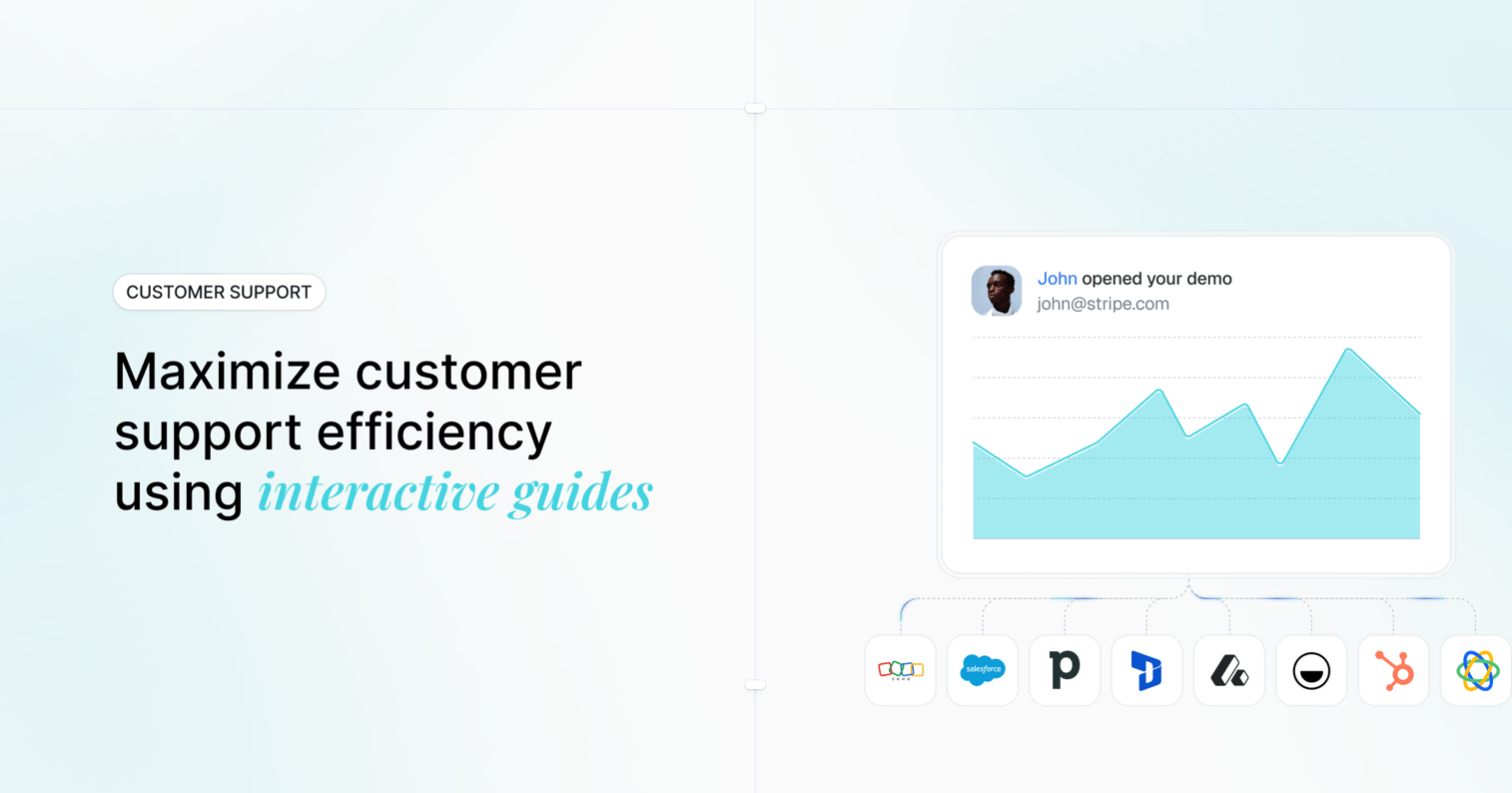
Tracking who viewed which steps and for how long turns guides into intent signals. See exactly where prospects spend time, which features they explore, and where they drop off. This data reveals buying intent more accurately than form fills or page views.
Integrate with HubSpot, Salesforce, and more to push engagement data into sales workflows automatically. When a prospect completes 80% of your pricing guide, trigger a notification to their assigned sales rep. When someone from a target account views your integration walkthrough three times, create a high-priority task. Engagement scores, completion rates, and time-on-step metrics flow directly into contact records, giving reps context before every conversation.
Security and access controls
Options like password protection, domain restrictions, email verification, and SSO matter for sensitive or internal content. Password-protect guides containing proprietary workflows or unreleased features. Restrict access by email domain so only @yourcompany.com addresses can view internal training guides. Require SSO authentication for compliance-sensitive content that needs audit trails.
Not every guide is meant for public consumption. Enterprise teams need granular permission controls: some guides for prospects, others for customers only, and internal guides restricted to employees. Look for tools that offer role-based access, expiration dates on shared links, and the ability to revoke access instantly if needed.
How to embed interactive guides on your website
1. Create your interactive guide
Start by installing a browser extension from your chosen platform. Navigate to the product or workflow you want to capture, then activate the recording. Click through each step as you would normally demonstrate it to a user. The tool captures screenshots, transitions, and UI elements automatically.
Once captured, open the editor to refine your guide. Add text annotations, highlight clickable areas, blur sensitive information, and adjust the sequence. Most platforms let you delete unnecessary steps, add explanatory tooltips, and customize hotspot placement. This editing phase typically takes 5-10 minutes for a standard workflow.
2. Generate the embed code
Navigate to your guide's sharing settings. Look for options labeled "Share," "Embed," or "Publish." You'll see multiple embed formats:
Iframe embed: Copy-paste code that works immediately in most CMS platforms. Best when you need quick deployment without technical customization. The guide appears in a contained frame with fixed dimensions you can adjust.
JavaScript snippet: Offers deeper integration with your site's styling and tracking infrastructure. Requires pasting code in your site's header or footer, then placing a div element where you want the guide to appear. Choose this when you need custom CSS styling, advanced event tracking, or dynamic loading behavior.
Some platforms also provide a direct hosted link for sharing via email or social media.
3. Add the code to your website
The implementation process varies by platform:
- WordPress: Add a Custom HTML block in the page editor, paste your embed code, then publish. For site-wide embeds, use a widget in Appearance → Widgets or add code to your theme's footer.php file.
- Webflow: Drag an Embed element onto your canvas, paste the code, and publish. For JavaScript snippets, add the script to Project Settings → Custom Code in the head or footer section.
- Squarespace: Add a Code block to your page, switch to the code view, paste your embed, then save. JavaScript snippets go in Settings → Advanced → Code Injection.
- Custom site: Paste iframe code directly where you want the guide to appear in your HTML. For JavaScript embeds, add the script tag to your
<head>section and place the container div in your page body.
After pasting, save your changes and preview the page before publishing live.
4. Test responsiveness and functionality
Open your page on desktop and verify every interactive element works. Click through the entire guide to confirm transitions are smooth, hotspots are clickable, and content loads without delays.
Test on actual mobile devices, not just browser emulators. Check that touch targets are large enough (minimum 44x44 pixels), text remains readable, and the guide doesn't require horizontal scrolling. Verify that pinch-to-zoom works if needed and that navigation controls are accessible with one hand.
Test across browsers: Chrome, Safari, Firefox, and Edge. Some embed types render differently depending on browser security settings.
5. Connect analytics and integrations
Access your tool's integration settings and connect to your CRM or analytics platform. Common integrations include HubSpot, Salesforce, Google Analytics, and Segment.
Configure what data gets tracked: view counts, completion rates, time spent per step, drop-off points, and individual user sessions. Set up event triggers so your CRM receives notifications when high-value prospects engage with specific steps.
For sales teams, enable lead identification so you can see which named contacts or companies viewed your guide. This transforms anonymous traffic into actionable sales intelligence.
Best practices to embed interactive guides effectively
Placement and visibility
Position guides in high-intent areas where users actively seek product information. On homepages, place them in hero sections or immediately after your value proposition. On feature pages, embed guides within the feature description so users can try while they read.
Pricing pages benefit from guides placed near plan comparisons, letting prospects explore features before committing. In help centers, embed guides at the top of relevant articles so users find solutions immediately.
Avoid burying guides in footer links or tertiary navigation. If a guide requires three clicks to reach, most users won't find it. Use clear call-to-action buttons like "Try it now" or "See how it works" that launch the guide inline.
Mobile optimization
Test on physical devices across iOS and Android. Emulators miss touch-specific issues like tap delay, gesture conflicts, and viewport rendering problems.
Verify that all interactive elements have adequate spacing. Buttons or hotspots closer than 8 pixels apart cause mis-taps. Check that modals and tooltips don't extend beyond screen edges, forcing users to scroll to see critical information.
Confirm loading performance on cellular connections, not just WiFi. A guide that loads instantly on desktop but takes 8 seconds on 4G will see massive mobile abandonment.
Brand consistency
Match your guide's visual design to your website's brand guidelines. Customize the color scheme to use your primary and accent colors. Upload your logo and adjust fonts to match your site's typography.
Pay attention to button styles, border radius, and spacing. If your site uses rounded corners and your embedded guide uses sharp edges, the disconnect is jarring. Small inconsistencies signal to users that they've left your ecosystem, reducing trust.
Most platforms offer custom CSS options for advanced styling control. Use these to align padding, shadows, and hover states with your site's design system.
Accessibility standards
Enable keyboard navigation so users can tab through interactive elements and activate them with Enter or Space. Test this yourself: navigate the entire guide without touching your mouse.
Verify screen reader compatibility by testing with NVDA (Windows) or VoiceOver (Mac). All interactive elements should have descriptive labels. Images need alt text. Navigation controls should announce their purpose clearly.
Ensure sufficient color contrast (minimum 4.5:1 ratio for normal text). Avoid relying solely on color to convey information. If a hotspot turns red to indicate an error, also include an icon or text label.
Check that focus indicators are visible when users tab through elements. Default browser outlines work, but custom focus styles that match your brand are better.
Performance and load time
Implement lazy loading for guides that appear below the fold. This defers loading until users scroll near the embed, reducing initial page weight. Most modern embed codes support lazy loading through a simple attribute addition.
Monitor your page's Core Web Vitals after embedding. Guides shouldn't negatively impact Largest Contentful Paint (LCP), First Input Delay (FID), or Cumulative Layout Shift (CLS). If metrics degrade, work with your platform's support team to optimize asset delivery.
Consider using a content delivery network (CDN) if your guide platform doesn't already. CDNs reduce latency by serving assets from geographically distributed servers.
Test load times using tools like Google PageSpeed Insights or WebPageTest. Aim for guides that load in under 2 seconds on 3G connections. Each additional second of delay correlates with measurable conversion drops.
Tip: Start with one high-traffic page and measure engagement before rolling out embeds site-wide. This gives you baseline data to optimize against. Track completion rates, average time spent, and conversion lift compared to the page's previous static content. Use these metrics to refine placement, messaging, and guide length before scaling.
Start building embeddable interactive guides today
When you embed interactive guides, you replace static screenshots and passive videos with experiences that respond to user input. Prospects click through actual workflows, explore features at their own pace, and retain information better because they're actively participating rather than watching a three-minute explainer.
You get granular intent data showing which steps users completed, where they dropped off, and how long they spent on each feature. This beats generic view counts that only tell you someone clicked play.
The fastest path to embed interactive guides is a tool that captures workflows through a browser extension in minutes, provides a visual editor that requires zero coding knowledge, and generates embed codes that work across any platform - from WordPress to custom sites to help centers.
Start your journey with Guideflow today!
FAQs about embedding interactive guides
Most email clients do not support embedded interactive content for security reasons. Instead, include a thumbnail image or GIF that links to the hosted guide. Recipients get a visual preview that drives clicks to the full experience.
Well-built tools use lazy loading and optimized assets, so impact is minimal when implemented correctly. Test your actual page load times after embedding. If you notice slowdowns, enable lazy loading for guides below the fold.
Most interactive guide tools offer gating options where viewers enter their email before accessing the content. Look for "lead capture" or "gated access" settings in your tool's sharing options.
Yes. The embed code points to the hosted version, so any edits you make in the tool automatically appear on your website. No changes to your site's code after initial setup.
Iframe is simpler to implement but offers less styling control. JavaScript embeds allow deeper customization and tracking. Choose iframe for quick setup, JavaScript when you want the embed to match your site's design precisely.
Interactive guide tools include built-in analytics dashboards showing views, completion rates, and step-by-step engagement. Most tools also send engagement data to your CRM through integrations, so sales teams see exactly what prospects explored.