You picked a tool because the sample art looked incredible. Then you tried to lay out a six-panel page. The gutters fought you. The speech balloons landed in the wrong z-order. Your PDF export blew past the printer's bleed spec, and you spent an evening rebuilding pages instead of drawing them.
That is the real trap with comic tools. The brush engine sells you, but the workflow decides whether you ship. Panels, balloons, captions, script handoff, and print export are where most software quietly falls apart.
The market is not small, either. The comic creating software market was valued at USD 1.2 billion in 2024 and is projected to reach USD 2.5 billion by 2033, per Verified Market Reports (2025). More tools, more claims, more ways to pick wrong.
So this guide sorts them by how they actually behave when you build a page, not by how their marketing renders look.
What's inside
This guide is for illustrators, graphic novelists, students, and small studios choosing a tool for drawing, page assembly, lettering, and export. It is workflow-first, not brush-first.
We ranked the seven tools by fit for real comic production and scored each on four criteria:
- Budget and licensing: Subscription cost, one-time price, or free tier
- Learning curve: How fast a beginner reaches a finished page
- Platform support: Windows, macOS, iPad, Android
- Output compatibility: PNG, PSD, PDF, and print-ready export
Every price and rating below was checked against the vendor's live pricing page and current G2 listing.
TL;DR
- Best for comic-specific production: Clip Studio Paint has native paneling, balloons, and perspective rulers built for manga and webtoons.
- Best for photo-to-comic workflows: Comic Life 3 turns your own photos into comic pages with templates, balloons, and a script editor.
- Best for general-purpose art and painting: Adobe Photoshop and Corel Painter cover deep illustration when comics are one of many jobs.
- Best for page layout and print handoff: Adobe InDesign assembles multi-page books with precise typography and print export.
- Best for iPad drawing: Procreate pairs Apple Pencil drawing with a one-time purchase.
- Best free option: MediBang Paint gives you manga tools and cloud sync at no cost.
What is comic creation software
Comic creation software is a tool that helps you draw, assemble, letter, and export comic pages for print or digital publishing. It covers the full page workflow: Laying out panels, adding speech balloons and captions, inking artwork, and producing files a printer or platform can use.
Some tools are purpose-built for comics and manga. Others are general illustration or page-layout software that comic creators adopt because the drawing or typography is strong. The right pick depends on whether you draw everything by hand, build from photos, or assemble finished art into a book.
Core capabilities to expect:
- Panel and page layout: Grid, gutter, and multi-page management
- Lettering and balloons: Speech bubbles, captions, and text styling
- Brushes and inking: Pen, pencil, and vector linework tools
- Script or storyboard support: Turning written scripts into visual pages
- Image import and photo handling: Bringing in references, photos, or 3D assets
- Export options: PNG, PDF, PSD, and print-ready formats with bleed
Comic-specific software usually adds features general tools lack: Perspective rulers for backgrounds, panel-splitting, webtoon-length canvases, and balloon libraries. If you make comics regularly, those save hours per page.
General-purpose tools trade that specialization for range. Photoshop and Painter give you the deepest brush control, InDesign gives you the strongest multi-page typography, but none of them ship native comic paneling. You build it yourself.
That tradeoff is the whole decision. A comic maker software with native panels moves you from script to finished page faster. A general comic program with a broader toolkit fits creators who split time across illustration, print design, and other work. Match the comic book software to your dominant workflow, not to the flashiest brush demo.
When to use comic creation software
Turn scripts into finished pages
If you write first and draw second, you want script-to-page support. Comic studio software with a built-in script editor lets you type dialogue and captions, then flow them into balloons on the page. This keeps the writing and the art in one file. It matters most for serialized work where you produce many pages on a schedule and cannot afford to re-type dialogue by hand.
Build comics from photos or mixed media
Not every comic starts with a blank canvas. Photographers, educators, and hobbyists often build comics from their own images. Photo-to-comic software applies comic filters, drops photos into templates, and layers balloons on top. Mixed-media creators also pull in 3D references or scanned linework, then finish digitally. Use this approach when your source material is images, not brushstrokes.
Prepare print and digital exports
Your page is done. Now it has to leave the software cleanly. Print requires bleed, CMYK handling, and PDF export a printer accepts. Digital platforms want PNG or long-strip webtoon dimensions. Pick a tool whose export matches your destination before you commit to a full book. Rebuilding pages for a format mismatch is the most avoidable delay in comic production.
Comparison table
Below is a side-by-side of all seven tools, ordered by fit for comic creation workflows. Pricing reflects each vendor's current listing, and G2 ratings match live listings where a profile exists. Some drawing apps do not maintain an active G2 profile, noted as not available.
| # | Product | Best for | Key differentiator | Pricing | G2 rating |
|---|---|---|---|---|---|
| 1 | Clip Studio Paint | Comic and manga production | Native paneling, balloons, perspective rulers | From $0.99/mo | Not available |
| 2 | Comic Life 3 | Photo-to-comic creation | Photo templates plus script editor | $29.99 one-time | 4.7/5 |
| 3 | Adobe Photoshop | Deep illustration and inking | Advanced brush and image editing | US$22.99/mo | 4.6/5 |
| 4 | Procreate | iPad drawing | Apple Pencil tools, one-time purchase | $12.99 one-time (Dreams) | Not available |
| 5 | MediBang Paint | Free manga creation | Free app with cloud sync | Free | Not available |
| 6 | Adobe InDesign | Page layout and print handoff | Multi-page typography and print export | US$22.99/mo | 4.6/5 |
| 7 | Corel Painter | Traditional-media painting | Natural-Media brush emulation | Free trial, subscription | 4.2/5 |
Read the table as a shortlist, not a verdict. A free tool topping a paid one on cost does not make it the right fit if your output is a print run. Weight the column that matches your actual constraint.
Best 7 comic creation software tools for 2026
1. Clip Studio Paint
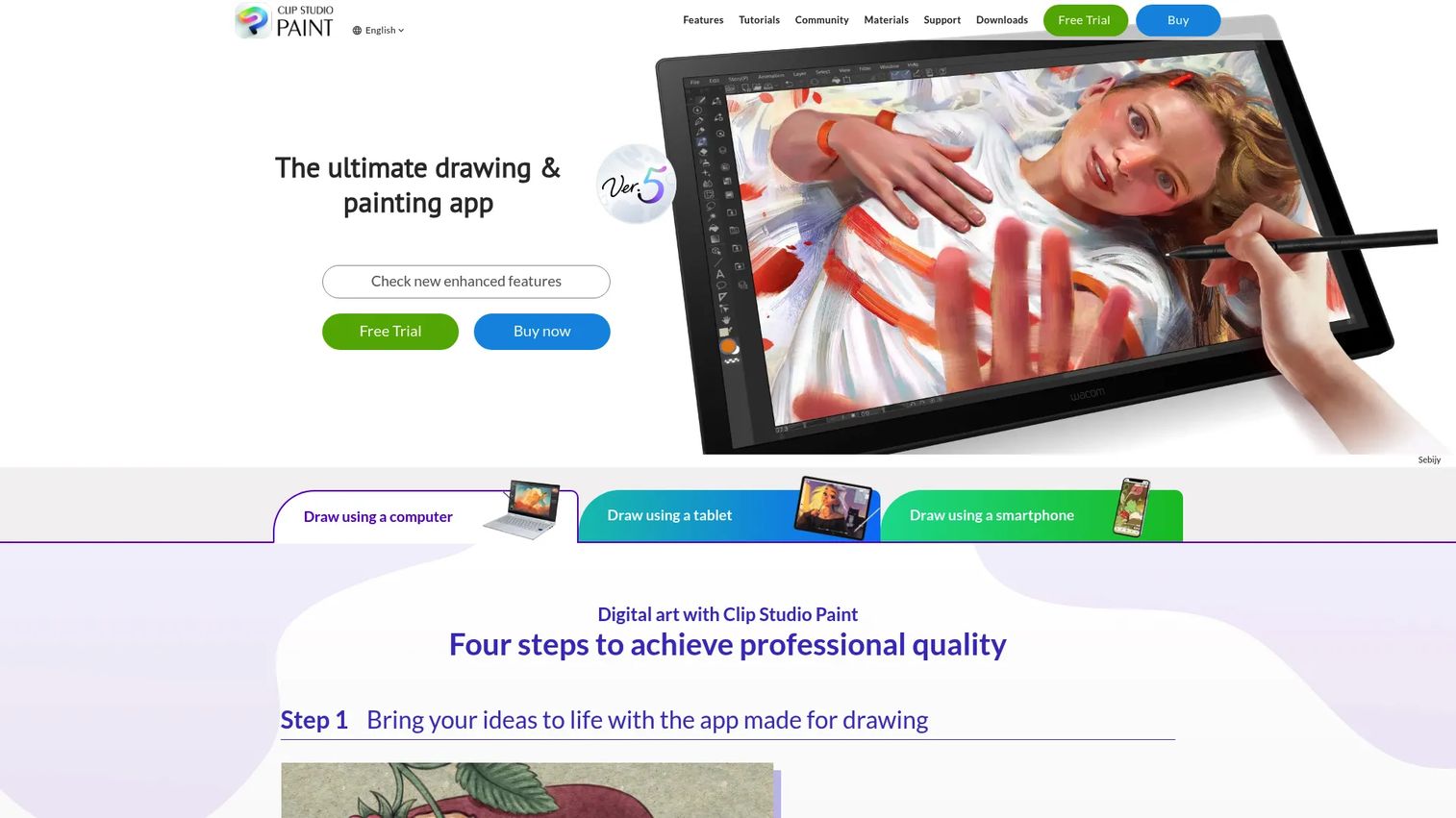
Clip Studio Paint is digital art software built for illustration, comics, manga, and animation. It is the tool most working comic and manga artists reach for, because the comic-specific features are native rather than bolted on. You get paneling, balloons, backgrounds, and perspective rulers in one place, plus a strong brush and vector engine underneath.
Best for: Artists and comic creators who need dedicated manga, webtoon, and paneling tools alongside serious drawing capability.
Key features
- Brushes, vector layers, smooth linework
- Native paneling and speech-bubble tools
- Perspective rulers for backgrounds
- Manga and webtoon canvas support
- Animation and 3D reference support
Why choose Clip Studio Paint: If comics are your main output, its native panel and balloon tools save real time per page, which general illustration software makes you build by hand.
Clip Studio Paint pricing: Plans start from $0.99/month, and the pricing page shows a first-three-months-free offer. The PRO plan runs a US$7.49/month special rate for the first six months, and perpetual-license and update-pass options are also listed.
A verified G2 rating was not available at publication because the listing could not be confirmed. Cross-check reviewer sentiment on the G2 reviews page directly if a current score matters to your decision.
2. Comic Life 3
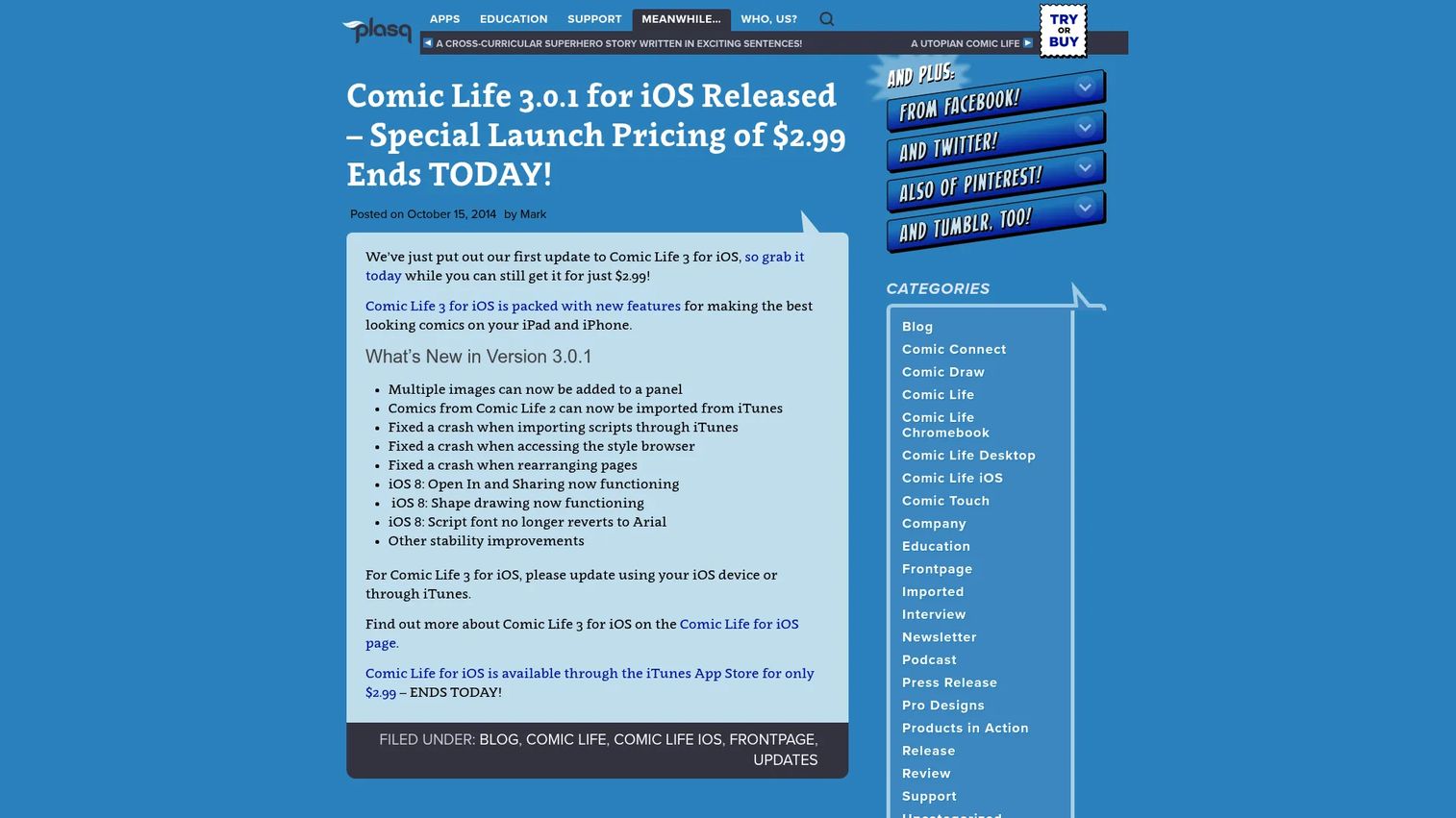
Comic Life 3 turns your own photos into comic pages. Instead of drawing from scratch, you drop images into templates, apply comic filters, and add balloons and captions. A built-in script editor helps you plan dialogue before laying out the page. It suits individuals and schools making comic-style stories, guides, and presentations.
Best for: Creators and educators building comics from photos rather than hand-drawn art.
Key features
- Templates, panels, balloons, captions
- Photo filters and comic effects
- Drag-and-drop comic layout
- Built-in script editor
- Lettering art styles
Why choose Comic Life 3: For photo-driven or template-led work, it gets you to a finished page fast without a drawing tablet or a brush learning curve.
Comic Life 3 pricing: A single-user Mac or Windows license is a one-time $29.99. A Household license covering both Mac and Windows is $44.99. There is no subscription and no free tier.
On G2, Comic Life holds a 4.7/5 rating, which places it among the better-reviewed comic tools in this list for its focused, approachable workflow.
3. Adobe Photoshop
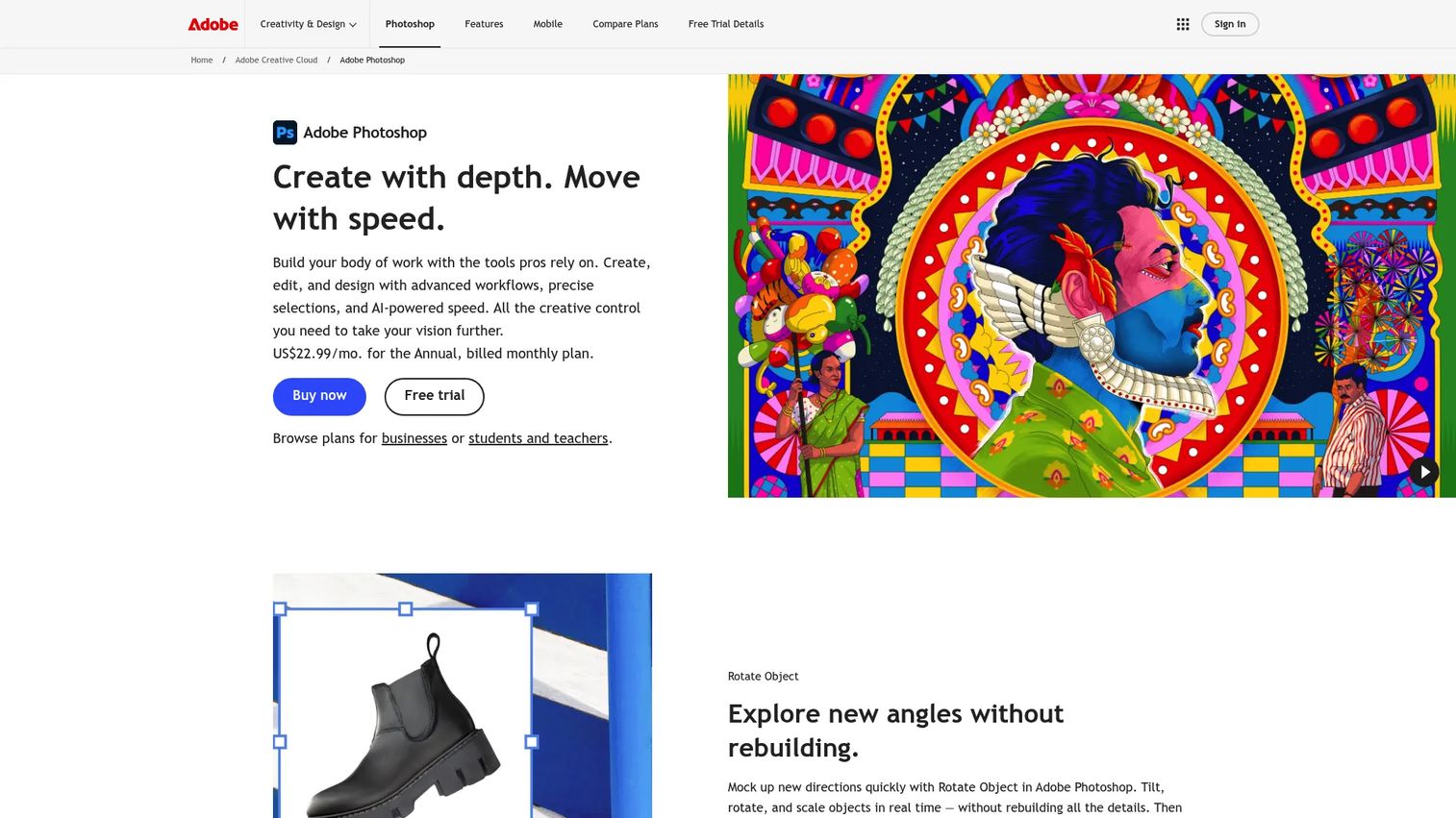
Adobe Photoshop is professional image editing and design software that many comic artists use for inking, coloring, and finishing. It does not ship native comic paneling, so you build panels and balloons with layers and shapes. What you get in return is an unmatched brush and editing engine, plus PSD as a universal handoff format.
Best for: Illustrators and studios who want the deepest drawing and image-editing control and treat comics as one of several jobs.
Key features
- Desktop, web, and mobile editing
- Advanced brush and inking control
- AI tools like Harmonize and Rotate Object
- Background and object removal
- PSD export for handoff
Why choose Adobe Photoshop: Choose it when raw drawing and editing power outweighs comic-specific automation, and when your team already lives in Adobe files.
Adobe Photoshop pricing: The Photoshop plan is US$22.99/month on an annual, billed-monthly basis. Creative Cloud Pro runs US$69.99/month, and the teams plan is US$37.99/month per license. A free trial is available, but there is no free tier.
Photoshop carries a 4.6/5 rating on G2, reflecting broad professional adoption across design and illustration work.
4. Procreate
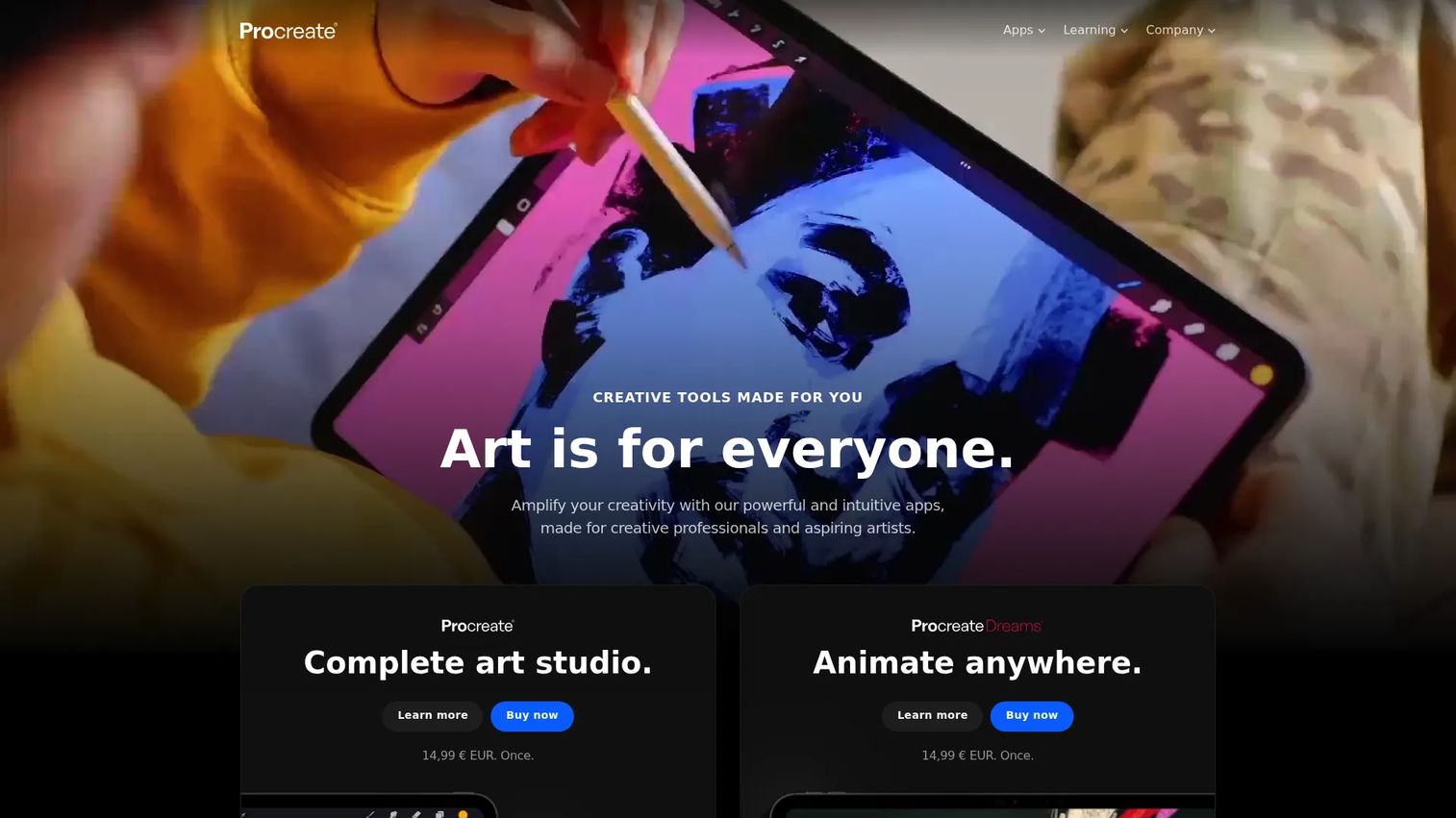
Procreate is a drawing and painting app for iPad and iPhone, built around the Apple Pencil. Comic artists use it for sketching, inking, and page art on the go. It leans on tools like Page Assist, QuickShape, and StreamLine, plus a large brush library. Panel and lettering support is lighter than dedicated comic software, so many artists finish layout elsewhere.
Best for: iPad artists who want a one-time-purchase drawing app for sketching and inking comic pages.
Key features
- Apple Pencil drawing and painting
- Page Assist for multi-page work
- QuickShape and StreamLine tools
- 3D model painting
- Extensive brush library
Why choose Procreate: Pick it for mobile, pressure-sensitive drawing at a one-time cost, then hand off pages to a layout tool for final assembly if you need heavy lettering.
Procreate pricing: Procreate Dreams, the animation app, is a one-time $12.99. Procreate for iPad and Procreate Pocket are sold as one-time purchases with no subscription, and current prices are set on the App Store rather than the brand site.
A verified G2 score was not available at publication. Procreate's reputation among iPad illustrators is strong, so check the App Store and G2 reviews for current sentiment.
5. MediBang Paint
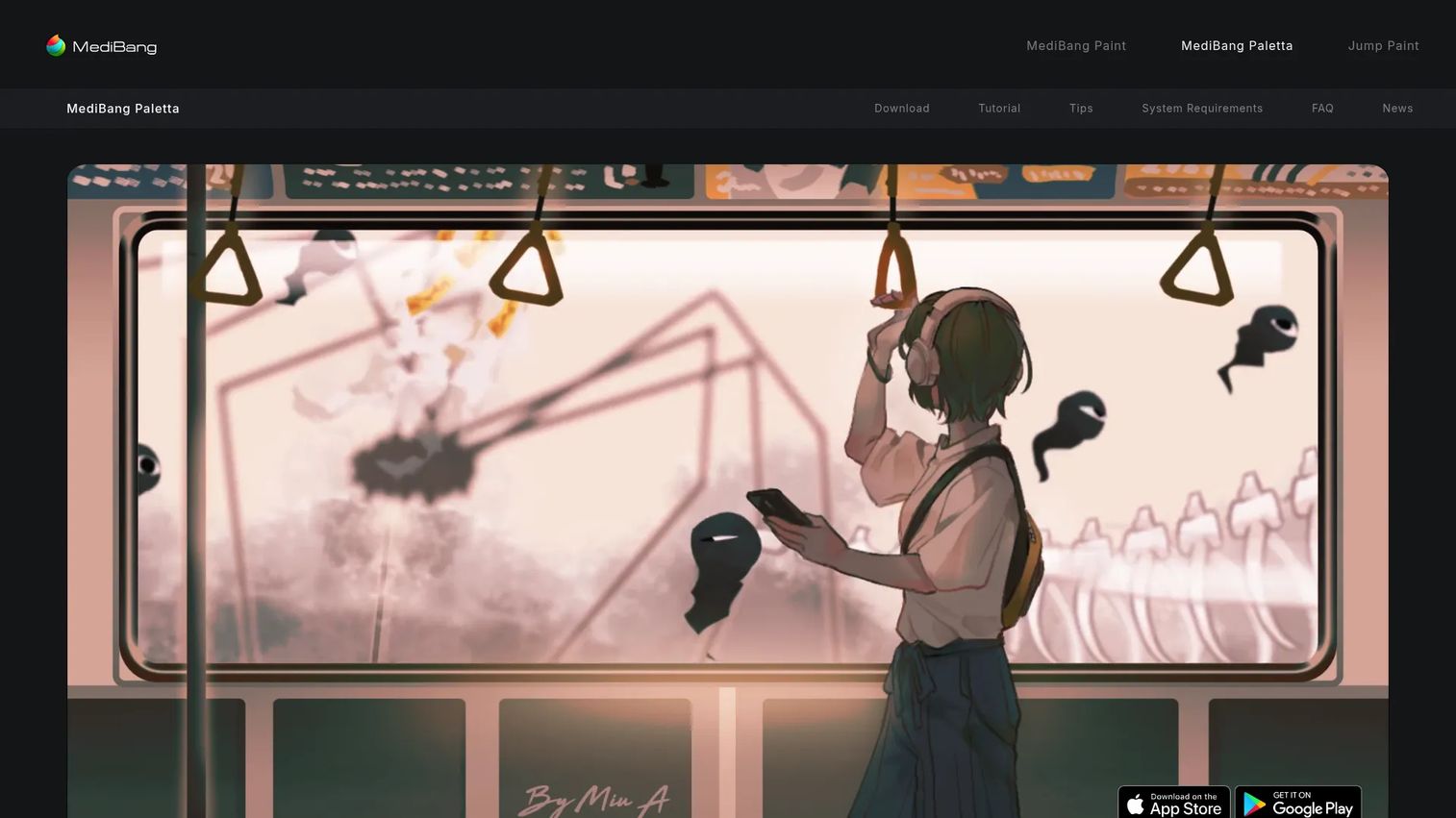
MediBang Paint is free digital painting and manga software with cloud sync and comic-making tools. It runs across desktop, tablet, and phone, and it keeps your work in sync so you can move between devices. For creators who want manga tools without a cost commitment, it is the clearest starting point in this list.
Best for: Manga creators and beginners who want a free, cross-device drawing app with optional cloud upgrades.
Key features
- Free app across devices
- Customizable brushes
- Cloud sync for projects
- Manga and comic tools
- Group project collaboration
Why choose MediBang Paint: Choose it when budget is the binding constraint, or when you want to learn comic drawing before committing to paid software.
MediBang Paint pricing: The app is free. Paid annual MediBang Premium plans start at 2,480 yen per year for extra cloud capacity and features, with Premium100 at 3,980 yen and Premium300 at 7,980 yen per year.
MediBang did not have a verifiable G2 profile at publication. Reviewer feedback on Capterra runs positive, so cross-reference there if you want scored sentiment.
6. Adobe InDesign
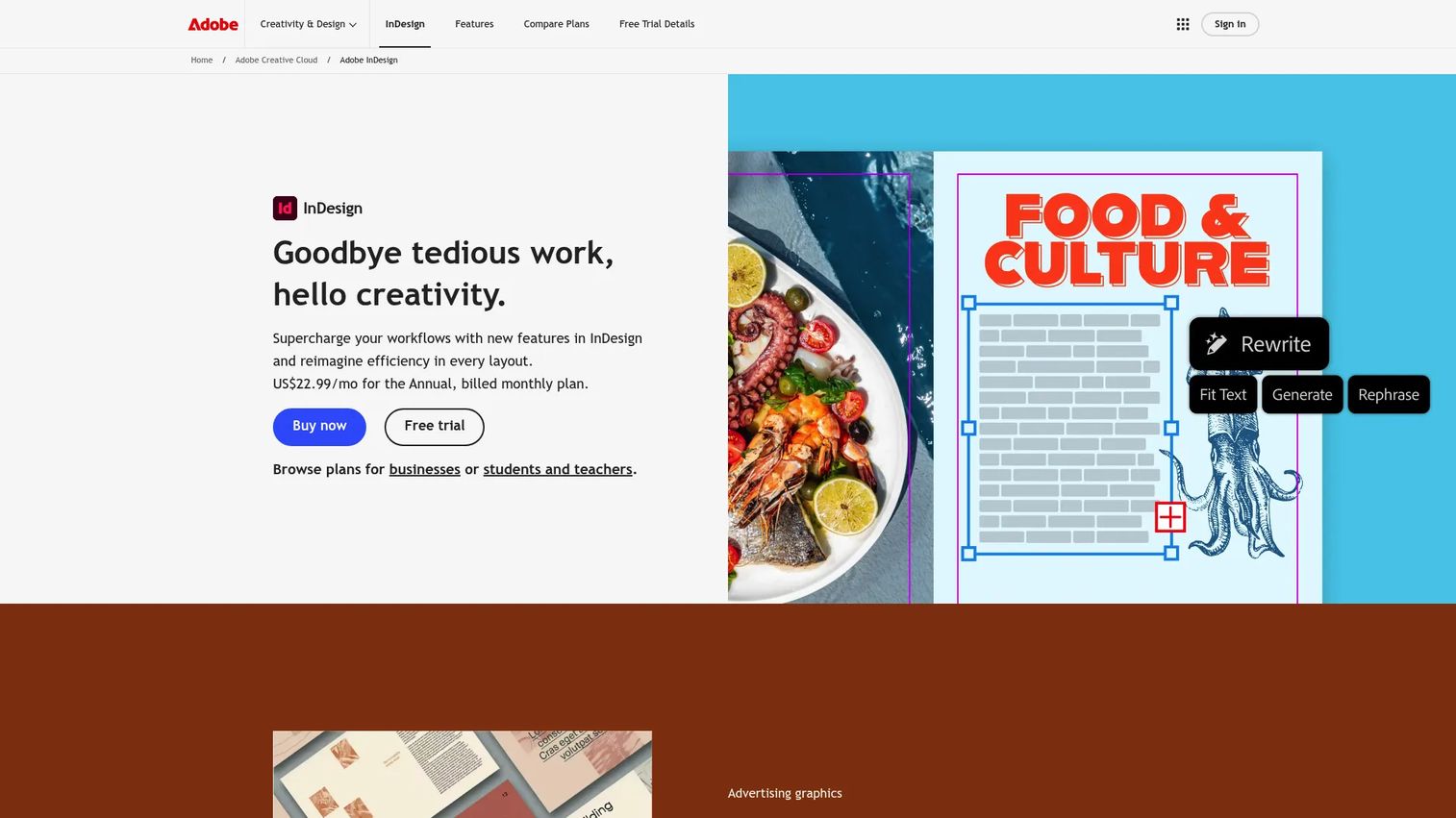
Adobe InDesign is desktop publishing and page-layout software for print and digital documents. Comic creators use it at the assembly stage: Importing finished art, setting typography, arranging multi-page books, and exporting print-ready files. It is not a drawing tool, so it pairs with an art app rather than replacing one.
Best for: Creators and studios assembling multi-page comics or graphic novels and preparing files for print.
Key features
- Precise typography and layout controls
- Multi-page book management
- Publish Online web versions
- Cloud documents and share links
- Print-ready PDF export
Why choose Adobe InDesign: Choose it when your book's layout and print handoff matter more than drawing, especially for long-form graphic novels headed to a printer.
Adobe InDesign pricing: The single-app plan is US$22.99/month, billed monthly on an annual term. Creative Cloud Pro is regularly US$69.99/month, and the teams plan is US$37.99/month per license. A 7-day free trial is offered, but there is no free tier.
InDesign holds a 4.6/5 rating on G2, consistent with its standing as a standard for professional page layout.
7. Corel Painter
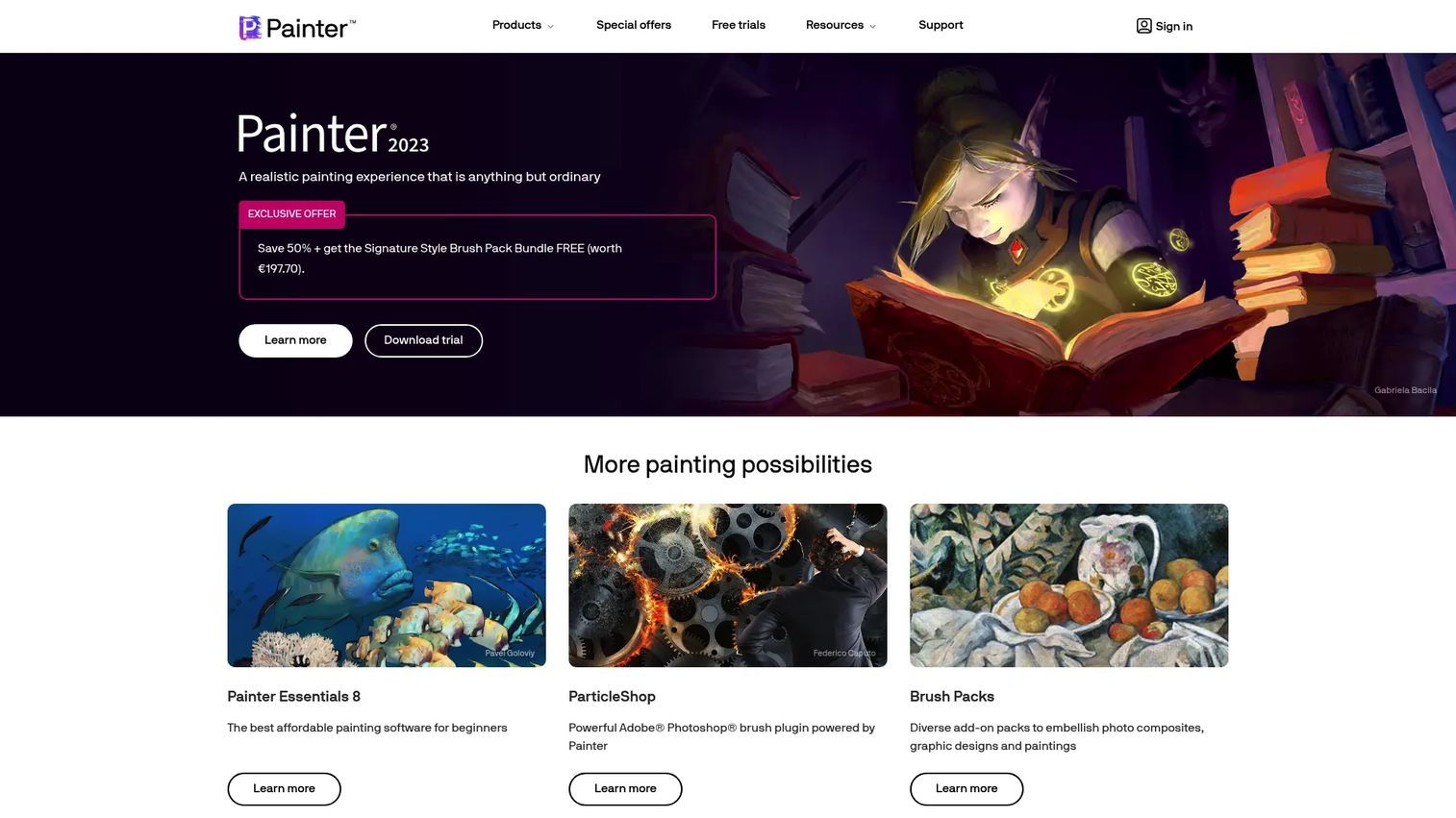
Corel Painter is professional digital art software focused on painting, illustration, and photo art. Its signature is Natural-Media brush emulation, which mimics oils, watercolors, and traditional media closely. Comic artists who want a painterly finish use it for illustration and covers, then handle paneling and lettering in a layout tool.
Best for: Illustrators who want realistic, traditional-media-style digital painting for comic art and covers.
Key features
- Natural-Media brush emulation
- Hundreds of artist-created brushes
- Custom brushes, textures, palettes
- Auto-painting and cloning
- Photo-art tools
Why choose Corel Painter: Choose it when a painterly, textured look is the goal and you are comfortable pairing it with separate paneling and print tools.
Corel Painter pricing: Corel Painter is sold on a subscription with a free trial available. The product pages did not display current numeric pricing at publication, so confirm the exact rate on the vendor's store before purchase.
Corel Painter carries a 4.2/5 rating on G2, the lowest of the scored tools here, which tracks with its niche as a specialist painting app rather than an all-round comic maker.
Considerations
Before you commit, run every shortlisted tool through this checklist. The right pick is the one that survives your dominant workflow, not the one with the prettiest sample gallery.
Budget and licensing
Decide between subscription and one-time cost early. Photoshop and InDesign are recurring at US$22.99/month each, while Comic Life 3 and Procreate are one-time buys. If you make comics occasionally, a perpetual license or a free app like MediBang Paint avoids paying monthly for idle software.
Platform compatibility
Confirm the tool runs where you work. Procreate is iPad and iPhone only, MediBang Paint spans desktop and mobile, and Clip Studio Paint covers Windows, macOS, and tablets. A tool that does not match your device is a non-starter regardless of features.
Learning curve
Weigh time-to-first-page against ceiling. Comic Life 3 and MediBang Paint get beginners to a finished page fast. Photoshop and Corel Painter reward investment with depth but slow you down at the start. Match the curve to your deadline and patience.
Page layout and lettering tools
Check whether paneling and balloons are native or manual. Clip Studio Paint ships them built-in, so you assemble pages quickly. Photoshop and Painter make you build panels with layers, which is fine for one-off art but tedious for serialized pages.
Export and print handoff
Verify the export formats match your destination before buying. Print needs bleed and print-ready PDF, which InDesign handles well. Digital and webtoon output needs PNG or long-strip dimensions. A format mismatch means rebuilding pages, so test export on a sample page first.
Conclusion
Pick by workflow, not by brush demo. Clip Studio Paint is the all-around choice for comic and manga production, with native paneling and balloons that save time on every page. Comic Life 3 is the fastest route for photo-driven or template-led comics. Procreate fits iPad sketching and inking at a one-time cost.
For mixed workflows, Photoshop gives you the deepest drawing and editing power, and InDesign handles multi-page assembly and print handoff. Corel Painter earns its place when a painterly, traditional-media finish is the goal. MediBang Paint covers you when budget is the constraint and you want manga tools for free.
The practical next step: Shortlist two tools that match your dominant workflow, run a single sample page through each from script to export, and see which one gets you to a print-ready or platform-ready file with the least friction. That one-page test tells you more than any feature list.
Start your journey with Guideflow today!
FAQs
Clip Studio Paint is the most common choice among working comic and manga artists because it combines strong drawing tools with native paneling and balloons. Photoshop is also widely used for inking and coloring, especially in studios already on Adobe. Beginners often start with the free MediBang Paint before upgrading.
For comic-specific work, Clip Studio Paint is usually the better fit because paneling, perspective rulers, and balloon tools are built in. Photoshop makes you build panels manually with layers, but it offers deeper general image editing. If comics are your main output, Clip Studio Paint saves time; if you also do heavy photo and design work, Photoshop earns its cost.
Yes. Procreate is strong for drawing, inking, and coloring comic pages on an iPad with an Apple Pencil. Its Page Assist feature helps manage multi-page work. Lettering and complex paneling are lighter than dedicated comic tools, so many artists finish layout in Clip Studio Paint or InDesign.
Comic Life 3 and MediBang Paint are the most beginner-friendly. Comic Life 3 uses templates and drag-and-drop photos, so you can build a page without drawing skills. MediBang Paint is free and includes manga tools, making it a low-risk way to learn digital comic drawing.
Adobe InDesign is the standard for print handoff because it manages multi-page layouts, typography, and print-ready PDF export with bleed. Many creators draw pages in Clip Studio Paint or Photoshop, then assemble and export the final book in InDesign. Always confirm your printer's bleed and format specs before exporting.
Yes. MediBang Paint is free and includes brushes, cloud sync, and manga tools across desktop and mobile. It is the clearest free starting point for creators who want to make comics without a subscription. Paid Premium plans add cloud capacity but are optional.
Yes. Comic Life 3 is built specifically for photo-to-comic workflows, applying comic filters and dropping photos into templates with balloons and captions. Photoshop can also convert photos to comic-style art using filters and adjustments, though it takes more manual work. Photo-based tools suit educators, hobbyists, and creators without drawing skills.
For print, use a print-ready PDF with bleed and, where required, CMYK color. For web and digital reading, PNG works well for individual pages, and long-strip PNG or JPG fits webtoon platforms. PSD is common for handing off editable layered files between artists and letterers.