You bought the machine. You have a project in your head. Then you open a blank CAD window and realize the software is the hard part.
Most people think choosing CNC software is about features. It's not. It's about the path from design to toolpath to clean G-code your specific machine can actually run. Pick software that's too advanced and you'll spend weeks fighting the interface. Pick something too limited and you'll hit a wall the first time you need a 3D relief or a custom post-processor.
The market signal backs up why this matters. The broader computer numerical controls market is expected to grow from USD 116.57 billion in 2026 to USD 165.95 billion by 2031 at a 7.32% CAGR, according to Mordor Intelligence (2024). More machines mean more people staring at that blank window, trying to figure out which CAD/CAM tool matches their hardware, their skill level, and their work.
This guide skips the vendor brochures. If you're building software workflows for your own team and want to see how interactive product demos shorten evaluation, that's a separate topic, but the same principle applies here: the right tool is the one that gets you to a working output fastest, not the one with the longest feature list.
What's inside
This guide covers seven real CNC software options that serious hobbyists, small shops, and manufacturing teams actually use. We selected each based on four criteria that decide whether software fits your setup: workflow fit across 2D, 2.5D, and 3D work, machine and controller compatibility, learning curve for your skill level, and pricing clarity. Every pricing figure and feature comes from the vendor's current pages. We do not rank by marketing budget. We rank by which tool solves which problem, so you can match the software to your machine and your project instead of the other way around.
TL;DR
- Best for advanced CAM and production shops: Mastercam, for multi-axis toolpaths, verification, and mill-turn work.
- Best upgrade path from simple to 3D: Vectric, with a clean ladder from Cut2D to VCarve to Aspire.
- Best free starting point: Easel, which is genuinely free and browser-based for compatible routers.
- Best for decorative and relief carving: Carveco, built for artistic 3D work with a low subscription entry point.
- Best all-in-one CAD plus CAM: Fusion 360, for teams that want design and machining in one ecosystem.
- Best for desktop and hobby CNC: Carbide Create, free with Carbide 3D machines and simple to learn.
What is CNC software?
CNC software is the set of programs that turn a design into machine instructions a CNC router, mill, or lathe can execute. It bridges three stages: you draw or model a part, you generate toolpaths, and you output code the machine reads.
Most workflows split into three roles, and some tools cover all three:
- CAD (computer-aided design): where you create the geometry, whether that's 2D vectors, 2.5D shapes, or full 3D models.
- CAM (cam software / computer-aided manufacturing): where you assign tools, feeds, speeds, and cutting strategies to generate toolpaths.
- Control software: the program running on or near the machine that interprets the code and drives the motors.
The output that connects design to metal or wood is G-code, the standard language of numeric control. A post-processor translates the generic toolpath into the exact G-code dialect your specific controller expects. Two machines can run the same design and need different post-processors, which is why machine compatibility matters more than most beginners expect.
Work also splits by dimension:
- 2D CNC software handles flat cutting, profiling, and drilling on a single plane.
- 2.5D adds depth operations like pocketing, v-carving, and engraving, common in sign making and woodworking.
- 3D CNC software carves true three-dimensional surfaces, reliefs, and sculpted forms.
A quick reference for what good cnc programming software should give you:
- Reliable toolpath generation across 2D, 2.5D, and 3D
- A post-processor library or editor for your controller
- Simulation and verification before you cut
- Tool and material libraries with feeds and speeds
- Import support for common file formats (DXF, SVG, STEP, STL)
- A learning curve that matches your team's skill level
When to use each type of CNC software
The right pick depends less on the brand and more on where you sit in the workflow. Three common scenarios cover most buyers.
Choose beginner-friendly software for fast setup
If you're new to CNC or running a desktop router for hobby projects, prioritize software that gets you carving in an afternoon. Look for a short learning curve, built-in tool libraries, and a free or low-cost entry tier. You don't need multi-axis toolpaths to cut signs, coasters, or simple brackets. Tools like Easel and Carbide Create fit here because they hide complexity until you need it.
Choose advanced CAM when cycle time and quality matter
When you're running production, repeatability and cycle time become money. Advanced cam software gives you high-efficiency roughing, adaptive clearing, multi-axis strategies, and detailed verification that catches collisions before they wreck a fixture. Mastercam and Fusion 360 sit here. The steeper learning curve pays for itself when a faster toolpath saves hours across a run.
Choose machine-compatible software for your controller
Some decisions come down to what your machine expects. If you run a GRBL-based router, a specific controller, or a vendor ecosystem like Onefinity, confirm the software outputs compatible G-code and has the right post-processor before you buy. The best toolpath in the world is useless if your controller chokes on the code.
Comparison table
Here's how the seven options stack up at a glance. Read the intent column to find your fit, then check the key use case and pricing to narrow it down. Ratings come from G2 where a verified listing exists; some CNC tools have limited third-party review coverage, so we've left those blank rather than guess.
| # | Product | Intent | Key use case | Pricing | G2 rating |
|---|---|---|---|---|---|
| 1 | Mastercam | Advanced CAM | Multi-axis, mill-turn, production programming | Quote-based (subscription or perpetual) | 4.1/5 |
| 2 | Vectric | Hobby to pro routing | 2D, 2.5D, and 3D relief carving | From $149 (buy once) | Not listed |
| 3 | Easel | Beginner all-in-one | Browser-based design and carving | Free; Pro from $16.63/mo | Not listed |
| 4 | Carveco | Decorative carving | Artistic 3D relief and sculpting | From $17.50/mo | 4.3/5 |
| 5 | Fusion 360 | Integrated CAD/CAM | Product design through machining | From $57/mo | 4.5/5 |
| 6 | Carbide Create | Desktop and hobby CNC | 2D CAD/CAM with 3D upgrade | Free; Pro from $120/yr | Not listed |
| 7 | Onefinity CNC Software | Machine ecosystem | G-code and CAM for Onefinity machines | From $180 | Not listed |
1. Mastercam
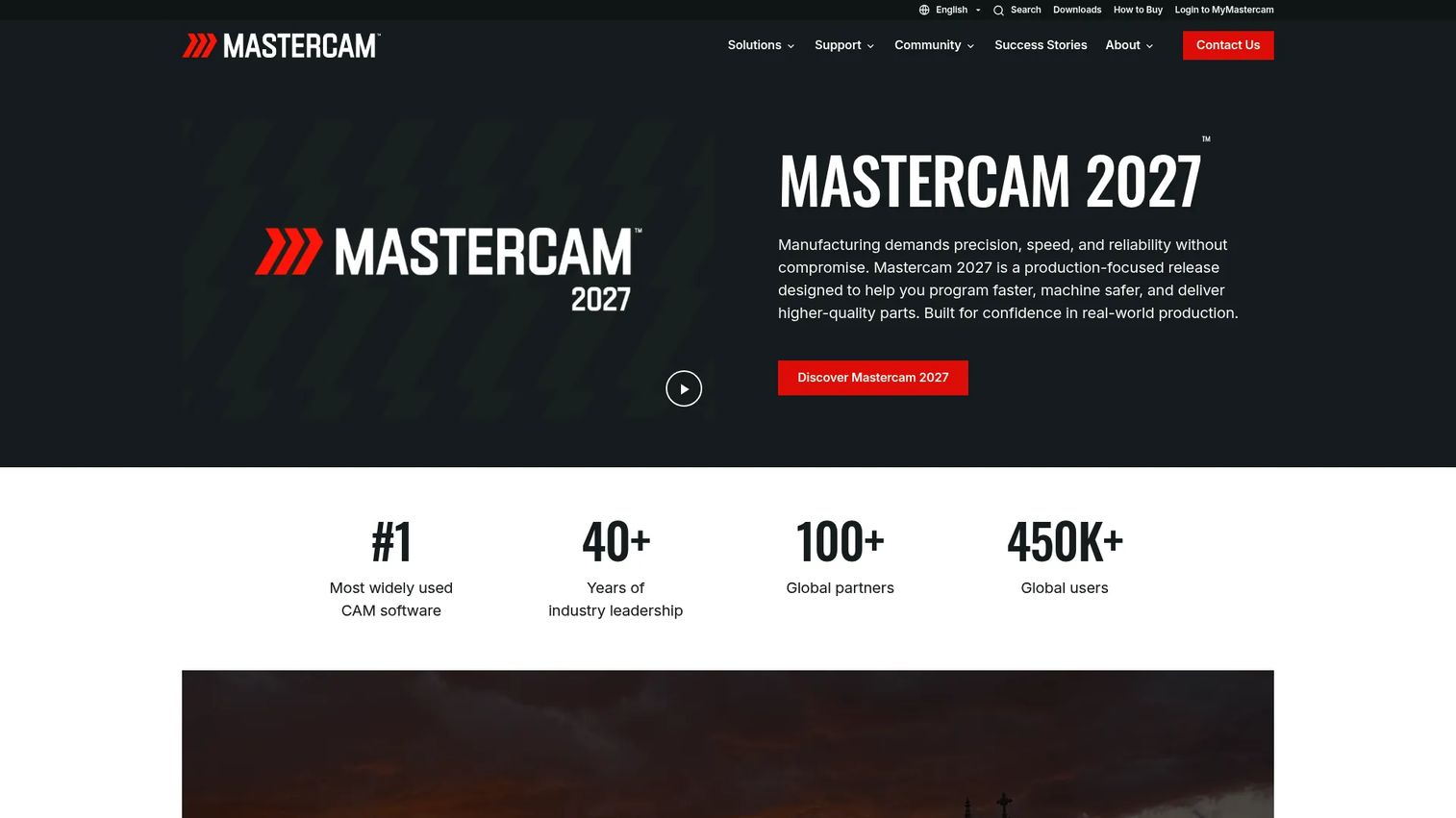
Mastercam is CAD/CAM software built for CNC programming and machining in professional shops. It's one of the most widely deployed CAM platforms in manufacturing, covering mill, turn, mill-turn, multi-axis, and router work in a single environment. If your shop programs parts for a living, Mastercam is the tool other tools get compared to.
Best for: Manufacturers who need serious CNC programming, verification, and multi-axis CAM workflows.
Key strengths
- CAD/CAM toolpath programming: Generate efficient toolpaths for complex parts across mill, turn, and router operations.
- Simulation and verification: Preview cuts and catch collisions before the machine moves, protecting fixtures and tooling.
- Mill-turn and multi-axis support: Program 4- and 5-axis parts and combined turning-milling operations in one system.
Why choose Mastercam: This is production-grade software for shops where cycle time, motion quality, and repeatability drive profit. The learning curve is real, but so is the payoff when a smarter toolpath shaves minutes off every part in a thousand-piece run. It fits programmers and machinists who need depth, not a weekend project tool.
Mastercam pricing: Mastercam offers both subscription and perpetual licensing but does not publish a numeric software price. Buyers request a quote or contact a representative through the how-to-buy page. A Learning Edition and trial are available to evaluate the software before committing.
2. Vectric
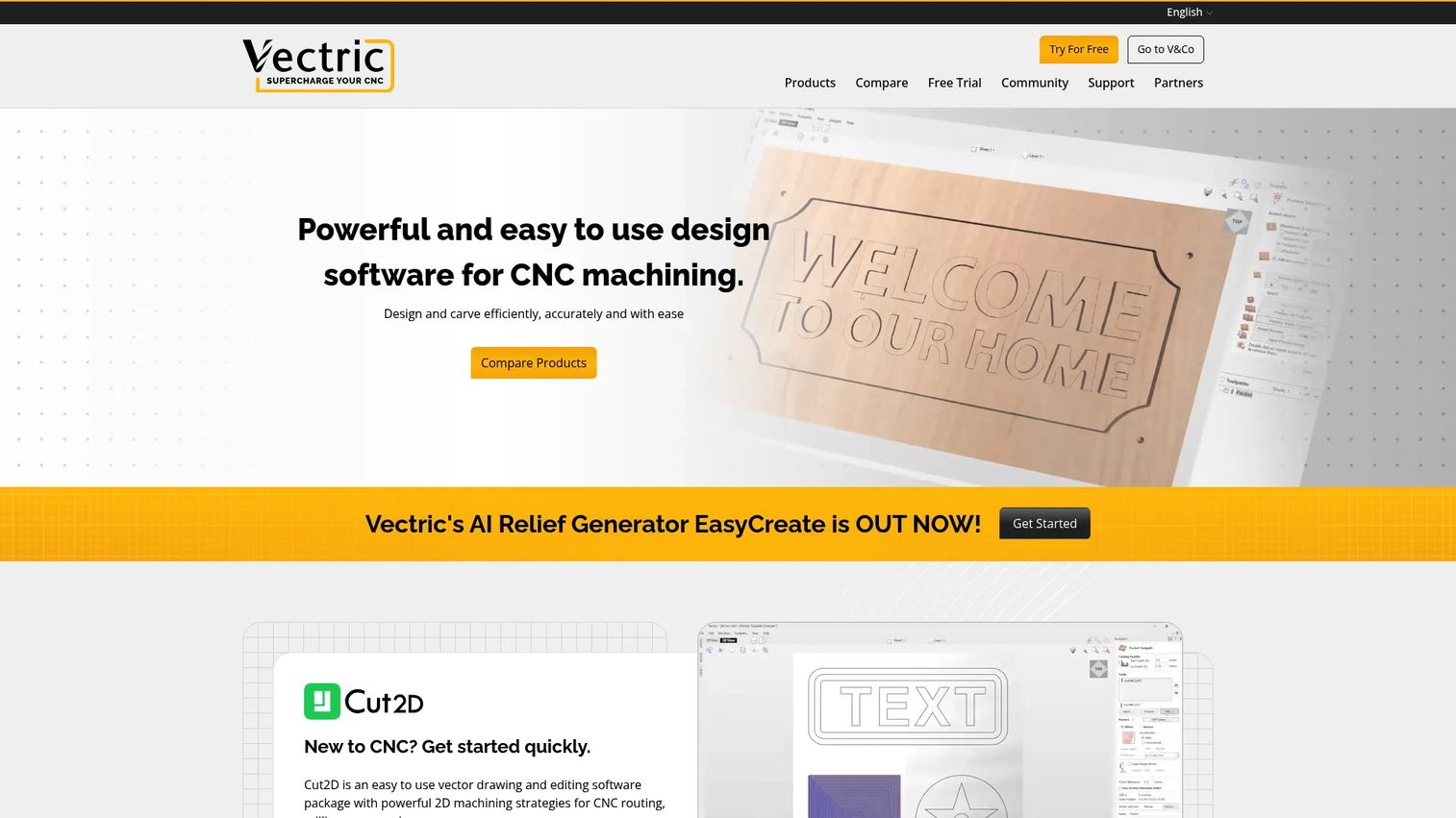
Vectric makes CNC design and toolpath software for 2D, 2.5D, and 3D projects, with a product ladder that grows as your skills do. The lineup runs from Cut2D for straightforward cutting, through VCarve for v-carving and 2.5D work, up to Aspire for full 3D design and relief modeling. It's a favorite in the woodworking and sign-making world.
Best for: CNC hobbyists and small shops that want desktop software for routing, milling, engraving, and relief carving.
Key strengths
- 2D vector drawing and machining: Draw and cut flat parts with a clean, approachable interface.
- 2.5D toolpaths: Handle v-carving, fluting, and molding operations common in decorative woodwork.
- 3D design and relief modeling: Move up to sculpted 3D reliefs in Aspire without switching software families.
Why choose Vectric: The upgrade path is the selling point. You can start on Cut2D, learn the workflow, and step up to VCarve or Aspire without relearning everything. Strong tutorials, an active community, and forum support make it forgiving for people teaching themselves. Licenses are buy-once, so there's no recurring subscription to track.
Vectric pricing: Vectric sells perpetual licenses with buy-once pricing; minor updates are free and upgrades are priced separately. Cut2D Desktop starts at $149, VCarve Desktop at $349, and Aspire at $1,995. Compare tiers on the Vectric compare page.
3. Easel
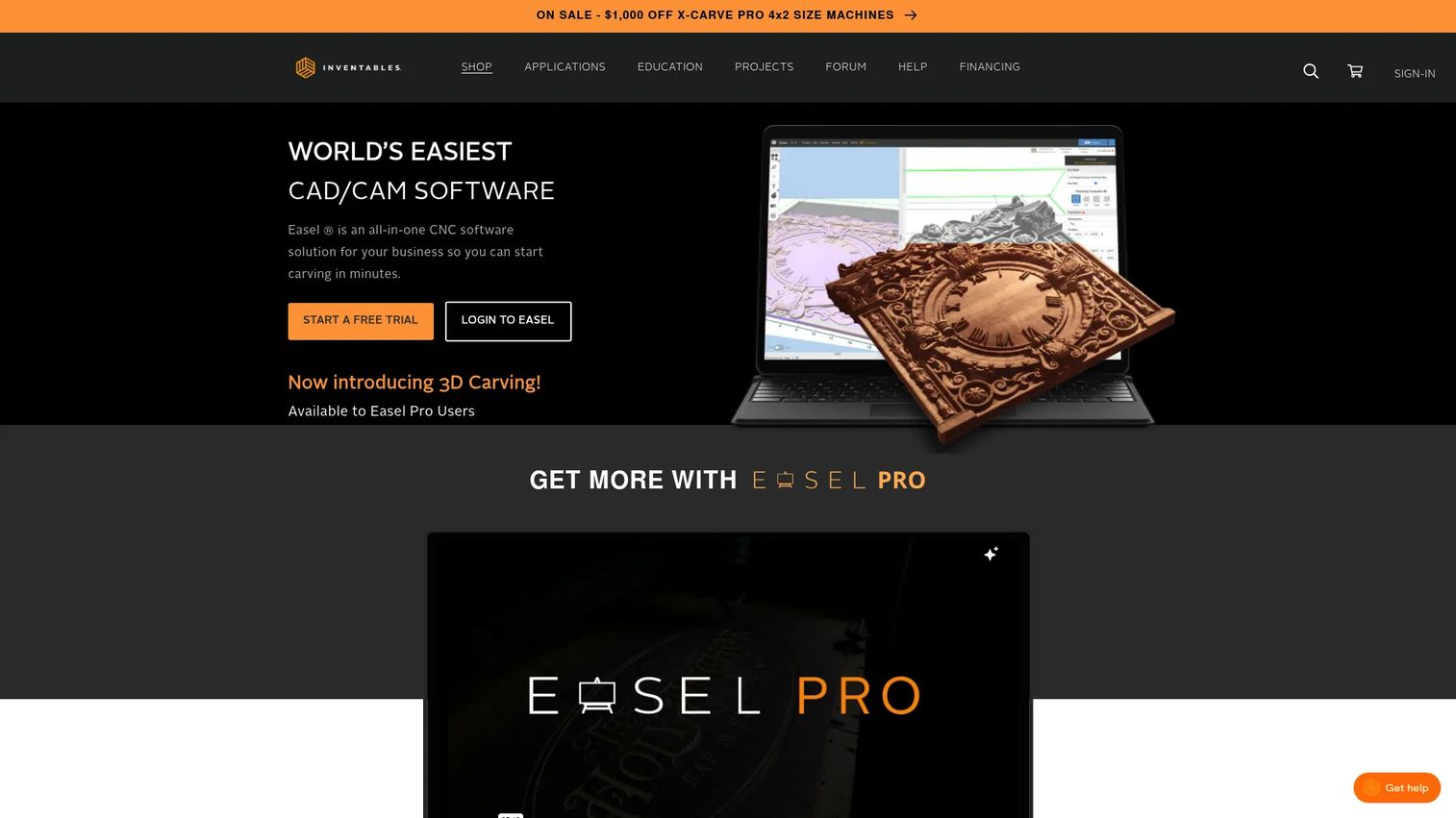
Easel is Inventables' all-in-one CNC software for designing and carving on compatible CNC routers. It runs in the browser, combines design and toolpath generation in one flow, and is built to get beginners cutting fast. This is the easel cnc option people reach for when they want the shortest path from idea to finished part.
Best for: Small businesses and makers who want beginner-friendly CNC design and toolpath software with no install.
Key strengths
- Free Easel plan: Design and carve at no cost, which lowers the barrier for first-time CNC users.
- Easel Pro tools: Unlock advanced design features and a larger cutting toolset when you're ready.
- 3D carving for Pro users: Move beyond flat work into 3D carves once your projects call for it.
Why choose Easel: The all-in-one, browser-based workflow removes most of the setup friction that stops beginners cold. You design, set toolpaths, and send to the machine in one place. It shines for anyone running a compatible router who values speed to first carve over deep CAM control. The free tier alone makes it worth a look before spending anything.
Easel pricing: Easel is free and available to everyone. Easel Pro starts at $16.63/month on a three-year plan and adds advanced design and carving capabilities. See the tiers on the Easel pricing page.
4. Carveco
Carveco is CNC design and manufacturing software built for makers and professional production workflows, with real depth in decorative and artistic carving. Its roots trace back to the ArtCAM lineage, which is why it excels at 3D relief and sculpting. If your work leans toward ornamental panels, signage, and sculpted detail, Carveco sits in a sweet spot between simple beginner tools and heavy industrial CAM.
Best for: Makers and small-to-large CNC shops that need design-to-toolpath software with strong relief carving.
Key strengths
- 2D design and vector tools: Build clean vector artwork and cutting geometry inside one program.
- 3D relief and sculpting tools: Create detailed reliefs and sculpted surfaces that simpler tools can't match.
- Manufacturing and toolpath features: Use nesting and rotary machining for production and cylindrical parts.
Why choose Carveco: It occupies the middle ground well. More capable than entry-level carving apps, more focused than sprawling engineering suites. The tiered lineup, Maker, Maker Plus, and Pro, lets you pay for the depth you need. Artists and sign shops choose it specifically for relief quality that would take far more effort elsewhere.
Carveco pricing: Carveco offers subscription and perpetual options. Maker starts at $17.50/month or $180/year, Maker Plus at $50/month or $540/year, and Carveco Pro at $250/month or $2,700/year. Full details are on the Carveco pricing page.
5. Fusion 360
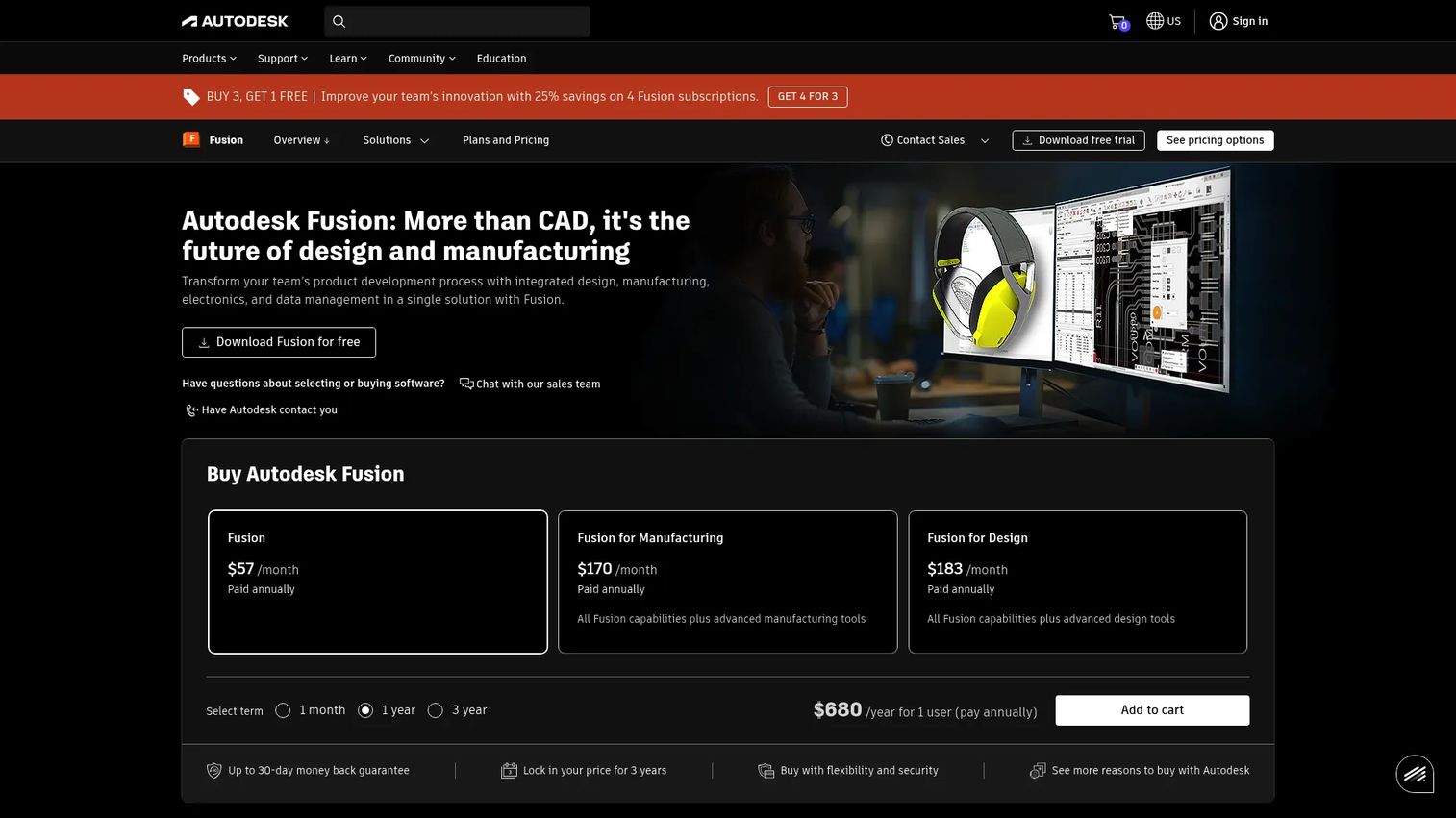
Fusion 360 is Autodesk's cloud-connected product development platform that combines CAD, CAM, CAE, and PCB tools in one ecosystem. For teams that want to design a part and machine it without exporting between programs, Fusion keeps the whole workflow under one roof. It's the natural fit when engineering and manufacturing live on the same team.
Best for: Teams that need an all-in-one platform spanning product design through manufacturing.
Key strengths
- Integrated CAD/CAM/CAE/PCB workflow: Design, simulate, and program machining without leaving the platform.
- Real-time collaboration and cloud data: Share models and manage versions across a team from anywhere.
- Simulation, generative design, and manufacturing tools: Validate parts and generate toolpaths in the same environment.
Why choose Fusion 360: The integration is the reason to pick it. Design changes flow straight into CAM, so you're not reconciling files between tools. The learning curve makes sense for more technical users and product teams who value one connected workflow over a single-purpose editor. It scales from a solo maker to a distributed engineering group.
Fusion 360 pricing: Fusion offers a free 30-day trial, with a paid Fusion plan starting at $57/month billed annually. Manufacturing and Design plans are also available; check current pricing on the Fusion overview page.
6. Carbide Create
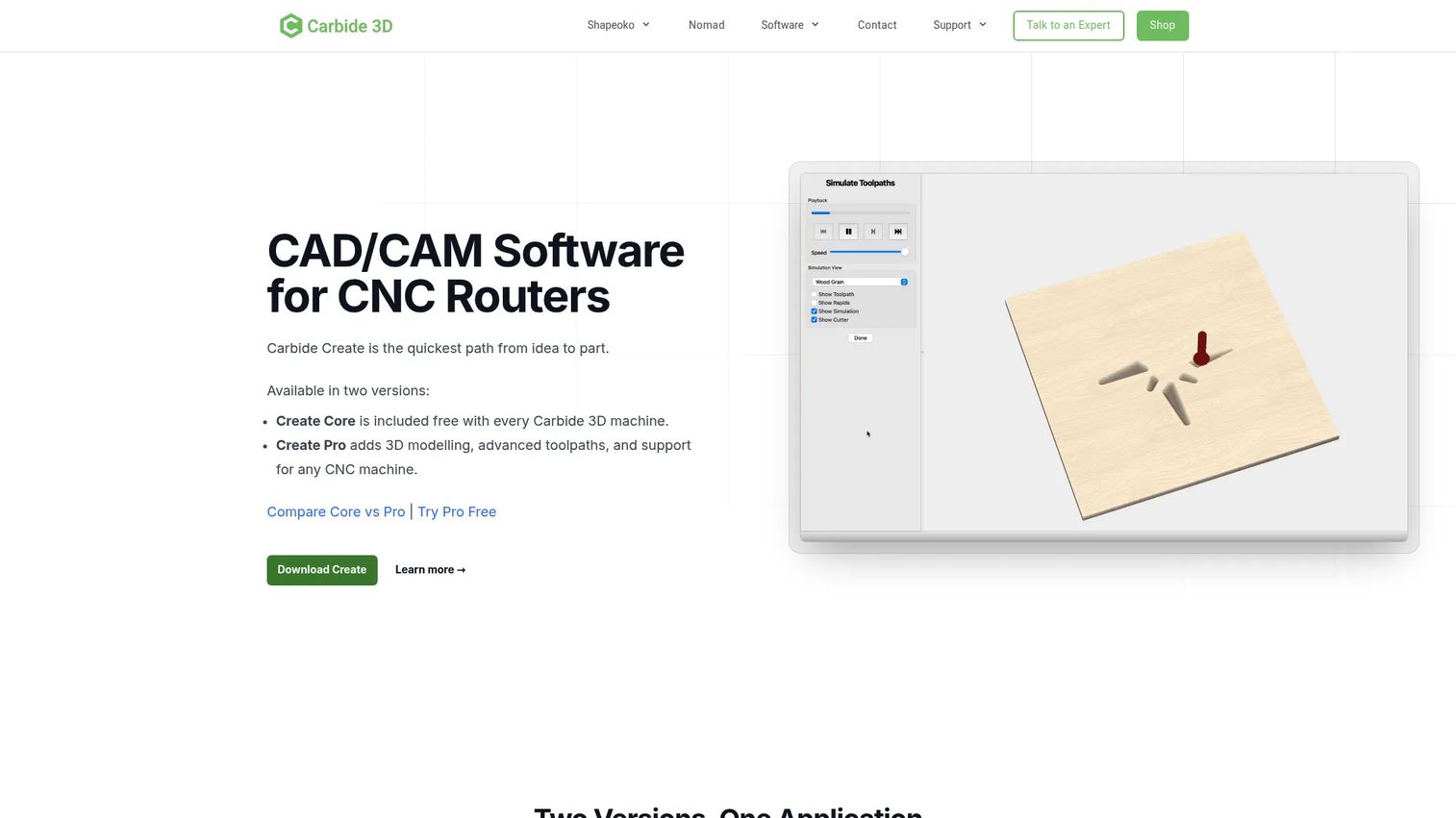
Carbide Create is 2D CAD/CAM software from Carbide 3D for designing parts and generating CNC toolpaths, with a Pro tier that adds 3D. It's tuned for desktop CNC and pairs naturally with Carbide 3D machines, though it works with other CNC routers too. For hobbyists who want something approachable with room to grow, it hits the mark.
Best for: Carbide 3D and other desktop CNC users who want easy CAD/CAM with an upgrade path to 3D and advanced toolpaths.
Key strengths
- 2D CAD/CAM design: Create geometry and generate toolpaths in one simple interface.
- 3D modeling and machining in Pro: Step up to 3D carves and models when your projects need it.
- V-carving, engraving, and toolpath simulation: Handle common decorative operations and preview cuts before running them.
Why choose Carbide Create: It's beginner-friendly without being a dead end. The free Core version gets desktop CNC owners started, and Pro unlocks 3D and advanced toolpaths when they're ready. Hobbyists and desktop router users pick it for the gentle on-ramp and the fact that it grows with them rather than forcing an early switch to heavier software.
Carbide Create pricing: Carbide Create Core is free with Carbide 3D machines. Carbide Create Pro is $120/year as a subscription or $360 for a perpetual license, with a 14-day free trial. Details are on the Carbide Create Pro page.
7. Onefinity CNC Software
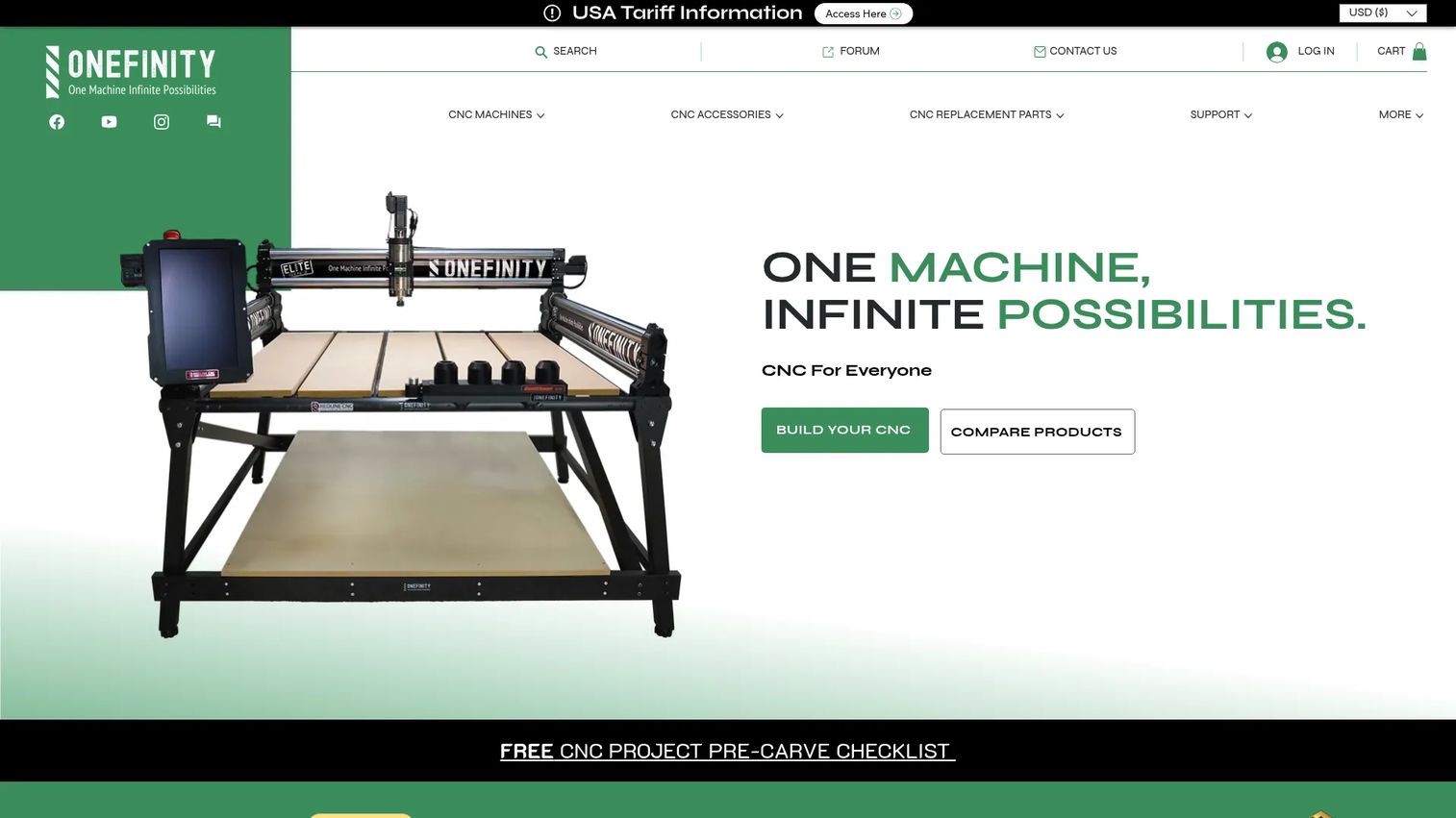
Onefinity CNC Software reflects a machine-first ecosystem rather than a single standalone editor. Onefinity is primarily a CNC machine company, and its software guidance centers on how G-code, CAD, CAM, and controller pieces fit together for its machines. It accepts standard G-code, works with third-party CAD/CAM programs, and offers its own RealTime CNC controller software for Redline machines. This entry is here to show why the machine ecosystem shapes your software choice.
Best for: Onefinity CNC owners who need compatible CAD/CAM or controller software for their setup.
Key strengths
- Accepts standard G-code: Run code from most common CAD/CAM tools without vendor lock-in.
- Compatible with third-party CAD/CAM: Pair the machine with tools like Vectric or Carveco based on your work.
- RealTime CNC controller software: Drive Redline machines with Onefinity's own control layer.
Why choose Onefinity's software approach: The lesson here is about ecosystem fit more than a single program. Onefinity owners often assemble a stack, a CAD/CAM tool for design and toolpaths plus a controller layer for the machine, and Onefinity's openness to standard G-code and third-party software keeps that flexible. It's a reminder that your machine's expectations should shape your software shortlist.
Onefinity software pricing: Onefinity's store sells related software licenses, including a Carveco Maker 12-month subscription at $180. Digital software is non-refundable, and Vectric, Carveco, and Lightburn licenses are emailed within a few business days. See the Onefinity store for current listings.
How to choose the right CNC software
Before you buy, run each option through the same short checklist. The right tool is the one that clears all four, not the one with the most features.
Machine and controller compatibility
Confirm the software outputs G-code your controller accepts and ships with or supports the right post-processor. A GRBL router, an industrial controller, and a vendor ecosystem each expect different code. This is the first filter, because incompatible software is a non-starter regardless of how good the toolpaths look.
Workflow depth (2D, 2.5D, or 3D)
Match the software to the work you actually do. Flat cutting and drilling only need solid 2D. Sign making and decorative woodwork need 2.5D v-carving. Sculpted reliefs and molds need true 3D. Buying more depth than you'll use adds cost and learning time; buying too little means an early switch.
Learning curve versus your skill level
Be honest about how much time you can spend learning. Beginners and hobbyists get more done with approachable tools than with deep CAM they can't navigate. Production programmers get more from advanced software that repays the ramp-up with faster cycle times.
Pricing model and total cost
Decide between buy-once perpetual licenses and subscriptions, and factor in upgrades. A free tier lowers the risk of trying a tool. Perpetual pricing avoids recurring cost. Subscriptions keep you current with updates. There's no universal right answer, only the one that fits your budget and how often you'll use it.
Conclusion
The best CNC software isn't the most powerful one. It's the one that matches your machine, your workflow, and your skill level.
If you program parts for production, Mastercam and Fusion 360 give you the toolpath depth and verification a shop needs. If you're moving from simple cuts toward 3D, Vectric's Cut2D-to-Aspire ladder grows with you. For decorative and relief work, Carveco is purpose-built. Beginners and desktop CNC owners get the fastest start with Easel or Carbide Create, both of which have a free way in. And if you run an Onefinity machine, let the ecosystem and its standard G-code support guide the CAD/CAM tools you pair with it.
Start with compatibility, then narrow by workflow depth, then weigh learning curve and price. Match the software to the machine and the job in front of you, and the rest gets a lot easier.
FAQs
CNC is the machine control side that runs the code. CAD is where you design the geometry of a part. CAM is where you turn that design into toolpaths and generate the G-code the machine reads. Some tools like Fusion 360 combine CAD and CAM, while others focus on one stage.
Easel and Carbide Create are the most beginner-friendly picks. Easel runs in the browser with a free plan and combines design and carving in one flow. Carbide Create is free with Carbide 3D machines and keeps the interface simple. Both let you start cutting without a steep learning curve.
You need software that outputs G-code compatible with GRBL and a sender or controller to stream it to the board. Many hobby-focused CAD/CAM tools support GRBL-friendly post-processors. Always confirm the specific post-processor for your controller before you commit, since GRBL versions and configurations can differ.
No single program works with every machine out of the box. The design and toolpath side can be portable, but the G-code output must match your controller's dialect. That translation happens in the post-processor, so a tool works across machines only when it has or supports the right post-processor for each one.
A post-processor converts the generic toolpath your CAM software creates into the exact G-code dialect your specific controller expects. Two machines can run the same part yet need different post-processors. It's the piece that makes machine compatibility real, which is why you check it before buying.
For most hobby projects, yes. Free options like Easel and Carbide Create Core handle 2D cutting, v-carving, and basic projects well. You typically hit their limits only when you need advanced 3D reliefs, complex multi-axis work, or production-grade toolpath control, at which point a paid tier or a different tool makes sense.
For 2D and 2.5D work like signs and flat parts, Easel, Carbide Create, and Vectric's lower tiers are strong. For true 3D carving and reliefs, Carveco, Vectric Aspire, and Fusion 360 handle sculpted surfaces well. Match the tier to the dimension of work you do most, since 3D capability usually costs more.
Start with your router's controller and confirm the software outputs compatible G-code with the right post-processor. Then match the software's 2D, 2.5D, or 3D depth to your projects, weigh the learning curve against your experience, and check whether a free tier or trial lets you test before you pay.