You published the video. Views came in. Then the drop-off report showed most people watched with the sound off, and half of them left before the first minute ended.
Captions are not a compliance checkbox you add at the end. They decide whether a video is watchable in a noisy office, searchable by Google, and understandable by someone who processes text faster than audio. The captioning and subtitling solutions market was valued at USD 5.71 billion in 2023 and is projected to reach USD 11.5 billion by 2032, according to Grand View Research (2023). That growth is not vanity spend. It reflects how much of video consumption now happens on mute.
The hard part is not deciding to caption. It is choosing between automated transcription, human-reviewed accuracy, and a service-led workflow, then matching that to your export pipeline. This guide compares software, services, and platform-native tools so you can pick based on how you actually work.
What's inside
This guide is for marketers, training teams, and content owners who need captions on recorded video, live events, or both. We chose tools that solve real captioning jobs, not just transcription in the abstract.
We evaluated each option against four criteria:
- Accuracy and review: how good the first draft is, and how easy cleanup is
- Workflow speed: turnaround for recorded and live captioning
- Export formats: SRT, VTT, and broadcast formats like 608 and 708
- Compatibility and privacy: platform support and how your content is handled
You get a comparison table, seven detailed breakdowns, a buyer's checklist, and answers to the questions people actually search.
TL;DR
- Best for human-reviewed accuracy: Rev pairs AI drafts with human transcription and captioning services when precision matters more than speed.
- Best free closed captioning software: YouTube generates automatic captions on any upload at no cost, with an editor for cleanup.
- Best for live captioning: Otter.ai captures live speech in meetings and events, then lets you export the transcript.
- Best for broadcast and format-heavy teams: Closed Caption Creator handles 30-plus caption and subtitle formats plus 608 and 708 embedding.
- Best for enterprise accessibility: Verbit combines AI transcription with live and post-production support for high-volume needs.
- Best accessibility resource: TechOWL guides Pennsylvanians toward assistive technology, including live and recorded captioning options.
What is closed captioning software?
Closed captioning software converts spoken audio in video or live events into time-synced on-screen text that viewers can turn on or off. Most tools combine automated speech-to-text transcription, timing tools, an editor for cleanup, and export to caption file formats.
The category covers five core capabilities:
- Transcription: turning speech into text, usually with automated closed captioning software first, then optional human review
- Timing: aligning each caption line to the exact moment words are spoken
- Editing: fixing errors, punctuation, and speaker labels in a subtitle editor
- Review: a caption review workflow where a human checks accuracy before delivery
- Export: producing subtitle formats and caption export formats for web, social, and broadcast
It helps to separate three outputs. Closed captions include speaker identification and non-speech sounds, and they assume the viewer may not hear the audio. Subtitles translate or transcribe dialogue for viewers who can hear but need the text. A transcript is the full text with no timing, useful for search, notes, or repurposing into articles.
Live captioning and recorded video captioning are different jobs. Live captioning prioritizes low latency and often uses human captioners for accuracy in real time. Recorded video captioning prioritizes clean output and format flexibility, since you have time to review before publishing. The best captioning software for your team depends on which of these you do most.
When to use closed captioning software
Add captions to recorded videos
Post-production captioning is the right move for marketing videos, training modules, and social clips where you control the timeline. You upload finished footage, generate a draft, review it, then export.
This is where accuracy and export flexibility matter most. Social platforms want burned-in or VTT captions, your LMS may need SRT, and broadcast needs 608 or 708. Recorded workflows give you room to get each right.
Support live events and meetings
Live captioning covers webinars, all-hands meetings, conferences, and customer calls. Here latency and human support decide the experience, since a caption two sentences behind the speaker helps no one.
Automated live captioning works well for internal meetings where speed beats perfection. For public events with accessibility commitments, teams often add human captioners to hit higher accuracy in real time.
Export captions for different platforms
Sometimes the deciding factor is not accuracy at all. It is whether the tool exports the exact format your delivery pipeline needs.
A team handing off to a video editor needs SRT or VTT. A broadcaster needs embedded 608 and 708 captions. A localization team needs subtitle formats that carry translation. When your pipeline is format-heavy, pick the tool that speaks your formats natively.
Comparison table
Here are the seven tools sorted by relevance to closed captioning as a workflow. Pricing and ratings reflect each vendor's published values at the time of writing.
| # | Product | Best for | Key differentiator | Pricing | G2 rating |
|---|---|---|---|---|---|
| 1 | Rev | Human-reviewed accuracy | AI drafts plus human transcription and captioning services | Free tier; Essentials $25.49/seat/mo | 4.7/5 |
| 2 | TechOWL | Accessibility guidance | Assistive technology program with demos and loans | Mostly free; evaluations $150/hr | 4.7/5 |
| 3 | Closed Caption Creator | Broadcast and format depth | 30-plus formats plus 608/708 embedding | Starter $30/mo; $25/mo billed annually | Not rated |
| 4 | Christy Tucker | Workflow guidance | Practitioner advice on caption cleanup and review | Free resource | Not rated |
| 5 | Otter.ai | Live meeting capture | Real-time transcription with summaries | Free Basic; Pro $8.33/user/mo | 4.4/5 |
| 6 | Verbit | Enterprise accessibility | AI plus human transcription and captioning at scale | Basic Transcription $24/mo | 4.4/5 |
| 7 | YouTube | Free platform captions | Automatic captions built into every upload | Free | Not rated |
Best closed captioning software for 2026
1. Rev
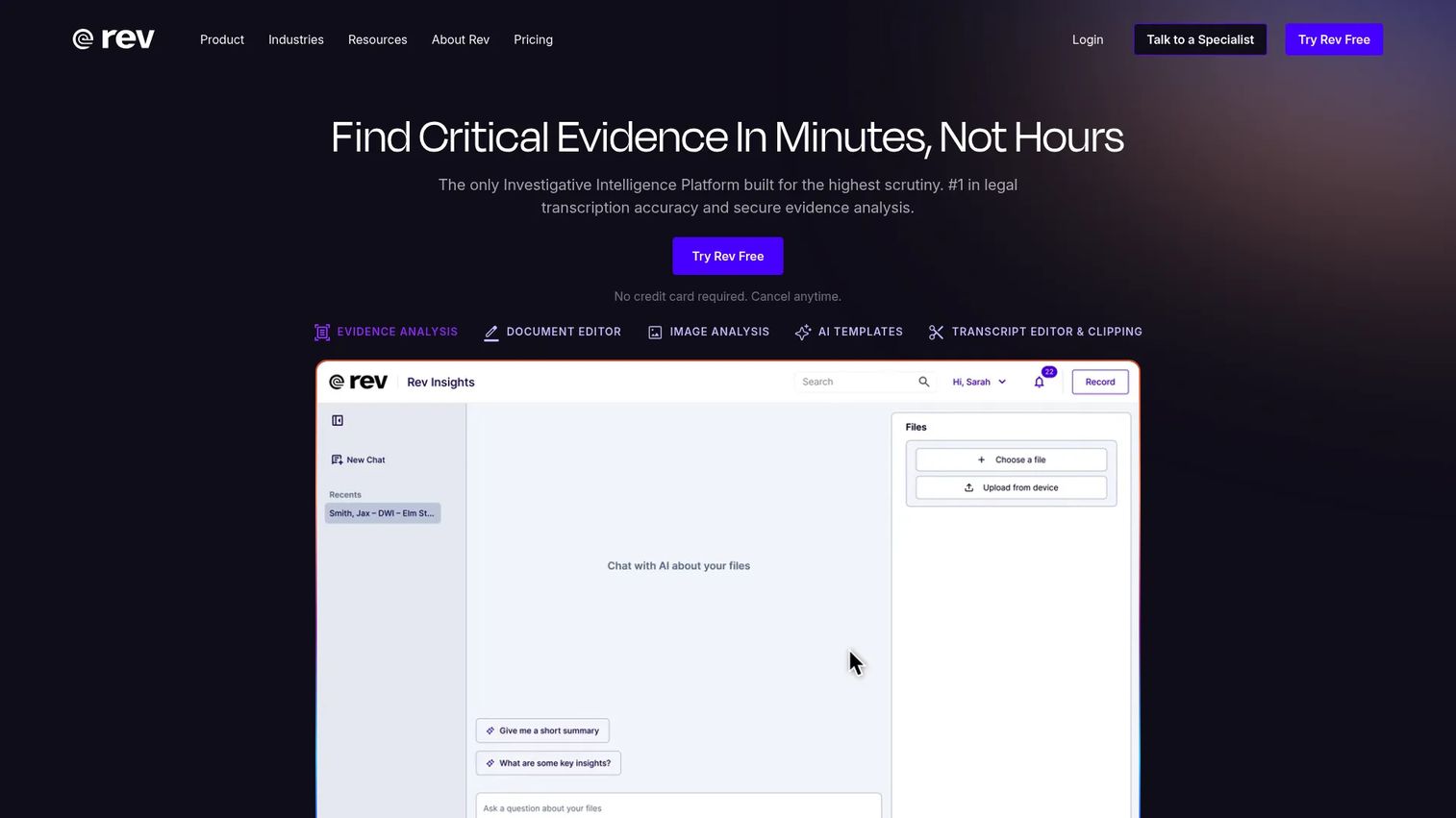
Rev is a transcription and captioning platform that pairs AI drafts with human review. You can run fast automated transcription for internal use, or order human-reviewed captions when accuracy has to hold up in front of customers, courts, or auditors. The service model means you hand off the work rather than editing every line yourself.
Best for: legal, investigative, and content teams that need high accuracy and a service workflow rather than a DIY editor.
Key features
- AI and human transcription in one platform
- Captions and subtitles with export options
- Transcript editor and clipping tools
- Multi-file evidence analysis with citations
- Mobile app for on-the-go review
Why choose Rev: if the cost of a wrong caption is high, Rev's human-reviewed option removes the cleanup burden from your team. It fits people who would rather pay for accuracy than manage a caption review workflow themselves.
Rev offers a Free tier that includes 45 AI transcription minutes per month in English. Paid subscriptions start at $25.49 per seat per month for Essentials and $47.99 per seat per month for Pro, with an Unlimited plan available on request. Rev also lists per-minute pricing for human transcription and captioning services.
Rev holds a 4.7 out of 5 rating on G2.
2. TechOWL
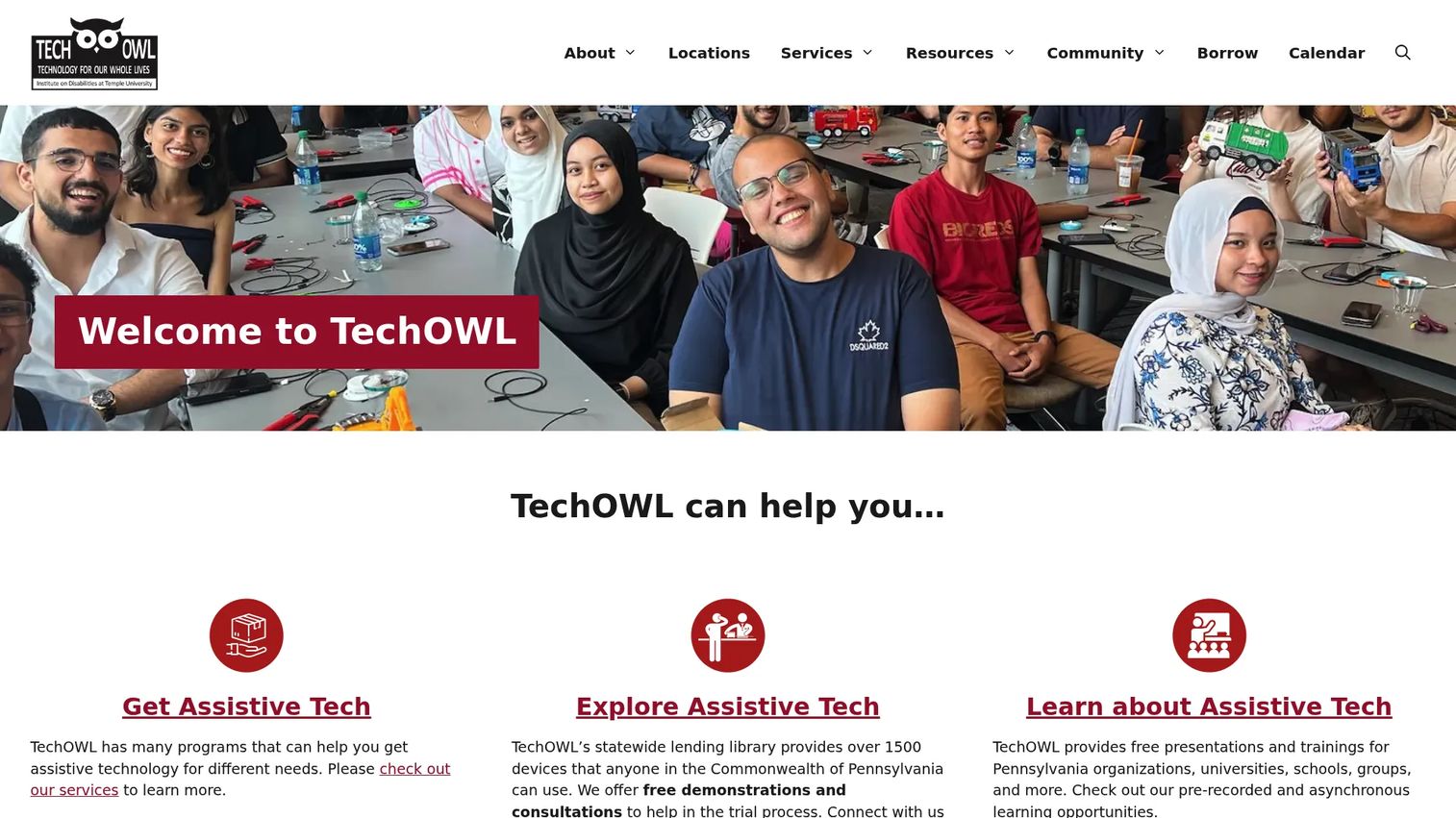
TechOWL is Pennsylvania's Assistive Technology Act program, not a commercial captioning editor. It helps people with disabilities find, try, and get assistive technology, including guidance on live and recorded captioning options. Treat it as an educational and support resource rather than a tool you buy.
Best for: Pennsylvanians and organizations that want hands-on guidance on accessibility technology before committing to a captioning tool.
Key features
- Statewide assistive technology lending library
- Free demonstrations and consultations
- Trainings and presentations on accessibility
- Guidance on live and recorded captioning
- Special phone program for qualified people
Why choose TechOWL: if you are early in an accessibility program and want to understand your options before buying software, TechOWL's demos and consultations shorten the learning curve. It fits public-sector and nonprofit teams building accessibility literacy.
TechOWL's core services are generally free for qualified Pennsylvanians. Some specialized trainings may carry a negotiated fee, and formal assistive technology evaluations are billed at $150 per hour.
TechOWL is not tied to a verified product rating for its captioning guidance.
3. Closed Caption Creator
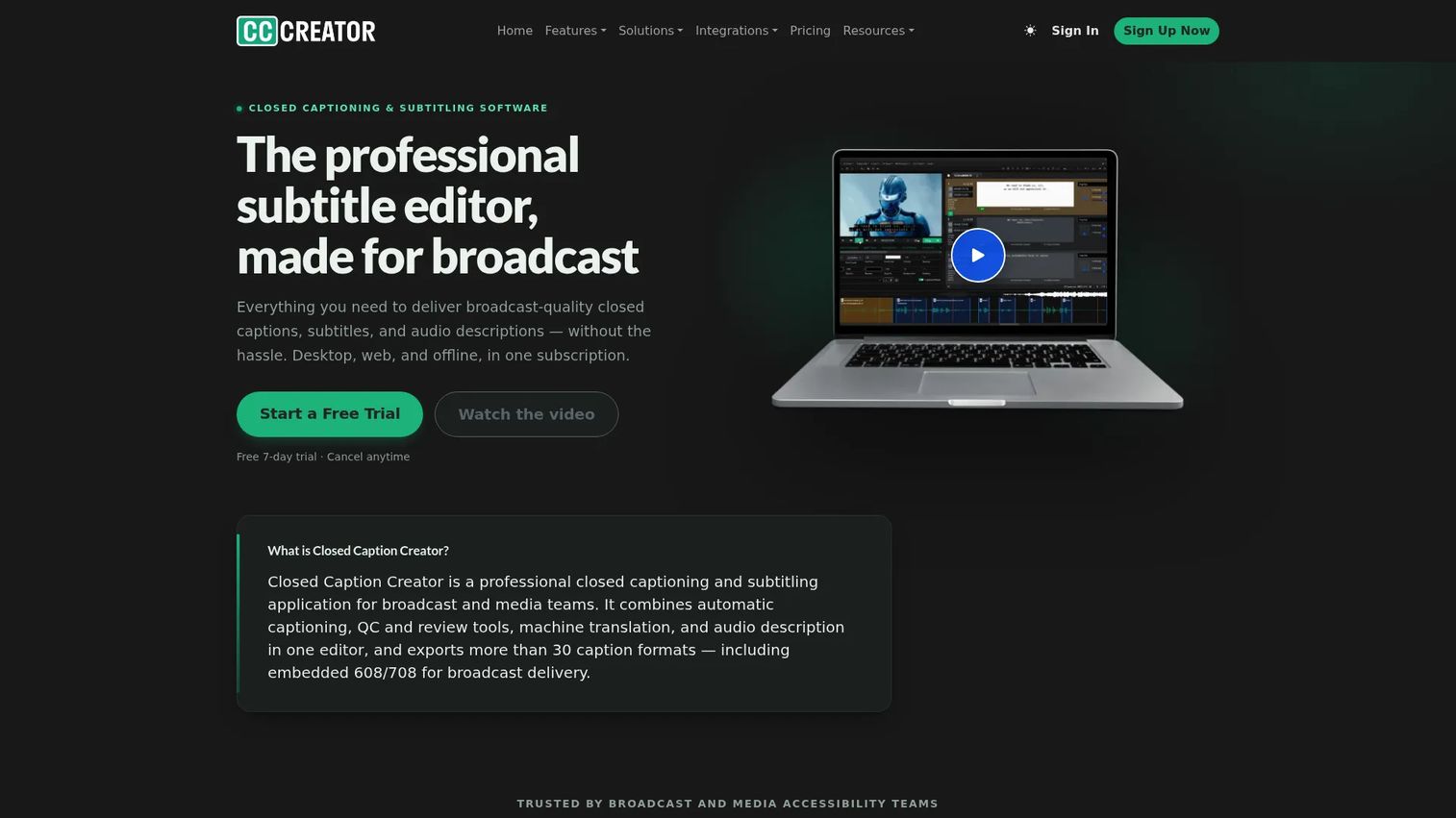
Closed Caption Creator is a broadcast-focused captioning and subtitle editor built for teams that live in caption export formats. It handles automatic captioning, translation, and team collaboration, then exports to more than 30 caption and subtitle formats including embedded 608 and 708. This is the tool for when the format is the whole job.
Best for: broadcast and post-production teams that need format depth, QC, and delivery-ready caption files.
Key features
- Automatic captioning with speaker identification
- Machine translation across languages
- Real-time error detection and QC
- Exports for 30-plus caption and subtitle formats
- Team collaboration on shared projects
Why choose Closed Caption Creator: if your delivery pipeline demands 608 and 708 embedding or a specific broadcast format, this tool speaks those formats natively. It fits professionals who need control over timing, punctuation, and output rather than a one-click black box.
Starter is $30 per month, or $25 per month billed annually, and includes 300 captioning minutes monthly. Pro is $60 per month, or $50 per month billed annually, with 600 minutes plus translation and advanced broadcast export. Enterprise is custom, and a 7-day free trial is available.
Closed Caption Creator does not have an established G2 rating yet.
4. Christy Tucker
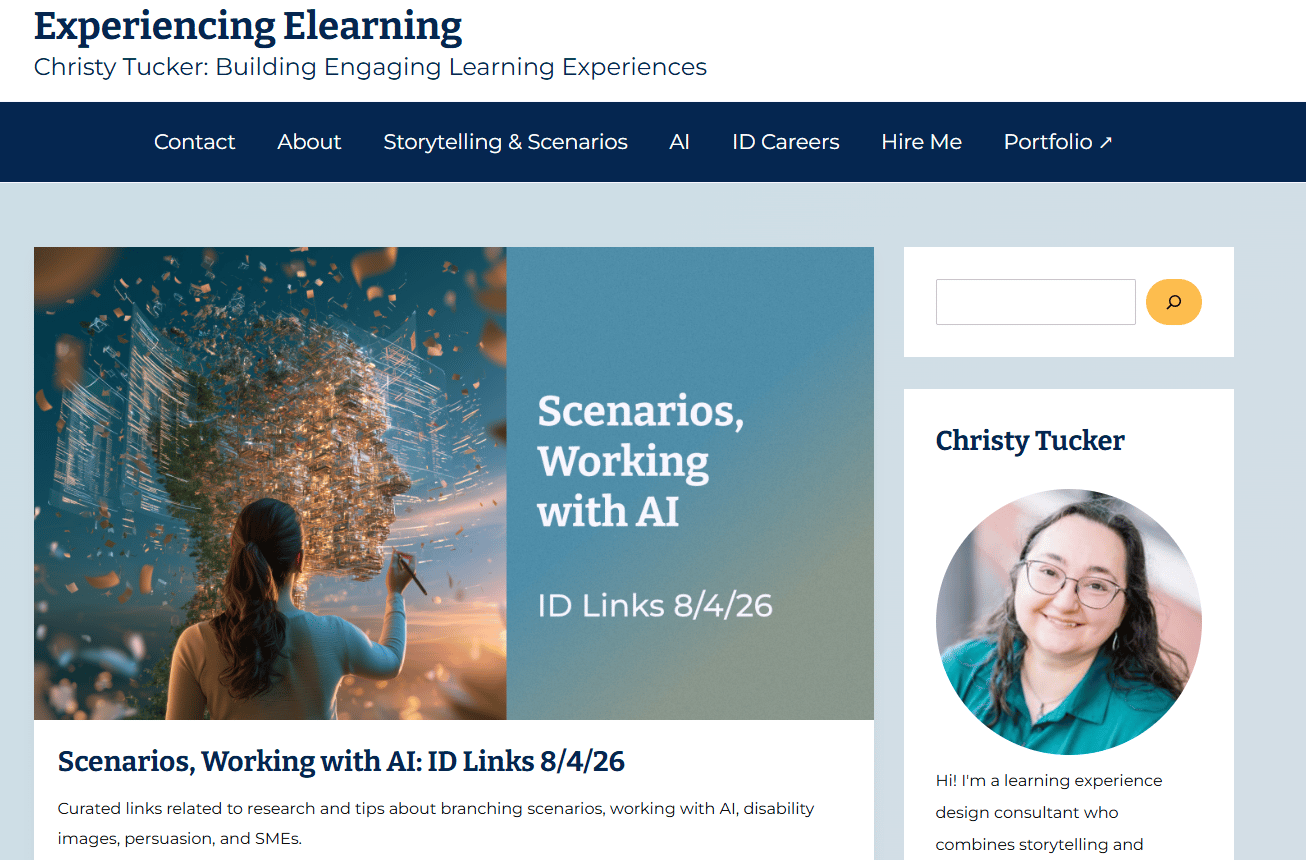
Christy Tucker is a learning design practitioner whose resources cover practical captioning workflows for instructional video. This is not a software product. It is guidance from someone who has done the work and is honest about the caption cleanup and human review reality that automated tools gloss over.
Best for: instructional designers and training teams who want workflow advice grounded in real practice.
Key features
- Practitioner guidance on caption workflows
- Honest framing of cleanup and review effort
- Tool selection recommendations
- Privacy considerations for uploads
- Community-driven add-on suggestions
Why choose Christy Tucker: if you keep hitting the gap between what automated tools promise and what they deliver, this resource sets realistic expectations. It fits solo instructional designers who need a trustworthy second opinion before picking a captioning program.
As a free educational resource, Christy Tucker's content does not carry software pricing.
There is no product rating associated with this resource.
5. Otter.ai
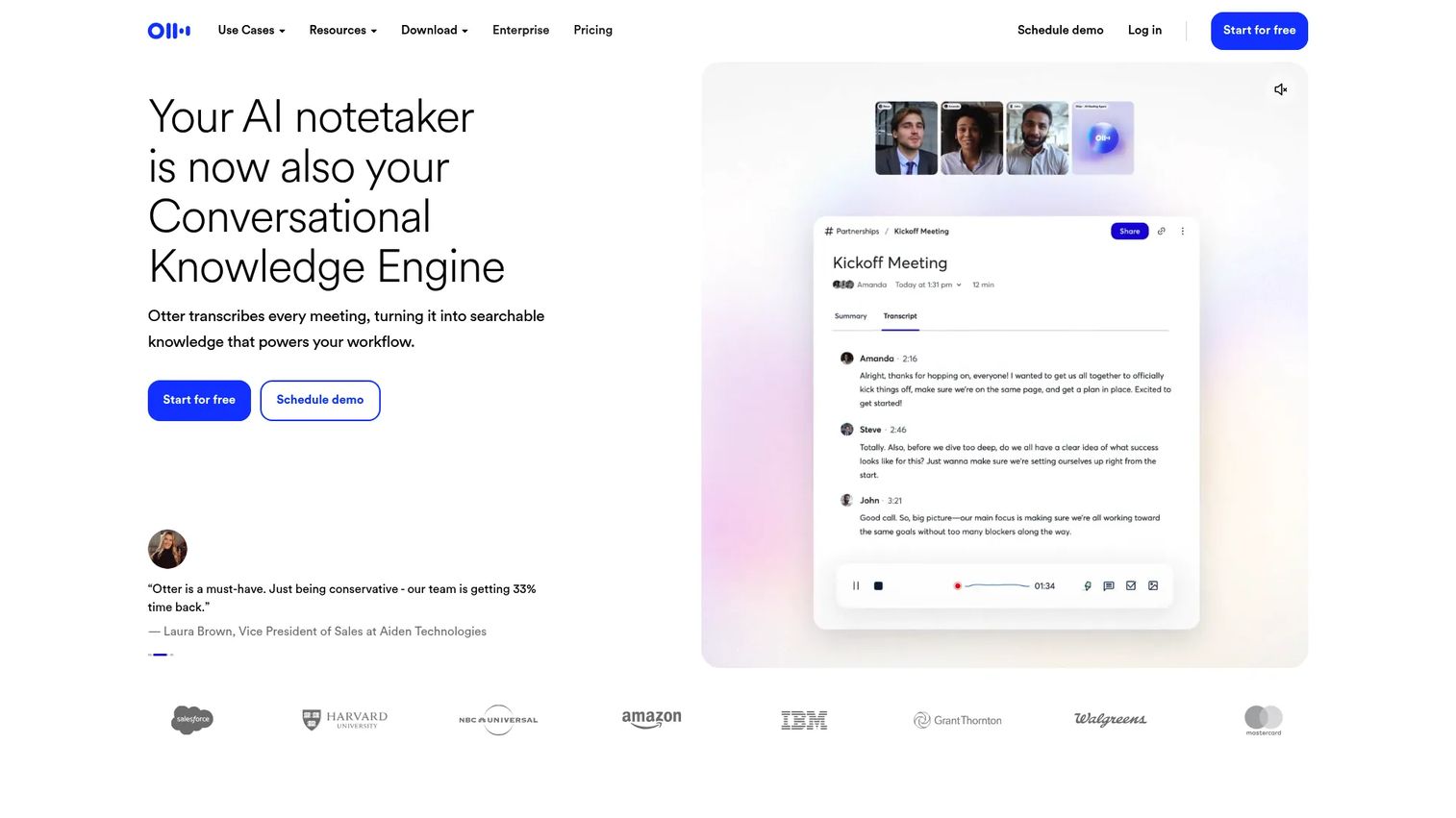
Otter.ai is an AI meeting assistant built for capturing live speech in real time. It transcribes meetings and calls as they happen, generates summaries and action items, and lets you export the transcript afterward. For teams whose captioning need starts with meetings rather than finished video, Otter fits the workflow.
Best for: teams that need live transcription of meetings, calls, and events with fast post-processing.
Key features
- Real-time transcription of live speech
- Automated meeting summaries and action items
- AI chat across your meetings
- Meeting imports, playback, and search
- Transcript export after the session
Why choose Otter.ai: if your primary job is capturing spoken content live rather than captioning polished video, Otter's real-time speech capture is the right starting point. It fits distributed teams that turn meetings into searchable, shareable text.
Otter offers a free Basic plan. Pro is $8.33 per user per month billed annually, Business is $19.99 per user per month, and Enterprise pricing is available through a demo.
Otter.ai holds a 4.4 out of 5 rating on G2.
6. Verbit
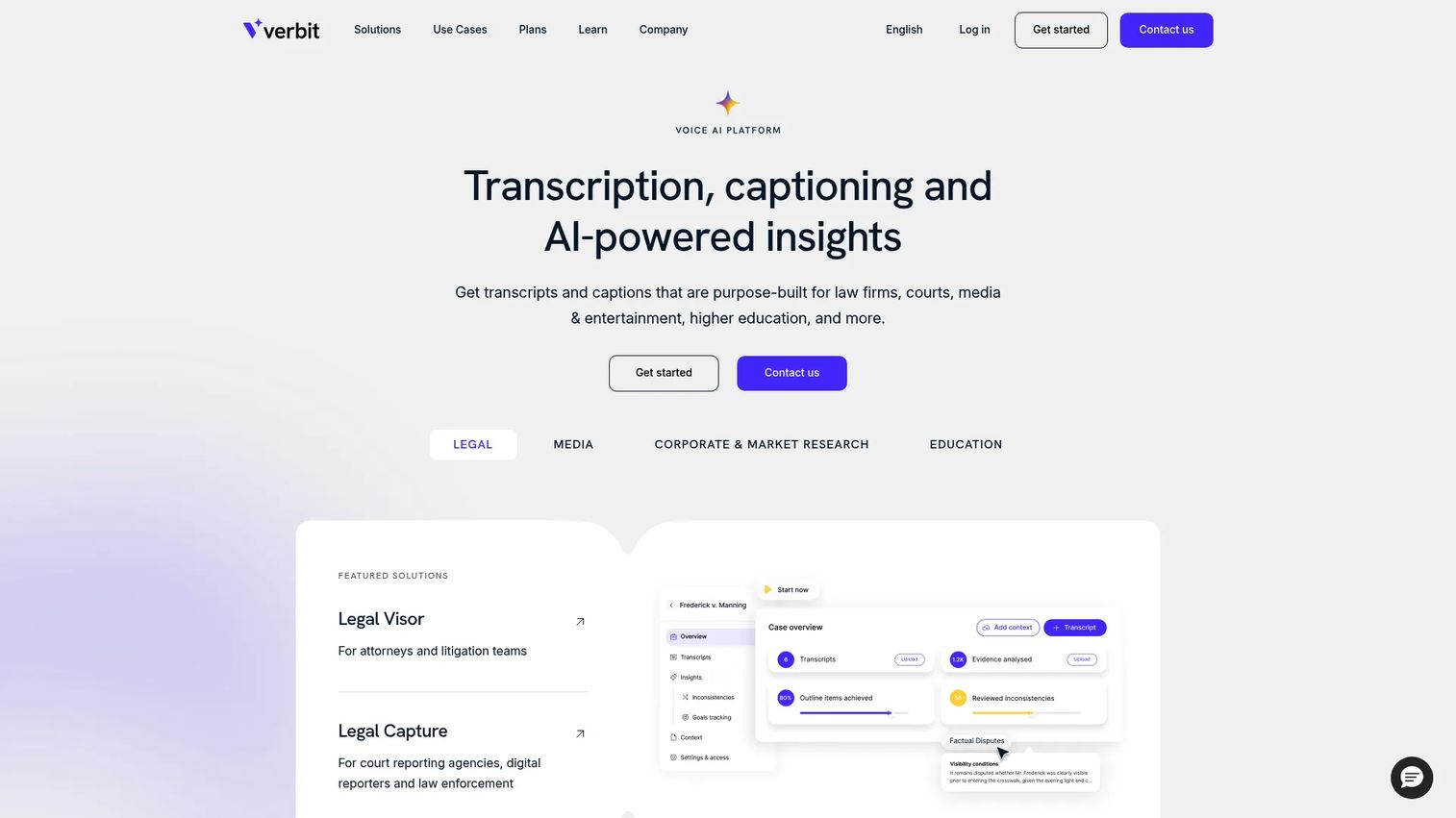
Verbit is an AI-powered transcription, captioning, and translation platform built for enterprise and professional workflows. It combines automated speech-to-text with human review, and supports both live and post-production captioning. Verbit fits organizations with high volume and accessibility requirements that need a higher-touch partner.
Best for: enterprise, education, and legal organizations that need accuracy at scale with live and recorded support.
Key features
- AI transcription, captioning, and translation
- Live and post-production caption support
- Human review for higher accuracy
- Timestamps available on request
- Accessibility-focused enterprise workflows
Why choose Verbit: if you caption at volume and cannot afford accuracy gaps in regulated or academic settings, Verbit's mix of AI and human review carries that load. It fits teams that treat captioning as an ongoing accessibility program, not a one-off task.
Verbit publishes Basic Transcription starting at $24 per month. Its legal, campus, and custom plans are available through a demo rather than a listed price.
Verbit holds a 4.4 out of 5 rating on G2.
7. YouTube
YouTube generates automatic captions on nearly every upload, which makes it the default free closed captioning software for creators and teams already publishing there. You get a caption editor inside YouTube Studio to fix timing and errors, and you can download the caption file to reuse elsewhere.
Best for: creators and teams who publish to YouTube and want a free, built-in caption starting point.
Key features
- Automatic captions on uploads
- Caption editor in YouTube Studio
- Caption file download for reuse
- Live streaming with live captions
- Broad distribution built in
Why choose YouTube: if your video already lives on YouTube, its automatic captions cost nothing and cover the basics. Just plan for a review pass, since auto-captions handle names, jargon, and crosstalk unevenly and benefit from human cleanup.
The core YouTube product is free to upload to and publish on, including its automatic captioning.
YouTube's captioning is a platform feature rather than a separately rated product.
Considerations
Accuracy and human review
Automated captions get you a fast first draft, but names, technical terms, and overlapping speech still trip up every engine. Budget time for a review pass, or pick a service that includes human review. The question is not whether cleanup is needed, but who does it.
Live versus recorded workflow
Live captioning and recorded video captioning are different tools for different jobs. Live prioritizes low latency and often human captioners. Recorded prioritizes clean output and format control. Map your dominant use case first, then choose.
Export and delivery formats
Check the export list before you commit. Web needs VTT, editors want SRT, and broadcast needs embedded 608 and 708. A tool with perfect accuracy is still wrong for you if it cannot produce the subtitle formats your pipeline requires.
Desktop, web, and offline compatibility
Web tools win on collaboration and access from anywhere, while desktop tools can offer offline captioning and heavier editing. If you work in places with unreliable connectivity or handle large broadcast files, confirm offline support before adopting.
Privacy and AI policy
Before uploading private audio, read how the vendor handles your content. Check whether recordings are used to train models, where data is stored, and how long it is retained. For confidential meetings or regulated material, privacy and data usage policy can outweigh every feature.
Conclusion
Start from the workflow, not the price tag. If you need accuracy you can defend, Rev and Verbit pair automation with human review. If your job is format-heavy broadcast delivery, Closed Caption Creator speaks 608, 708, and 30-plus other formats natively. If you capture live speech in meetings, Otter.ai starts there.
For a free starting point, YouTube captions nearly everything you upload, and you clean up from there. And if you are building accessibility literacy before buying anything, TechOWL and Christy Tucker offer guidance rather than another subscription.
The decision order that works: confirm live versus recorded, confirm the export formats your pipeline needs, confirm the accuracy bar and who clears cleanup, then compare price. Do it in that sequence and the right closed captioning program usually picks itself.
FAQs
Closed captions assume the viewer cannot hear the audio, so they include speaker labels and non-speech sounds like music or applause. Subtitles assume the viewer can hear but needs the dialogue as text, often for translation. Closed captioning software usually produces both from the same transcript.
Automated closed captioning software produces a strong first draft, often good enough for internal meetings or rough cuts. But names, jargon, accents, and crosstalk still cause errors that need a human review pass. For public-facing or accessibility-critical video, plan for cleanup or use a service with human review built in.
For live captioning, low latency and real-time accuracy matter most. Otter.ai captures live meeting speech well, and Verbit supports live captioning with human support for higher-stakes events. For public accessibility commitments, teams often add human captioners rather than rely on automation alone.
Match the format to the destination. Use SRT for most video editors, VTT for web and HTML5 players, and embedded 608 or 708 for broadcast. If you localize, choose subtitle formats that carry translation cleanly. Confirm the export list before committing to any tool.
Yes. YouTube's automatic captions and Rev's free tier both work for marketing video, especially early drafts. The catch is a review pass, since auto-captions handle brand names and product terms unevenly. For polished campaign videos, budget time for cleanup or step up to a paid plan.
Choose software when you want control and have time to edit, and a service when accuracy matters more than hands-on involvement. Rev and Verbit offer service-led human review, while Closed Caption Creator and YouTube put you in the editor. If cleanup time is scarce, a service usually pays for itself.
Yes, captions are a core part of making video usable for people who are deaf or hard of hearing, and they help everyone watching on mute. Accuracy is what makes captions genuinely accessible, so automated drafts should be reviewed before publishing. Resources like TechOWL can guide teams building an accessibility program.
Read the vendor's privacy and data usage policy first. Confirm whether your recordings are used to train AI models, where the data is stored, and how long it is retained. For confidential meetings or regulated content, those answers should carry more weight than any single feature.