You want a piece of finished lettering by end of day. Maybe a signature font for the brand, maybe a quote graphic, maybe a wedding invite. So you search "calligraphy software," open six tabs, and realize half of them do completely different jobs.
That's the actual friction. The word "calligraphy software" covers three unrelated tools: A font maker that turns your handwriting into a typeface, a decorative art app that spits out name graphics in seconds, and a full drawing suite where you paint every stroke by hand. Pick the wrong one and you'll spend an hour learning a tool that can't do the thing you needed.
The digital drawing and sketching software market was worth USD 6.5 billion in 2023, on track to hit USD 13.8 billion by 2032, per DataIntelo (2023). Plenty of options. Little clarity on which does what.
This guide sorts that out.
What's inside
This is a practical buyer's comparison for anyone choosing a calligraphy app, font maker, or digital calligraphy tool in 2026. It covers beginner-friendly mobile apps, handwriting-to-font makers, desktop suites, and iPad lettering tools.
We picked and ranked tools on four things:
- Lettering quality and customization depth
- Export and sharing options
- Cross-platform availability across web, iPad, Android, and desktop
- Beginner friendliness versus professional depth
Every tool here does at least one of three jobs well: Creating a custom font, designing decorative lettering, or practicing digital calligraphy. Read the "when to use" section first if you're not sure which job you're hiring for.
TL;DR
- Best for custom font creation: Calligraphr turns your handwriting into a real ttf/otf font.
- Best for all-purpose creative work: Adobe Creative Cloud Suite, if lettering is one of many design jobs.
- Best for iPad lettering: Procreate, with 300+ brushes and Apple Pencil control.
- Best for quick social graphics: Canva, template-driven and fast.
- Best for vector and layout control: Affinity Designer for iPad.
- Best for mobile name art: Calligraphy Art Maker on Android.
- Best for Android beginners: Calligraphy, a simple text-art creator.
What is calligraphy software
Calligraphy software is any digital tool for creating decorative lettering, practicing calligraphy strokes, or turning handwriting into a usable font. Some tools focus on one of those jobs. Others cover all three inside a broader design app.
The category splits into three practical types. A font maker or font creator converts your handwriting or drawn glyphs into an installable typeface, so you can create your own font once and reuse it forever. A decorative art app generates styled name art and quote graphics from typed text. A drawing app gives you a blank canvas, brushes, and layers to hand-letter from scratch.
Here's what most calligraphy software offers, depending on type:
- Font creation: Handwriting conversion to ttf/otf, character templates, ligatures
- Decorative text art: Typed-text styling, name art, gradients, backgrounds
- Drawing tools: Pressure-sensitive brushes, pen, layers, undo/redo, zoom
- Assets: Templates, stickers, borders, and shape tools
- Export: PNG, PDF, SVG, or font files, plus direct social sharing
- Platforms: Web, iPad, Android, and desktop workflows
The knowledge-graph version: Calligraphy software encompasses font makers (which produce reusable typefaces), digital calligraphy apps (which produce artwork), and hand lettering software (which supports freehand drawing on a stylus-enabled device). Beginner calligraphy software leans toward templates and presets. Professional tools lean toward manual control over strokes, vectors, and layers.
The right pick depends entirely on the output you need: A font file, a finished graphic, or a canvas to draw on.
When to use
Create custom fonts from handwriting
Reach for a font maker when you need a reusable typeface, not a one-off graphic. Signature fonts, a child's handwriting preserved as a font, or a branded lettering style all fit here. You draw or scan each character once, and the tool assembles a ttf/otf file you install like any other font. This is the only path if you want consistency across many documents without redrawing.
Design invitations, posts, and profile art
Use a decorative lettering app when speed and visual output matter more than reusability. Typing a name and getting a styled graphic in seconds beats hand-drawing every time for social posts, story graphics, wallpapers, and invitations. Templates, gradients, and backgrounds do the heavy lifting. You trade fine control for output speed.
Practice and refine lettering skills
Choose a beginner app or an iPad drawing tool when the goal is the skill itself. Brush behavior, stroke weight, and layer control only come from actually drawing. A pressure-sensitive canvas with undo lets you repeat strokes cheaply until they feel right. This is learning by doing, not generating.
Comparison table
The row order below runs from font creation through full design suites to lightweight mobile art apps. Pricing reflects each vendor's live pricing page as of August 2026. Where an app publishes no public price, the cell says so plainly rather than guessing.
| # | Product | Best for | Key differentiator | Pricing | G2 rating |
|---|---|---|---|---|---|
| 1 | Calligraphr | Custom font creation | Handwriting to ttf/otf conversion | Free tier; Pro from $10 one month | 3.8 |
| 2 | Adobe Creative Cloud Suite | All-purpose creative work | 20+ apps including Illustrator | From $11.99/mo (single app $22.99/mo) | 4.5 |
| 3 | Procreate | iPad lettering and drawing | 300+ brushes, no subscription | One-time App Store purchase | 4.9 |
| 4 | Canva | Fast social graphics | Template-driven drag-and-drop | Free; Pro $144/yr | 4.7 |
| 5 | Affinity Designer (iPad) | Vector and layout control | Pro vector tools on iPad | Free download | 4.6 |
| 6 | Calligraphy Art Maker | Mobile name art | Styled text art on Android | Free on Google Play | Not rated on G2 |
| 7 | Calligraphy | Android beginners | Simple text-art creation | Free on Google Play | Not rated on G2 |
Two tools here overlap in reach: Adobe and Canva both cover far more than calligraphy. If lettering is one job among many, that breadth counts. If it's the only job, a focused tool wins.
Best 7 tools for calligraphy software
1. Calligraphr
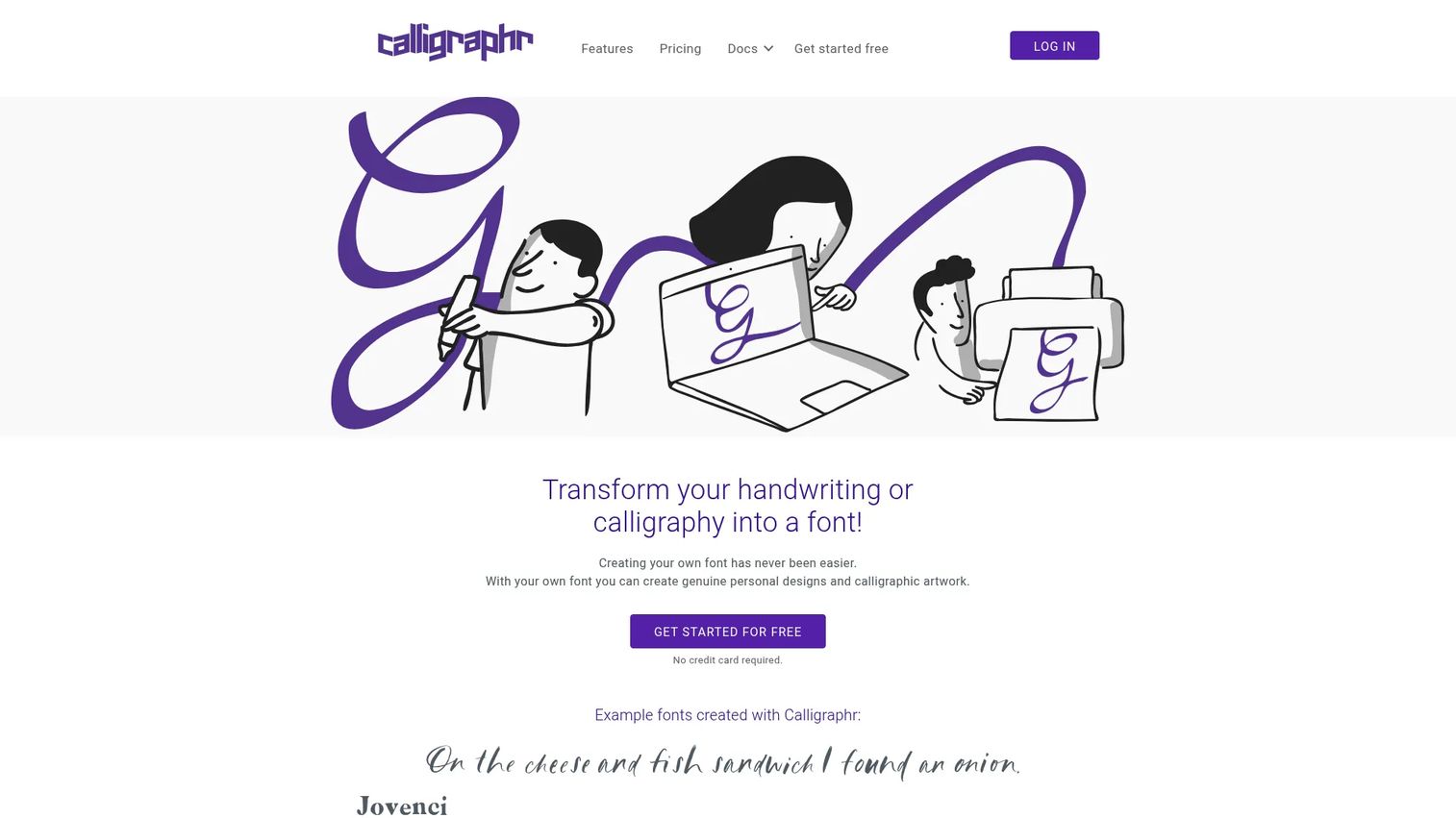
Calligraphr is a web app with one clear job: Turn your handwriting or calligraphy into a real font file. You print a character template, write your letters, upload the sheet, and the tool builds an installable ttf/otf typeface. It edits characters after scanning, so a wonky "g" gets fixed without redoing the whole sheet.
Best for: Creators or founders who want to preserve a specific handwriting style as a reusable font.
Key features
- Standard font export: Ttf, otf
- Character randomization for a natural look
- Ligatures for connected letterforms
- Customizable character templates
- Post-scan character editing
Why choose Calligraphr: If your output is a font rather than a graphic, this is the specialist. Nothing else on this list turns handwriting into an installable typeface as directly.
Calligraphr pricing: A free plan is available after registration. Pro runs $10 USD for one month, or $6 USD per month on a 6-month upgrade, adding more concurrent fonts, extra characters, ligatures, and spacing controls.
Calligraphr holds a 3.8 out of 5 rating on G2.
2. Adobe Creative Cloud Suite
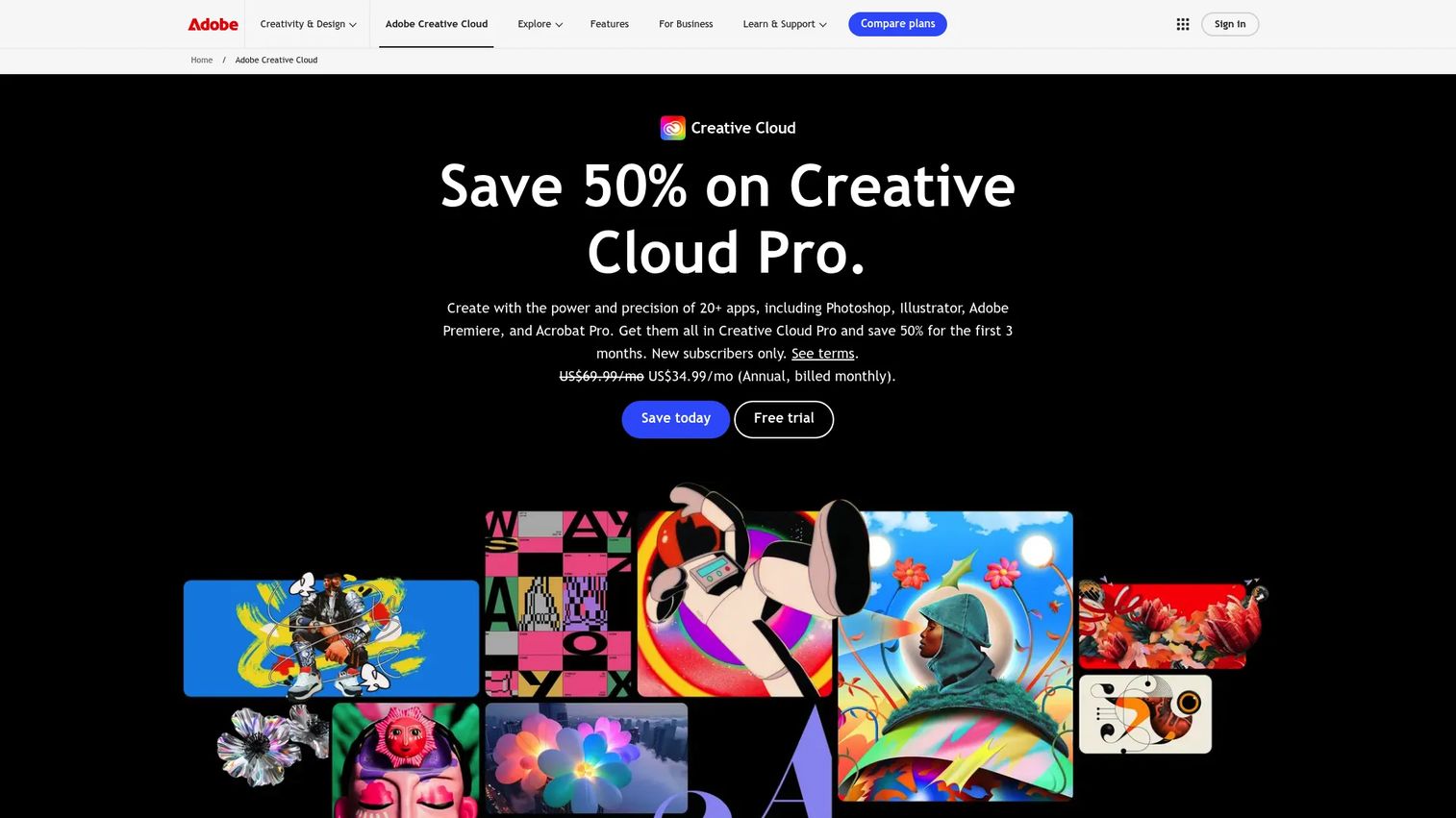
Adobe Creative Cloud Suite is the subscription bundle behind Photoshop, Illustrator, Fresco, and 20+ other apps. For calligraphy, Illustrator handles vector lettering and Fresco covers brush-based drawing, while the wider suite takes you from a hand-lettered logo to print-ready output. It fits when lettering is one piece of a bigger design workload.
Best for: Teams and individuals who need industry-standard creative tools, with lettering as one job among many.
Key features
- 20+ apps: Photoshop, Illustrator, Premiere Pro
- Adobe Firefly generative AI features and credits
- Cloud storage, fonts, and templates
- Mobile and web access
Why choose Adobe: You're paying for breadth, not a lettering specialist. Worth it if your design needs stretch well past calligraphy into photo, vector, and video.
Adobe pricing: A free Creative Cloud membership includes Adobe Express, mobile apps, and fonts. Paid plans start at US$11.99/mo, with a single app at US$22.99/mo, Photography at US$19.99/mo, and Creative Cloud Pro at US$69.99/mo, all annual billed monthly. Students and teachers get Creative Cloud Pro at US$19.99/mo.
Adobe's seller rating on G2 sits at 4.5 out of 5.
3. Procreate
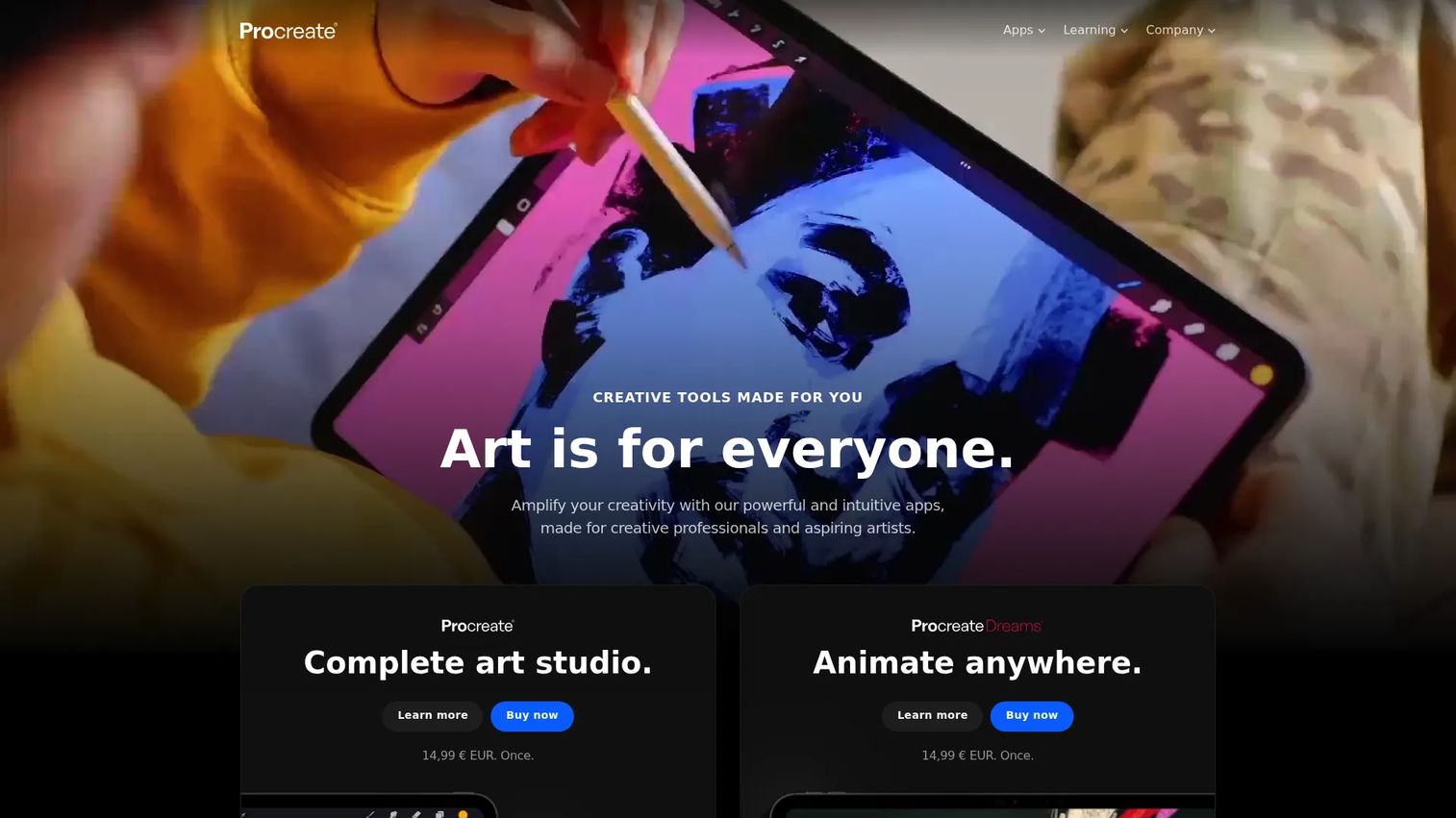
Procreate is an iPad-first drawing and painting app built for hands-on work with the Apple Pencil. For calligraphy it shines at expressive, freehand lettering, with pressure-sensitive brushes that respond like real ink. Layers, transform tools, and time-lapse recording round out a workflow suited to quote art, cards, and social posts.
Best for: Artists and illustrators who want to hand-letter on an iPad rather than generate text.
Key features
- Over 300 handcrafted brushes
- Page Assist and 3D model painting
- Time-lapse recording of your work
- Transform, Warp, Layers, Selections, Effects
Why choose Procreate: A one-time purchase with no subscription, which appeals if you're allergic to another recurring line item. The trade-off: It's iPad-only, so no desktop or Android.
Procreate pricing: Procreate for iPad is a one-time purchase from the App Store with no subscriptions. The App Store lists the current numeric price at checkout.
Procreate earns a 4.9 out of 5 on G2, the highest rating in this lineup.
4. Canva
Canva is an online design platform where calligraphy shows up through fonts, text effects, and templates rather than freehand drawing. You type your text, apply a script style, drop it onto a template, and export. For social graphics, story posts, and quick invitations, it's fast and repeatable across a team.
Best for: Founders and teams who need on-brand visual content produced quickly, without a designer in the loop.
Key features
- Drag-and-drop editor with templates
- Brand Kit and team collaboration tools
- AI-powered design tools and PDF conversion
- Social content planning
Why choose Canva: Best for speed and consistency, not deep font engineering. If your VP of Marketing needs graphics shipped daily, this earns its place fast. It won't build you a custom typeface.
Canva pricing: The Free plan is US$0/year for one person. Pro is US$144/year, Business is US$250/year per person, and Enterprise is contact-sales. Pro and Business include free trials.
Canva holds a 4.7 out of 5 rating on G2.
5. Affinity Designer (iPad)
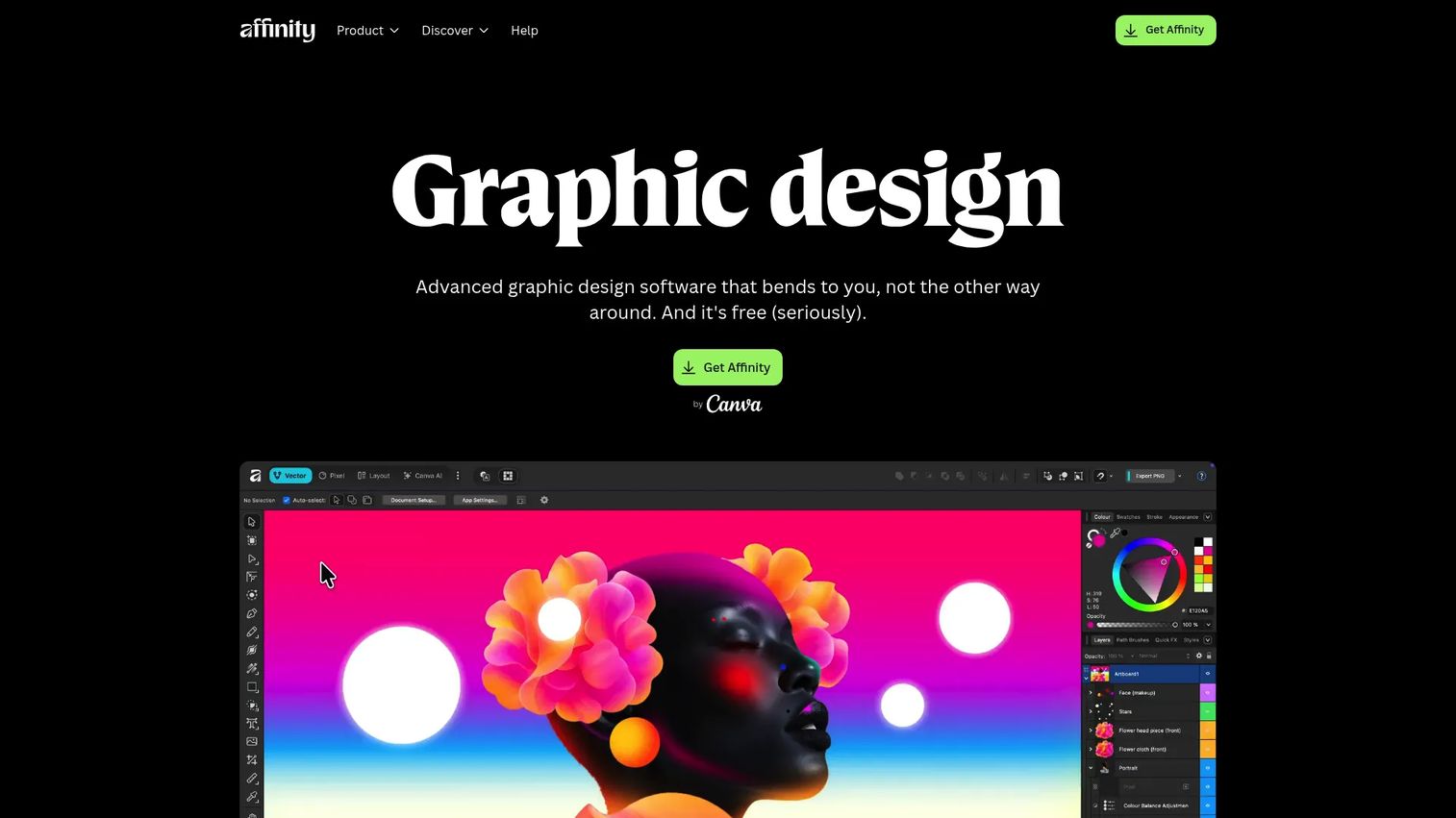
Affinity Designer (iPad) is a professional vector app that brings precise curve control to lettering on a tablet. Where a decorative app generates text, Affinity lets you draw, trace, and refine letterforms as editable vectors. That matters when you need clean scaling for logos or print, plus a proper layout workflow.
Best for: iPad users who want vector-level precision for lettering and layout, not just quick graphics.
Key features
- Vector design tools with curve editing
- Pixel and layout workflow
- Image Trace for converting art to vectors
- Export across common design formats
Why choose Affinity Designer: More control than a lettering app, with a steeper learning curve to match. Right if you outgrew template tools but don't want a subscription suite.
Affinity Designer pricing: Affinity states the app can be downloaded for free. Check the App Store listing for current terms at install.
Affinity Designer scores 4.6 out of 5 on G2.
6. Calligraphy Art Maker
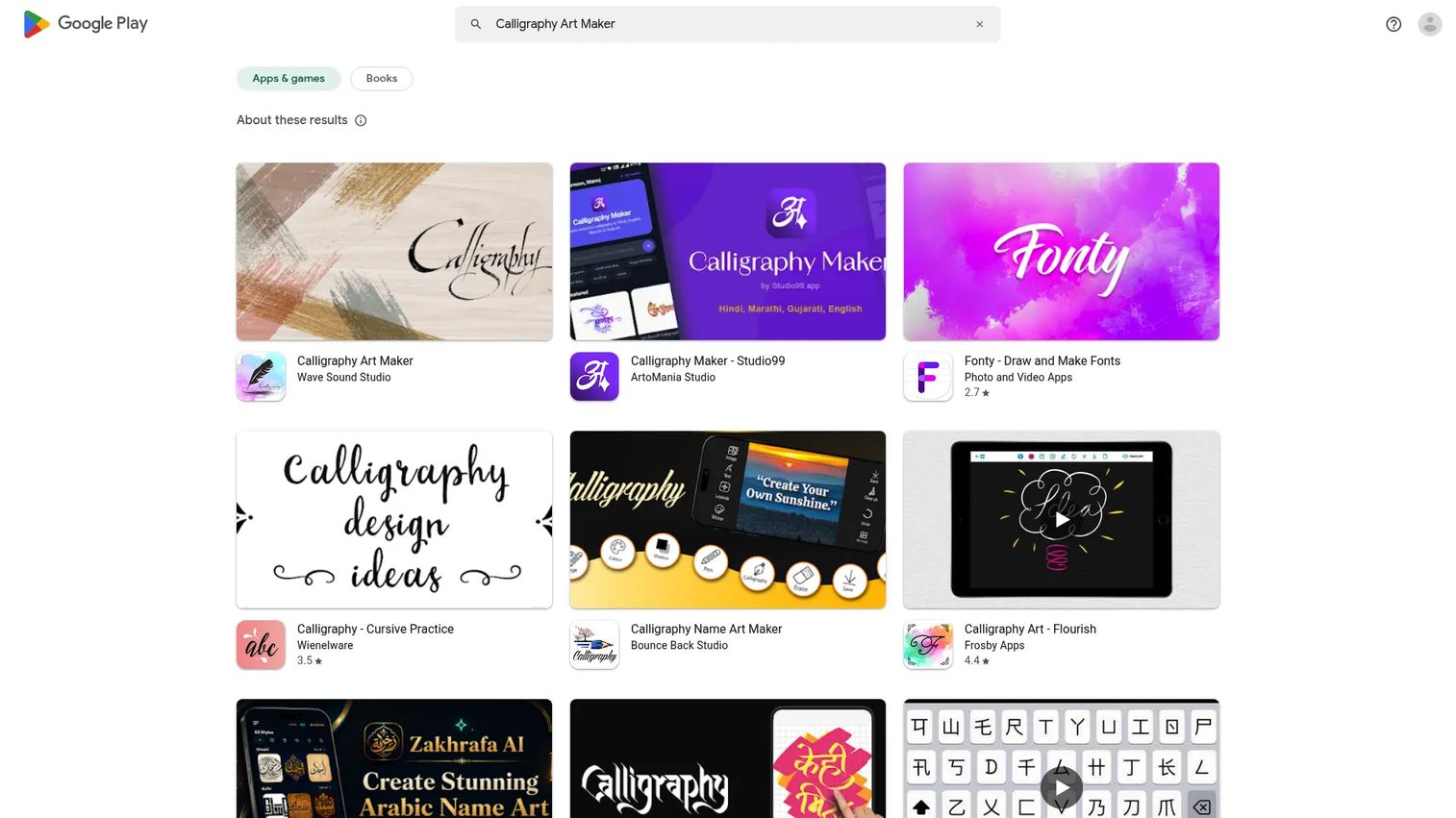
Calligraphy Art Maker is an Android app for making calligraphy-style text art fast. You type a name or phrase, pick a font style, add a background, and decorate with stickers or gradients. It's built for quick output and social sharing, with a light learning curve that suits first-time users.
Best for: Anyone who wants simple calligraphy-style name art on Android without design skills.
Key features
- Multiple calligraphy font styles
- Decorative text symbols
- Stylish backgrounds, gradients, canvas
- Stickers for image decoration
Why choose Calligraphy Art Maker: Beginner-friendly and quick, aimed at social graphics rather than reusable fonts or precise vectors. Good enough for a one-off post, not for brand assets.
Calligraphy Art Maker pricing: The app is available on Google Play. Install it to see current in-app purchase and pricing details, as no separate pricing page is published.
This app is not currently rated on G2.
7. Calligraphy
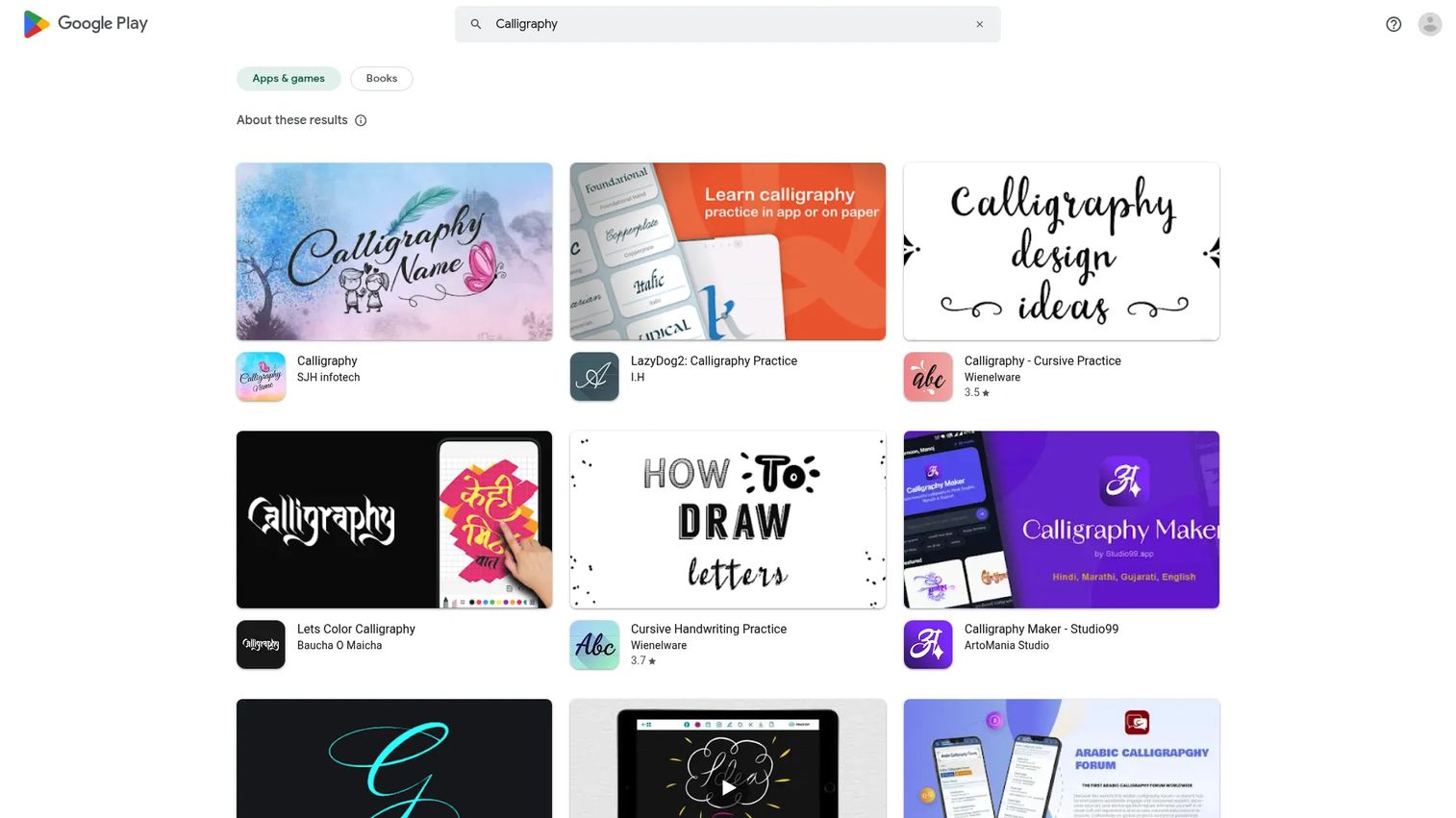
Calligraphy is an Android app for creating text art, brush lettering, and decorative designs. It bundles calligraphy fonts with backgrounds, templates, stickers, and text effects, plus workflow basics like undo/redo and zoom. For beginners practicing artistic lettering on a phone, it keeps the toolset small and approachable.
Best for: Android users who want a simple calligraphy and text-art creator on their phone.
Key features
- Calligraphy fonts and brush lettering styles
- Customizable backgrounds, templates, stickers
- Text effects with undo, redo
- Export and sharing with zoom, pan
Why choose Calligraphy: A flexible, low-commitment Android option for practice and casual creation. It won't replace a desktop suite, and it isn't meant to.
Calligraphy pricing: The app is listed on Google Play with pricing shown at install. Open the listing to confirm any in-app purchases before downloading.
This app is not currently rated on G2.
Considerations
Before you commit an afternoon to any tool, run this checklist. You're evaluating fit, not features in isolation.
The job you're actually hiring for
Decide first whether you need a font file, a finished graphic, or a canvas to draw on. A font maker won't produce a quick social post, and a decorative app won't hand you an installable typeface. Naming the output kills 80% of the confusion up front.
Export formats
Check what the tool exports before you build anything in it. Font makers should output ttf or otf. Graphics tools should cover PNG at minimum, ideally SVG or PDF for print. If you need scalable vectors, a raster-only export is a dead end.
Platform and device fit
Match the tool to the hardware you already own. Procreate and Affinity Designer need an iPad. The Android apps need a phone. Adobe and Canva run cross-platform on web and desktop. Buying a tool that needs a device you don't have is an easy, avoidable mistake.
Beginner curve versus depth
Weigh how much control you need against how fast you want a result. Template apps get you output in minutes but cap your ceiling. Drawing and vector tools give full control but demand practice. Be honest about which trade-off actually serves your goal.
Cost against frequency
A one-time purchase beats a subscription if you'll use the tool occasionally. A subscription suite earns its keep only with steady, cross-format use. Price the tool against how often you'll open it, not against its feature list.
Conclusion
The right calligraphy software follows from the output you need. Want a reusable typeface? Calligraphr converts handwriting to a real font file and nothing else here does that as directly. Need design breadth with lettering as one piece? Adobe Creative Cloud Suite covers it, and Canva wins when speed and repeatable social graphics matter more than depth.
For hands-on drawing, Procreate and Affinity Designer for iPad give you brush control and vector precision respectively, both without a subscription. For quick name art on a phone, Calligraphy Art Maker and Calligraphy keep the learning curve short on Android.
The practical split: If you want consistency across documents, pick a font maker. If you want a finished graphic today, pick a decorative or design app. If you want to learn the craft, pick a drawing tool with a stylus. Match the tool to the job, test it in the first hour, and drop anything that fights you.
Start your journey with Guideflow today!
FAQs
For fast results with no learning curve, Canva or an Android app like Calligraphy Art Maker work well, since they rely on templates and typed text. If you want to actually learn stroke work, an iPad tool like Procreate with a stylus teaches brush behavior through practice. Start with the tool that matches whether you want output or skill.
Calligraphr is the specialist here. You fill a character template by hand, upload it, and the tool builds an installable ttf or otf file with ligatures and randomization. It's the most direct path from your handwriting to a reusable typeface.
Yes, and the iPad is one of the strongest platforms for it. Procreate and Affinity Designer both use the Apple Pencil for pressure-sensitive strokes that behave like real ink. Procreate suits expressive freehand lettering, while Affinity Designer suits precise vector letterforms.
Calligraphy software often includes font makers and decorative text generators that produce output from typed text or scanned characters. Hand lettering software centers on freehand drawing with brushes, layers, and a stylus. The line blurs in tools like Procreate, which support both hand-drawn lettering and finished art.
Canva is built for this, with templates, brand controls, and fast export sized for social platforms. On mobile, Calligraphy Art Maker generates styled name art and story graphics in seconds. Both favor speed and repeatability over custom typeface creation.
For drawing-based tools like Procreate and Affinity Designer, a stylus such as the Apple Pencil is essential to control stroke weight and pressure. For font makers and template apps, no stylus is needed, since you're typing text or scanning characters. It depends on whether you're drawing or generating.
Font makers should export ttf or otf, the standard installable font formats. Graphics and drawing tools should offer PNG for digital use, plus SVG or PDF when you need clean scaling for print. Confirm the export options before building anything, since a raster-only file won't scale for large-format work.
Often, yes, depending on the job. Calligraphr's free tier creates real fonts with registration, Canva's free plan covers most social graphics, and Affinity Designer offers a free download. Paid tiers mainly add concurrent fonts, advanced controls, and collaboration features you may not need at the start.