You open five browser tabs, read five "best 3D modeling software" lists, and close all of them more confused than when you started. One list swears by Blender. Another says CAD or nothing. A third recommends a $250-a-month suite to someone who just wants to print a phone stand.
The problem is not a shortage of tools. It is that "3D modeling software" describes a dozen different jobs pretending to be one. Modeling a building is nothing like sculpting a dragon, which is nothing like designing a machined bracket that has to survive a stress test. Each of those workflows optimizes for different things: precision, artistic freedom, speed, or export format. Pick the wrong tool and you fight the software every day instead of the actual design problem.
The market keeps growing, which makes the noise louder, not quieter. The global 3D modeling software market is estimated at USD 10.5 billion in 2026 and projected to reach USD 33.6 billion by 2033 at a 15.8% CAGR, according to Reports Insights Consulting. More vendors, more marketing, more "best-in-class" claims to wade through.
So this guide does the sorting for you. Instead of ranking tools in a vacuum, it separates them by who they are actually for: beginners, hobbyists, product designers, animators, and technical CAD users. If you already know your workflow, you can skip straight to the section that matches it.
What's inside
This guide compares 10 widely used 3D modeling programs across four things that actually change your decision: skill level, pricing, primary use case, and workflow fit. The list mixes free 3D modeling software with paid professional suites, so budget is never the only filter.
We prioritized tools that are popular, actively maintained in 2026, and clearly relevant to a specific job rather than vague "does everything" claims. You will find picks for architecture, product and mechanical design, animation and VFX, and 3D printing. Whether you are choosing your first tool or adding a specialized one to an existing pipeline, there is a match here.
TL;DR
Short on time? Here are the fast answers:
- Best overall for most people: Blender. Free, open-source, and capable across modeling, sculpting, and animation.
- Best for beginners: Tinkercad. Browser-based, no install, learnable in an afternoon.
- Best free 3D modeling software: Blender for creative work, FreeCAD for technical CAD.
- Best for CAD and product design: Fusion 360 for cloud-based parametric modeling; AutoCAD for precision drafting.
- Best for animation and VFX: Maya for film and character work; Cinema 4D for motion graphics.
- Best for 3D printing and technical modeling: Tinkercad to start, Fusion 360 or FreeCAD as you scale.
What 3D modeling software is
3D modeling software is a program that lets you build a digital three-dimensional representation of an object, which you can then view, edit, render, animate, or export for manufacturing or printing.
Under the hood, models are constructed from a few core building blocks. Meshes are made of vertices (points in space), edges (lines connecting points), and polygons (flat faces, usually triangles or quads). Other tools start from primitives such as cubes, spheres, and cylinders that you combine and cut. CAD tools often use parametric constraints, where you define dimensions and relationships and the geometry updates automatically when you change a value.
It helps to separate three related but distinct workflows. Modeling is building the shape itself. Rendering is turning that shape into a realistic or stylized image by simulating light, materials, and cameras. Related design tasks such as rigging, texturing, and simulation sit alongside modeling in a full production pipeline. Some software does all of it; some specializes in one stage.
Main modeling approaches
The right tool depends heavily on which approach fits your work:
- CAD and parametric modeling: Precision-first. You define exact dimensions and constraints, ideal for parts that must be manufactured or built. Tools: Fusion 360, FreeCAD, AutoCAD.
- Polygonal and mesh modeling: You push and pull vertices, edges, and faces directly. The standard for games, film, and general 3D art. Tools: Blender, Maya, 3ds Max.
- Sculpting workflows: Digital clay. You shape high-resolution meshes with brushes, perfect for organic forms like characters and creatures. Tools: ZBrush, Blender.
- Browser-based and cloud workflows: Nothing to install, easy to learn, accessible from any device. Tools: Tinkercad, SketchUp (web), Fusion 360 (cloud).
What to look for in software for 3D modeling
Before comparing individual tools, get clear on the criteria that actually matter for your situation.
Skill level and learning curve
Beginners should prioritize ease of use, templates, and forgiving interfaces over raw power. A tool you can learn in an afternoon beats a tool you abandon after a week of tutorials. Snap-together primitives, guided tutorials, and a clean UI reduce the early frustration that kills most 3D projects.
Advanced users flip that priority. Depth, precision, keyboard-driven speed, and scripting matter more than a gentle onboarding. The learning curve is worth it when the ceiling is high enough to grow into for years.
Workflow fit
Architecture, product design, animation, game development, and 3D printing each demand different features. Architectural work rewards fast massing and 2D documentation. Mechanical design needs parametric precision and tolerances. Animation needs rigging and rendering. The best software is defined by your output, not by the interface you find prettiest.
Pricing and licensing
Licensing models vary widely: fully free and open-source, freemium with a usable free tier, personal-use licenses that restrict commercial work, and paid subscriptions. Read the fine print. Some "free" tiers are genuinely complete tools, while others are trials designed to move you to a paid plan. For free and paid comparisons, we call out exactly where each line falls.
Hardware and platform compatibility
Confirm your platform is supported before you commit. Some tools are Windows-only; others run cross-platform across Windows, macOS, and Linux; a growing set is browser-based and runs anywhere. High-end sculpting and rendering carry real hardware requirements, so check GPU and RAM guidance if you plan heavy work. Strong community support and documentation also matter more than most buyers expect, especially with open-source tools.
When to use 3D modeling software
Different jobs point to different tools. Here is how the main use cases break down.
For architecture and interior design
Architecture and interior design work rewards speed of massing, clean geometry, and strong visualization. You want to sketch a building or room layout fast, then produce presentation-ready views and 2D documentation. SketchUp is the classic fit here, with 3ds Max often handling the high-end rendering. The priority is communicating a spatial idea clearly, not modeling every screw.
For product and mechanical design
Product design and mechanical work live and die on precision. You need parametric controls, exact dimensions, tolerance handling, and often collaboration across a team. This is CAD territory: Fusion 360 for an all-in-one cloud platform, FreeCAD for a free open-source route, and AutoCAD for precise drafting. When a part has to be manufactured, guessing dimensions is not an option.
For animation, VFX, and game development
3D design software for animation and VFX needs sculpting, rigging, materials, textures, and rendering in one pipeline. Character and creature work leans on high-detail sculpting, then rigging to make models move, then rendering to finish. Maya and Cinema 4D anchor professional film and motion work, Blender covers the full pipeline for free, and ZBrush handles the highest-detail sculpting.
For 3D printing workflows
3D printing workflows care about export formats (STL and 3MF), watertight meshes, and print-ready output. You want a tool that produces clean, manifold geometry and exports cleanly to your slicer. Tinkercad is the easiest entry point, while Fusion 360 and FreeCAD give you precise, parametric control as your prints get more ambitious.
Comparison table
Here is a quick look at all 10 tools. Read across each row to match a tool to your skill level, budget, and primary job. Use it to shortlist two or three, then read the full sections below.
| # | Product | Intent | Key use case | Pricing | G2 rating |
|---|---|---|---|---|---|
| 1 | SketchUp | Architecture and design | Fast 3D modeling plus 2D documentation | Free tier; Go from $10.75/mo billed annually | 4.5/5 |
| 2 | Blender | All-purpose creation | Modeling, sculpting, animation, VFX | Free and open-source | 4.6/5 |
| 3 | Tinkercad | Beginners and education | Browser-based simple modeling | Free | Not listed |
| 4 | Fusion 360 | CAD and product design | Cloud parametric CAD/CAM | Free for personal use; from $57/mo billed annually | Not listed |
| 5 | FreeCAD | Open-source CAD | Parametric mechanical design | Free and open-source | 4.1/5 |
| 6 | AutoCAD | Precision drafting | 2D drafting and 3D CAD | Subscription | 4.4/5 |
| 7 | Maya | Animation and VFX | Character animation, film, games | From $168/mo | Not listed |
| 8 | Cinema 4D | Motion graphics | Motion design and animation | Subscription | 4.6/5 |
| 9 | 3ds Max | Visualization | Arch-viz, games, rendering | From $168/mo billed annually | Not listed |
| 10 | ZBrush | Digital sculpting | High-detail organic modeling | Subscription; free iPad plan | Not listed |
1. SketchUp

SketchUp is 3D modeling software built around fast, intuitive design, documentation, and visualization. It runs on the web, iPad, and desktop, and its push-pull approach to shaping geometry makes it one of the quickest ways to turn a floor plan into a 3D model. That speed is why it became a staple in architecture and interior design studios.
Best for: Architects, designers, and builders who need fast 3D modeling plus 2D documentation.
Key strengths
- Push-pull modeling: Extrude flat shapes into 3D geometry in seconds, so early massing and layout move fast.
- LayOut documentation: Turn 3D models into 2D presentation drawings and construction documents.
- Extension Warehouse: Extend the tool with a large library of plugins for rendering, energy analysis, and more.
Why choose SketchUp: If your work is spatial (buildings, rooms, sets, furniture) SketchUp gets you to a usable model faster than heavier CAD tools. It rewards designers who think in shapes and layouts rather than exact machined tolerances, and the web version means you can start with almost no setup.
SketchUp pricing: SketchUp offers a free tier plus paid plans. Go starts at $10.75 per month billed annually, or $19.99 per month on monthly billing. Pro Annual runs $33.25 per month, and Studio Annual is $68.25 per month. There is also a free SketchUp for Schools plan for education accounts. Its G2 rating sits at 4.5/5.
2. Blender
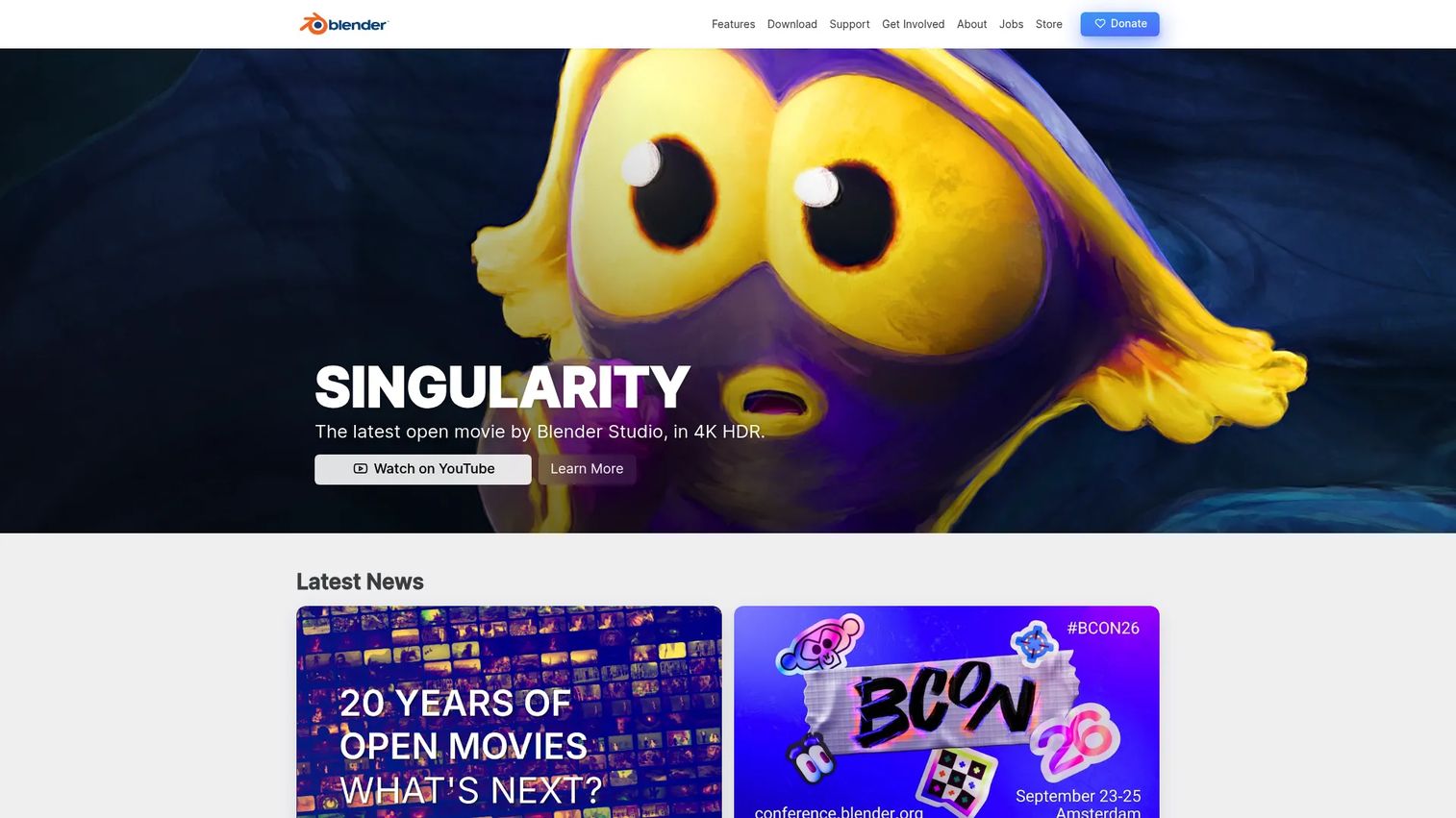
Blender is a free and open-source 3D creation suite that covers the entire content pipeline. Modeling, sculpting, UV unwrapping, texturing, rendering, animation, rigging, motion tracking, video editing, and compositing all live in one program. That breadth, combined with a zero-dollar price tag, is why Blender remains a category anchor in 2026.
Best for: Artists, animators, and small studios who want an all-in-one 3D creation tool without a license cost.
Key strengths
- Full pipeline coverage: Model, sculpt, texture, animate, and render without leaving the app or paying for add-on suites.
- Cycles and Eevee rendering: Choose between a physically accurate path tracer and a fast real-time viewport preview.
- Python and add-ons: Automate tasks and extend the tool with a huge community-built add-on ecosystem.
Why choose Blender: Blender is the best 3D design software choice for anyone who wants professional-grade capability without a subscription. The learning curve is real, since the tool does so much, but the open-source community, free tutorials, and constant updates flatten it over time. For freelancers and small teams, nothing else matches the value.
Blender pricing: Blender is completely free and open-source. There are no paid tiers, no seat limits, and no commercial-use restrictions. Its G2 rating sits at 4.6/5.
3. Tinkercad
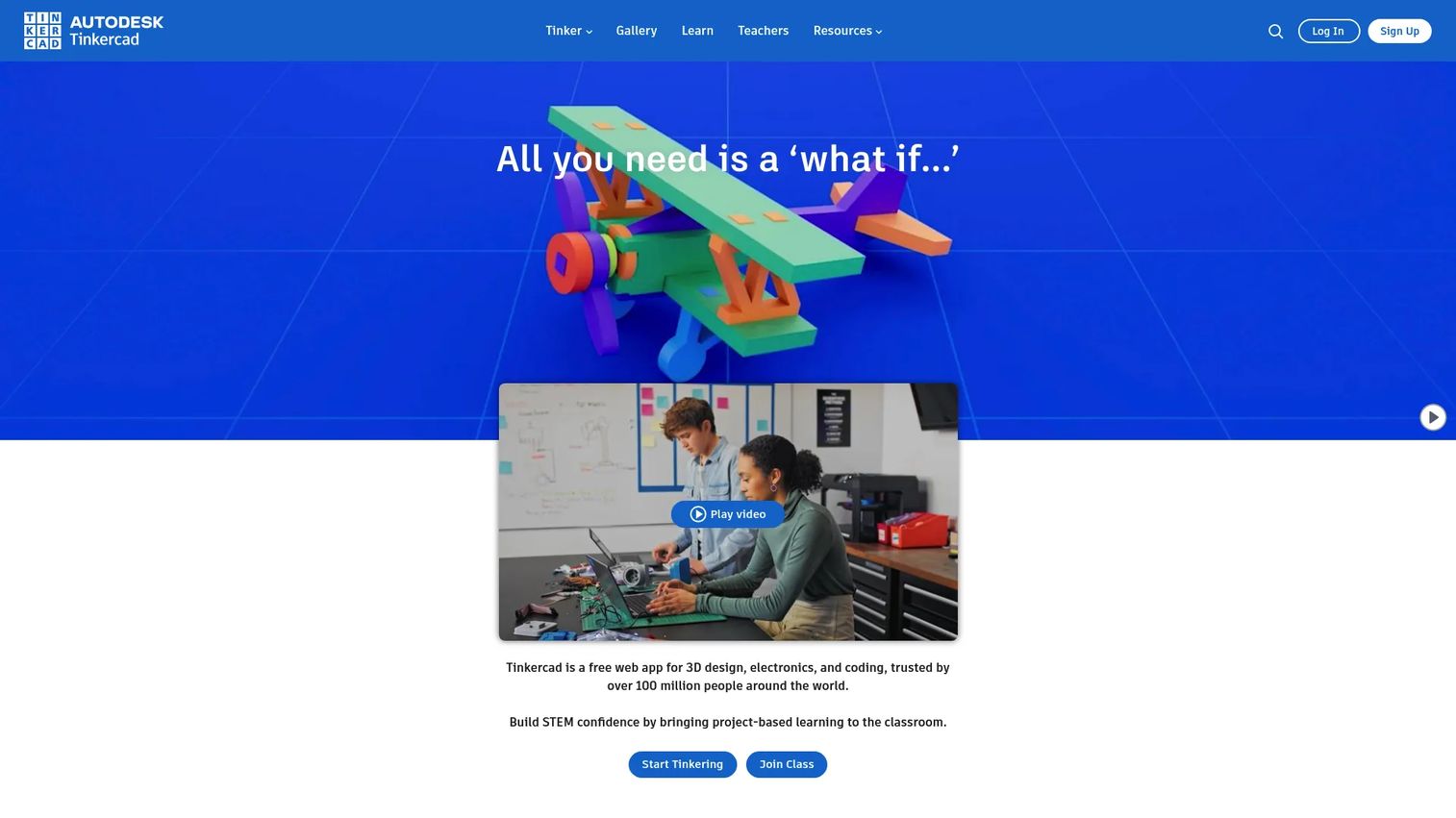
Tinkercad is a free, browser-based app from Autodesk for 3D design, electronics, and coding. It is built for absolute beginners: you snap together simple primitives, group and cut them, and end up with a printable model without ever touching a manual. Because it is browser-based and open to anyone, it dominates classrooms and first-time projects.
Best for: Educators, students, and beginners learning basic 3D modeling or electronics.
Key strengths
- Snap-together shapes: Combine and subtract primitives to build models with almost no learning curve.
- Electronics simulation: Prototype and simulate circuits alongside 3D design in the same environment.
- Codeblocks: Learn computational design by generating shapes with visual code blocks.
Why choose Tinkercad: If you have never modeled anything before, Tinkercad removes almost every barrier. No install, no cost, and a workflow you can learn in an afternoon. It is also a natural on-ramp to more advanced Autodesk tools like Fusion 360 once you outgrow it.
Tinkercad pricing: Tinkercad is free. It runs entirely in the browser with no paid subscription required for its core 3D design, electronics, and coding features.
4. Fusion 360
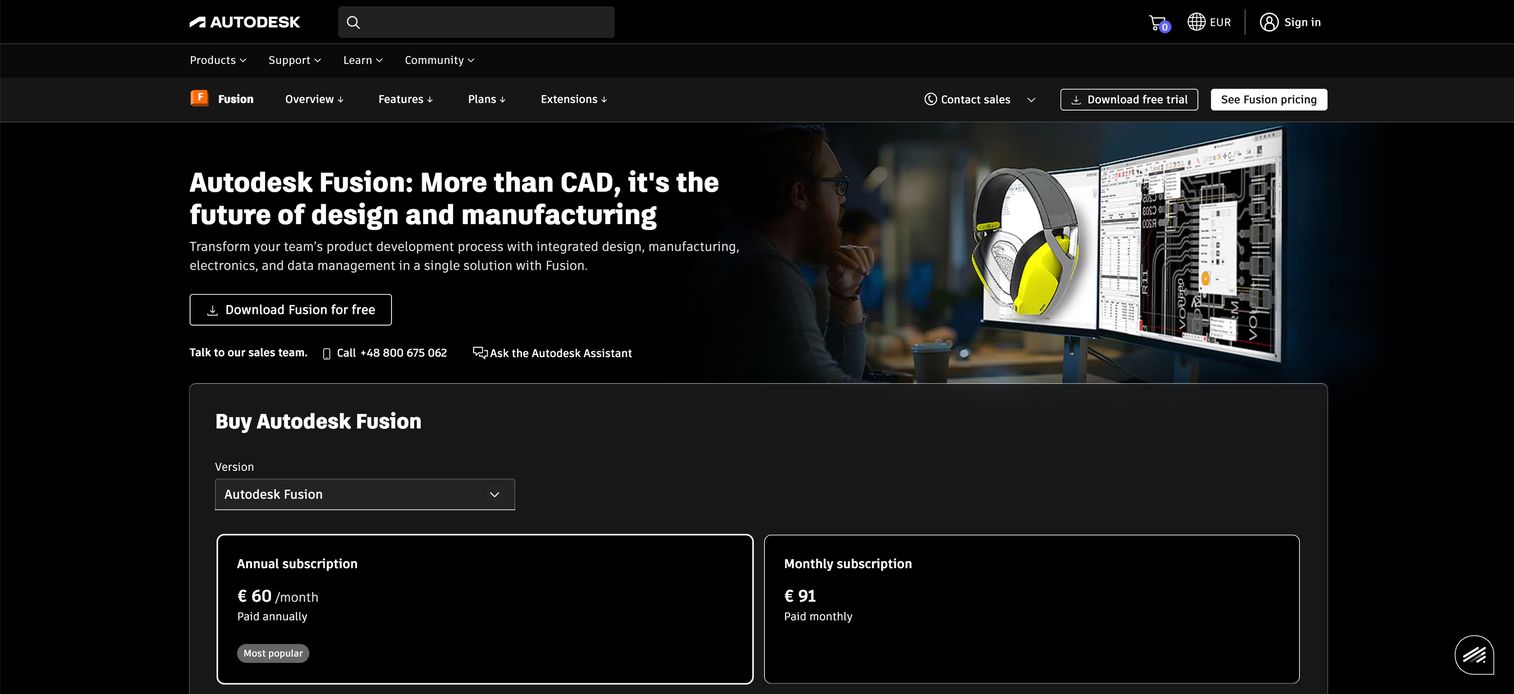
Fusion 360 is Autodesk's cloud-based CAD, CAM, CAE, and PCB platform for product development. It combines parametric 3D modeling, embedded electronics design, and manufacturing tools in one program, with cloud collaboration built in. That makes it a favorite for engineers, product designers, and serious makers who need precision without stitching together five separate tools.
Best for: Teams and individuals who need an all-in-one product development platform spanning design, manufacturing, and electronics.
Key strengths
- Parametric modeling: Define dimensions and constraints so geometry updates automatically when you change a value.
- Integrated CAM: Move from design to toolpaths for machining and manufacturing in the same environment.
- Cloud collaboration: Store, version, and share projects in the cloud across a distributed team.
Why choose Fusion 360: Fusion 360 sits right at the crossover between hobbyist and professional CAD. It is powerful enough for real product engineering yet approachable enough for advanced makers, and the free personal-use license lets you learn the professional tool before committing budget.
Fusion 360 pricing: Autodesk offers a free version for personal, non-commercial use and a free education plan. Commercial subscriptions start at $57 per month billed annually. The Manufacturing plan runs $170 per month and the Design plan $183 per month, both billed annually.
5. FreeCAD
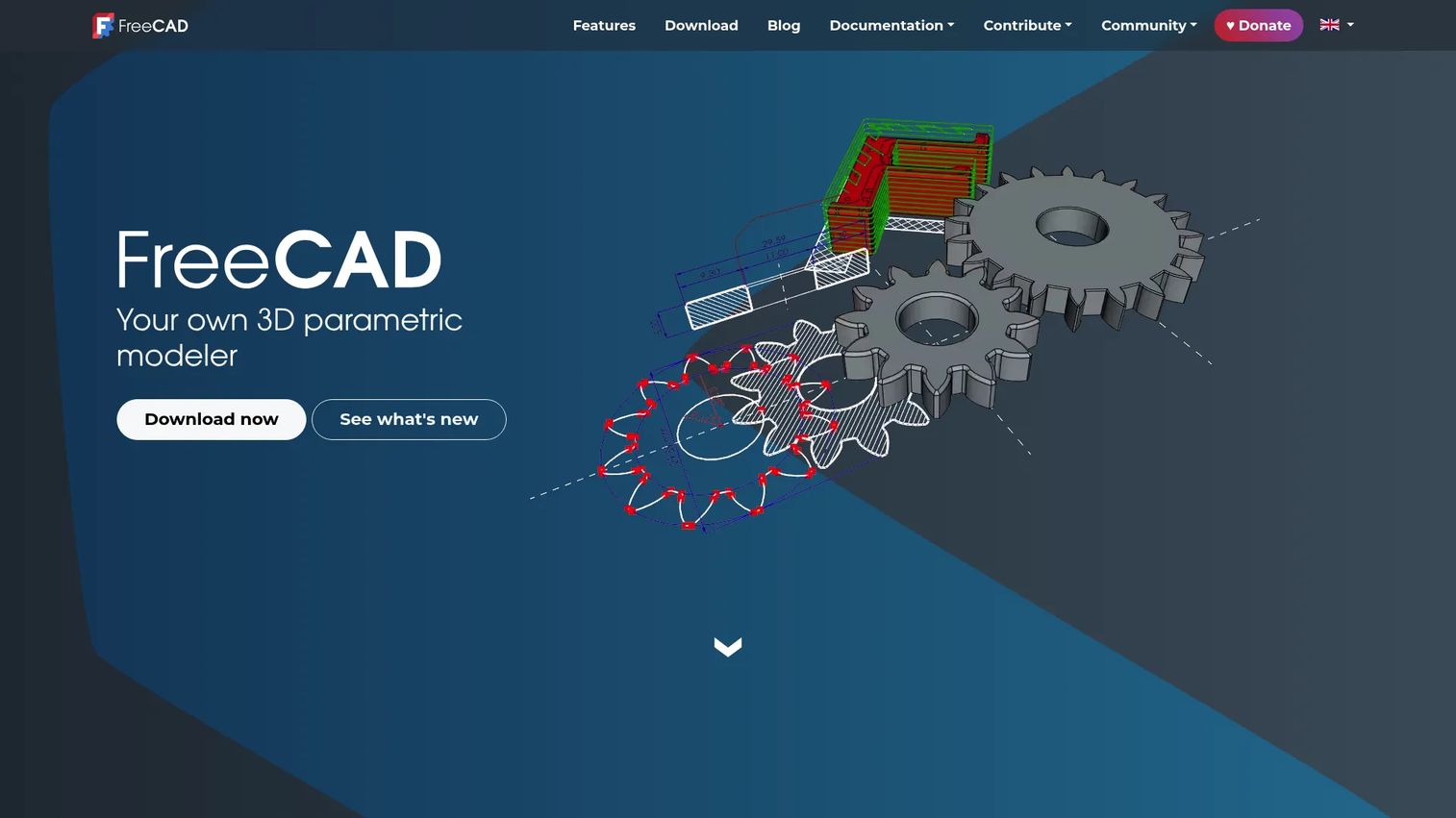
FreeCAD is an open-source parametric 3D CAD modeler for designing real-world objects. It supports parametric modeling, generating 2D drawings from 3D models, and importing and exporting a wide range of CAD file formats including STEP, IGES, STL, DXF, SVG, and IFC. For technical users who want CAD capability without a subscription, it is the strongest free option.
Best for: Individuals and teams who need a free, open-source CAD tool for parametric mechanical design.
Key strengths
- Parametric core: Edit any dimension and the model rebuilds, ideal for iterative mechanical design.
- Broad file support: Import and export STEP, IGES, STL, DXF, SVG, and IFC for smooth interchange with other tools.
- Cross-platform and open-source: Run it free on Windows, macOS, and Linux with full access to the source.
Why choose FreeCAD: FreeCAD is the honest pick for CAD on a budget. It rewards patience, since the interface is less polished than commercial suites, but the parametric depth and zero cost are hard to beat for students, hobbyist engineers, and open-source advocates. Its G2 rating sits at 4.1/5.
FreeCAD pricing: FreeCAD is completely free and open-source. There are no licensing fees or paid tiers.
6. AutoCAD
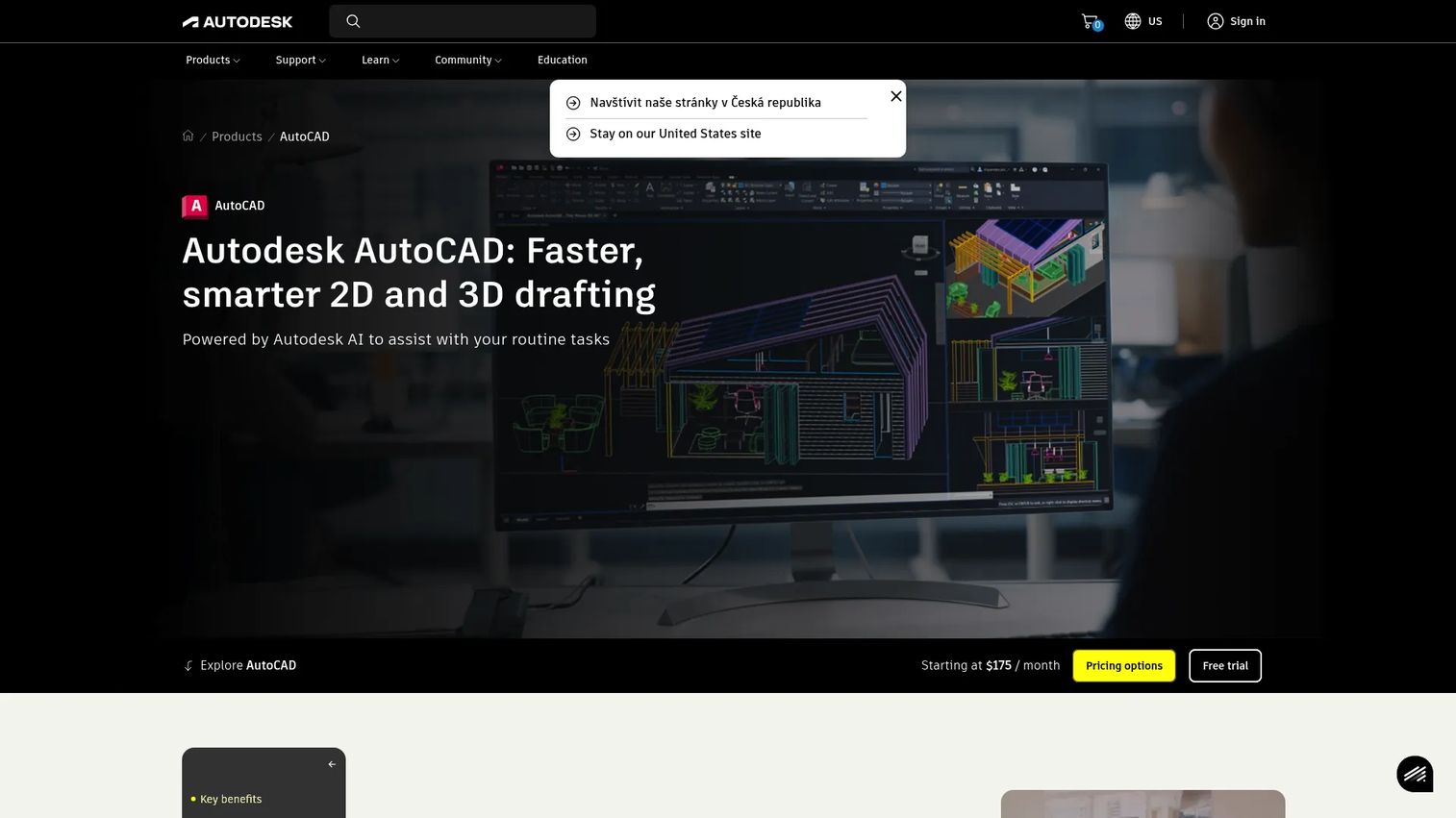
AutoCAD is Autodesk's professional CAD software for 2D drafting and 3D modeling. It is a long-standing industry standard in architecture, engineering, and construction, prized for exact drafting and technical precision. While it is not the first pick for every 3D artist, it remains essential wherever accurate documentation and drawings are the deliverable.
Best for: Architects, engineers, and construction professionals who need precise CAD drafting and design.
Key strengths
- Precision drafting: Produce exact 2D drawings and 3D models to the tolerances technical work demands.
- Smart Blocks and automation: Speed up repetitive drafting with reusable blocks and automation tools.
- Autodesk AI and collaboration: Use the built-in AI assistant and collaboration features to move work along faster.
Why choose AutoCAD: AutoCAD earns its place when precise drafting and industry-standard file compatibility are non-negotiable. It is less about artistic 3D and more about accurate, documented design that other professionals can build from. Its G2 rating sits at 4.4/5.
AutoCAD pricing: AutoCAD is sold by subscription through Autodesk, with monthly and annual options. Check Autodesk's pricing page for current tier details, and note there is no free tier, though a free trial is available.
7. Maya
Maya is Autodesk's professional 3D modeling, animation, FX, and rendering software for film, TV, and games. It is the industry standard for character animation and high-end visual effects, with deep rigging, animation, and simulation tools that anchor major studio pipelines. If your work will be seen on a big screen, Maya is likely in the mix.
Best for: Studios and artists who need high-end 3D character animation and visual effects tools.
Key strengths
- Advanced rigging and animation: Build complex character rigs and animate them with a mature, deep toolset.
- Bifrost simulations: Create effects like fluids, smoke, and fire with procedural node-based simulation.
- Pipeline depth: Integrate cleanly into large studio pipelines with robust scripting and customization.
Why choose Maya: Maya is the professional's professional. The depth that makes it powerful also makes it demanding, but for film, TV, and AAA game work, its animation and rigging tools are a benchmark others are measured against.
Maya pricing: Autodesk offers Maya by subscription starting at $168 per month. Annual plans run $1,335 per year and three-year subscriptions run $4,005. There is no free tier, though free trials and education licenses are available.
8. Cinema 4D
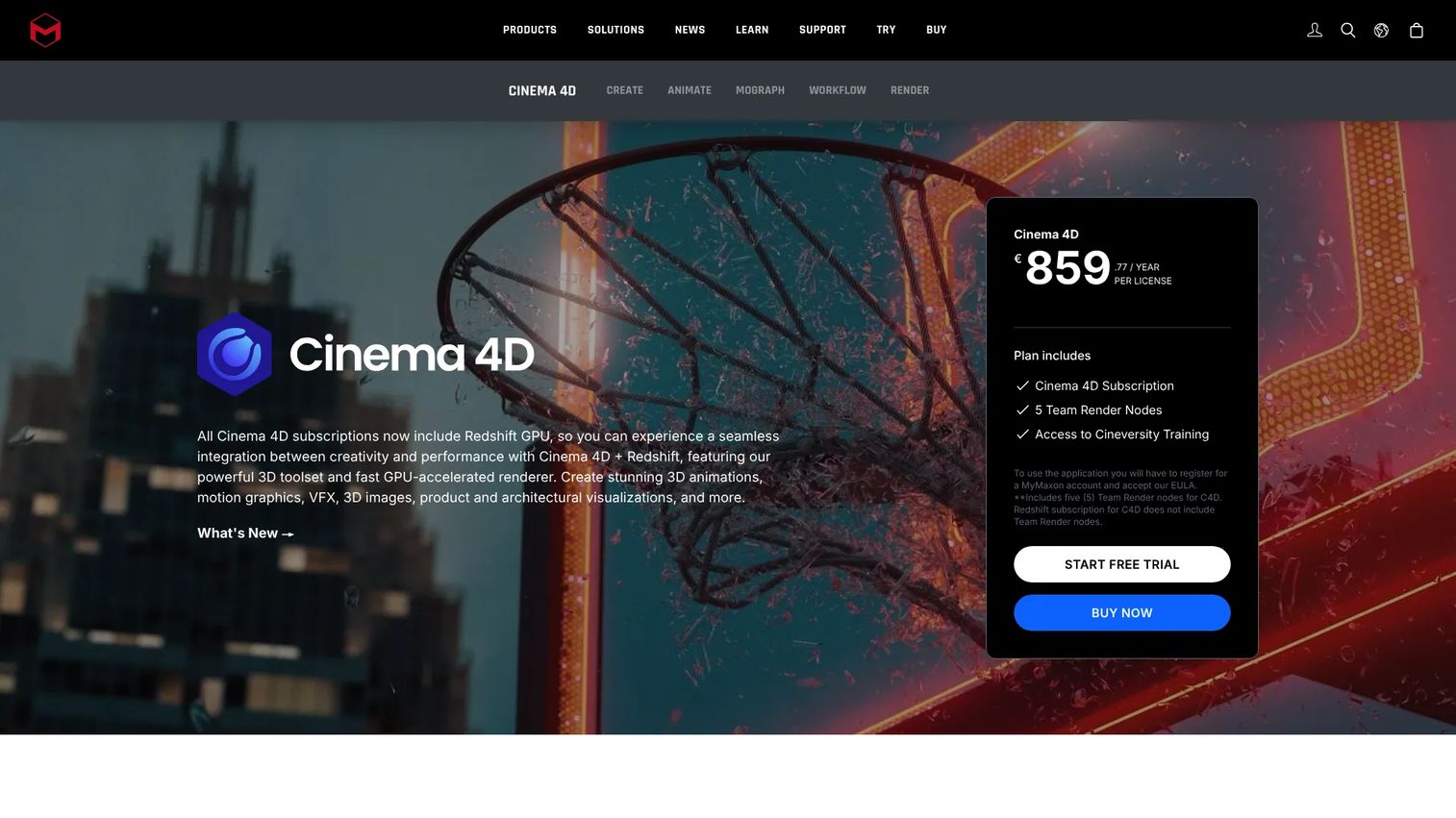
Cinema 4D is Maxon's professional 3D modeling, animation, simulation, and rendering software, best known for motion graphics. It has a reputation for being more approachable than other pro suites, which makes it a favorite among motion designers and creative studios who need polished results fast.
Best for: 3D artists and motion designers who need a mainstream animation and motion-graphics suite.
Key strengths
- MoGraph tools: Create complex procedural animations and motion graphics with a dedicated toolset.
- Redshift GPU renderer: New subscriptions include the Redshift GPU renderer for fast, high-quality output.
- Team Render: Distribute rendering across a network to speed up heavy projects.
Why choose Cinema 4D: Cinema 4D hits a sweet spot between capability and approachability. Motion designers reach for it because it produces broadcast-quality work without the steepest learning curve in the category, and its tight integration with common compositing tools fits neatly into motion pipelines. Its G2 rating sits at 4.6/5.
Cinema 4D pricing: Cinema 4D is available by subscription from Maxon, with new subscriptions including the Redshift GPU renderer, Team Render nodes, and Cineversity access. Maxon also offers a 14-day free trial. Check Maxon's site for current subscription pricing.
9. 3ds Max
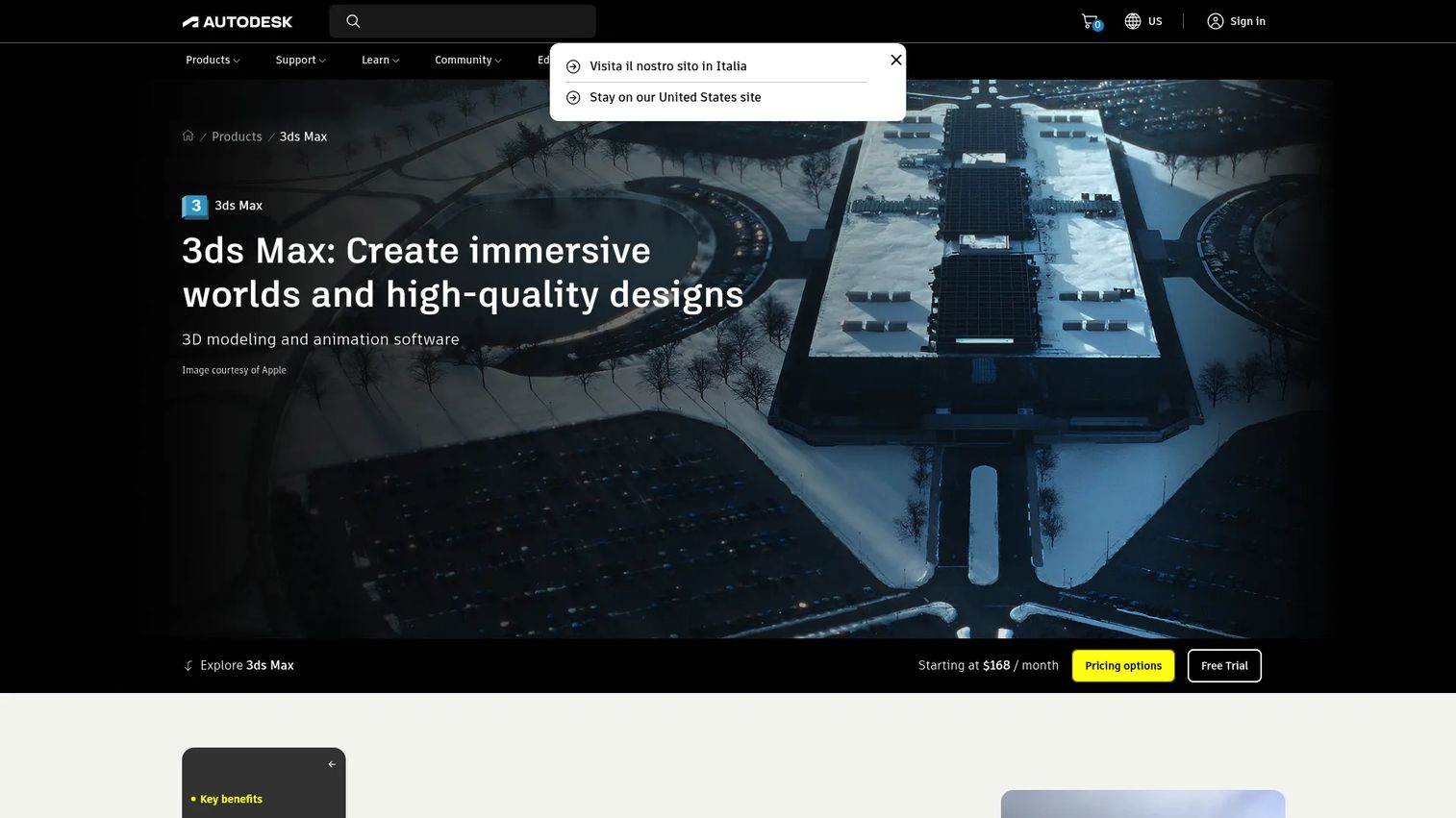
3ds Max is Autodesk's professional 3D modeling, rendering, and animation software. It is a mainstay of architectural visualization and game-related workflows, with a modifier-stack workflow and strong rendering that make it a go-to for detailed models and photorealistic renders.
Best for: 3D artists and studios creating models, animation, and renders for games, film, and design visualization.
Key strengths
- Modifier stack: Build and edit geometry non-destructively through a flexible, stackable modifier system.
- Retopology tools: Clean up dense meshes into production-ready topology for games and animation.
- Integrated Arnold renderer: Produce photorealistic renders with the built-in Arnold engine.
Why choose 3ds Max: 3ds Max shines in architectural visualization and game asset creation. If your output is a photorealistic render of a building interior or a detailed game environment, its modeling and rendering combination is hard to beat, and it pairs naturally with other Autodesk tools like AutoCAD.
3ds Max pricing: Autodesk offers 3ds Max by subscription. The annual plan is $168 per month billed annually, and the monthly plan is $255. There is no free tier, though a free trial is available.
10. ZBrush
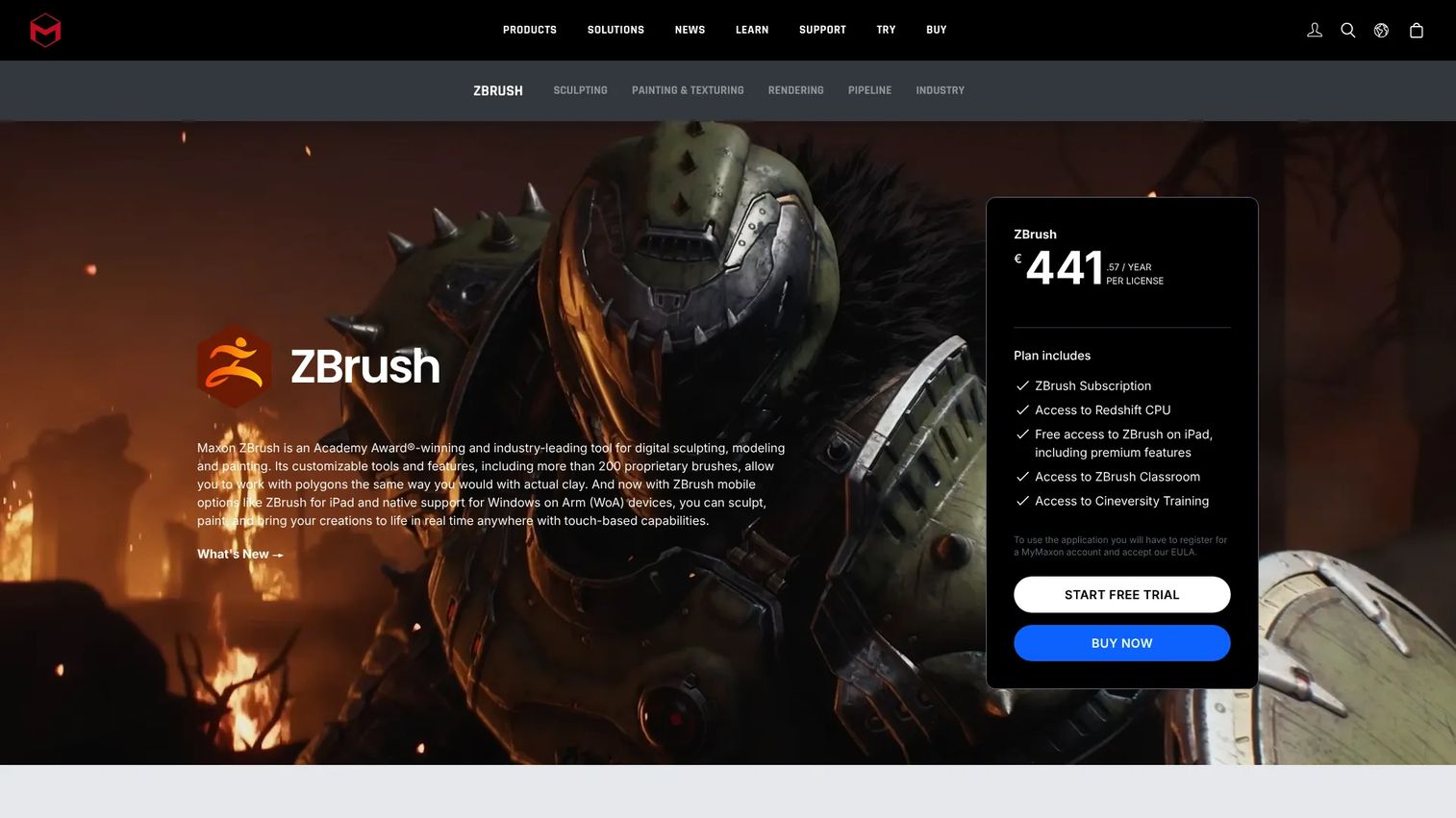
ZBrush is Maxon's digital sculpting, modeling, and painting software for creating highly detailed 3D assets. It treats geometry like digital clay, letting artists sculpt millions of polygons of detail into characters, creatures, and props. It is specialized rather than all-purpose, but for organic detail work it is the industry benchmark.
Best for: 3D artists who need high-end sculpting and painting for characters, creatures, and detailed assets.
Key strengths
- Dynamic brush system: Sculpt fine detail with a huge library of pressure-sensitive brushes.
- DynaMesh and digital clay: Reshape geometry freely without worrying about polygon distribution early on.
- PolyPaint: Paint color and texture directly onto the model surface without UV mapping first.
Why choose ZBrush: ZBrush is the tool artists reach for when detail is everything. It is not built for precise CAD or full animation pipelines, but for sculpting hero characters and creatures it has no real equal, and a free iPad plan lets you try sculpting before committing.
ZBrush pricing: ZBrush is available by subscription from Maxon. There is also a free ZBrush for iPad plan with a limited brush and feature set. Check Maxon's site for current desktop subscription pricing.
Considerations before you commit
Before you settle on a tool, run through this short checklist. It saves you from a costly re-learn six months in.
Match the tool to your output, not the hype
Decide what you will actually produce: a printable object, a rendered building, an animated character, a machined part. Let that output pick the category (CAD, polygonal, or sculpting) first, then choose a specific tool inside it. A tool that is perfect for arch-viz can be a poor fit for mechanical CAD.
Be honest about your learning curve tolerance
Some tools reward patience with enormous ceilings; others get you productive today. If you need results this week, start with Tinkercad or SketchUp. If you are building a career skill, the steeper learning curve of Blender, Maya, or ZBrush pays off over years.
Check platform and hardware requirements
Confirm the tool runs on your operating system. Windows-only tools rule out Mac and Linux users, while cross-platform and browser-based options run almost anywhere. Sculpting and rendering carry real hardware requirements, so verify GPU and RAM guidance before you rely on an aging laptop.
Weigh free versus paid honestly
Free 3D modeling software like Blender, FreeCAD, and Tinkercad is genuinely capable, not crippled trialware. Paid suites earn their cost through pipeline depth, support, and industry-standard compatibility. Start free when you can, and upgrade only when a specific missing capability is blocking real work.
Factor in community and support
A large community means more tutorials, faster answers, and more plugins. Open-source tools thrive on active forums, while paid tools add official support and documentation. Strong community support often matters more day to day than any single feature.
Conclusion
The best 3D modeling software is the one that matches your workflow, budget, and skill level, not the one that tops a generic ranking. For most people, Blender is the strongest all-around starting point: free, deep, and capable across modeling, sculpting, and animation. Absolute beginners should start with Tinkercad and graduate to Fusion 360 as their ambitions grow.
For technical work, Fusion 360 and FreeCAD lead on parametric CAD and product design, while AutoCAD remains the standard for precise drafting. For creative production, Maya and Cinema 4D anchor animation and motion graphics, 3ds Max owns architectural visualization, and ZBrush is unmatched for high-detail sculpting.
Pick one tool that matches your primary use case and commit to it long enough to get past the early learning curve. You will learn far more from finishing one real project in a single tool than from sampling five. Choose the one that fits the work in front of you, and start building.
Start your journey with Guideflow today!
FAQs
Tinkercad is the easiest place to start. It is free, runs in the browser, and uses a snap-together approach with simple primitives that you can learn in an afternoon. SketchUp is a strong second choice for beginners who want to model buildings and spaces quickly with its intuitive push-pull workflow.
It depends on your work. Blender is the best free option for creative and general 3D work, covering modeling, sculpting, animation, and rendering with no license cost. For technical CAD, FreeCAD offers open-source parametric modeling, and Tinkercad is the best free tool for beginners and simple 3D printing projects.
Product and mechanical design call for CAD tools with parametric precision. Fusion 360 is the strongest all-in-one option, combining design, manufacturing, and cloud collaboration, with a free personal-use license. FreeCAD is a capable free alternative, and AutoCAD is the standard where precise drafting and documentation are the priority.
Maya is the professional standard for character animation and visual effects in film, TV, and games, with deep rigging and animation tools. Cinema 4D is the top pick for motion graphics thanks to its MoGraph toolset and approachable workflow. Blender covers the full animation pipeline for free and is a serious option for freelancers and small studios.
Yes. For 3D printing you want a tool that exports clean, watertight meshes in formats like STL or 3MF. Tinkercad is the easiest entry point for simple prints, while Fusion 360 and FreeCAD give you precise parametric control for more complex, dimensionally accurate parts. Always check that your model is manifold before sending it to a slicer.
For learning, simple models, and quick projects, browser-based tools like Tinkercad and SketchUp's web version are genuinely good enough and remove all install friction. For heavy sculpting, complex animation, or large photorealistic renders, desktop tools give you more power and better performance. Many people start in the browser and move to desktop as their projects grow.
Match the tool to your output first: CAD for precision parts, polygonal tools for games and film, sculpting tools for organic detail. Then weigh your learning curve tolerance, platform and hardware requirements, pricing model, and the strength of the community and documentation. The right 3D design software is the one that fits your specific workflow, not the one with the longest feature list.