How to view version history of an artifact in Claude.ai
Here is how to view version history of an artifact in claude.ai
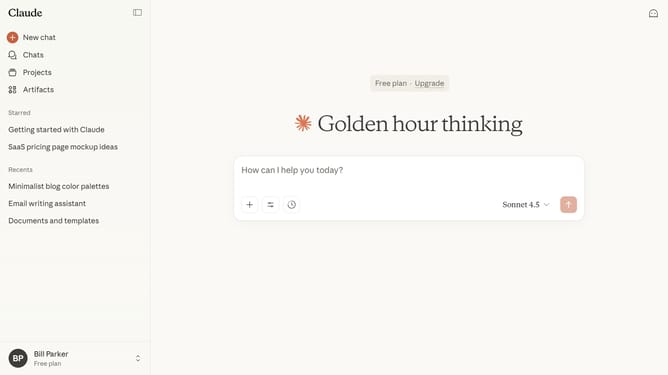
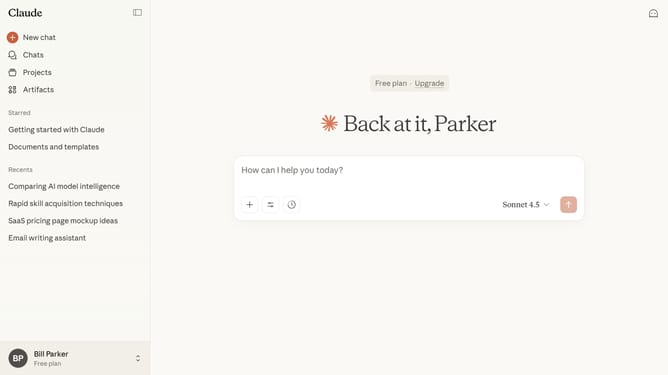
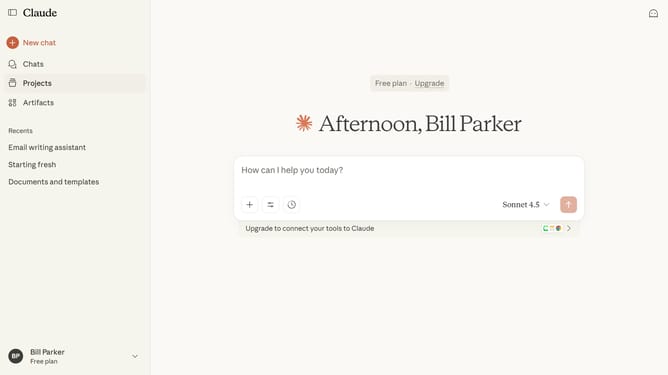
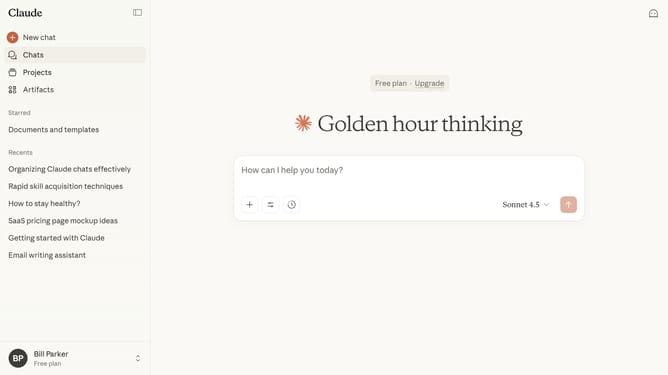
- First click on "Artifacts" in the left sidebar
- Next click on the "Your artifacts" tab to view your saved artifacts
- From the list, click on the Artifact for which you want to view version history
- In the artifact’s right-side panel, locate the version option
- Then hover and click on the version dropdown menu to see a list of all previous versions
- Finally click on a version from the dropdown menu to switch it if needed
Why should you view version history of an artifact in Claude.ai
Claude.ai is an innovative platform designed to streamline digital collaboration and productivity.
One standout feature is the ability to view version history of an artifact. This allows users to track changes and understand the evolution of a document seamlessly.
By accessing version history, you can ensure transparency and maintain control over collaborative adjustments, fostering a more reliable and efficient work environment.
This feature not only supports accountability but also enhances team collaboration by providing a clear record of past edits.
Last update