How to export chats from the past 30 days in Claude.ai
Here is how to export chats from the past 30 days in claude.ai
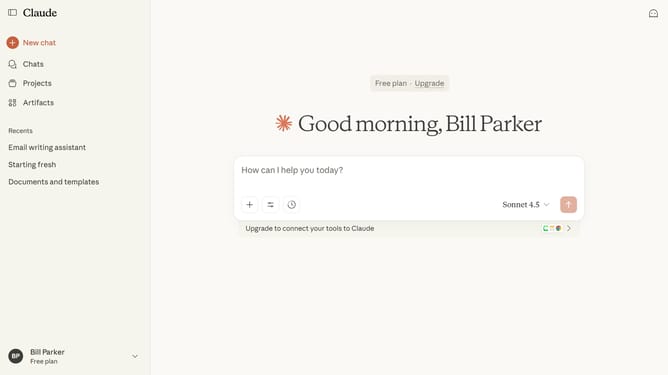
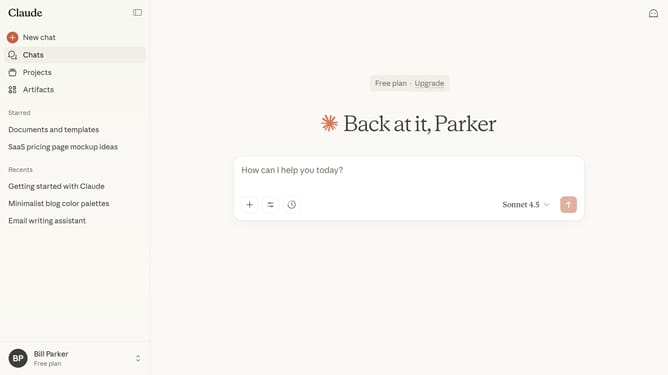
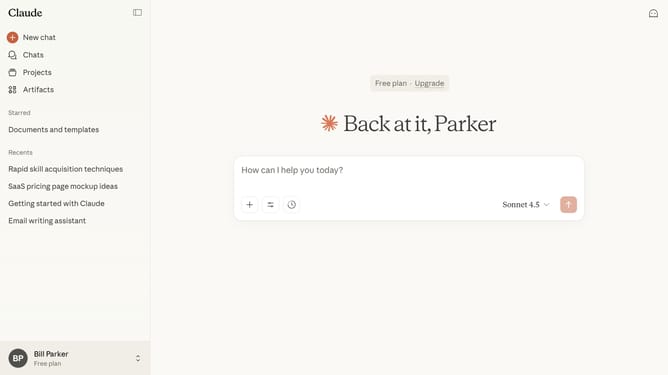
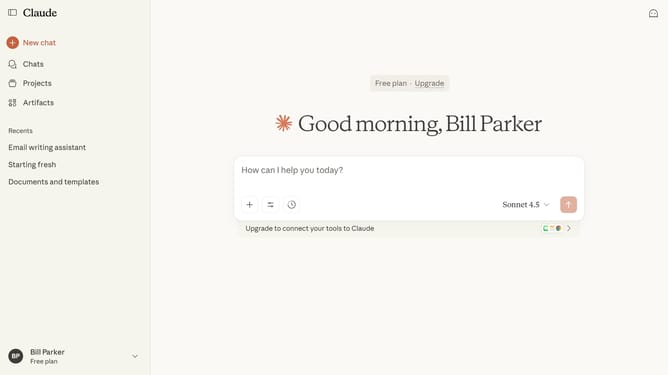
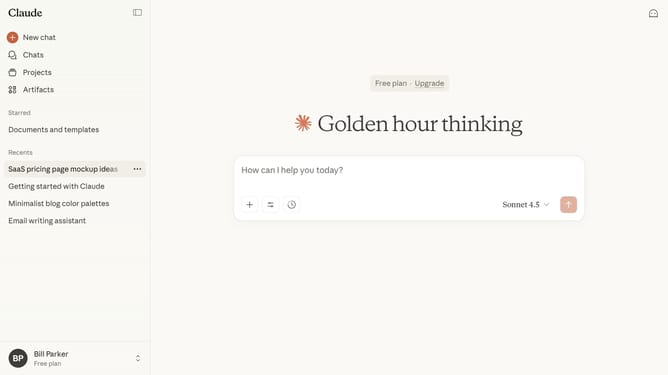
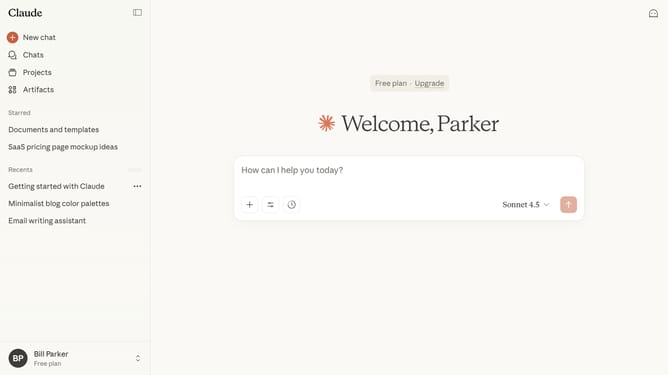
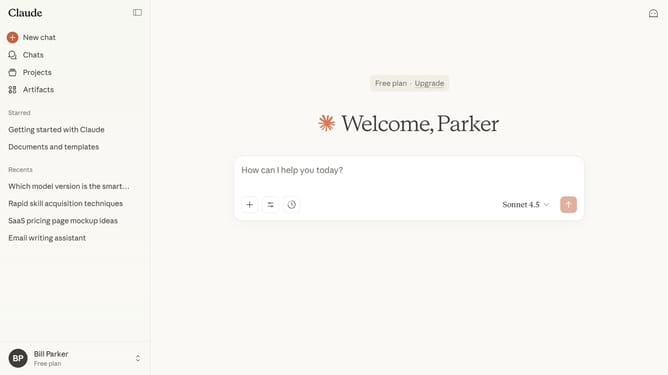
- First click on the user profile section in the bottom left sidebar
- Next click on "Settings" option in the account menu
- Click on "Privacy" tab in the left settings menu
- Then click on "Export data" button in the Privacy settings section
- In the Export data dialog, click on the "30 days" option
- Finally click on "Export" button to confirm the export
- You’ll receive a download link to your email once your export is ready
Why should you export chats from the past 30 days in Claude.ai
Claude is an innovative AI designed to enhance conversational experience with intuitive and adaptive interactions.
Exporting chats from the past 30 days in Claude.ai empowers you to seamlessly retain and review significant conversations. This feature ensures that you can effortlessly access your most recent dialogues, providing continuity and ease of reference for future interactions.
The capability to export these chats is particularly beneficial for professionals and teams who rely on past communications for insights and decision-making. It simplifies managing and archiving important data, ensuring you have valuable information at your fingertips whenever needed.
Last update