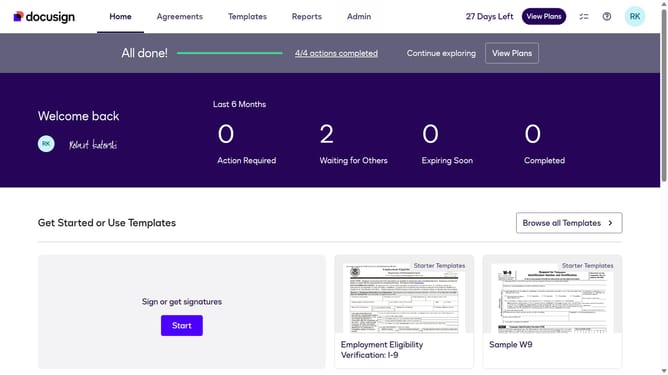
How to view users assigned to a permission profile in DocuSign
Here is how to view users assigned to a permission profile in docusign
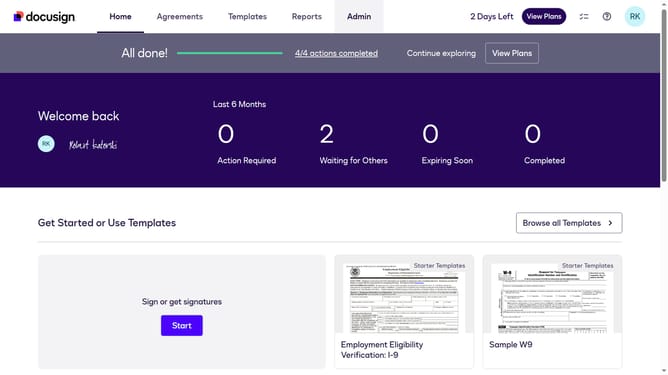
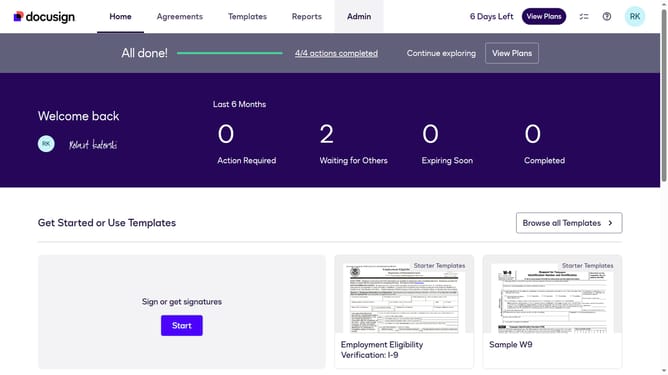
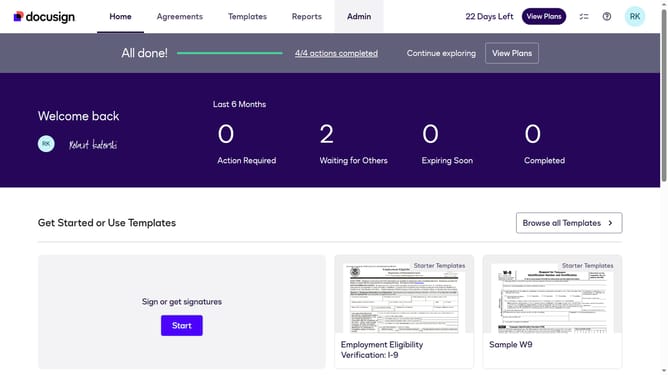
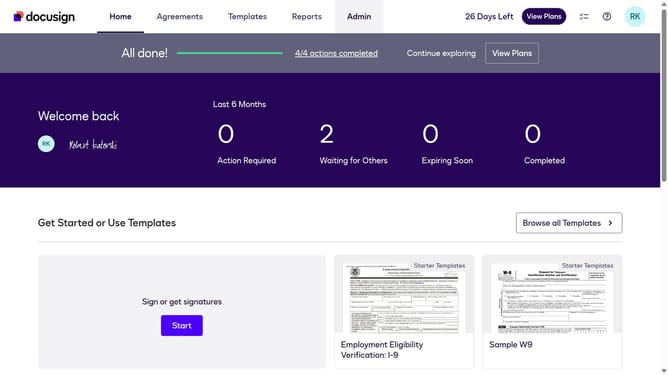
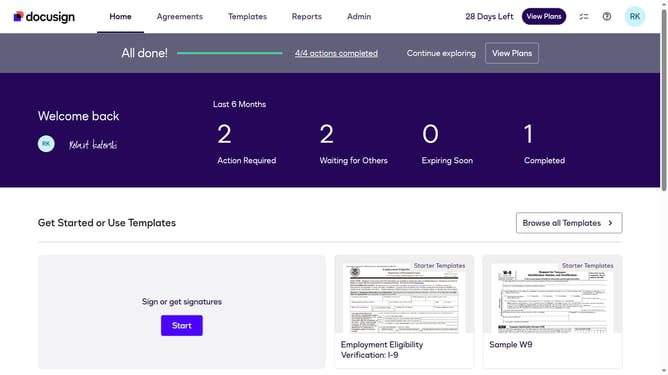
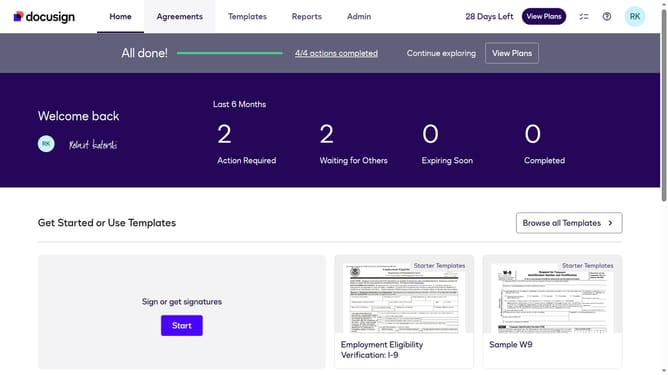
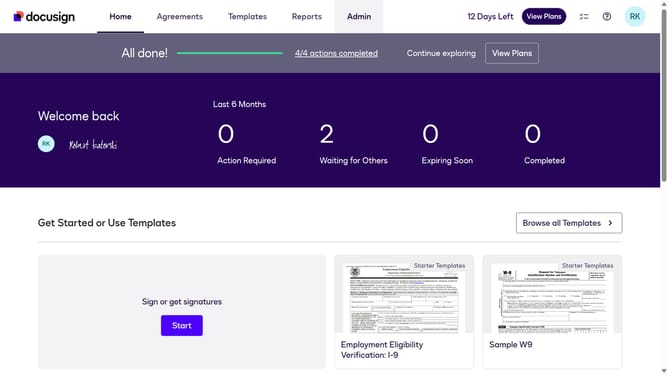
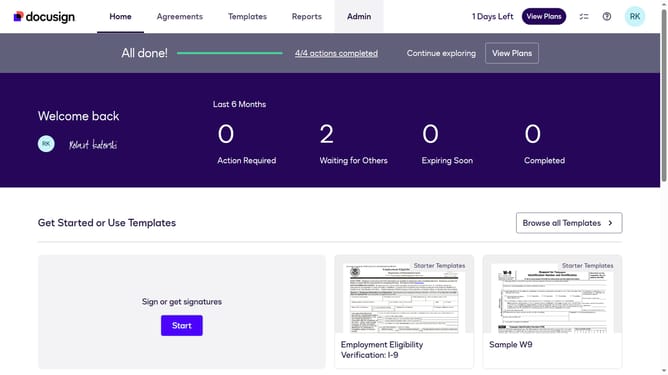
- First click on the "Admin" link in the top navigation menu
- Then scroll down the page to view the sidebar menu options
- Next click on "Permission profiles" under the USERS AND GROUPS section
- Next click on the "Actions" dropdown button for the "DS Admin" permission profile in the table
- Finally select the "View Users" option to view users assigned to this permission profile
Why should you view users assigned to a permission profile in DocuSign
DocuSign revolutionizes the way businesses handle electronic agreements by streamlining the signing process with secure, paperless transactions.
One key feature of DocuSign is the ability to view users assigned to a permission profile. This feature allows administrators to easily manage team roles, ensuring everyone has the right access level for efficient workflow.
Using this feature, organizations can swiftly verify user assignments, promote accountability, and enhance security by ensuring only authorized personnel can access sensitive documents. It creates a transparent and organized work environment.
Last update