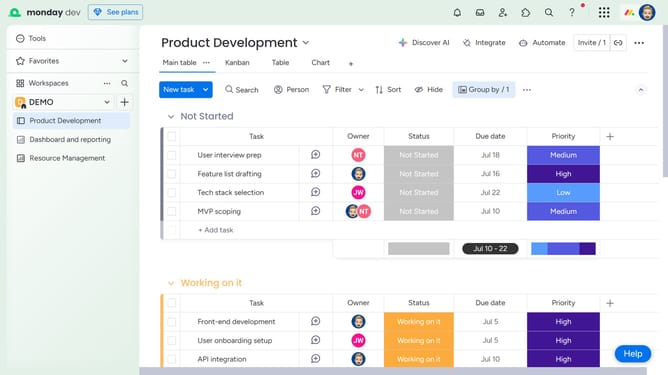
How to upload a file from a link to the Files column in Monday.com
Here is how to upload a file from a link to the files column in monday.com
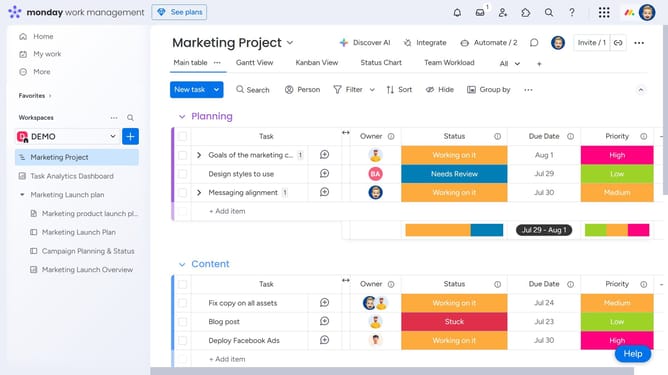
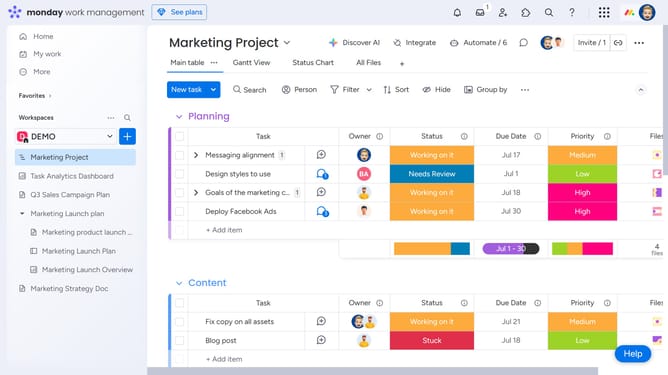
- First locate the item on your board where you want to add the file
- Next click on the "+" button in the Files column of the item row
- Click on "From Link" option in the upload dropdown menu
- In the pop-up window, paste the URL of the file you want to upload in the provided field
- Then enter a name for the file in the "Text to display" field
- Finally click the "Save" button to confirm
- The file will be added to the Files column. Clicking the file will open the linked file instantly in a new tab
Why should you upload a file from a link to the Files column in Monday.com
Monday.com revolutionizes team productivity with its dynamic work operating system, fostering seamless collaboration.
A standout feature of Monday.com is the ability to upload files directly from a link into the Files column. This functionality streamlines workflows by allowing teams to effortlessly centralize information.
Utilizing this feature ensures that all project-related documents are stored in a single, accessible location, enhancing collective efficiency and ensuring that everyone remains on the same page.
Last update