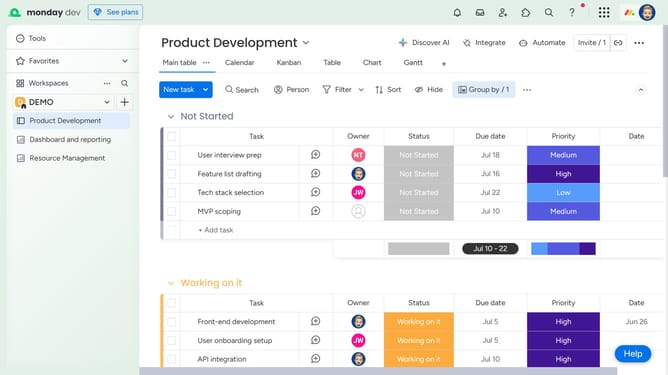
How to add a Cards View to a board in Monday.com
Here is how to add a cards view to a board in monday.com
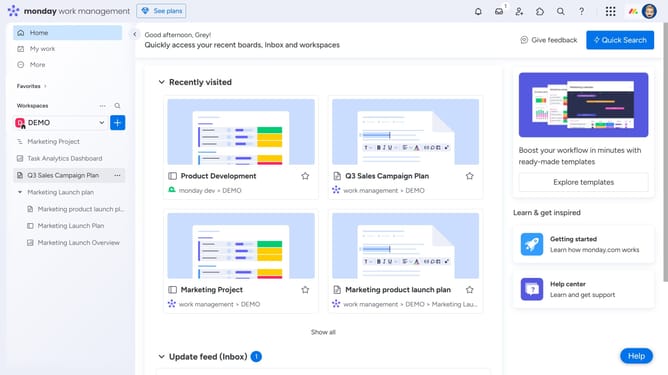
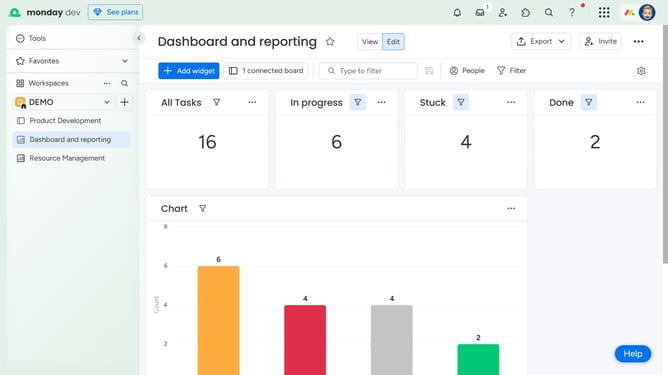
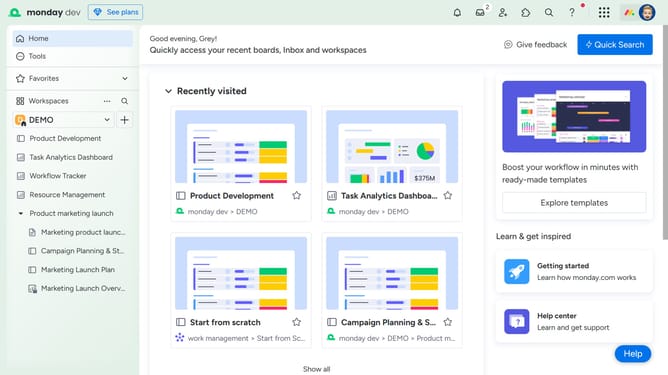
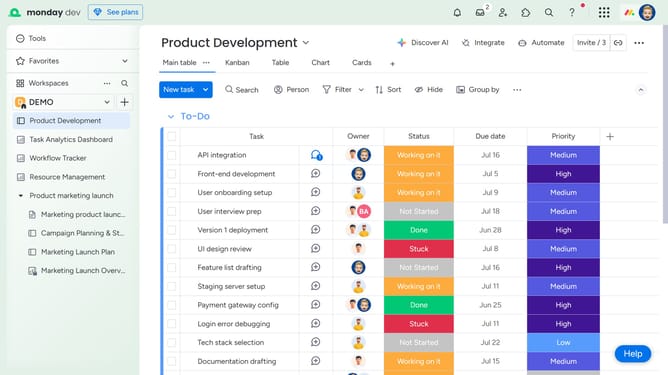
- First open the board where you want to add the Cards View from the left sidebar
- Next click the "+" button in the views bar
- From the views dropdown menu, click on "Explore more views" option
- In the Views Center that appears, scroll down or search for “Cards”
- Finally click on "Open in board" button under the Cards view option
Why should you add a Cards View to a board in Monday.com
Monday.com is an intuitive project management platform that empowers teams to collaborate and organize their work efficiently.
Add a Cards View to a board in Monday.com to visually streamline your tasks and projects, making data more digestible at a glance.
This feature allows for a more dynamic and interactive way to manage workflow, improving prioritization and focus.
By easily moving cards, teams can maintain the flexibility and clarity needed to stay ahead in fast-paced environments, enhancing overall productivity and transparency.
Last update