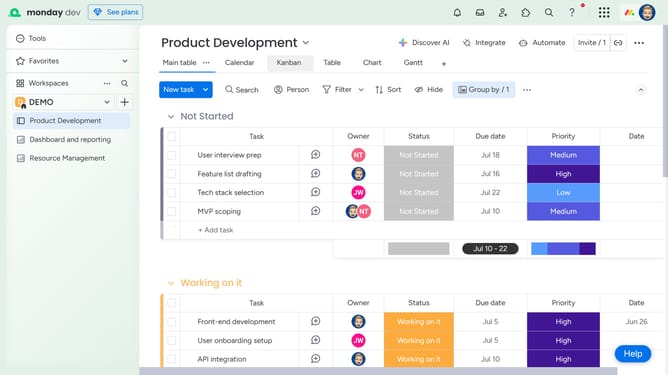
How to schedule a board view export in Monday.com
Here is how to schedule a board view export in monday.com
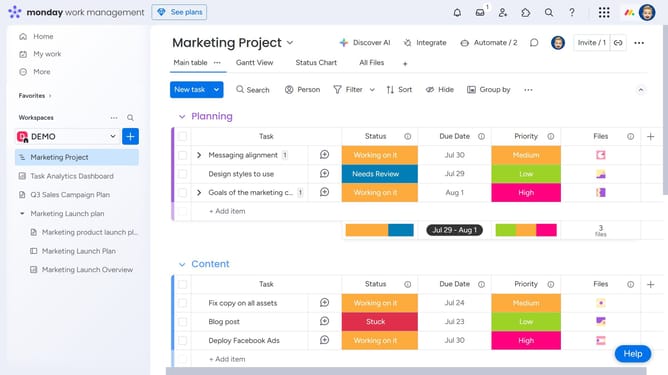
- First open the board and click the view that you want to schedule for export
- Next click the more options menu (three dots) to the right of the view name
- Click on "Export" option in the dropdown menu
- Select "Schedule PDF export" from the submenu
- In the pop up window, click on the recipient field to add recipients
- Select the recipients from the dropdown list
- Then enter a subject line in the subject line field
- You can also type a short message in the “Email body” field if needed
- Next select a frequency in the schedule options (daily, weekly or monthly)
- Then, select the specific day and time for the scheduled export
- Next click on the "PDF layout" dropdown
- Then choose your preferred export settings (layout and scale)
- Finally click the "Schedule" button to confirm the export automation
Why should you schedule a board view export in Monday.com
Monday.com is a versatile work operating system that empowers teams to collaborate seamlessly and manage projects with flexibility.
One of its valuable features is the ability to schedule a board view export. By scheduling these exports, teams can effortlessly share progress and maintain transparency across projects without manual involvement.
This feature ensures key stakeholders get timely updates, enhancing collaboration and allowing for proactive decision-making.
Ultimately, it streamlines workflow management, saving time and optimizing productivity.
Last update