How to change board permissions in Monday.com
Here is how to change board permissions in monday.com
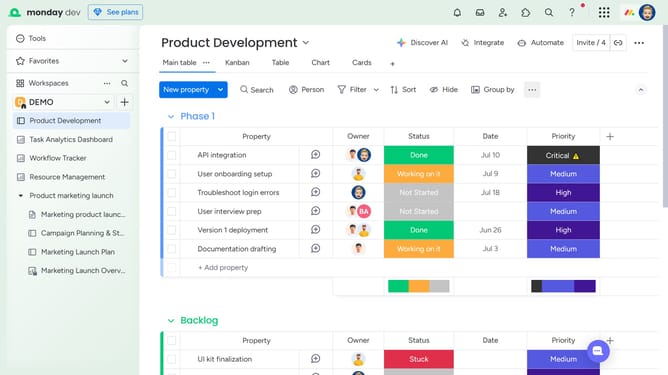
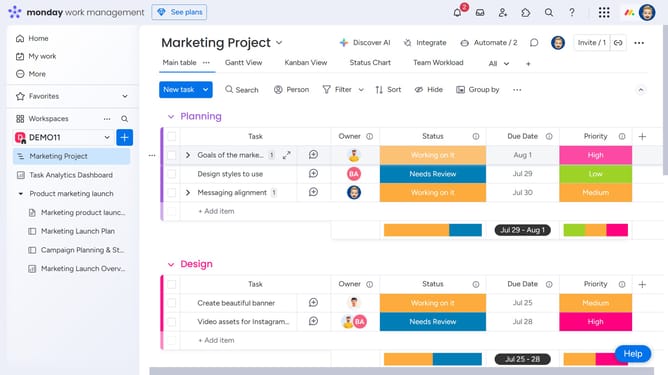
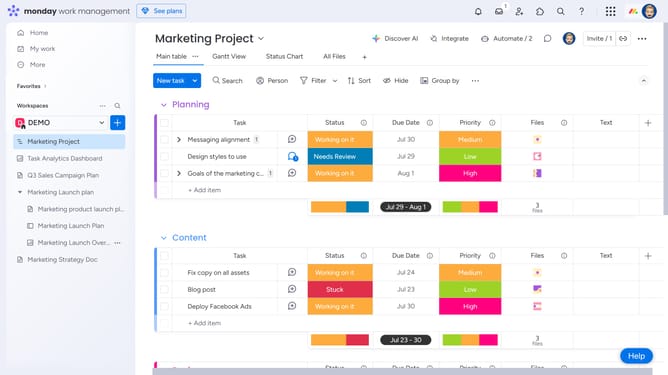
- First open the board where you want to modify permissions
- Next click on the "More options" button in the top-right corner of the board
- Then select "Permissions" option in the dropdown menu
- A window will appear, allowing you to view and select the appropriate permission settings for board members
- On the left side of the window, click the permissions dropdown menu
- Select the new permission setting you want to apply to the board from the dropdown menu
- Then click on "Save" button in the bottom-right corner
- Finally confirm the changes by clicking "Save" button in the confirmation dialog
Why should you change board permissions in Monday.com
Monday.com is a versatile project management tool designed to streamline workflows and enhance team collaboration.
One valuable feature is the ability to change board permissions, which grants you full control over who can view or modify content. This flexibility ensures that sensitive information is only accessible to the right team members.
By tailoring permissions, you can enhance security and foster a collaborative environment. This feature helps maintain order while encouraging productivity, making Monday.com an invaluable resource for efficient project management.
Last update