How to add the Files Gallery View to a board in Monday.com
Here is how to add the files gallery view to a board in monday.com
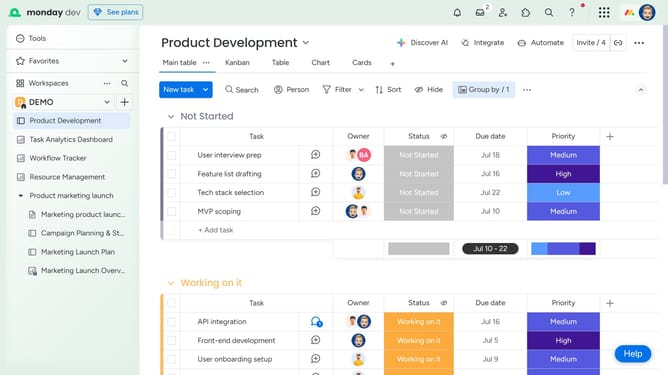
- First open the board where you want to add the Files Gallery View
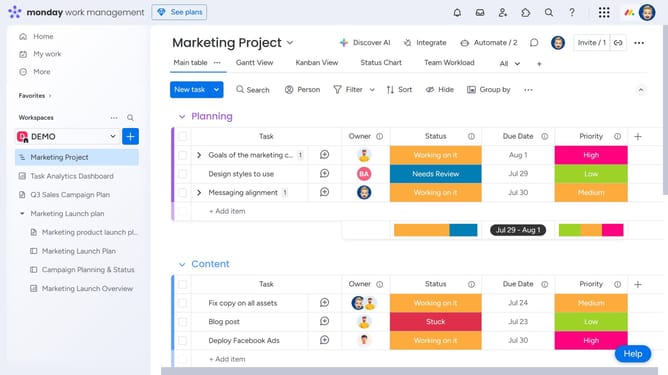
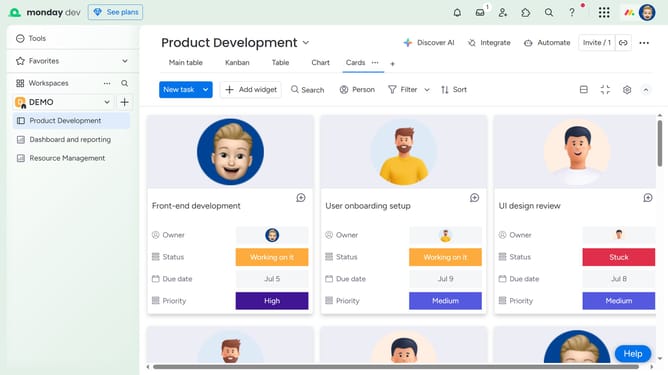
- Next click on the "Add view" (+) button in the top navigation bar
- Then, select the "File gallery" option from the dropdown menu
- The Files Gallery view will be successfully added, allowing you to view all files uploaded across your board in one place
- If needed, switch between list or grid view to browse them more easily
Why should you add the Files Gallery View to a board in Monday.com
Monday.com is an intuitive work operating system that streamlines team collaboration and project management.
By adding the Files Gallery View to your board, you can revolutionize the way you manage documents and visuals. This feature visually organizes your files, ensuring easy access and swift navigation.
Using the Files Gallery View fosters an efficient workflow, as team members can quickly locate and review necessary files without sifting through endless lists. This visualization aspect enhances productivity by keeping everything at your fingertips.
Ultimately, incorporating this feature helps teams stay organized and focused, enabling seamless collaboration across projects.
Last update