How to filter your Cards View in Monday.com
Here is how to filter your cards view in monday.com
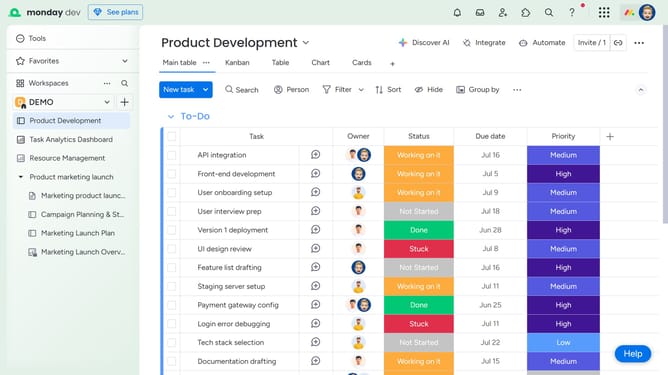
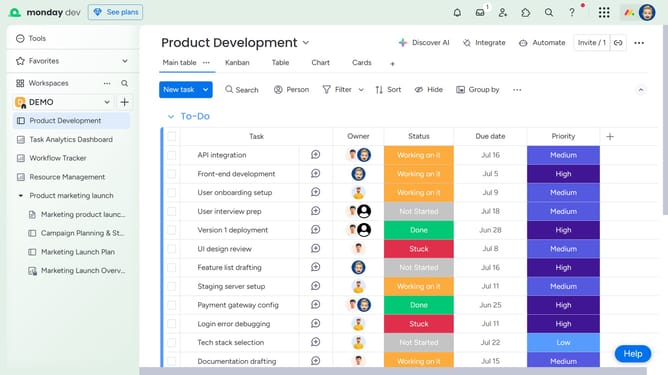
- First click on the "Cards" view option at the top of the board to open it
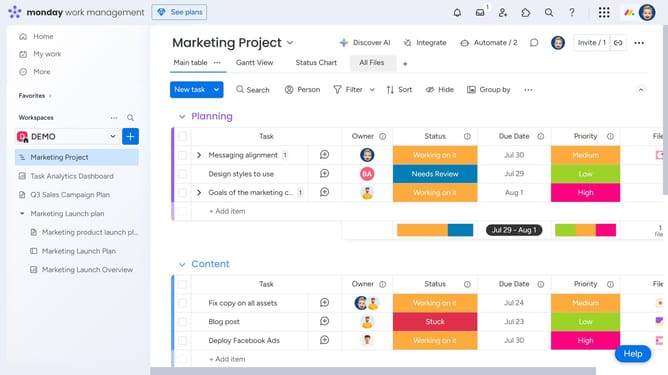
- Then click on the "Filter" button in the top toolbar to open the filtering options
- In the Quick filters panel that appears, click on an option to apply it
- Alternatively, click on the "Switch to advanced filters" at the bottom of the Quick filters panel
- Then, start adding a filter by choosing a column, setting the condition, and selecting the value
- Click “New filter” to apply additional filtering conditions, if needed
- Once you're done, the view will automatically update to show only the cards that match your filter criteria
Why should you filter your Cards View in Monday.com
Monday.com is a versatile work operating system designed to streamline team collaboration.
The "filter your Cards View" feature allows users to effortlessly sift through tasks and projects, enhancing focus and efficiency.
By refining your view, you instantly target relevant cards that fit your precise needs, eliminating unnecessary distractions.
This function is particularly beneficial in prioritizing tasks, enabling you to concentrate on what truly matters and significantly boosting overall productivity.
Last update