How to set up board permissions in Monday.com
Here is how to set up board permissions in monday.com
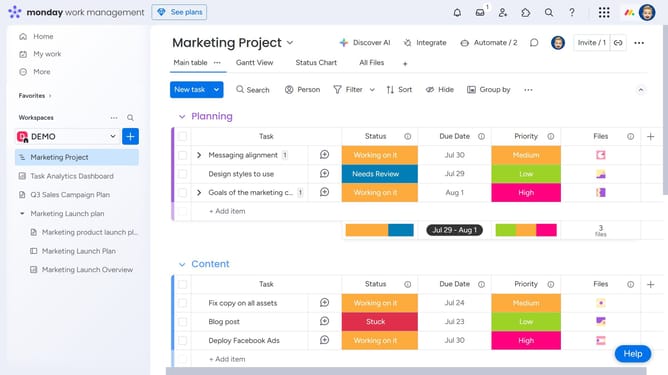
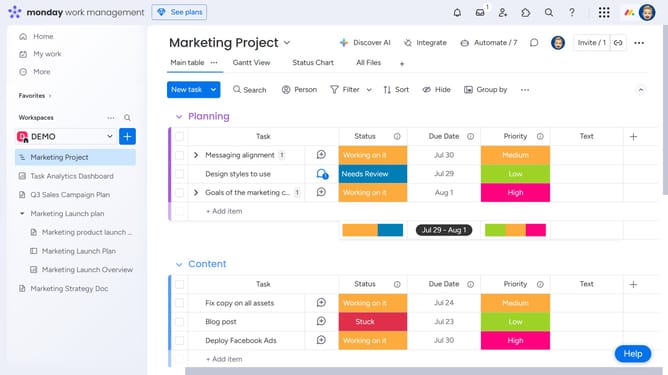
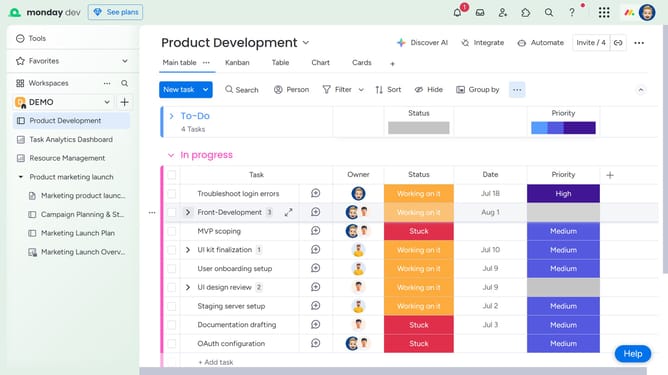
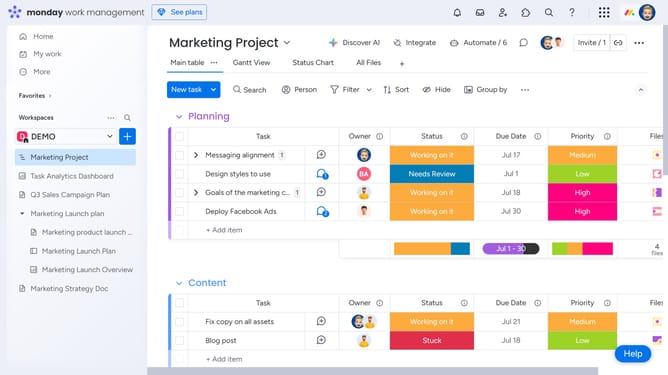
- First, open the board where you want to set up the permissions
- Next click on the "More options" button in the top-right corner of the board
- Then select "Permissions" option in the dropdown menu
- A window will appear, allowing you to view and select the appropriate permission settings for board members
- On the left side of the window, click the permissions dropdown menu
- Next select the permission setting you want to apply to the board from the available options
- Then click on "Save" button in the bottom-right corner
- Finally confirm the changes by clicking "Save" button in the confirmation dialog
Why should you set up board permissions in Monday.com
Monday.com is a dynamic work operating system designed to streamline project management and enhance team collaboration.
Setting up board permissions is a key feature that empowers teams to tailor access levels for various members, ensuring data security and workflow efficiency.
This feature is particularly useful in managing sensitive information and delineating roles within a team.
Enhanced control over board permissions not only fosters accountability but also optimizes project execution by allowing team members to focus on their specific tasks without unnecessary distractions.
Last update