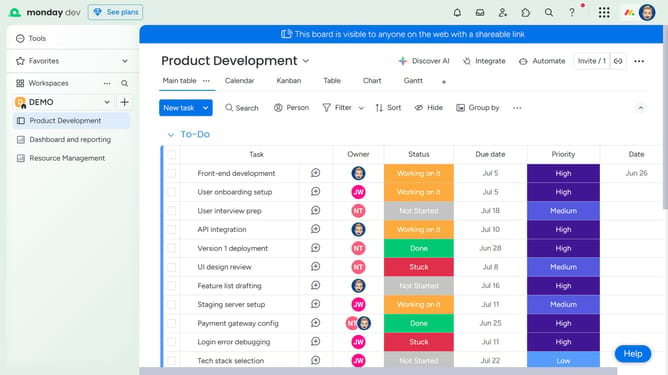
How to change the time and date format in Monday.com
Here is how to change the time and date format in monday.com
- First click on the profile picture in the top-right corner of the header
- Next click on the "My profile" option in the dropdown menu
- Click on "Language & region" in the left sidebar of the Profile settings
- Then locate the "Time format" and "Date format" sections
- Finally use the checkboxes to select your preferred time format (12-hour or 24-hour) and date format (e.g., MM/DD/YYYY, DD/MM/YYYY)
Why should you change the time and date format in Monday.com
Monday.com is a highly versatile tool for project management and collaboration, designed to enhance team productivity.
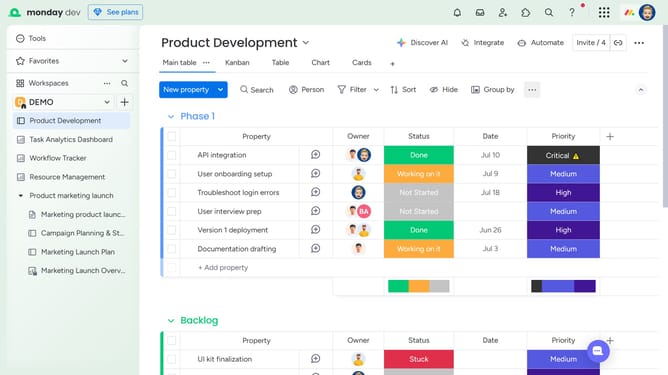
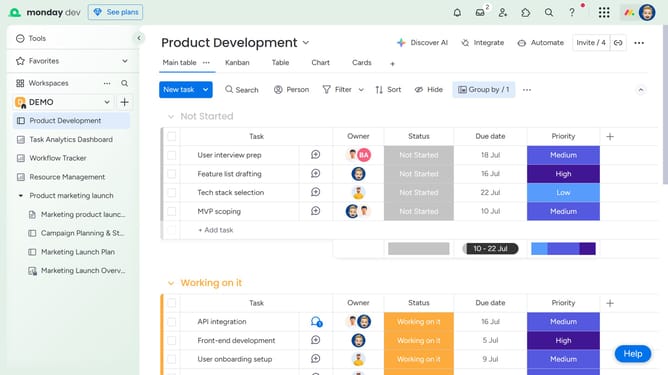
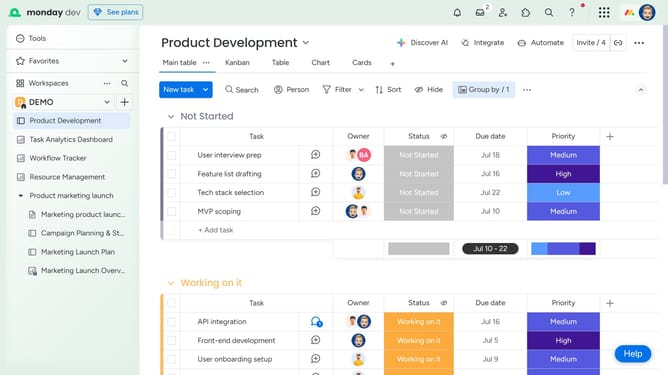
Changing the time and date format in Monday.com can greatly benefit teams by fostering clarity and consistency. Customized formats allow users to align with specific regional preferences or company standards, ensuring everyone is on the same page.
This feature enhances communication and reduces misunderstandings, making sure deadlines and schedules are clearly understood by everyone involved, thus streamlining overall workflow and efficiency.
Last update