How to connect a widget to a board in Monday.com
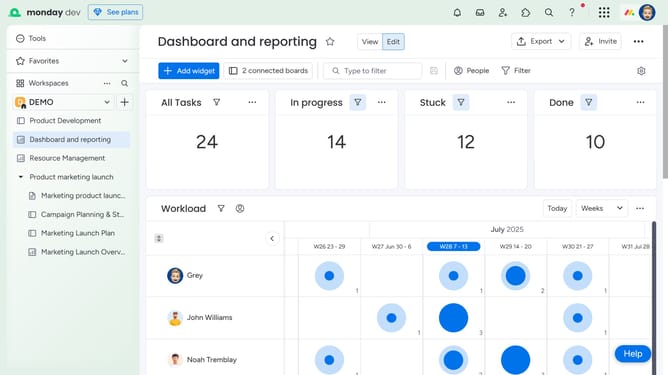
Here is how to connect a widget to a board in monday.com
- First locate the widget you want to connect on the dashboard
- Next click on the "More options" button (three dots) in the top-right of the widget
- Click on "Settings" in the widget dropdown menu
- Then click on the "Boards" dropdown in the Widget settings panel
- A list of boards connected to the dashboard will appear, these are boards already linked to the entire dashboard
- To connect a board, click the checkbox next to its name
- To add new boards not yet connected to the dashboard, click the “+ Add boards to this widget” button
- Then, in the Add Boards modal, locate and select the boards you want to connect to the widget
- Finally, click the “Done” button to confirm your selection
- The widget will now display data from the newly connected boards
Why should you connect a widget to a board in Monday.com
Monday.com is an intuitive work operating system designed to manage any team and any project.
By connecting a widget to a board in Monday.com, users can enhance their boards with dynamic, real-time data displays that drive decision-making.
This feature enriches the user experience by providing custom insights and improved visualization, tailored to suit individual workflow needs.
The seamless integration of widgets into boards maximizes productivity and fosters collaboration across teams, encouraging a more efficient and informed work environment.
Last update