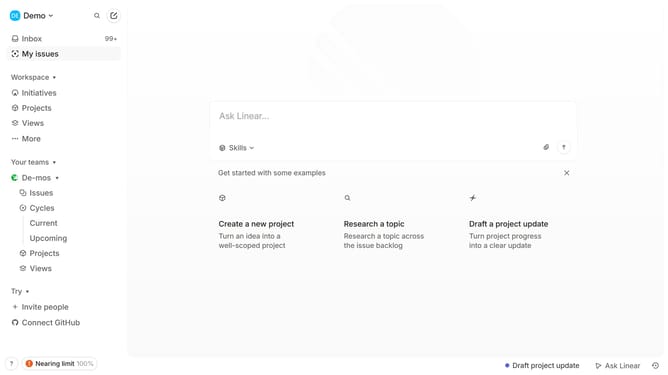
How to update username of a member in Linear
Here is how to update username of a member in linear
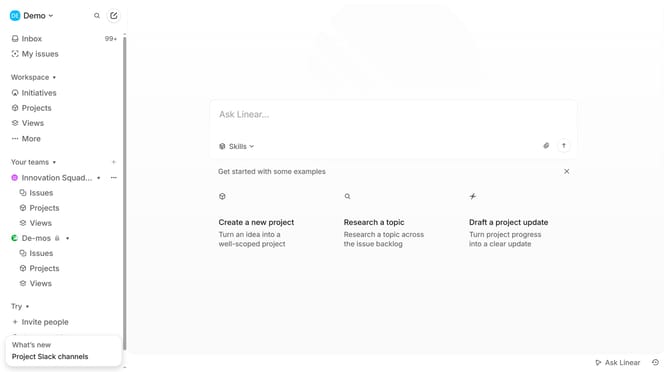
- First click on the workspace dropdown with the text "Demo" in the header
- Then select "Invite and manage members" from the dropdown menu
- Next click on the three dots icon next to a member's name in the header
- After that, select "Update username..." from the menu
- Then type in the new username in the input field
- Finally click on the "Update" button
Why should you update username of a member in Linear
Linear is an efficient tool for team collaboration, streamlining project management and task tracking.
One of its standout features is the ability to update a member's username. This ensures that user identification stays relevant as team dynamics evolve.
Keeping usernames current improves communication, as team members can quickly and accurately recognize each other within the system. This feature enhances team cohesion and workflow efficiency as names can reflect current roles or personal preferences.
Ultimately, it contributes to creating a personalized and organized environment for your team.
Last update