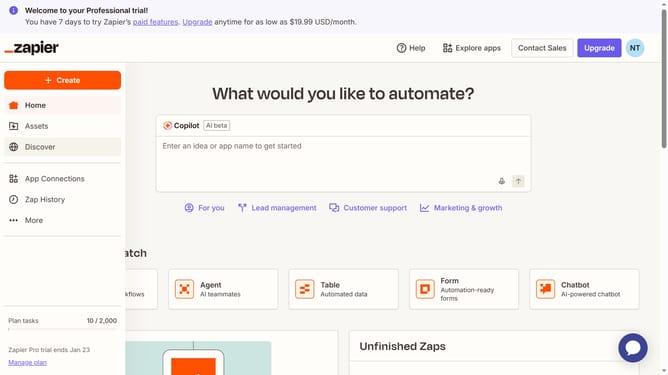
How to update tax ID in the free plan in Zapier
Here is how to update tax id in the free plan in zapier
- First click on the profile icon in the top right corner of the header
- Then click on "Settings" option in the dropdown menu
- Next click on "Billing and usage" option in the left sidebar
- Click on "Billing settings"
- Then scroll down and click on the "Update Info" button in the Invoice information section
- Next click on the "Edit" button in the Billing profile section
- Then click on the "Tax ID (ex. VAT or GST)" input field in the modal dialog and enter the new tax ID number in the input field
- Finally click on the "Save" button in the modal dialog
Why should you update tax ID in the free plan in Zapier
Zapier offers seamless task automation across diverse apps, enhancing productivity effortlessly.
Updating your tax ID in Zapier’s free plan is straightforward and convenient, ensuring your billing information remains accurate and compliant.
By regularly updating your tax details, you minimize financial discrepancies and streamline the bookkeeping process, which is crucial for maintaining financial health and transparency.
This feature empowers users to manage their tax information independently, reinforcing Zapier’s commitment to user-friendly solutions.
Last update