How to trigger an event when a recipient auto responds in DocuSign
Here is how to trigger an event when a recipient auto responds in docusign
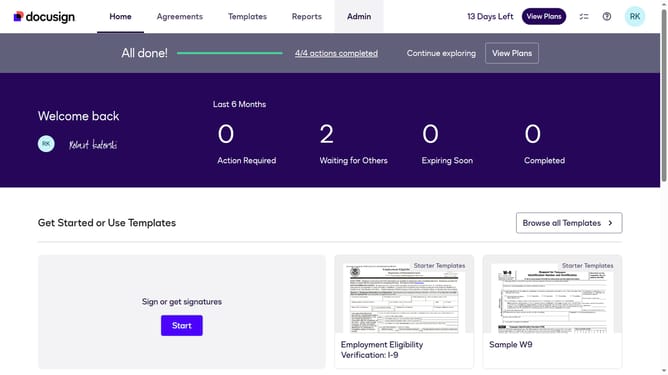
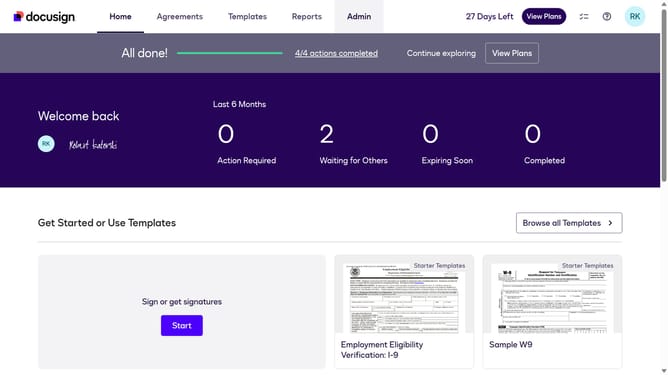
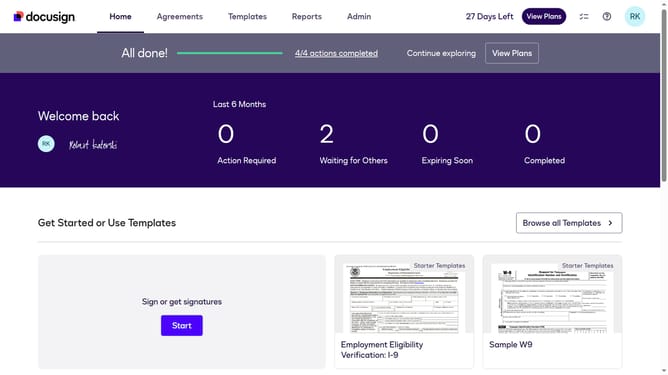
- First click on the "Admin" link in the top navigation menu
- Then scroll down the page to view the sidebar menu options
- Next click on the "Connect" option in the sidebar under the "INTEGRATIONS" section
- Then click on the "Actions" dropdown button next to a custom configuration you want to enable a trigger event in the configurations table
- Next select the "Edit" option from the dropdown menu
- Then scroll down the page to view the "Trigger Events" section
- Next click on the "Envelope and Recipients" accordion to expand it
- Then check the "Recipient Auto Responded" checkbox under "Recipient Events"
- Next scroll down to the bottom of the page to view the save button
- Finally click on the "Save Configuration" button to save the changes
Why should you trigger an event when a recipient auto responds in DocuSign
DocuSign is a leading platform for electronic signatures that streamlines the signing process for businesses worldwide.
With the feature to trigger an event when a recipient auto responds, DocuSign enhances workflow automation by instantly notifying teams of recipient actions.
This capability allows for immediate follow-ups and efficient task management, ensuring no important interactions slip through the cracks.
Utilizing this feature optimizes responsiveness and elevates communication efficiency, fostering a seamless document handling experience.
Last update