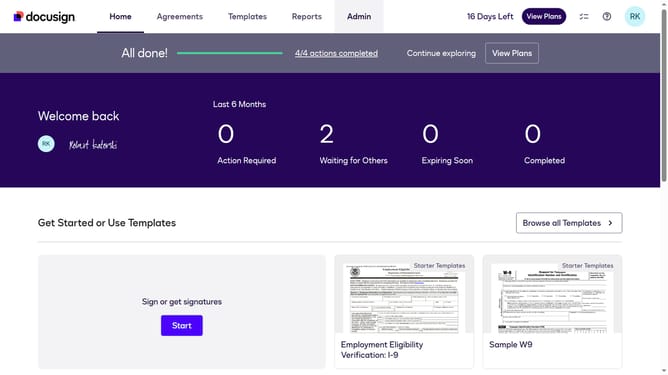
How to show the users column in permission profiles in DocuSign
Here is how to show the users column in permission profiles in docusign
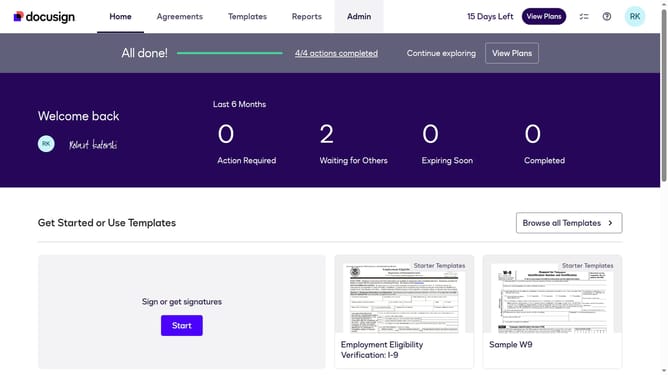
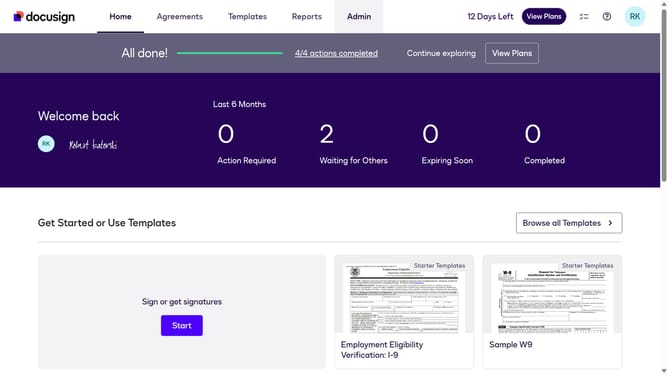
- First click on the "Admin" link in the top navigation menu
- Then scroll down the page to view the sidebar menu options
- Next click on "Permission profiles" under the USERS AND GROUPS section
- Then click on the settings icon (gear icon) in the top right area of the Permission Profiles table
- Next click on the "Users" checkbox in the "Permission Profile Column Setting" dialog to select it
- Finally click on the "Apply" button to save the column settings
Why should you show the users column in permission profiles in DocuSign
DocuSign is a leading platform that simplifies digital document management and e-signatures.
One valuable feature is the ability to display the users column in permission profiles. This feature enhances user management by offering a clear view of which users have specific permissions.
Utilizing the users column boosts organizational efficiency, ensuring transparency and easy auditing of user roles, which is critical for maintaining steady workflow management and informed decision-making in collaborative environments.
Last update