How to trigger events when a template is deleted in DocuSign
Here is how to trigger events when a template is deleted in docusign
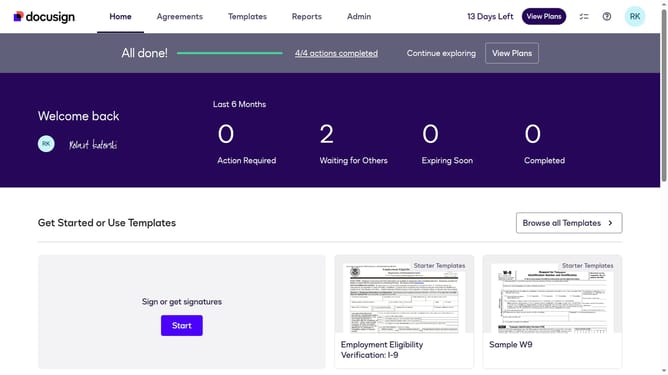
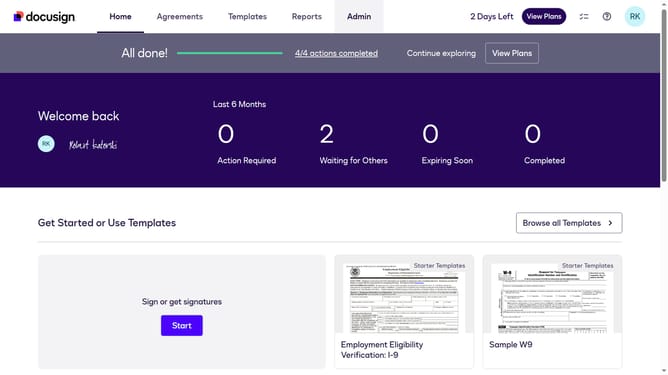
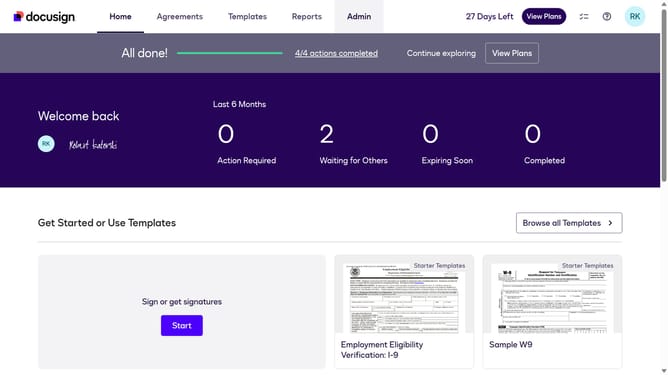
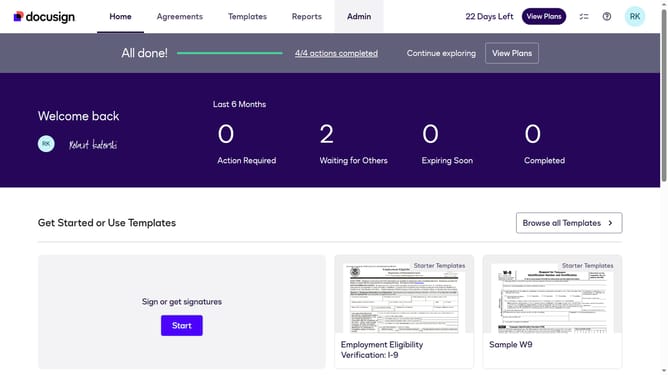
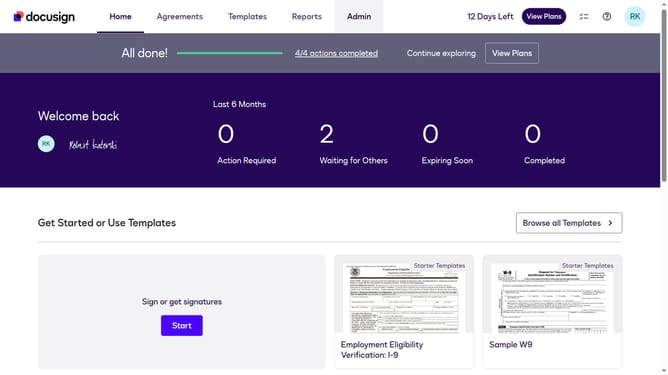
- First click on the "Admin" link in the top navigation menu
- Then scroll down the page to view more content
- Next click on the "Connect" option in the left sidebar under the INTEGRATIONS section
- Then click on the "Actions" dropdown button next to a custom configuration in the configurations table
- Next select the "Edit" option from the Actions dropdown menu
- Then scroll down the page to view the Trigger Events section
- Next click on the "Template" dropdown to expand the template trigger events
- Then click on the "Template Deleted" checkbox to enable this trigger event
- After that scroll down to the bottom of the page to view the save options
- Finally click on the "Save Configuration" button to save the changes
Why should you trigger events when a template is deleted in DocuSign
DocuSign is a leading electronic signature platform designed to streamline the signing process for documents securely and efficiently.
With DocuSign, triggering events when a template is deleted can provide important notifications and automations that keep your workflows up to date.
This feature enhances business operations by ensuring that all relevant stakeholders are informed about template changes, reducing errors and maintaining consistency across your documentation processes.
Utilizing event triggers not only increases transparency but also empowers teams to act swiftly in response to changes.
Last update