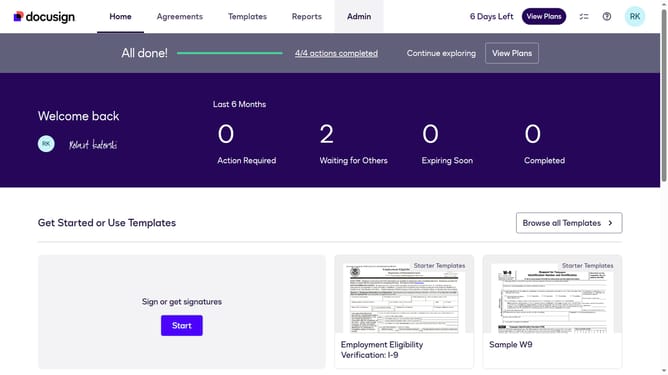
How to show the permission profile column under the users section in DocuSign
Here is how to show the permission profile column under the users section in docusign
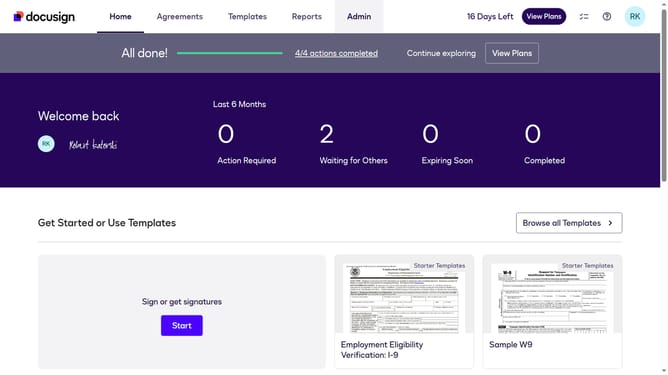
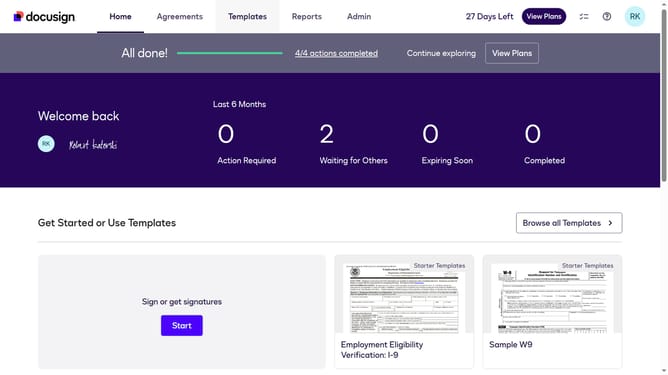
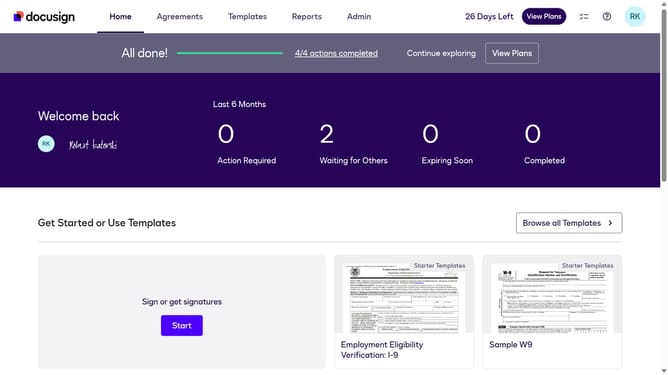
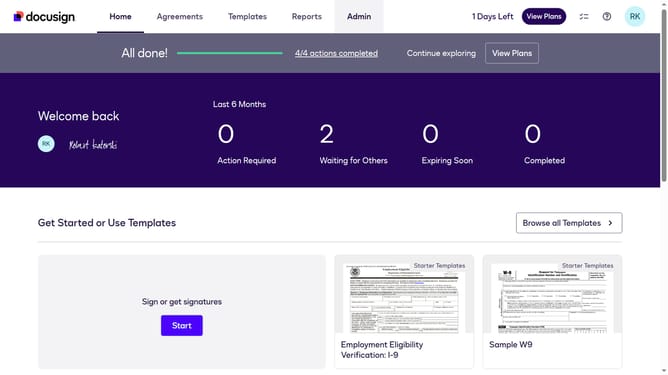
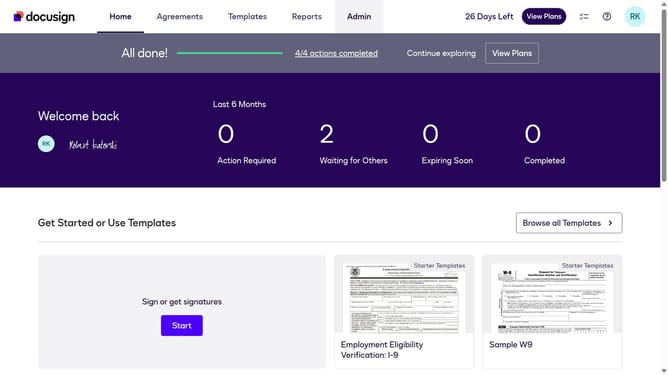
- First click on the "Admin" link in the top navigation menu
- Then click on the "Users" option in the left sidebar under the "USERS AND GROUPS" section
- Next click on the "Users" link in the left sidebar navigation
- Then click on the settings icon button in the top right corner of the users table
- Next click on the "Permission Profile" checkbox in the column visibility modal
- Finally click on the "Apply" button to confirm the column visibility changes
Why should you show the permission profile column under the users section in DocuSign
DocuSign is an innovative tool designed to streamline electronic signatures and manage agreements digitally.
To enhance user management, the permission profile column in the users section of DocuSign offers pivotal insights into each user's access level.
By displaying this column, organizations can swiftly oversee and adjust user permissions, ensuring secure and appropriate access to documents.
This feature promotes transparency and enhances administrative efficiency, contributing to a more organized and secure workflow.
Last update