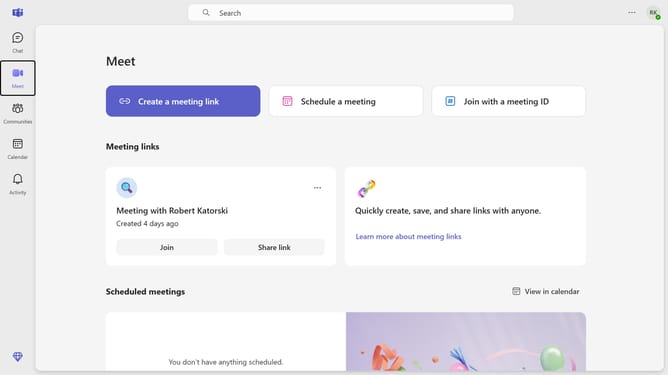
How to show likes and reactions in activity only in Microsoft Teams
Here is how to show likes and reactions in activity only in microsoft teams
- First click on the "Options" button in the top-right corner of the window
- Then click "Settings" from the dropdown menu
- In the settings menu, click on the "Notifications and activity" option in the left sidebar
- Scroll down in the Notifications and activity settings menu
- Select "Show in Activity and banner" from the dropdown menu for likes and reactions notifications
- Choose "Show in Activity" from the dropdown menu in the Meetings section
Why should you show likes and reactions in activity only in Microsoft Teams
Microsoft Teams is the ultimate collaboration hub that seamlessly integrates people, conversations, and content.
The feature to show likes and reactions in activity only in Microsoft Teams enhances user engagement by allowing you to track feedback more effectively within your activity feed. By highlighting these interactions, it ensures that the appreciation for your contributions is clearly visible without overwhelming you with notifications.
Using this feature, you can swiftly gauge the overall sentiment of your posts or comments in a consolidated view, making it easier to prioritize responses. This promotes a more interactive and efficient communication flow within your team, ensuring that everyone feels acknowledged and valued.
Last update