Mural
Mural is a visual collaboration platform for brainstorming, planning, and running remote workshops on a shared canvas.
Website
Industry
Design
Share this article:

How to share access and add a message of a file in Mural

Here is how to share access and add a message of a file in mural

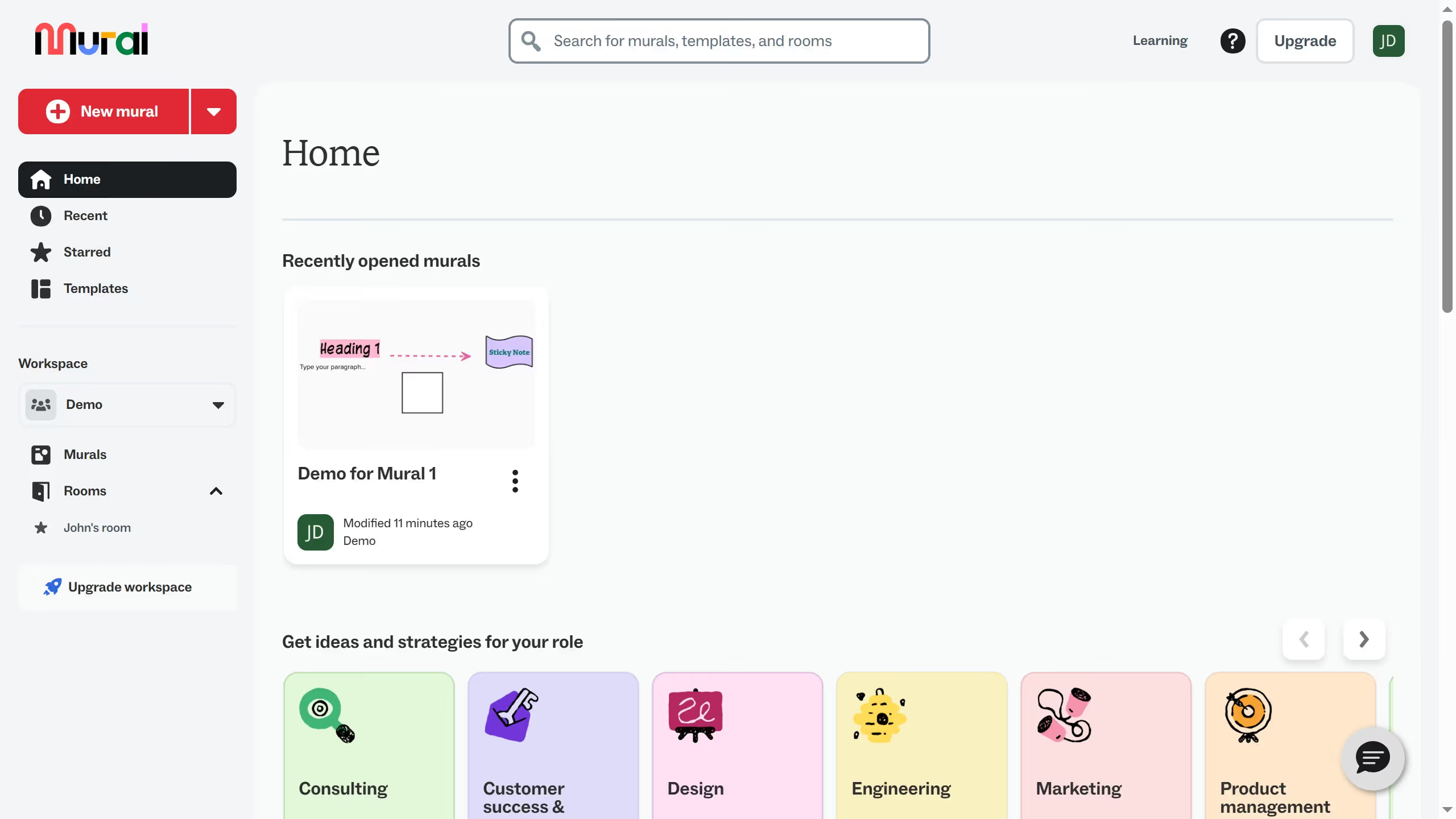
  1. First click on "Murals" in the sidebar
  2. Then click on the three dot menu of the file you want to share to open the context menu
  3. Next click on "Share" option from the menu
  4. Then click in the email input field and enter the recipient's email address
  5. Next click on "Include a message" checkbox to enable the message field
  6. Then click in the message text area and type your message
  7. Finally click on "Send invites" button to share the mural

Create your own interactive guide with Guideflow

Why should you share access and add a message of a file in Mural

Mural is a dynamic digital workspace empowering teams to co-create and innovate visually.

The ability to share access to files in Mural enhances collaboration by allowing team members to seamlessly engage with shared content. This connectivity fosters an inclusive environment where every stakeholder can contribute insights and ideas easily.

Adding a message to a shared file further personalizes collaboration. It provides context, initiates discussions, and sparks creativity, all of which accelerate the decision-making process and align everyone towards common goals.

Last update
March 13, 2026
Cursor MariaA cursor points to a button labeled "James."

Create your first demo in less than 30 seconds.