How to set the time zone for date signed to account default in DocuSign
Here is how to set the time zone for date signed to account default in docusign
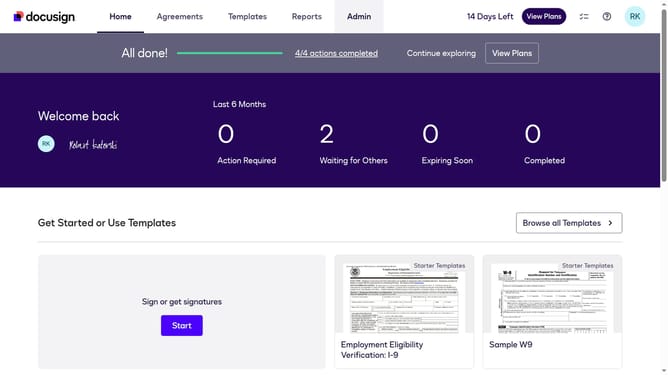
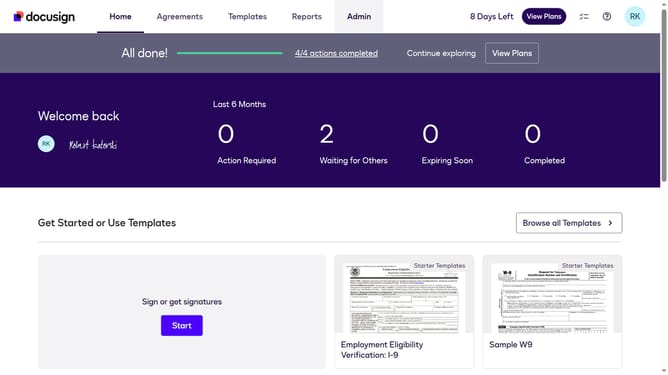
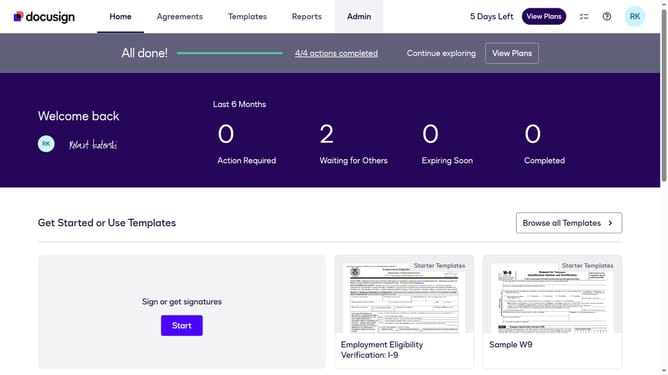
- First click on the "Admin" link in the top navigation menu
- Then click on "Regional Settings" in the left sidebar under the ACCOUNT section
- Next scroll down to view more options section
- Then click on the "Account default" radio button to select it for the Time Zone setting
- Finally click on the "Save Changes" button at the bottom of the page
Why should you set the time zone for date signed to account default in DocuSign
DocuSign streamlines the process of managing electronic agreements efficiently and securely.
Setting the time zone for the date signed to account default in DocuSign ensures consistency across all your documents, which is vital for maintaining accurate records. With this feature, discrepancies in time data are minimized, providing clearer context and enhanced reliability.
Utilizing a default time zone spares you from manually selecting a time zone for each signing event, saving valuable time and reducing errors. This seamless adjustment enhances the overall operational effectiveness and fortifies the trustworthiness of your documents.
Last update