How to set the default view of document to open only in desktop view in DocuSign
Here is how to set the default view of document to open only in desktop view in docusign
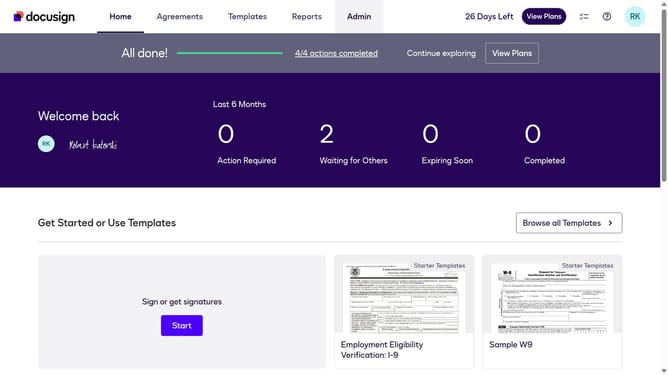
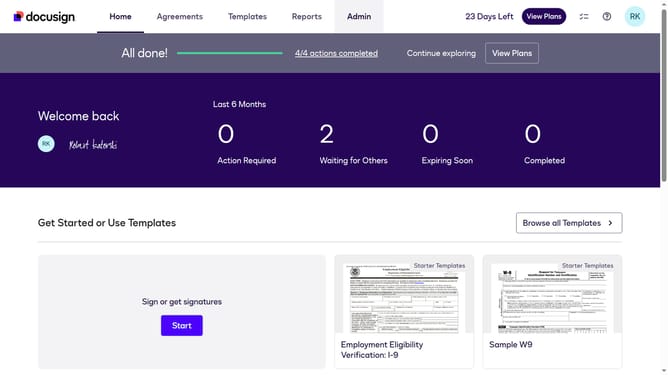
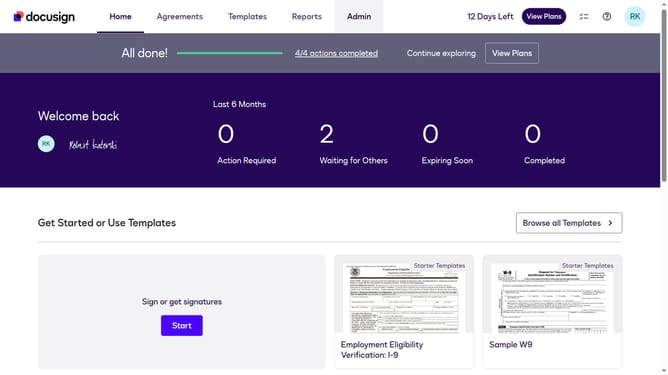
- First click on the "Admin" link in the top navigation menu
- Then scroll down the page to view more options in the sidebar
- Next click on "Signing Settings" in the left sidebar under the "SIGNING AND SENDING" section
- Then click on the "Set the default view to open in" dropdown menu and select "Open Only in Desktop View"
- Scroll down the page to view additional settings options
- Finally click on the "Save Changes" button to apply the configuration
Why should you set the default view of document to open only in desktop view in DocuSign
DocuSign is a leading digital transaction platform that simplifies signing documents online securely and efficiently.
Setting the default view of documents to open exclusively in desktop mode brings several advantages to your workflow. This feature ensures a consistent viewing experience, especially beneficial for handling intricate documents that demand a larger screen for better readability.
By focusing on desktop view as default, users can leverage the full functionality of DocuSign, enhancing productivity and reducing errors often caused by smaller interfaces. This approach supports a seamless and professional document management process.
Last update