How to stop triggering events when a workflow fails in DocuSign
Here is how to stop triggering events when a workflow fails in docusign
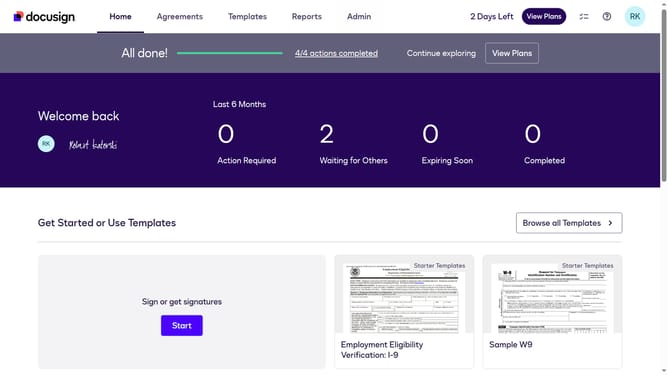
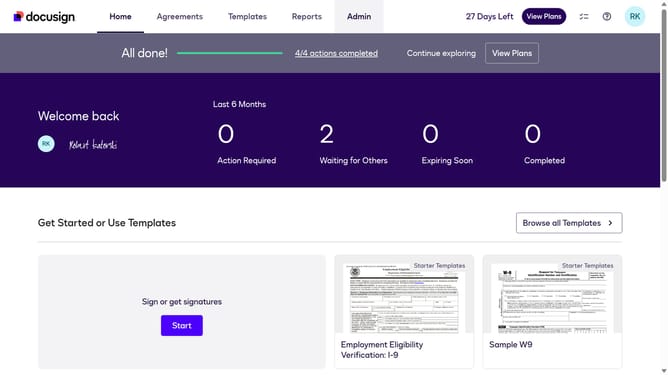
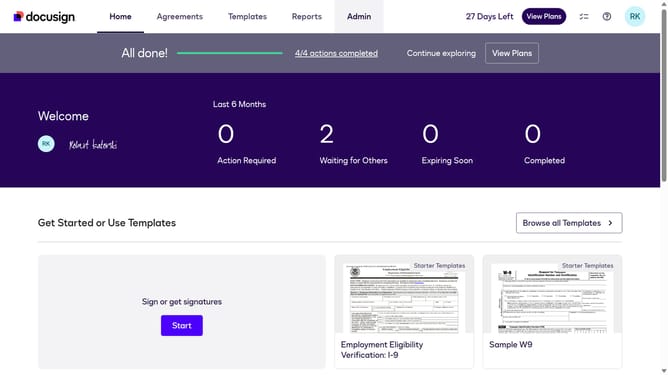
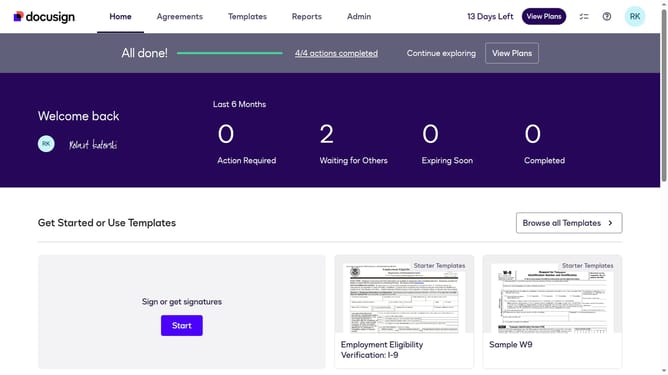
- First click on the "Admin" link in the top navigation menu
- Then scroll down the page to view additional content in the main area
- Next click on the "Connect" option in the left sidebar under the "INTEGRATIONS" section
- Then click on the "Actions" dropdown button next to a custom configuration in the configurations table
- Next select the "Edit" option from the Actions dropdown menu
- Then scroll down the page to view more configuration settings
- Next click on the "Maestro" section to expand it and view workflow options
- Then uncheck the "Workflow Failed" checkbox in the Maestro section
- Scroll down to the bottom of the configuration page
- Finally click on the "Save Configuration" button to save the changes
Why should you stop triggering events when a workflow fails in DocuSign
DocuSign is a leading platform that simplifies digital document management through secure electronic signatures and workflows.
An invaluable feature of DocuSign is the ability to halt triggering events when a workflow fails. This ensures that unnecessary actions are not initiated due to errors, maintaining system efficiency.
By stopping event triggers in faulty workflows, users can prevent potential confusion and save time. This feature also allows for smoother corrective measures, preserving the integrity of the process.
Adopting this approach contributes to a more reliable and efficient document handling experience, enhancing overall workflow management.
Last update