How to set divider height in a registration form in Jotform
Here is how to set divider height in a registration form in jotform
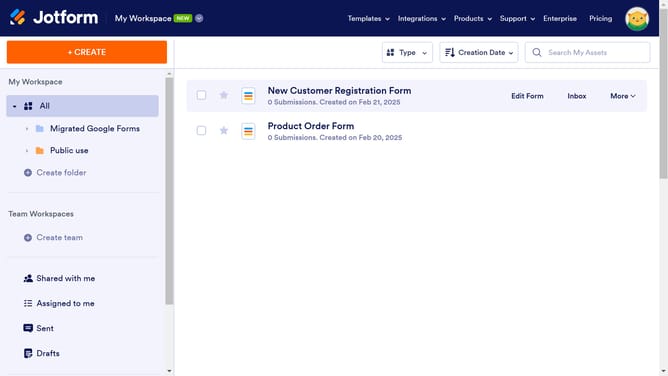
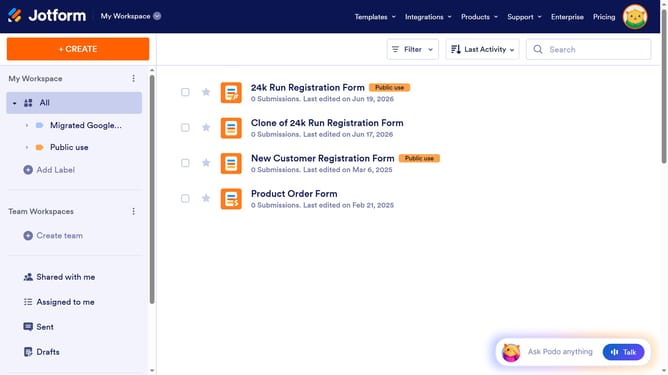
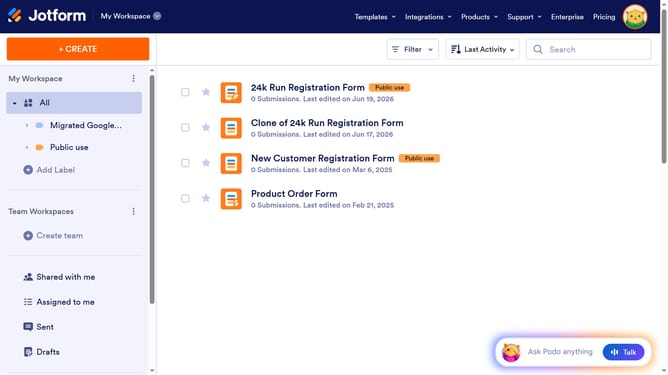
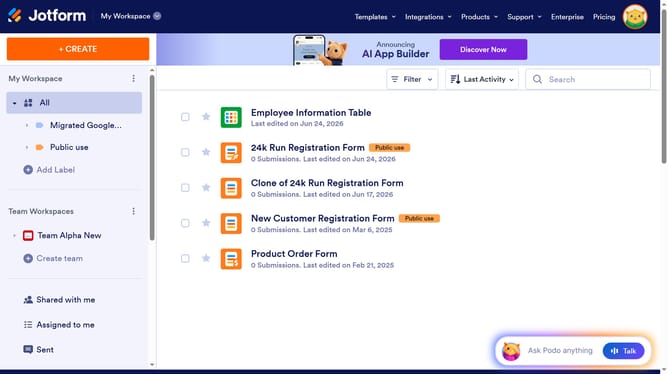
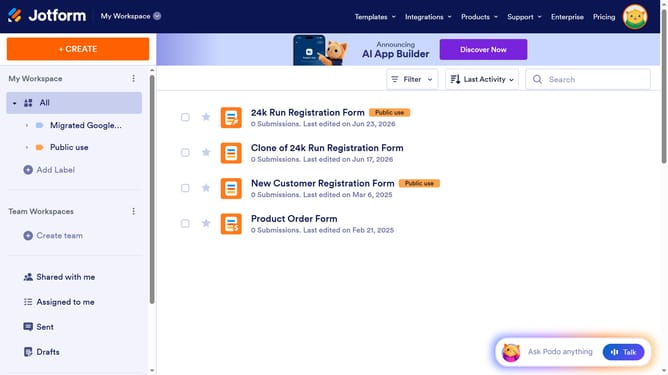
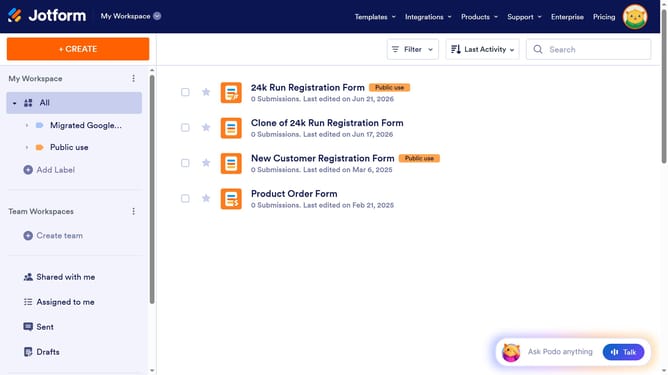
- First click on "All" in the left sidebar
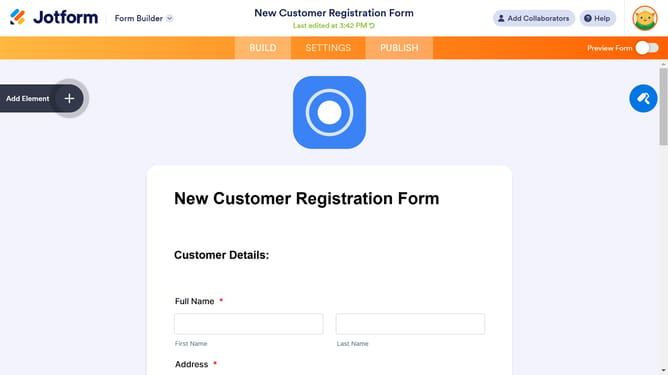
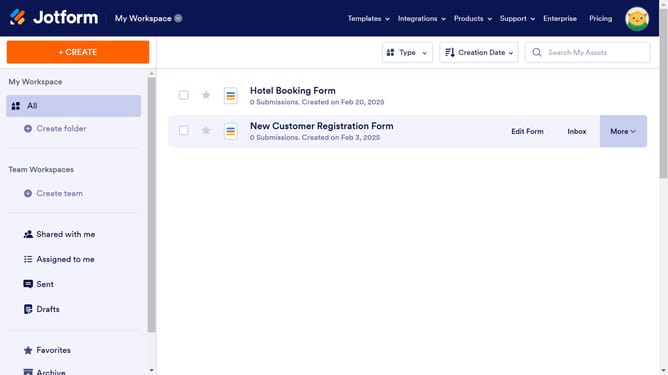
- Next click on "Edit Form" button at the right side of the form name that you want to manage
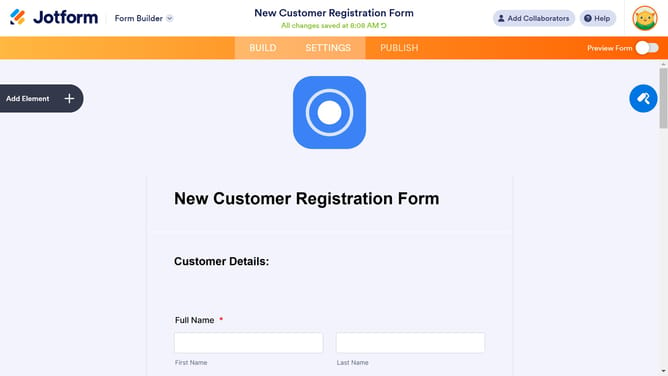
- Then click on the divider line in the form builder
- Then click on the "Properties" button in the right sidebar
- Finally click into the "Divider Height" input field and enter a value
Why should you set divider height in a registration form in Jotform
Jotform is an innovative online form builder that simplifies data collection and management.
Setting the divider height in a registration form can enhance visual clarity, ensuring your form has a neat and organized appearance. This customization feature allows you to emphasize sections and improve user experience by making the form easier to navigate.
Such attention to aesthetics in your form not only makes information sequencing clearer but also keeps users engaged, ultimately leading to more completed registrations.
Last update