How to set column width in a table field in a registration form in Jotform
Here is how to set column width in a table field in a registration form in jotform
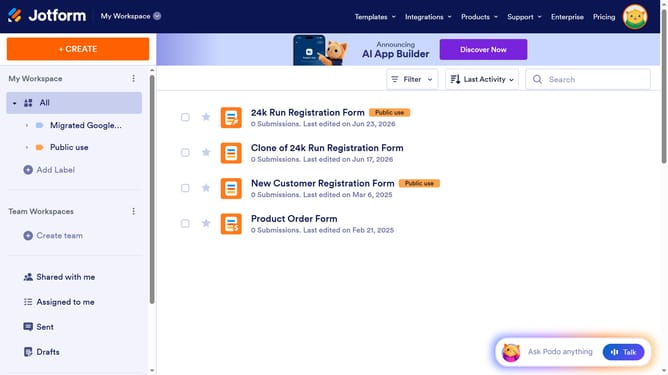
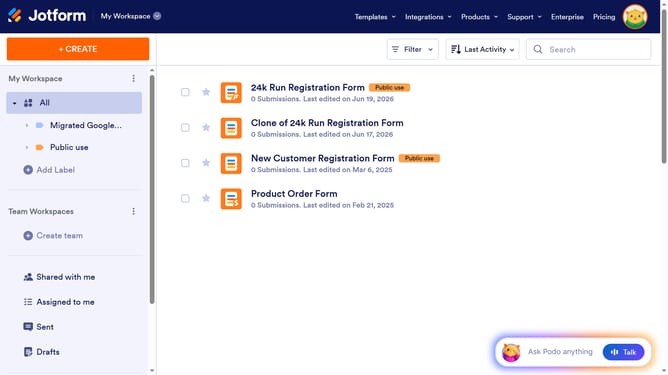
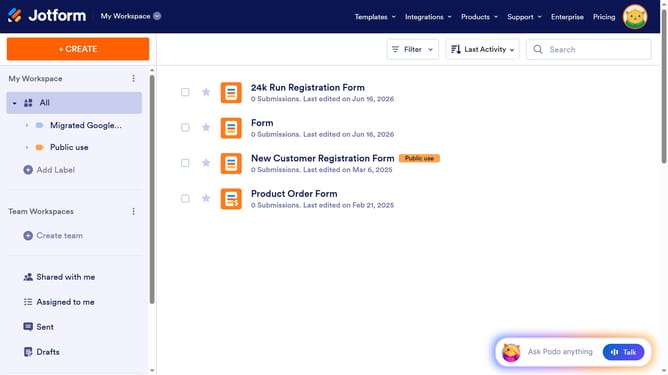
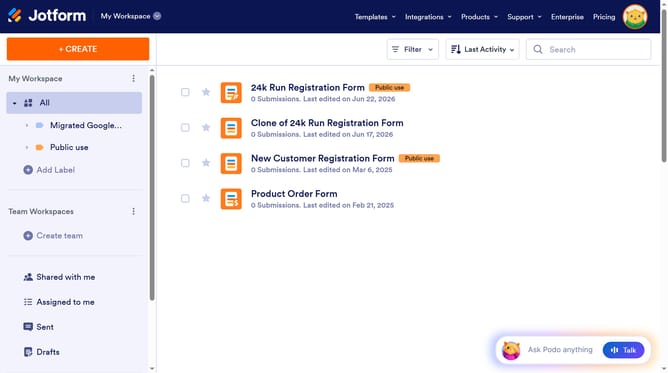
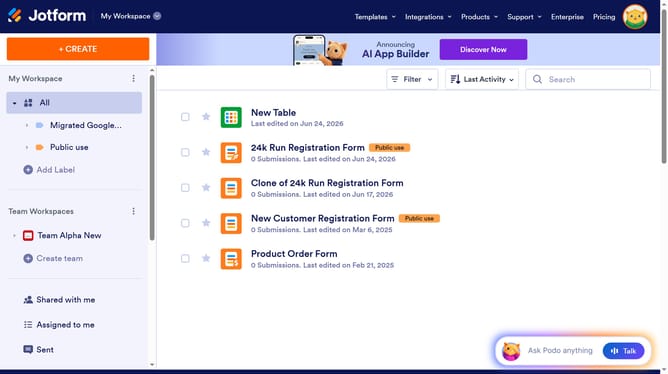
- First click on the "All" item in the left sidebar
- Then click on the "Edit Form" button in the header
- Then click on the table input field in the form builder
- Then click on the gear icon to open the input table properties
- Next, select the "Options" tab in the input table properties menu
- Finally, click on the "Column Width" input field and enter a value
Why should you set column width in a table field in a registration form in Jotform
Jotform is a versatile online form builder that simplifies data collection and organization.
Setting the column width in a table field within a registration form in Jotform is a straightforward feature that enhances the readability and presentation of your data. By customizing column width, you ensure that all information neatly fits, preventing any cut-off text and enhancing the visual appeal.
This feature is particularly beneficial for maintaining a professional appearance in client-facing forms, facilitating easier data interpretation and ensuring a seamless registration process for users.
Last update