How to set auto-navigation to page then navigate all fields in DocuSign
Here is how to set auto-navigation to page then navigate all fields in docusign
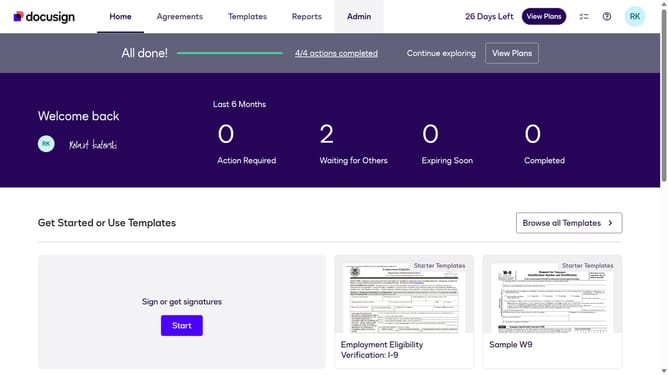
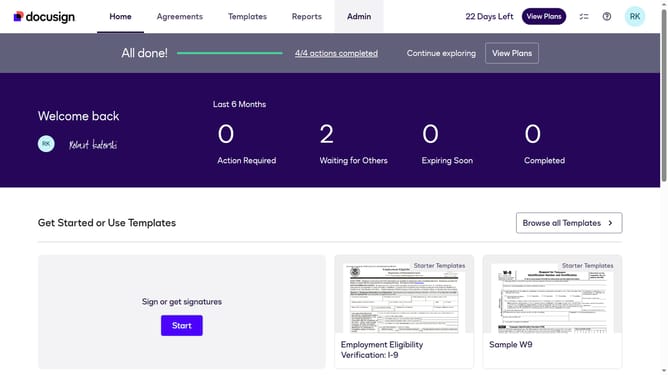
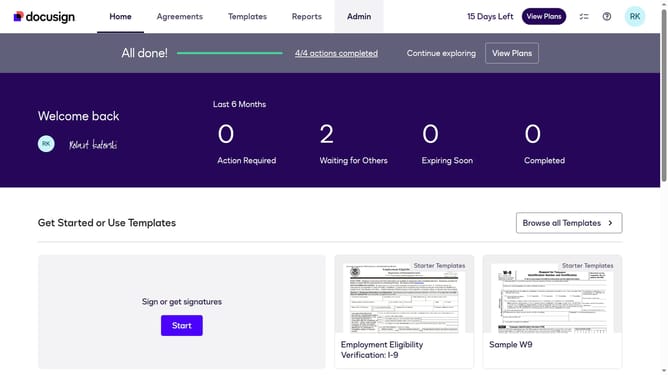
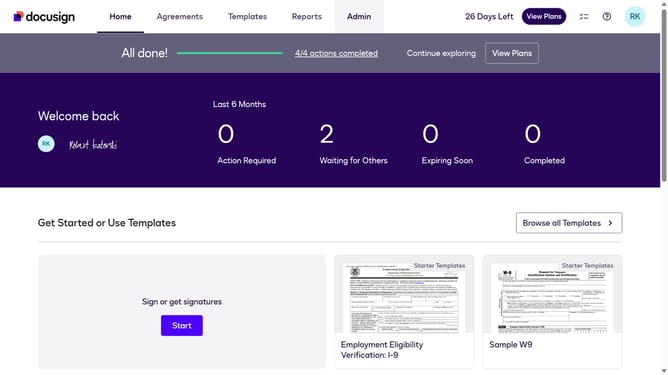
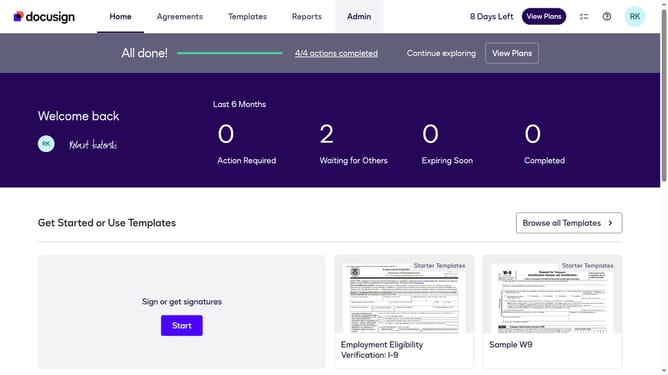
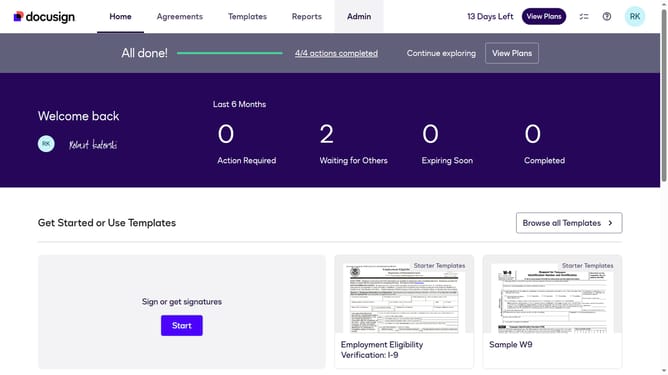
- First click on the "Admin" tab in the top navigation menu
- Then scroll down the page to view more admin settings
- Next click on "Signing Settings" in the left sidebar under the "SIGNING AND SENDING" section
- Then click on the "Auto-Navigation" dropdown menu and select "Page then Navigate all fields"
- After that, scroll down to the bottom of the page to view additional settings
- Finally click on the "Save Changes" button to apply the configuration changes
Why should you set auto-navigation to page then navigate all fields in DocuSign
DocuSign is an innovative platform that simplifies the electronic signature process for documents.
One standout feature is the auto-navigation capability, which ensures a seamless progression through document fields.
By setting auto-navigation, users can effortlessly move from one field to the next, minimizing errors and saving time.
This feature enhances user experience by creating a more efficient workflow, leading to faster and more accurate document completion.
Last update