How to set auto-navigation to navigate required fields in DocuSign
Here is how to set auto-navigation to navigate required fields in docusign
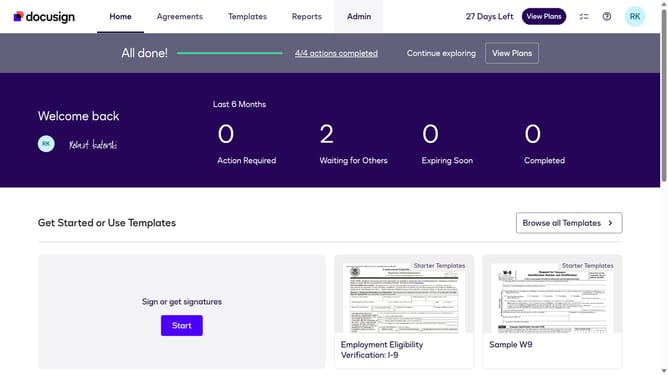
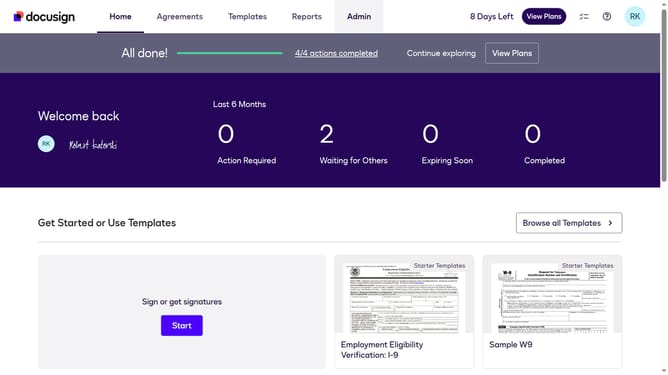
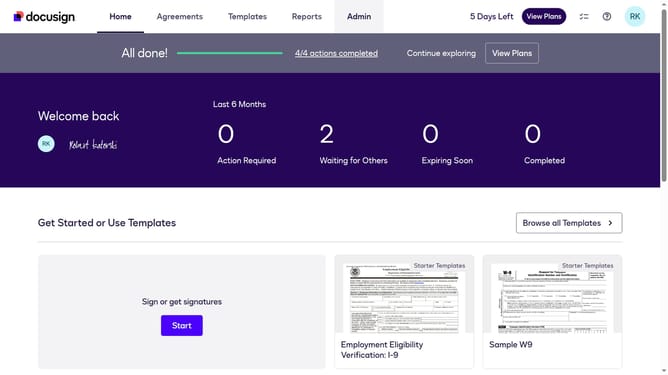
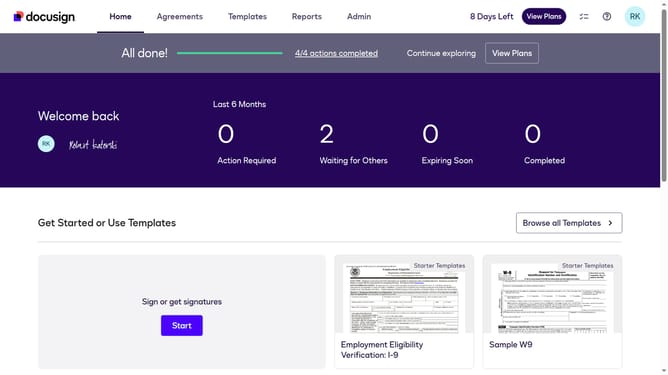
- First click on the "Admin" tab in the top navigation menu
- Then scroll down the page to view additional admin settings
- Next click on "Signing Settings" in the left sidebar under the "SIGNING AND SENDING" section
- Then click on the "Auto-Navigation" dropdown menu and select "Navigate required fields" option
- After that, scroll down the page to view more options
- Finally click on the "Save Changes" button to apply the modified signing settings
Why should you set auto-navigation to navigate required fields in DocuSign
DocuSign, a leader in digital document management, facilitates electronic signatures for fast, efficient transactions.
Setting auto-navigation to pinpoint required fields enhances user experience by systematically guiding them through document completion.
This feature simplifies filling out forms, ensuring no essential fields are missed, which streamlines workflows and saves time.
With auto-navigation, users experience increased accuracy and productivity, fostering a smoother transaction process.
Last update