How to set a stop date for sending a mobile carousel in Intercom
Here is how to set a stop date for sending a mobile carousel in intercom
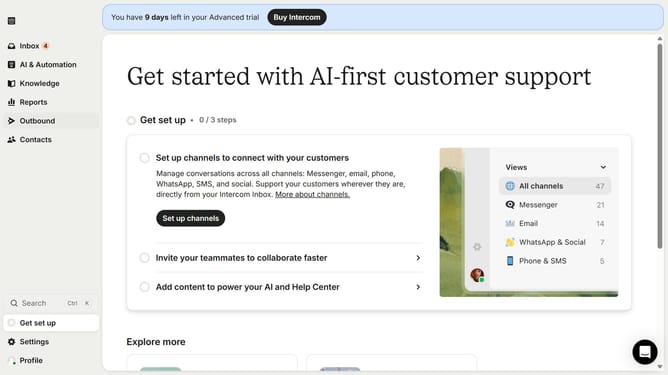
- First click on "Outbound" in the left sidebar menu
- Then click on "New message" button in the top-right corner of the Messages section
- Select "Mobile Carousel" template
- Click on "Frequency and scheduling" dropdown menu to configure message delivery settings
- Select "Custom date" option under the Stop sending section
- Finally select the stop date and time in the custom date picker
Why should you set a stop date for sending a mobile carousel in Intercom
Intercom is a versatile platform designed to streamline communication between businesses and their customers.
Setting a stop date for sending a mobile carousel in Intercom is a valuable feature that allows you to manage customer engagement efficiently.
By defining a stop date, you can control the timing of your messages, ensuring they are sent only during relevant periods and not beyond their intended timeframe.
This enhances user experience and helps maintain a focused and timely communication strategy, aligning perfectly with marketing goals.
Last update