How to set a start and end date for a monthly running schedule for Google Form scenario in Make
Here is how to set a start and end date for a monthly running schedule for google form scenario in make
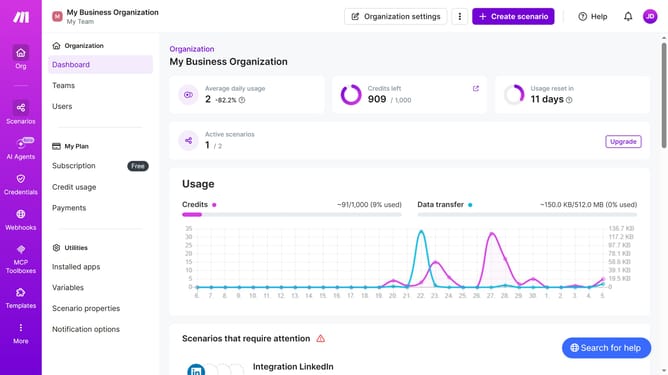
- First click on "Scenarios" in the left sidebar
- Then click on the "Google Forms" scenario in the main panel
- Next click on the "Options" dropdown
- Then select "Scheduling" from the opened dropdown
- After that, toggle the "Advanced settings" switch to the ON position
- Click on the "Start" date input field
- Then select a date from the calendar
- Click on the "End" date input field
- Then select a date from the calendar
- Finally click on the "Save" button
Why should you set a start and end date for a monthly running schedule for Google Form scenario in Make
Make is a powerful platform designed to automate tasks and streamline workflows effortlessly.
Setting a start and end date for a monthly running schedule in Make, particularly for a Google Form scenario, enhances your planning and organizational capabilities. This feature ensures that your form collection aligns perfectly with specific time-bound projects, improving efficiency and focus.
Utilizing this feature allows for seamless data collection, ensuring all responses are garnered within a specified period. It simplifies project management, allowing you to concentrate on analyzing results and making informed decisions without the constant need to monitor the schedule.
Last update