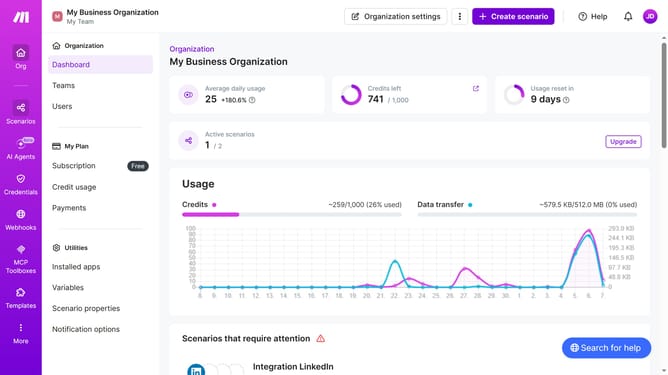
How to set time for a monthly running schedule for Trello scenario in Make
Here is how to set time for a monthly running schedule for trello scenario in make
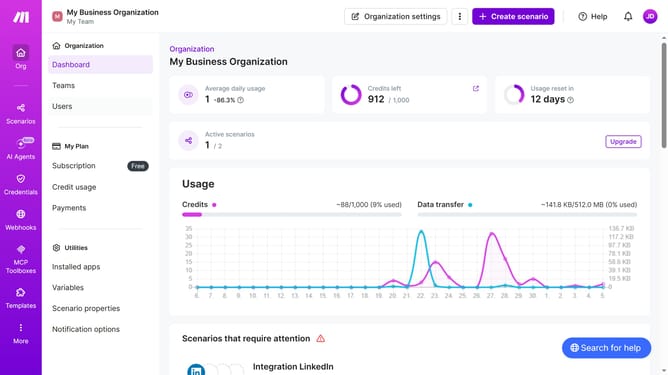
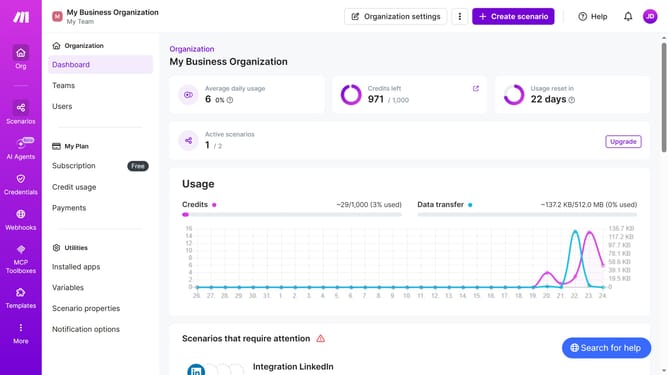
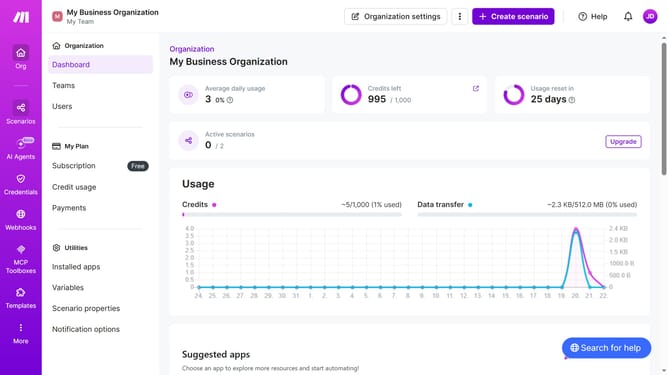
- First, click on "Scenarios" in the left sidebar
- Then, click on the Trello scenario to open its details
- Next, click on the "Options" button
- After that, select "Scheduling" from the dropdown men
- Then, click the time field and input a value into the Time field
- Finally, click on the "Save" button
Why should you set time for a monthly running schedule for Trello scenario in Make
Make is a powerful automation platform designed to streamline workflows and enhance productivity.
Setting a time for a monthly running schedule for your Trello scenario in Make is an efficient way to ensure tasks are consistently managed without manual intervention. This feature allows you to automate routine processes, freeing up time for more strategic activities.
By utilizing this scheduling feature, users can optimize their project management, reduce the risk of oversight, and maintain a seamless workflow that aligns with their monthly objectives.
Last update