How to send a Workflow during a specific time in Intercom
Here is how to send a workflow during a specific time in intercom
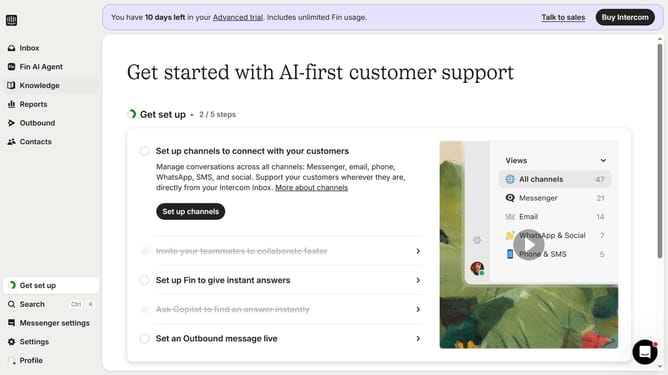
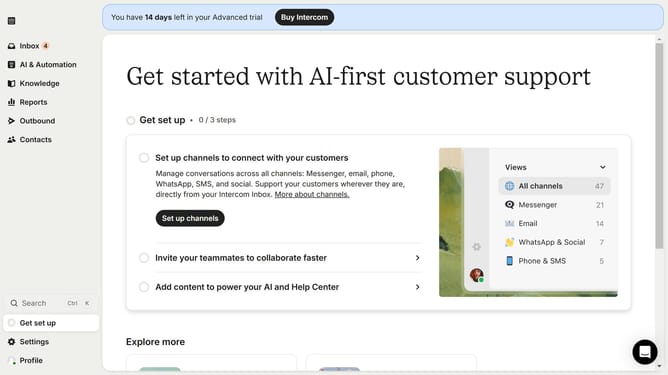
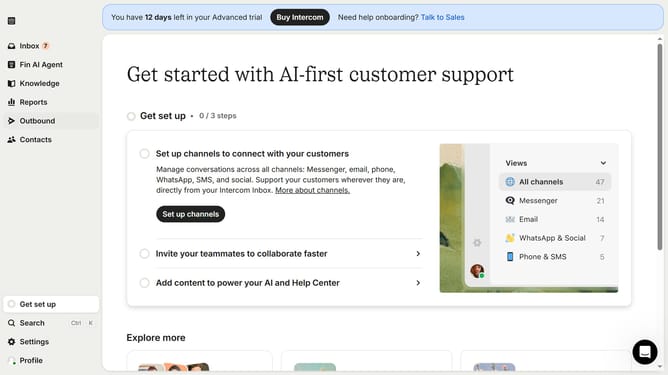
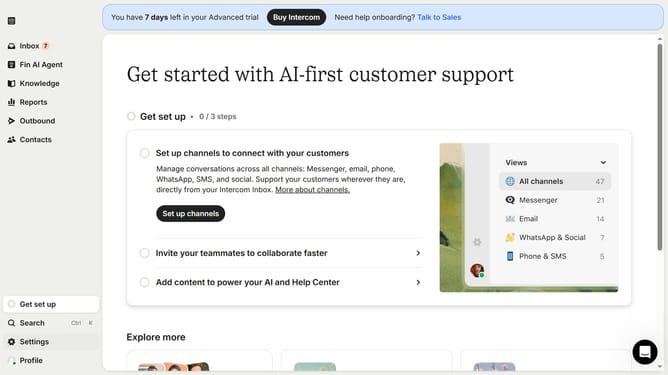
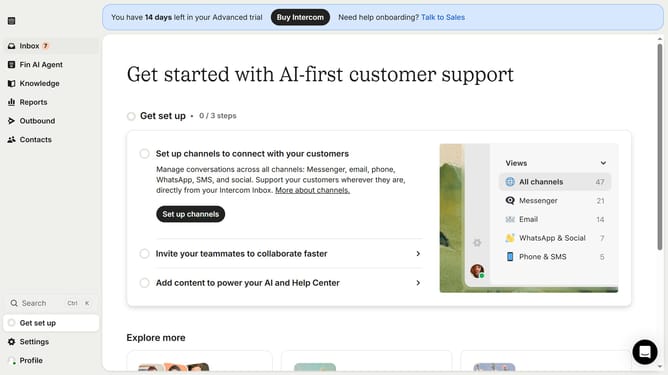
- First click on "Outbound" in the left sidebar menu
- Then click on "New message" button in the top-right corner
- Next click on "Workflow" template from the available options
- In the workflow settings modal, click on the scheduling toggle switch to enable scheduling
- Under the scheduling section, click the dropdown to open time settings
- Click on "At custom times" option to access the custom scheduling calendar
- Finally click on the time schedule grid to set specific delivery times
Why should you send a Workflow during a specific time in Intercom
Intercom is a dynamic communication platform designed to transform how businesses interact with their customers.
The ability to send a workflow during a specific time in Intercom provides tremendous flexibility in customer communication. By scheduling workflows strategically, businesses can ensure their messages hit the right audience at exactly the right moment, enhancing engagement.
This feature also allows for automation without losing the personal touch, optimizing team efficiency while ensuring that interactions remain timely and relevant.
Last update