How to add image in an email autoreply in Intercom
Here is how to add image in an email autoreply in intercom
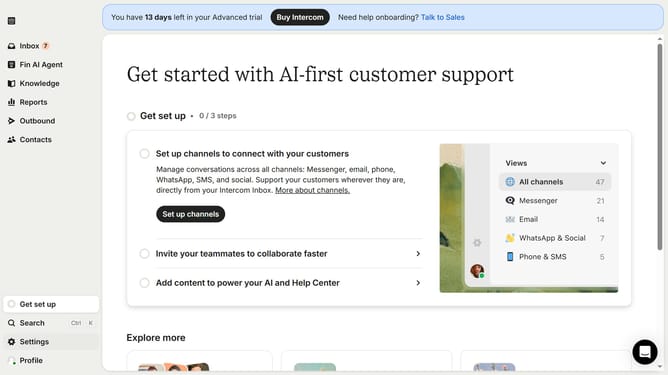
- First click on "Settings" in the left sidebar
- Then click on "Channels" in the left sidebar
- Next click on "Email" in the left sidebar
- Then click on "Email settings" tab
- Then click on "Configure auto reply" button
- Then click on the plus icon to add a new element
- Then select "Image" from the appeared dropdown and select your preferred image
- Finally click on "Save changes" button
Why should you add image in an email autoreply in Intercom
Intercom is a powerful customer messaging platform designed to enhance communication and engagement across various digital channels.
Adding an image to an email autoreply in Intercom elevates the interaction by creating a visually engaging experience for recipients. This feature allows businesses to convey messages more dynamically, catching the recipient's eye and making the communication memorable.
Utilizing images in autoreplies can enhance brand consistency and help deliver a more personalized message. It establishes a stronger connection with customers, increasing the likelihood of engagement and response.
Last update