How to add an image to an auto-reply in Intercom
Here is how to add an image to an auto-reply in intercom
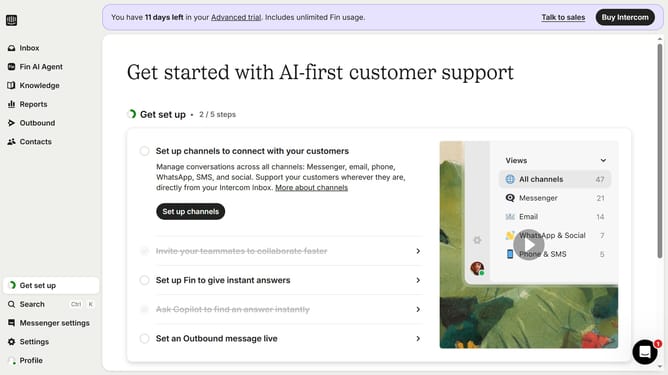
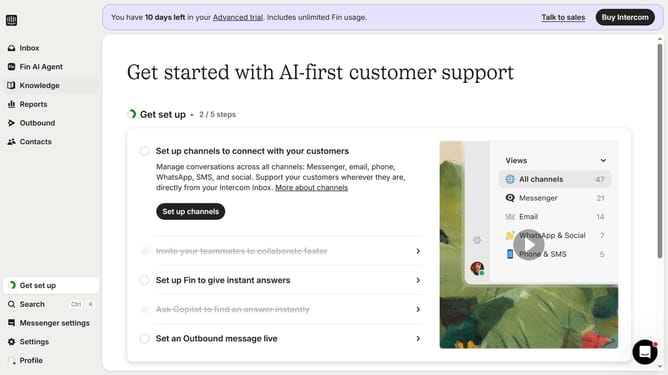
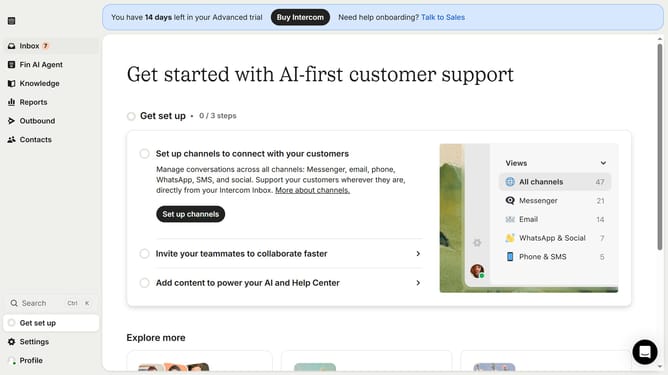
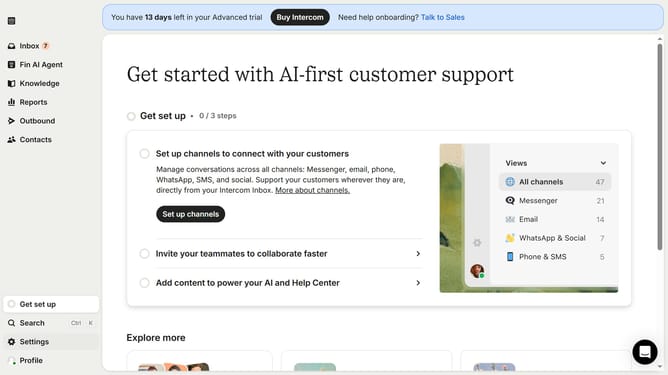
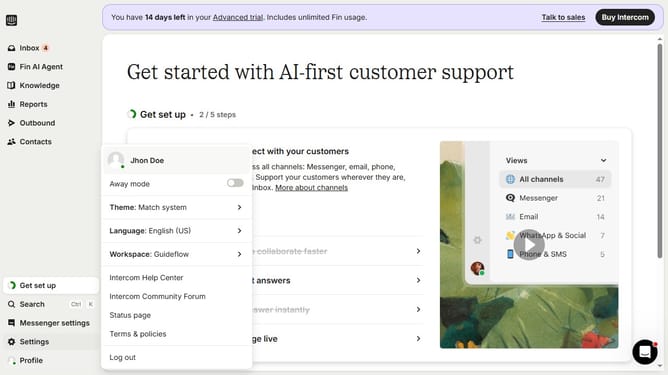
- First click on "Settings" in the left sidebar
- Then click on "Channels" in the settings menu
- Next click on "Email" in the channels submenu
- Click on "Email settings" tab in the email configuration page
- Click on "Configure auto reply" link in the auto-replies section
- Click on the "+" button to start composing the auto-reply message
- Select "Image" from the formatting dropdown menu
- Finally click on "Save changes" button to apply the email auto-reply settings
Why should you add an image to an auto-reply in Intercom
Intercom is an innovative tool designed to enhance customer communication and engagement.
By adding an image to an auto-reply in Intercom, you can make interactions more visually appealing and engaging.
This approach is beneficial as it provides a richer user experience, captures attention quickly, and can convey complex information at a glance.
Images in auto-replies can personalize interactions, making customers feel more connected and valued, ultimately enhancing brand perception.
Last update