How to select a text-to-speech voice in input IVR Aircall
Here is how to select a text-to-speech voice in input ivr aircall
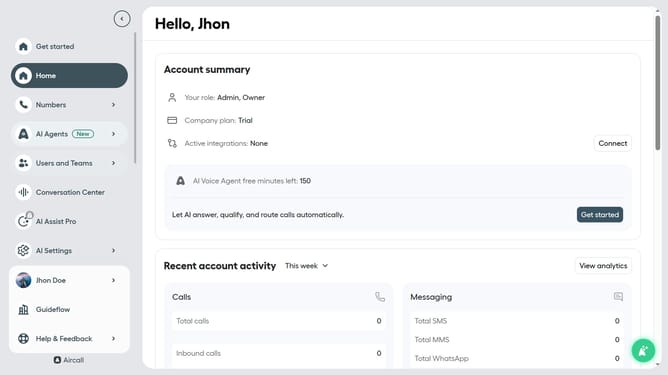
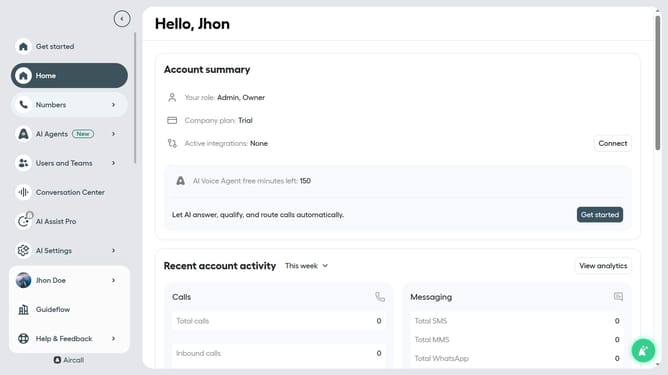
- First click on "Numbers" item in the sidebar
- Then click on the "Numbers" tab
- Then click on the "Customer Service" row in the numbers table
- Then click on the "Edit" button
- Then click on the "Input IVR" section to expand it
- Then click on the "Voice" dropdown
- Then select from the voice dropdown
- Finally click on the "Publish" button
Why should you select a text-to-speech voice in input IVR Aircall
Aircall revolutionizes communication with its cloud-based phone system designed for modern businesses.
Selecting a text-to-speech voice in Aircall's input IVR enhances caller experience by using voices that resonate with your brand.
This feature allows users to choose voices that match the desired tone and language, ensuring clarity and engagement.
By customizing text-to-speech settings, businesses not only elevate their professionalism but also contribute to a more personalized customer journey.
Last update