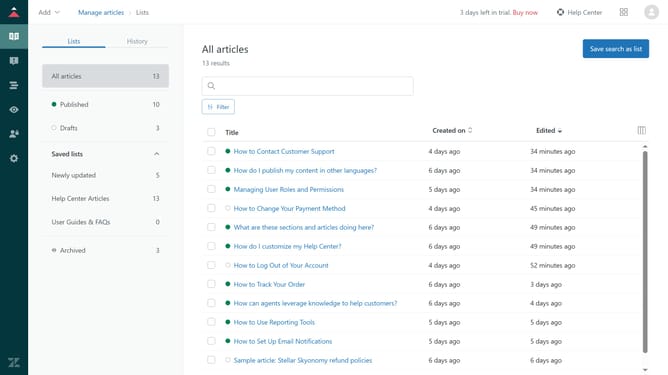
How to restrict help center access in Zendesk Guide
Here is how to restrict help center access in zendesk guide
- First in Guide admin, click on "Settings" icon in the left sidebar
- Then click on "Guide settings" tab in the left menu panel
- In Guide settings, scroll down and find the "Security" section
- Next click on "Require sign in" checkbox to enable authentication
- Optionally, if you want to restrict access to a specific user segment, select "Limit to user segment"
- By default, the Help Center visibility is set to "Signed-in users". You can click on the dropdown menu
- Then select your desired user segment from the available options
- Once you select a user segment, the Help Center will be restricted to that specific segment
- Finally click the "Update" button in the top-right corner to save changes
Why should you restrict help center access in Zendesk Guide
Zendesk is a comprehensive customer service platform designed to streamline support operations.
Restricting help center access in Zendesk Guide enhances security and personalizes user experiences by ensuring content is targeted to specific audiences.
This feature allows companies to manage who sees certain information, fostering a customized support environment tailored to audience needs.
Overall, it enables organizations to protect sensitive content while improving user engagement through relevant, accessible information.
Last update