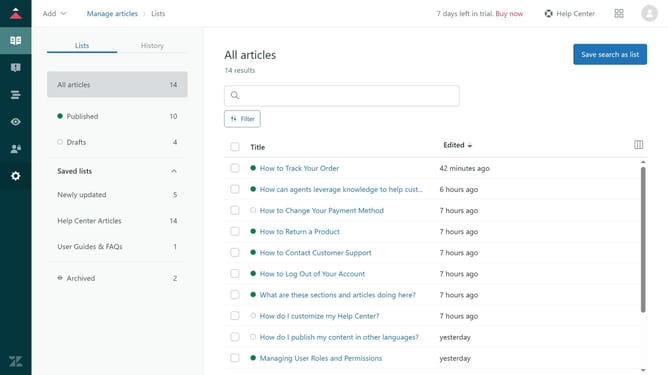
How to create a report in Zendesk Explore
Here is how to create a report in zendesk explore
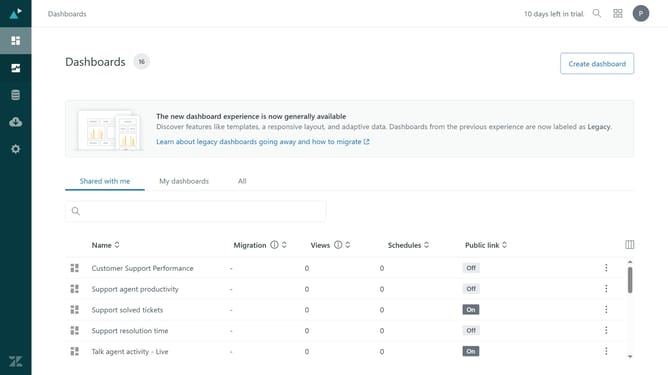
- First in Zendesk Explore, click on "Reports" icon in the left sidebar
- Then click on "New report" button in the top-right corner
- On the "Select a dataset" page, select the Zendesk product you want to create reports for
- Next select a specific dataset within that Zendesk product
- Click on "Start report" button in the bottom-right corner
- In the left sidebar, add Metrics and Attributes such as Columns, Rows, Explosions, and Filters
- Next give a title for your report by clicking on the title field
- Then enter your desire title
- Finally, click on "Save" button in the top-right corner to save the new report
Why should you create a report in Zendesk Explore
Zendesk is a powerful customer service platform designed to foster better communication between businesses and their customers.
Creating a report in Zendesk Explore allows users to transform complex data into insightful visual representations. This feature is essential for identifying trends, tracking performance, and making data-driven decisions efficiently.
With intuitive drag-and-drop functionalities, crafting tailored reports enables teams to focus on what truly matters, enhancing efficiency and strategic planning. Harness the power of data to propel your customer service experience forward.
Last update