How to replace the lightbox placeholder thumbnail image in Webflow
Here is how to replace the lightbox placeholder thumbnail image in webflow
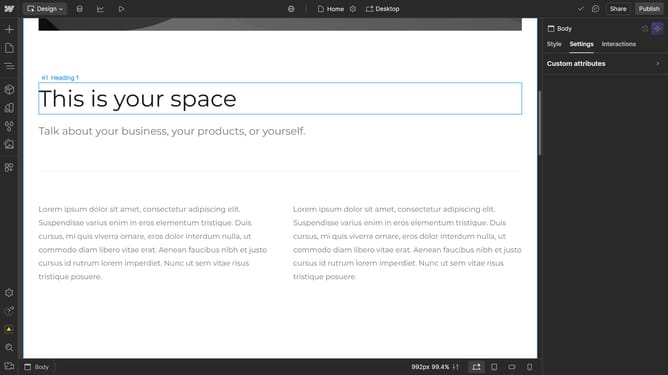
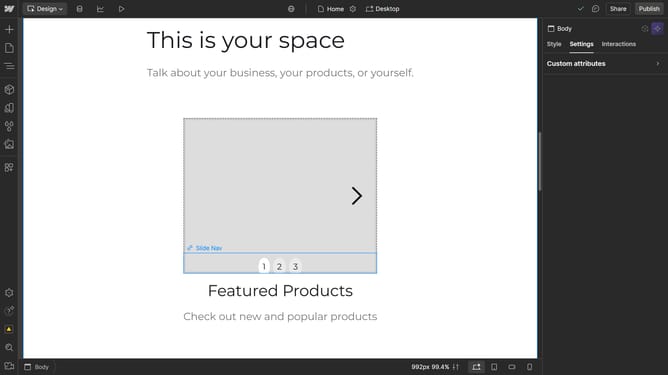
- First click on the lightbox placeholder in the main content area
- Then click on the "Choose Image..." button in the right sidebar settings panel
- Finally select an image from the Assets panel in the left sidebar
Why should you replace the lightbox placeholder thumbnail image in Webflow
Webflow is an intuitive design tool that empowers creators to build responsive websites without coding.
Replacing the lightbox placeholder thumbnail image in Webflow allows you to personalize your website and align it with your brand's visual identity.
This feature enhances the overall aesthetic of your portfolio, gallery, or product showcase, captivating your audience with relevant imagery.
Seamlessly integrating custom thumbnails enriches user experience, ensuring your content is engaging and visually appealing.
Last update