How to replace background image in an email campaign in Mailchimp
Here is how to replace background image in an email campaign in mailchimp
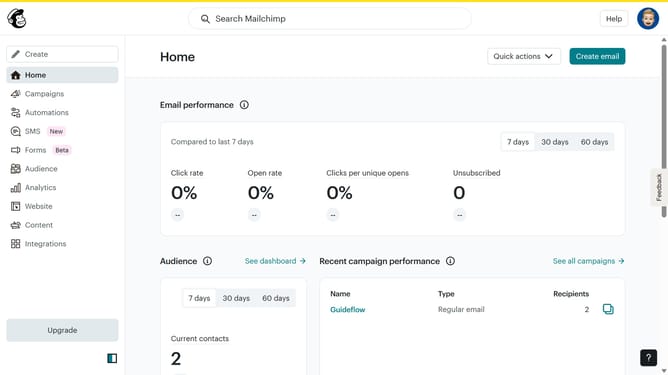
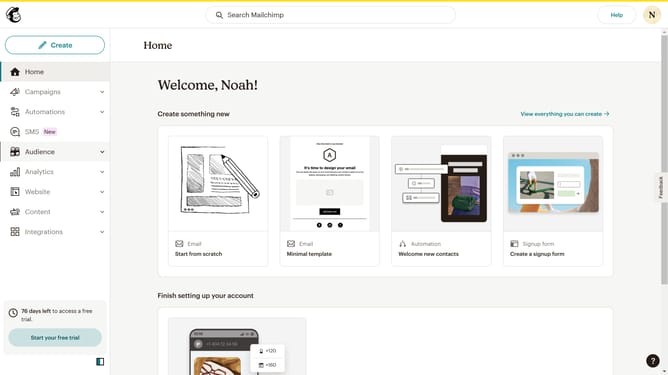
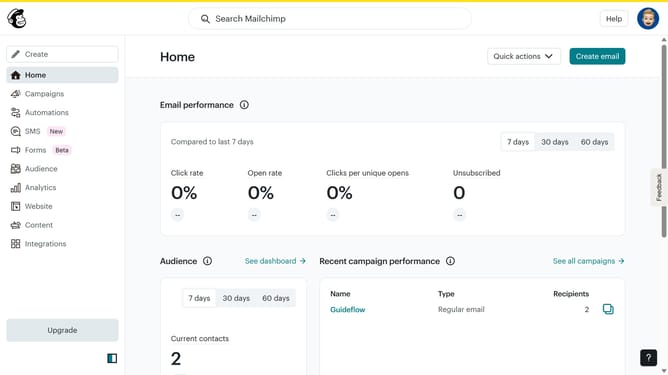
- First click on "Campaigns" in the left sidebar
- Then click on the "Edit" button across the campaign title that you want to manage
- Next, click on the "Edit design" button
- In the left panel, select "Styles"
- Under "Email Design", click on "Background"
- Then click on the "Replace" button
- In the "Content Studio", select the desired image
- Then click on the "Insert" button
- Finally, click on the "Save and exit" button
Why should you replace background image in an email campaign in Mailchimp
Mailchimp is a versatile platform dedicated to simplifying email marketing for businesses of all sizes.
Swapping out a background image in an email campaign allows users to keep their audience engaged by delivering visually dynamic content. This feature supports brand consistency by allowing businesses to align campaign aesthetics with their evolving visual identity.
By frequently updating background imagery, marketers can create fresh and captivating content, encouraging higher engagement and better performing campaigns.
Last update